About this Page
The Users Analysis Jobs page provides a log of all background tasks that analyze or process user data, such as generating reports, running data comparison routines, or processing data chunks. It tracks the job Tag (which may describe the operation), the Status (including QUEUED and ERROR), the Time taken, and the Initiator of the analysis.
What is the Use Case?
The primary use case is monitoring the execution and outcome of analytical and reporting tasks:
-
Task Monitoring: Track the progress and duration of background analysis jobs, especially long-running tasks, to ensure they complete successfully.
-
Troubleshooting Failures: Quickly identify specific analysis jobs that result in an ERROR status, allowing administrators to review the logs and address configuration issues.
-
Performance Review: Review the Time taken to gauge the efficiency of different analysis jobs and optimize reporting processes.
How to view User Analysis Jobs?
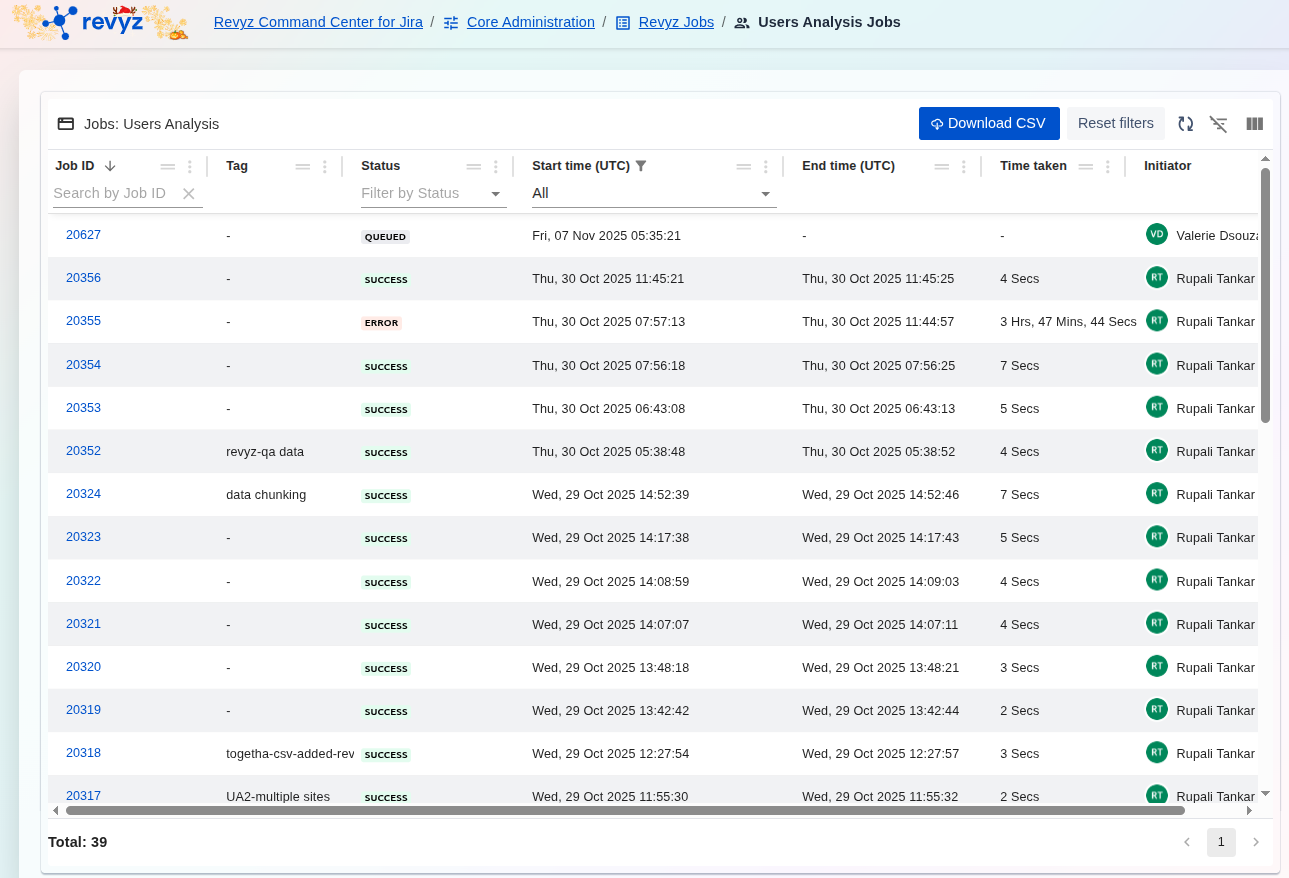
The Users Analysis Jobs dashboard is the central audit log for all user analysis tasks. It tracks every job run to analyze your user base (e.g., finding inactive users or licensing details), recording its status and who initiated it.
Key Data at a Glance
-
Status: The most important column.SUCCESSconfirms the analysis completed, whileFAILEDindicates the job could not be run. -
Initiator: Shows which administrator orSystemprocess started the analysis job. -
Job ID: A unique, clickable link to a detailed log showing the job's output and any potential errors. -
Time taken: Shows how long the analysis took, which is useful for performance monitoring on large instances. -
Tag: (If used) A custom tag to help identify or group specific analysis jobs.
To Monitor Analysis Jobs:
-
Use this screen to confirm that your scheduled or manually triggered user analyses are completing successfully.
-
Use the "Filter by Status" dropdown and select
FAILEDto quickly find any jobs that ran into errors.
To Investigate a Job:
-
Click the blue link in the
Job IDcolumn for any job you want to review (especially aFAILEDone). -
The detailed log will open, providing specific error messages or details about why the analysis could not be completed.
To Export Logs for Auditing:
-
Click the
Download CSVbutton (if available) in the top-right corner. -
This exports the entire job list, creating a permanent record for compliance or performance auditing.
To inspect the details of a specific user analysis job:
-
Filter/Search: Utilize the filter bars (e.g., Job ID, Tag, Status, or Initiator) to efficiently locate the specific job you are interested in.
-
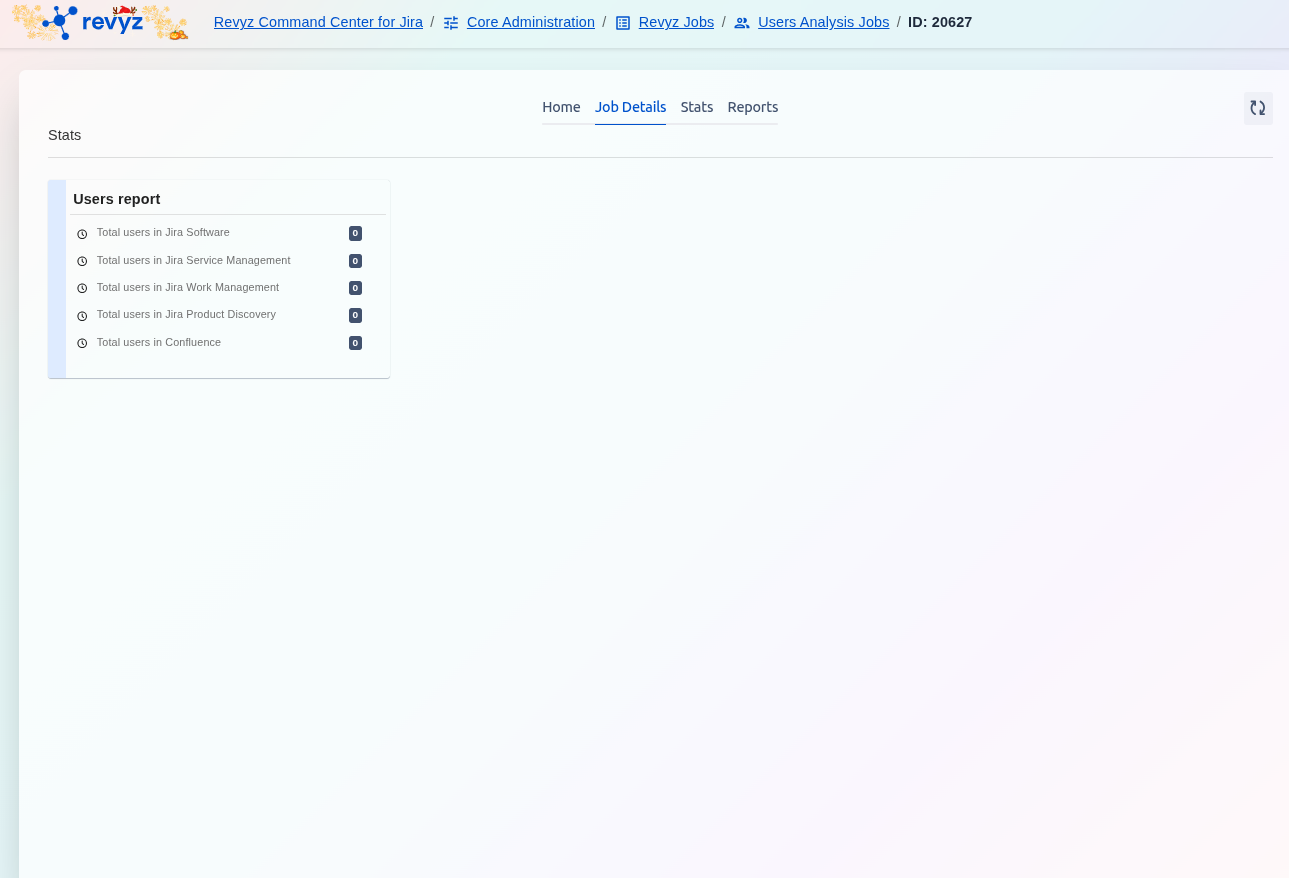
View Details: Click on the hyperlinked blue Job ID (e.g., 20627) to access the detailed log and output of that specific analysis or reporting task.
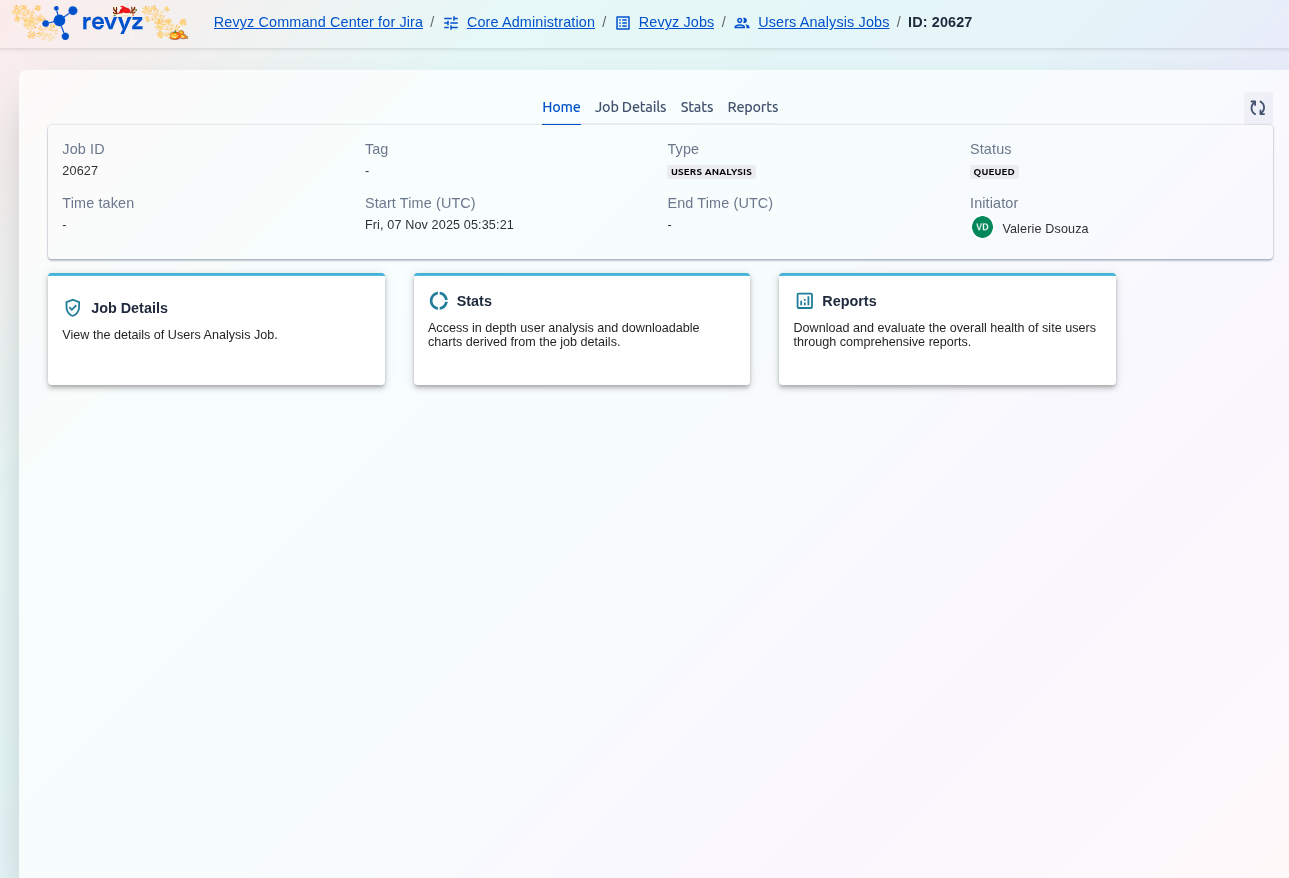
Click on the cards, to view granular details.