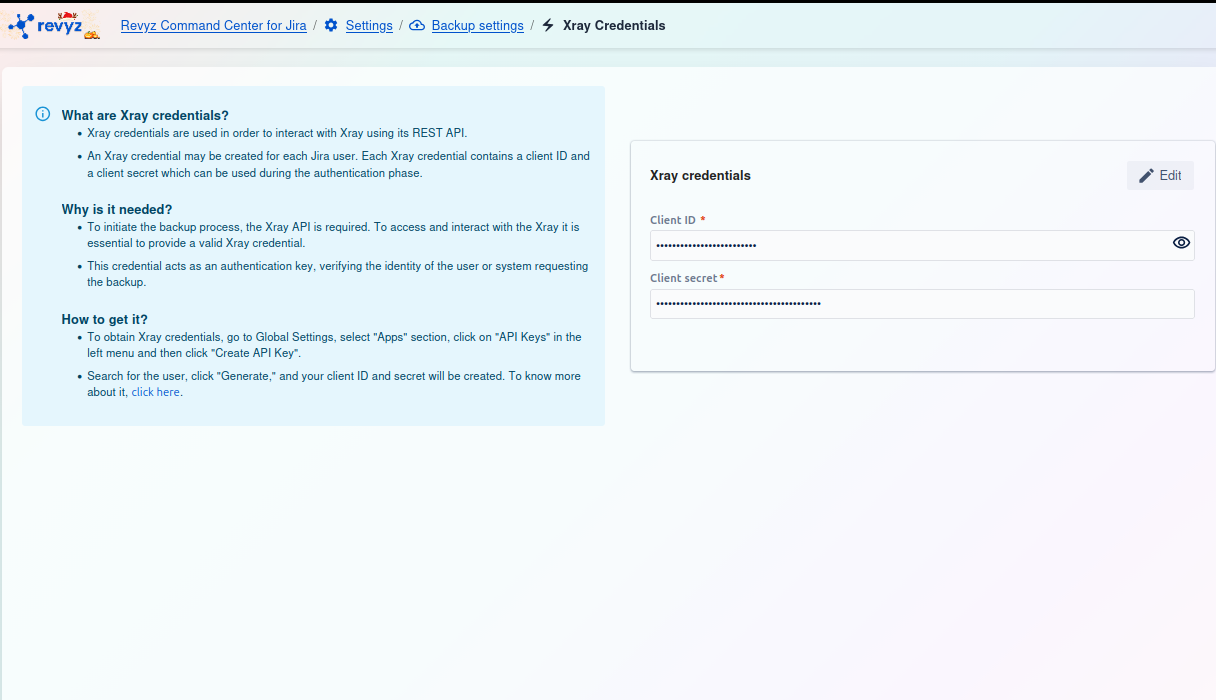
This feature is a secure configuration page used to store the Client ID and Client secret for the Xray Test Management app. These credentials are used to authenticate the Revyz application with the Xray API, granting it permission to access your test-related data.
What is the use case?
The use case is to enable the backup of your third-party Xray data. Standard Jira backups do not include this data, so an administrator must provide these credentials to allow Revyz to access and back up all critical test artifacts, such as test plans, test cases, and execution results.
Configuring Xray Credentials for Backup
This setting is applicable to:
command center for jira
The Xray Credentials page is a critical configuration step to ensure that all your Xray Test Management data is successfully included in your Revyz backups.
This setting allows you to securely store the API credentials (a Client ID and Client Secret) that Revyz needs to access and back up your Xray data.
1. Why are Xray Credentials Required?
Xray (a third-party app) stores its data, such as Test Cases, Test Plans, and Test Executions, and protects it using its own REST API. To back up this specialized data, Revyz must authenticate itself to the Xray application.
Authentication: The Client ID and Client secret act as a secure username and password for the API.
Access: Providing valid credentials grants Revyz the necessary permission to interact with the Xray API and request a complete copy of your test management data for backup. Without these keys, the backup job will not be able to access and will skip all Xray data.
2. How to Obtain Xray Credentials?
You must generate the Client ID and Client secret from within the Xray app's configuration in Jira.
Log in to your Jira instance as a Jira Administrator.
Navigate to Jira Settings (the cog icon ⚙️ in the top right).
Select Apps from the settings menu.
In the left-hand sidebar, find the XRAY section and click on API Keys.
Search for the user you want to generate the API keys for.
Click the "Generate" or "Create API Key" button for that user.
Xray will generate a Client ID and a Client secret.
Copy both of these values immediately and store them securely (like in a password manager). You will need them for the next step.
3. How to Configure Credentials in Revyz?
Once you have your Xray credentials, you can enter them into the Revyz Command Center.
On the Xray Credentials page (as shown in the screenshot), click the Edit button in the top-right corner of the form.
Paste the Client ID you copied from Xray into the Client ID * field.
Paste the Client secret you copied from Xray into the Client secret * field.
Click Save to store the credentials.
Revyz will then use these credentials for all future backup jobs to securely connect to Xray and back up your test management data.