Skip table of contents

End User Portal

About this Page

This feature provides a read-only "preview" of your Jira data for end-users, which is made accessible via a special link. It is designed to maintain business continuity by allowing users to access and view critical data (like issues and assets) from a specific backup snapshot, even if the live Jira site is down.

What is the Use Case?

Use this in the event of a disaster, malicious data deletion, or a site-wide outage. When Jira is inaccessible, you can enable this portal, configure it to show the last known-good backup, and share the link with your users so they can continue to view their Jira issues and Assets objects.

image-20251027-070737.png

End User Portal

End-user Portal Configuration

This feature is applicable to:

COMMAND CENTER FOR JIRA

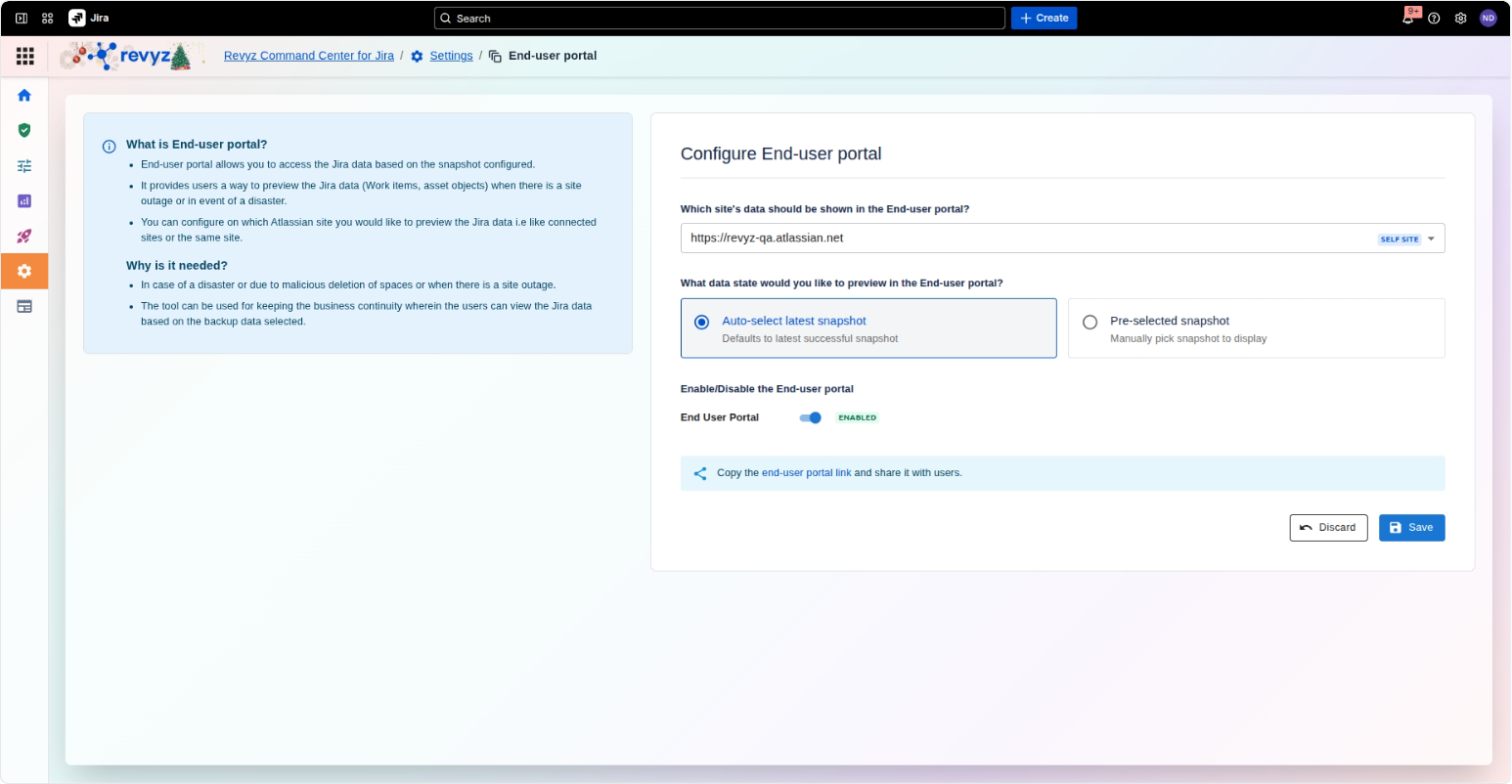
This page allows you to configure and enable the End-user portal.

1. End-use Portal
  • What is End-user portal?:

    • It allows you to provide users with access to Jira data (issues, assets) from a specific backup snapshot you configure.

    • It is intended to be used as a preview during a site outage or disaster.

    • You can configure it to show data from any of your connected Atlassian sites.

  • Why is it needed?:

    • It provides business continuity during a disaster or in case of malicious deletion of projects.

    • The tool allows users to view Jira issues and Assets objects from the selected backup data.

2. End-user Portal Form

Right Pane: End-user Portal Form

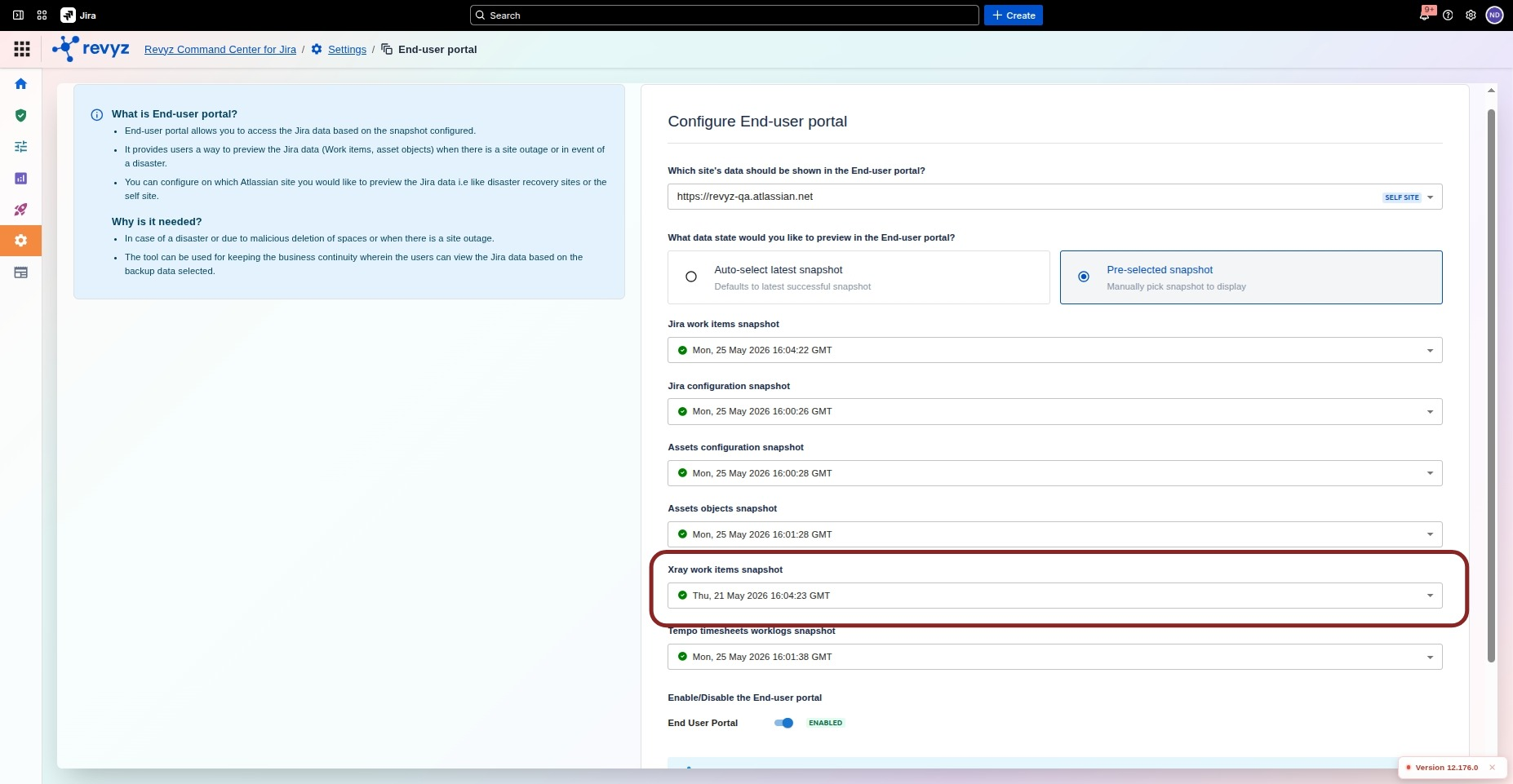
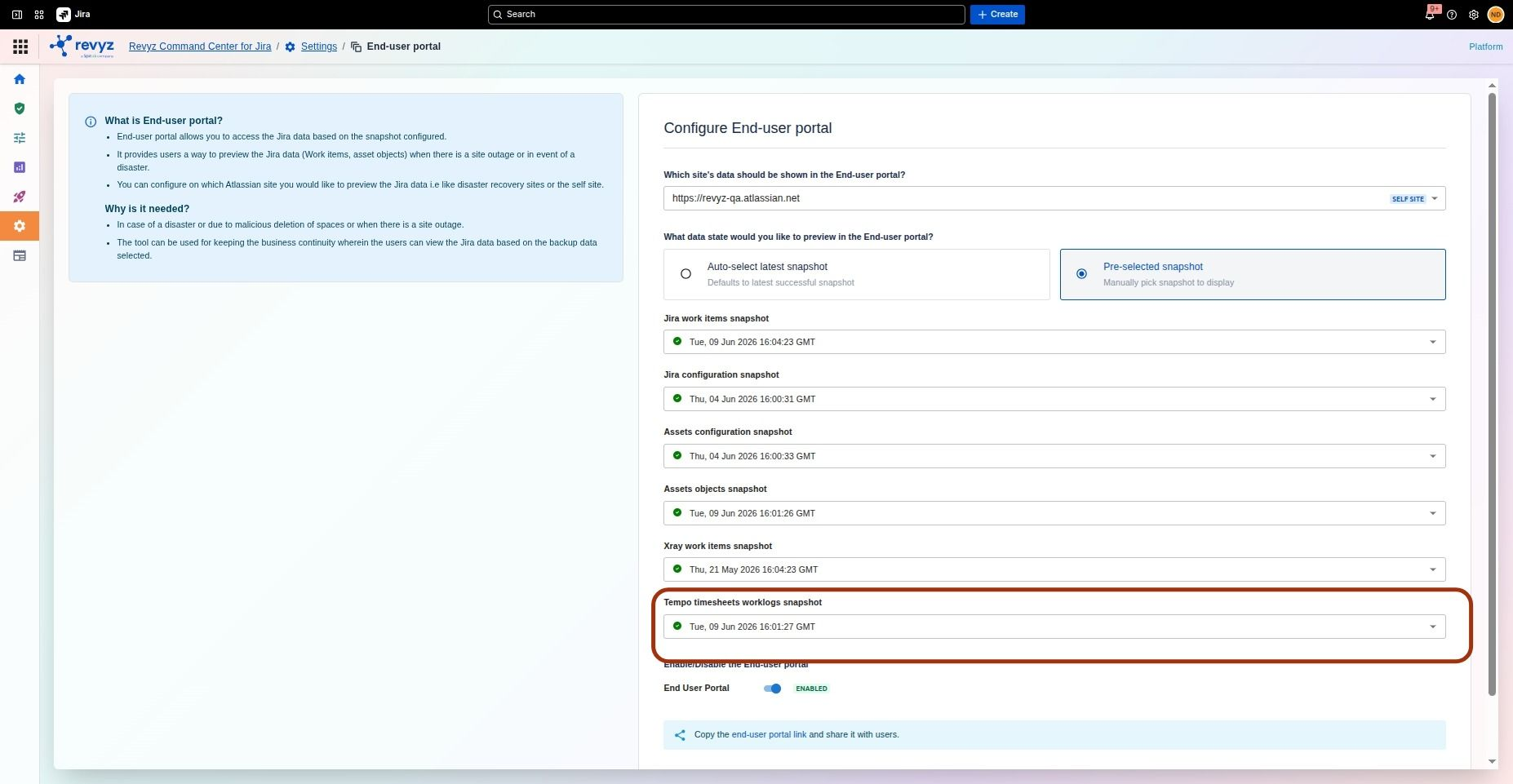
On the right side of the screen, you configure and enable the portal.

  • Master Toggle: A toggle switch at the top right (currently ENABLED) that activates or deactivates the end-user portal.

  • Which site's data should be shown in the end-user portal? *: (Required) Select the source site for the data. This can be the current site (tagged as SELF SITE) or another connected Jira instance.

  • Jira issues snapshots *: (Required) Select the specific backup snapshot that contains the issue data (issues, comments, etc.) you want users to see (e.g., Thu, 23 Oct 2025 22:05:02 GMT).

  • Jira configuration snapshots *: (Required) Select the specific backup snapshot that contains the configuration data (fields, statuses, etc.) associated with the issues (e.g., Tue, 21 Oct 2025 22:00:24 GMT).

  • Assets configuration snapshots: (Optional) If you also want users to see Assets data, select the corresponding configuration snapshot here.

  • Assets objects snapshots: (Optional) If you are including Assets, select the corresponding object data snapshot here.

  • Portal Link: A link at the bottom provides the URL for the portal. You must "Copy the end-user portal link and share it with users" so they can access it.

  • Actions: The Save and Cancel buttons are used to apply or discard your configuration changes.

JavaScript errors detected

Please note, these errors can depend on your browser setup.

If this problem persists, please contact our support.