Skip table of contents

General Settings

About this Page

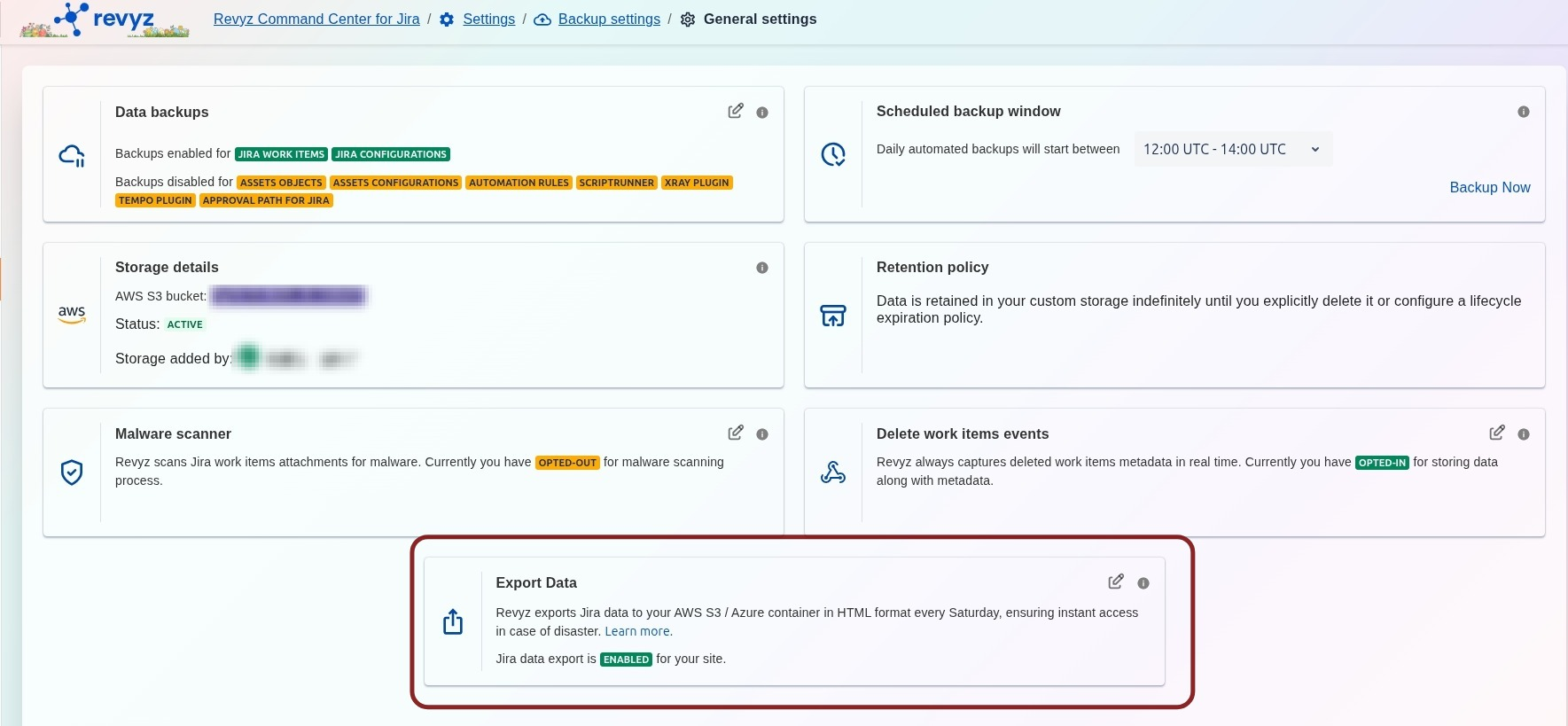
This is the central control panel for configuring your core backup policy. It provides an at-a-glance view of what data is being backed up and gives you direct control over the backup schedule, data retention, storage location, and security settings like malware scanning.

What is the use case?

The use case is for an administrator to define and manage the organization's complete backup strategy. An admin uses this screen to set the daily backup to run during off-peak hours, configure a retention policy (e.g., 3 Years) to meet compliance, and enable security features.
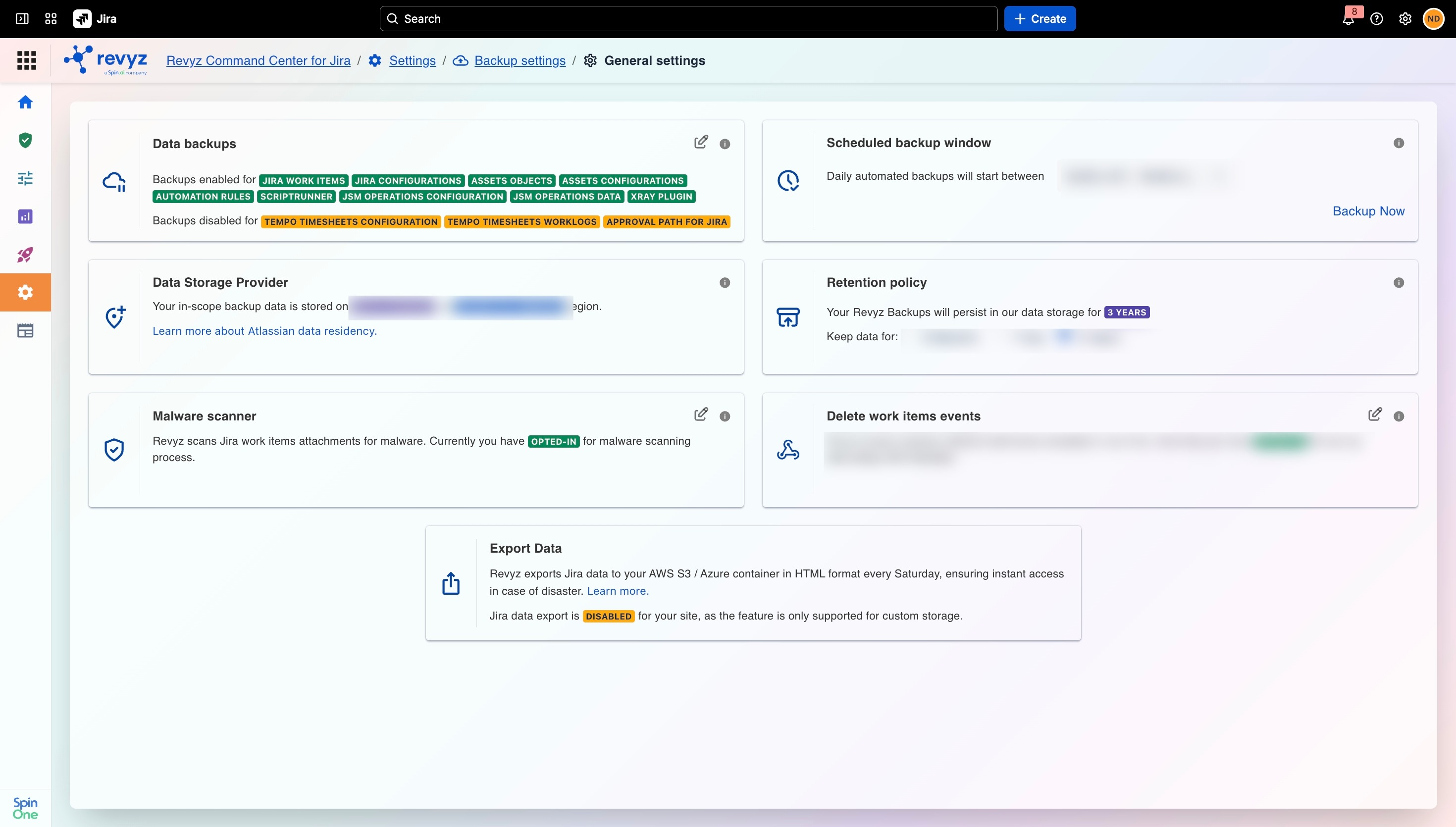
image-20251030-114922.png

This feature is applicable to:

COMMAND CENTER FOR JIRA CONFIG MANAGER FOR JIRA ASSETS DATA MANAGER FOR JIRA

General Settings Options:

 This page is divided into six main configuration cards:

 1. Data backups

This is the master control for your backups. The Edit icon (pencil) allows you to enable or disable backups and select which components of your instance are backed up.

  • Included Data: The tags show all data types currently enabled for backup, which may include: JIRA ISSUES, JIRA CONFIGURATIONS, ASSETS OBJECTS, ASSETS CONFIGURATIONS, AUTOMATION RULES, SCRIPTRUNNER, XRAY PLUGIN, and TEMPO PLUGIN.

2. Scheduled backup window:

This card controls when your daily automated backups will run.

  • Usage: You can select a 2-hour window from the dropdown menu (e.g., 22:00 UTC - 00:00 UTC) to schedule backups during your instance's off-peak hours.

  • Manual Backup: The Backup Now link allows you to trigger a one-off, on-demand backup immediately, outside of the scheduled window.

3. Revyz Data storage region:

This is an informational card that displays the physical geographic region where your backup data is stored.

  • Details: The current storage location is shown with a tag (e.g., US EAST (N. VIRGINIA)). You can click the "Learn more..." link for more information on data residency.

4. Retention policy

This crucial setting defines how long your backup snapshots will be kept before they are automatically and permanently deleted.

  • Usage: You can select a retention period that matches your company's compliance and data governance policies. The options shown are 6 Months, 1 Year, 3 Years, and 5 Years.

5. Malware scanner:

This setting controls whether Revyz scans your Jira issue attachments for malware during the backup process.

  • Status: The card shows your current status (e.g., OPTED-IN). You can click the Edit icon to change this preference and opt-in or opt-out of malware scanning.

6. Delete issue events:

This setting controls the real-time capture of deleted issue data. While metadata is always captured, this setting determines if the full content of deleted issues is also stored.

  • Status: The card shows your current status (e.g., OPTED-IN for storing the full data). You can click the Edit icon to change this preference.


JavaScript errors detected

Please note, these errors can depend on your browser setup.

If this problem persists, please contact our support.