
About this Page
This page talks about Configuration Drift Analysis tool, a powerful comparison tool that allows you to analyze your Jira and Assets configurations between two different backup snapshots. It provides a detailed, item-by-item report of all changes.
What is the Use Case?
Use this to identify "configuration drift," which are unintended changes that have occurred over time. It's perfect for comparing your production site against a "golden" baseline snapshot or for comparing a staging site to production to ensure consistency.
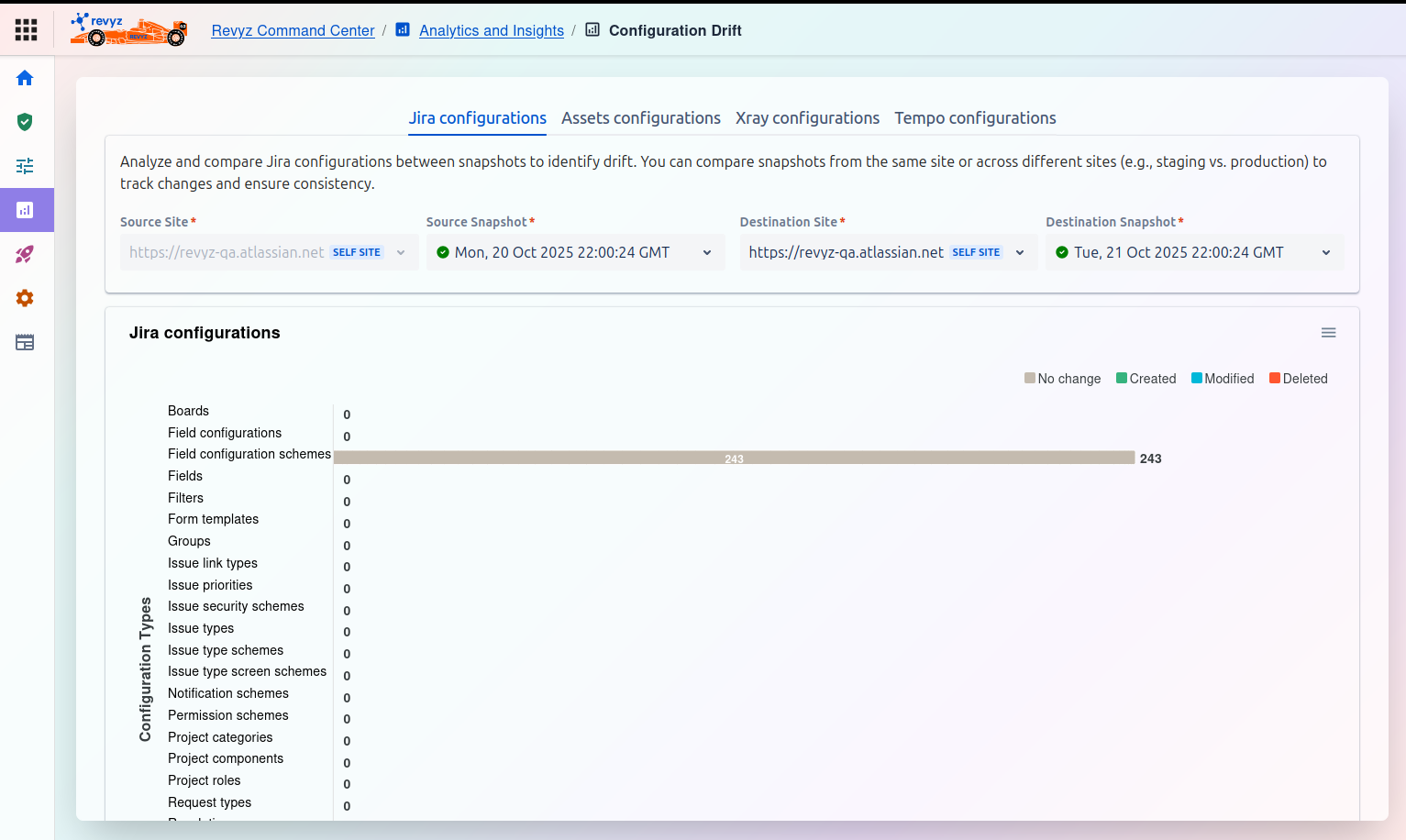
This is the main dashboard for running a drift analysis. You must select two snapshots (a "source" and a "destination") to compare.
Configuration Types (Tabs)
Note:
Check the product tags in the respective sections to see which features are relevant to your product.
You can run an analysis on different parts of your system by selecting the appropriate tab:
Jira configurations
This feature is applicable to:
command center for jira config manager for jira

Newly introduced: Field Schemes
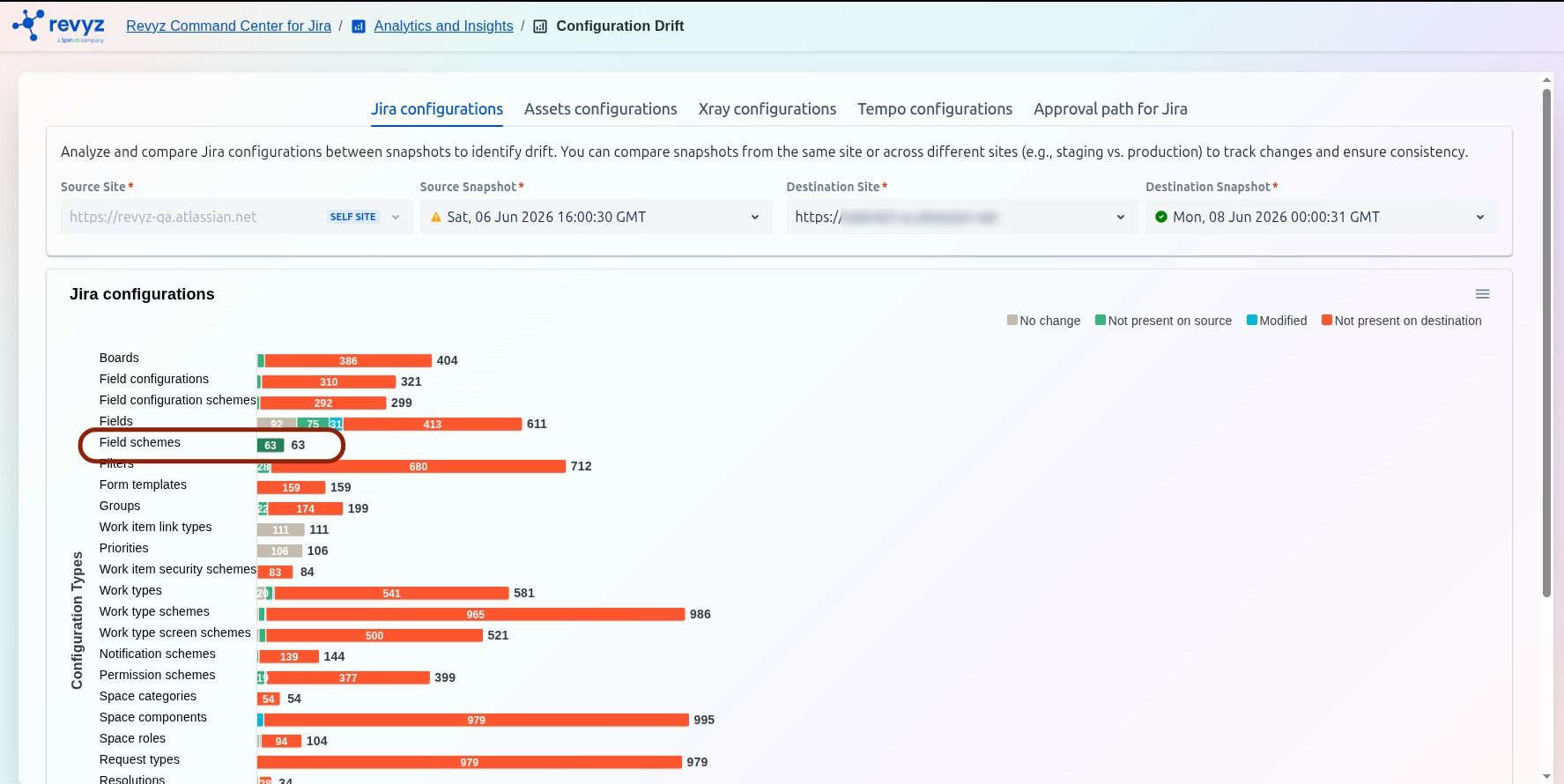
Drift view can compare Field Schemes across sites or across snapshots on the same site.
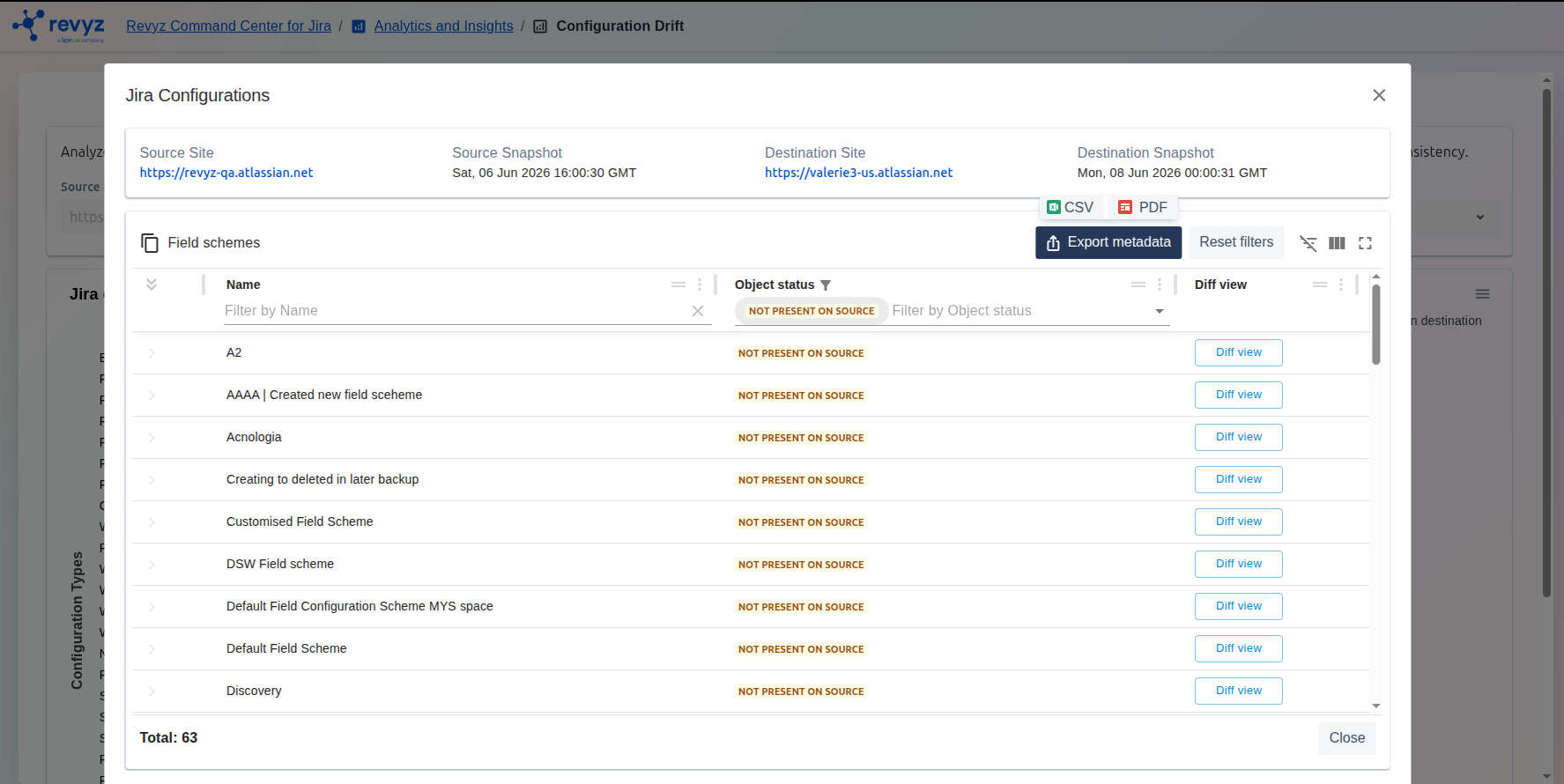
You can filter by status and export the drift results in CSV or PDF formats for field schemes too.
Newly introduced: Configuration Drift for Priority Schemes
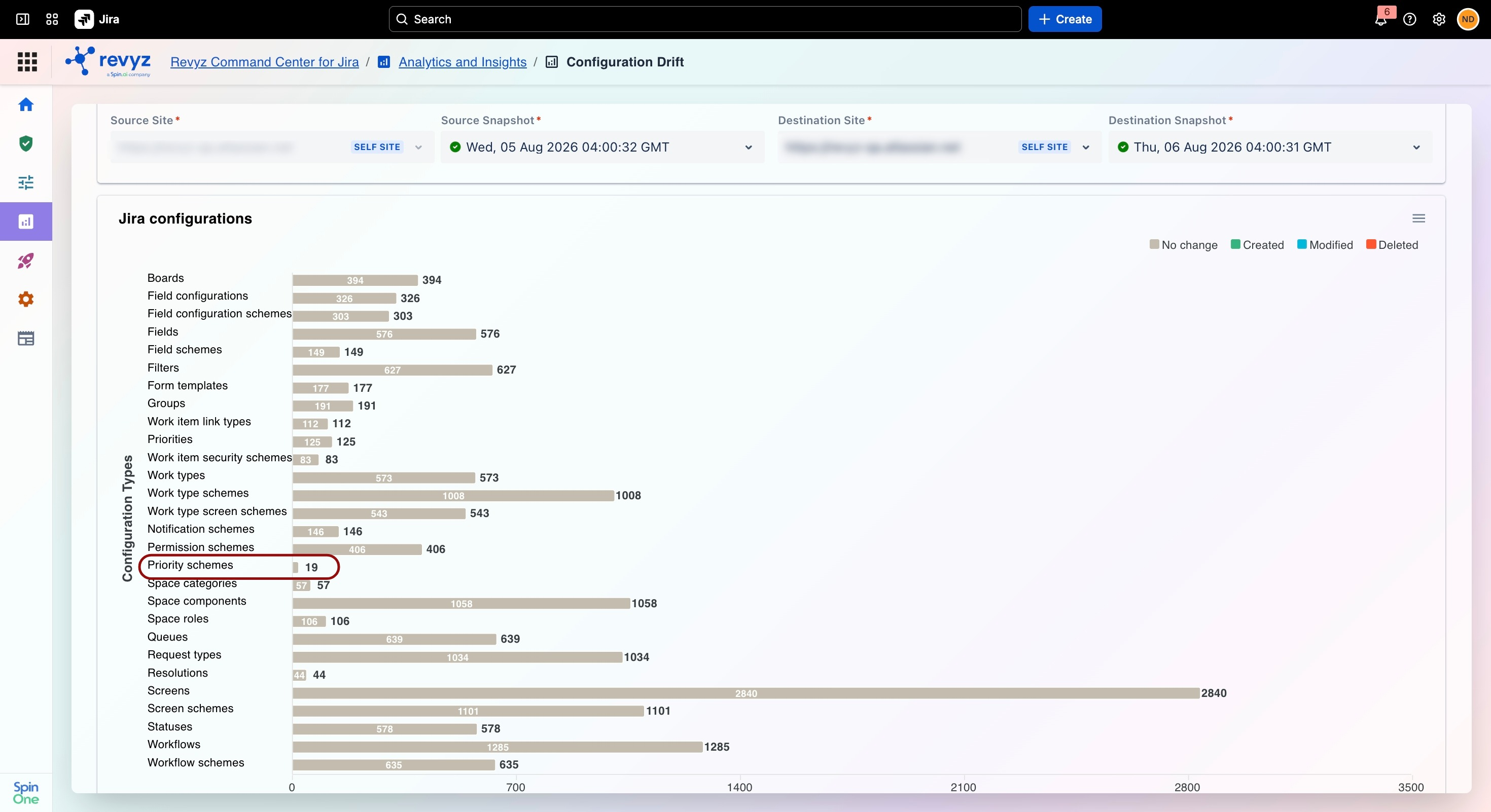
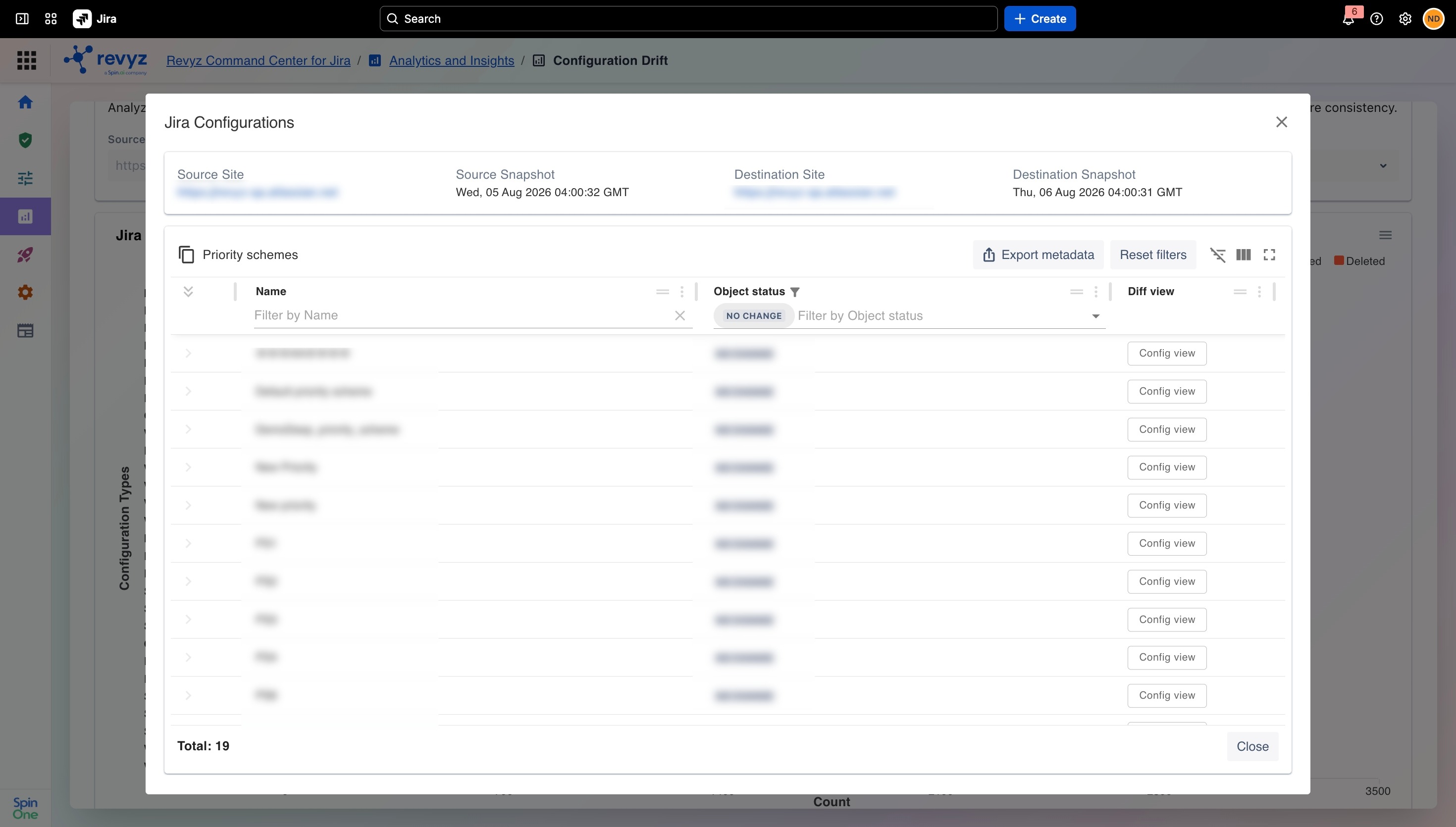
Click on Config View to see the drift between the source & destination sites for Priority Schemes.
Assets configurations
This feature is applicable to:
command center for jira assets data manager for jira
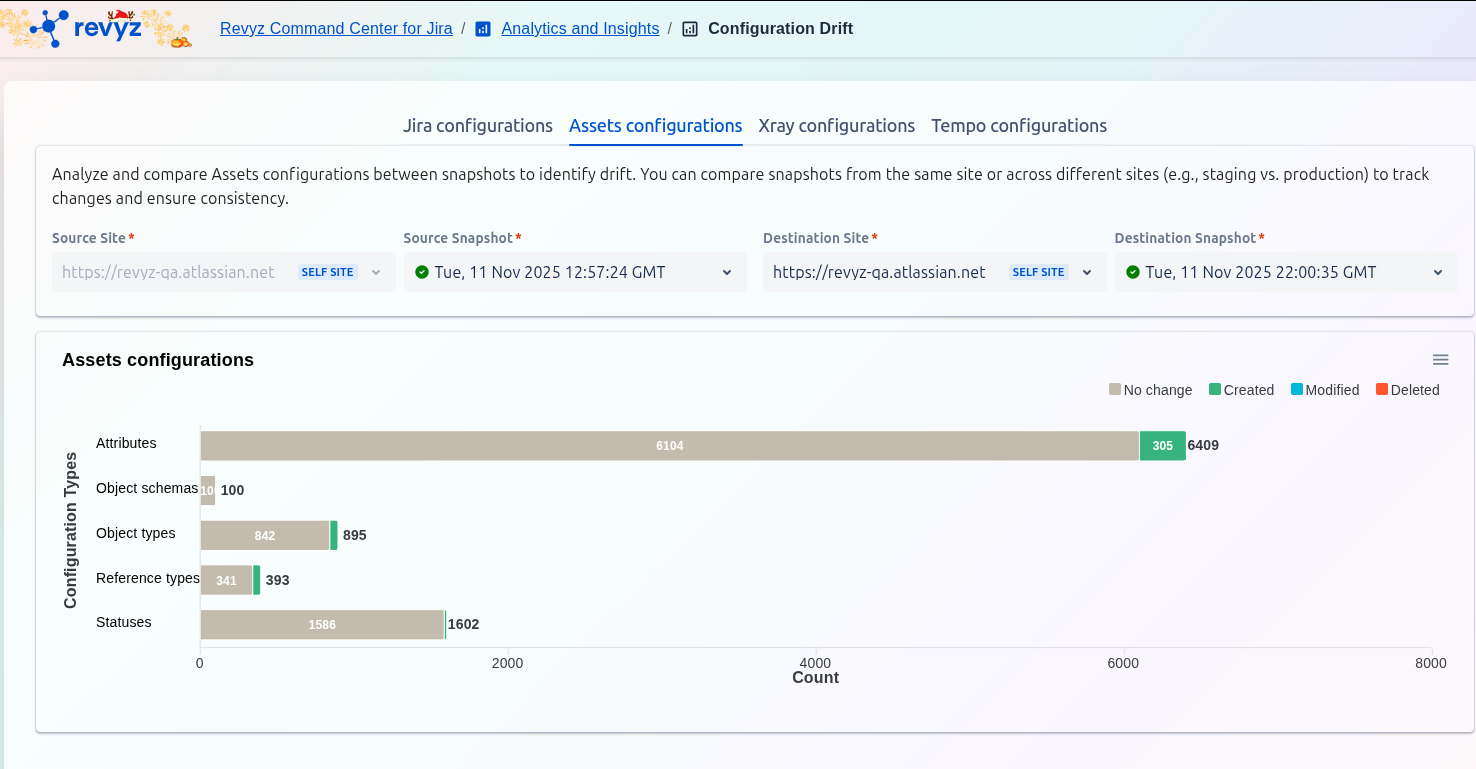
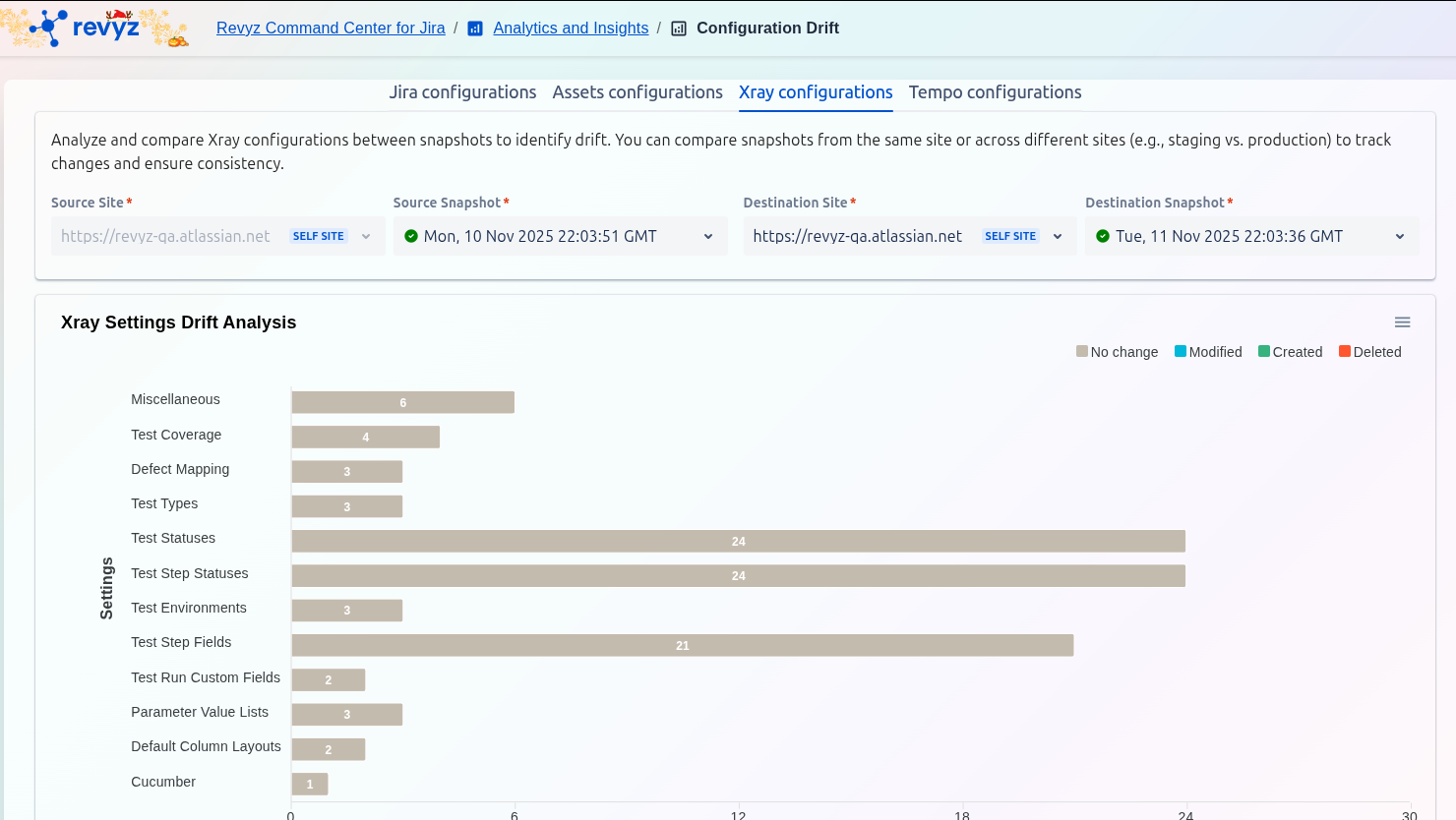
Xray configurations
This feature is applicable to:
command center for jira
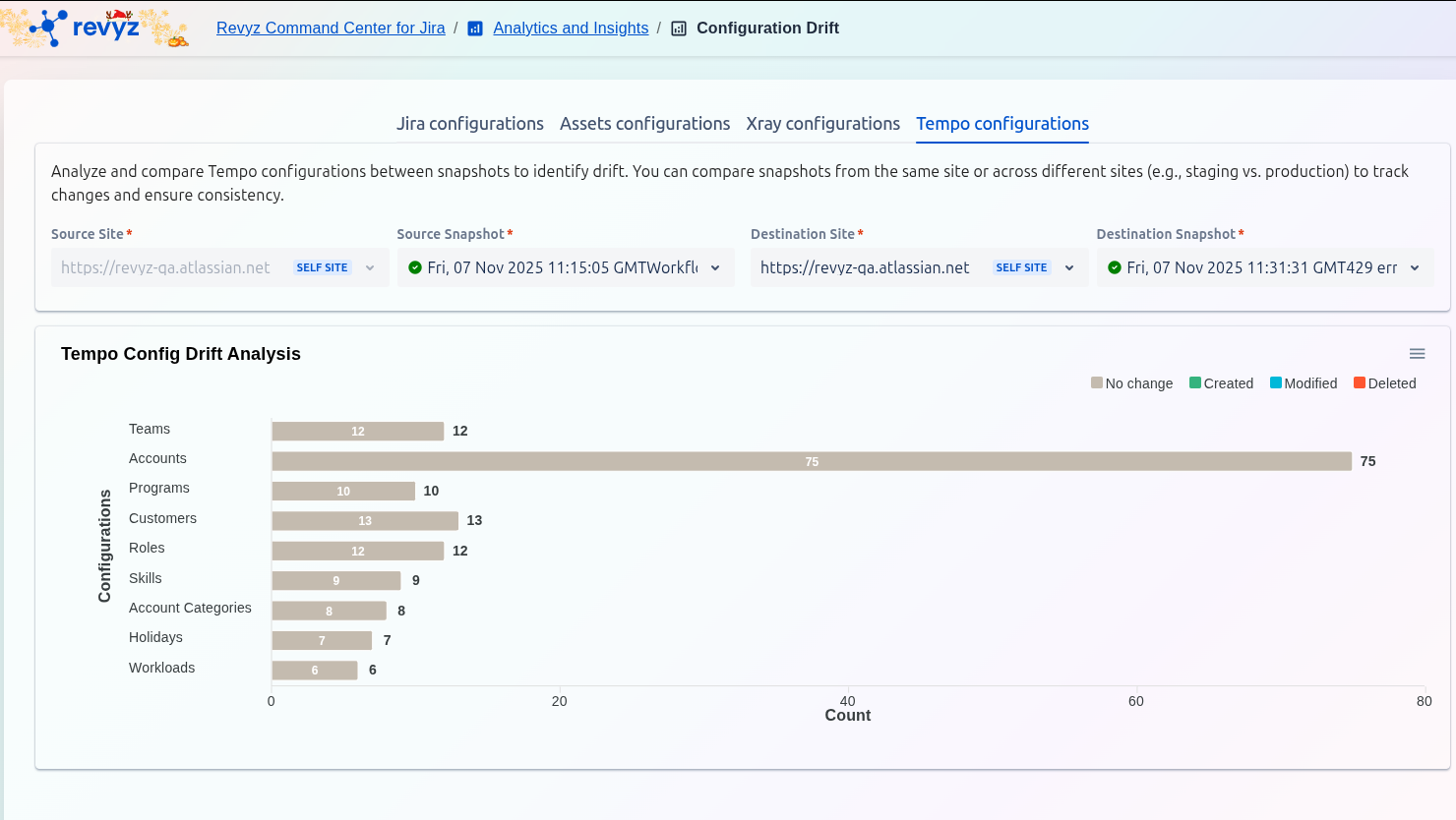
Tempo configurations
This feature is applicable to:
command center for jira config manager for jira
Approval Path for Jira Configurations
This feature is applicable to:
command center for jira config manager for jira
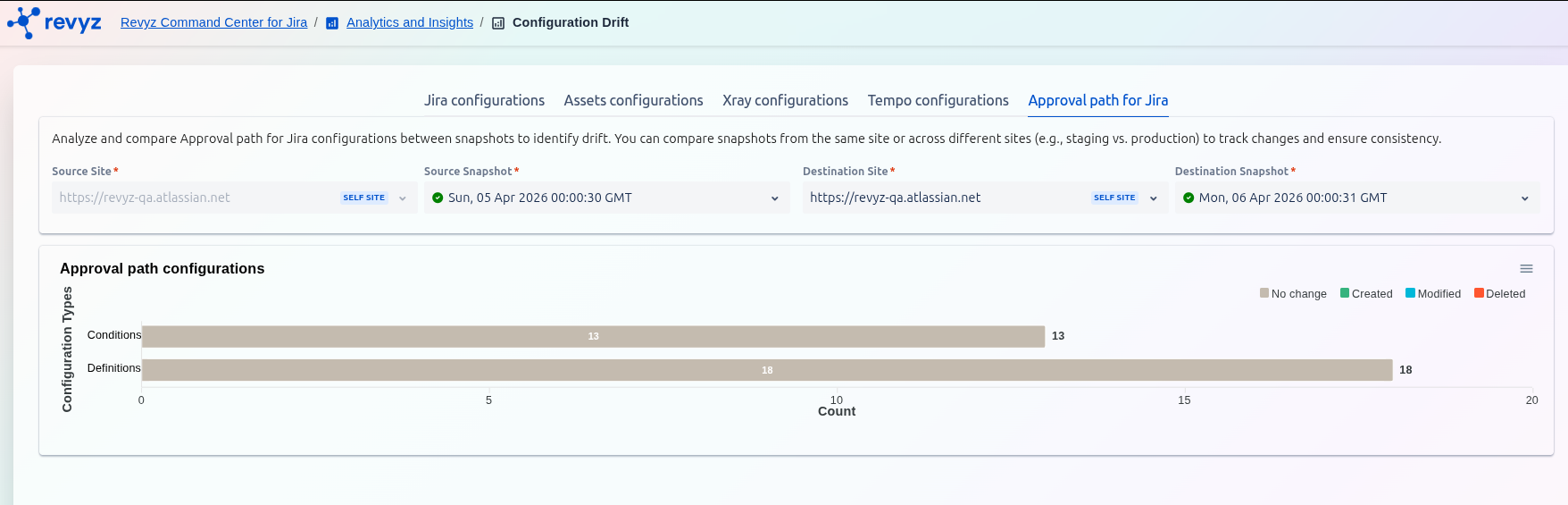
The description below the tabs explains that you can analyze and compare configurations between snapshots from the same site or across different sites (e.g., staging vs. production) to identify drift and ensure consistency.
1. Select Sources for Comparison
At the top of the screen, you must select the two points in time you want to compare:
2. Review Analysis Results
Once you have selected both snapshots, the tool generates a report in the "Jira configurations" section.