
About this Page
This is a detailed comparison tool that lets you examine your Jira automation rules from two different points in time (snapshots). It allows you to compare different versions of the same rule or two different rules.
What is the Use Case?
Use this to troubleshoot a rule that has stopped working by comparing it to an older, working version from a previous snapshot. It is also perfect for standardizing processes by comparing a rule on a staging site against its counterpart on your production site.
Compare automation rules
This feature is applicable to:
command center for jira config manager for jira
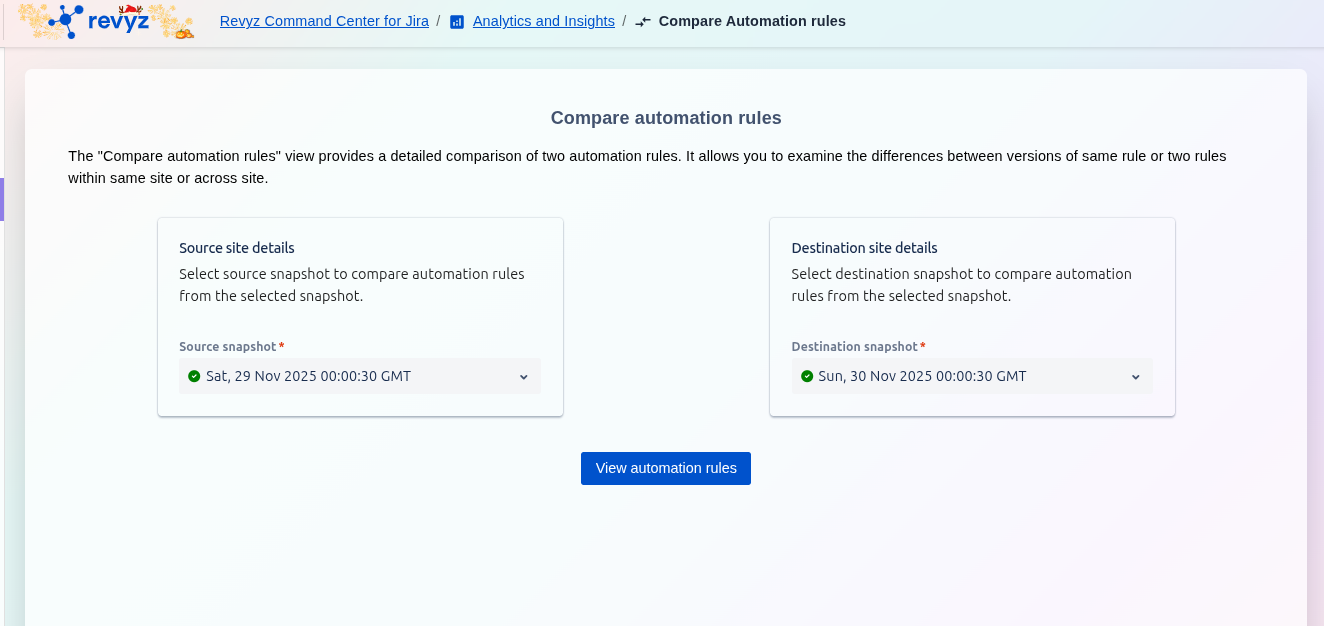
The "Compare automation rules" view provides a detailed comparison of two automation rules. It allows you to examine the differences between versions of the same rule or two rules within the same site or across site. This page is the first step in comparing your automation rules. You must select two snapshots to serve as the "source" and "destination" for the comparison.
Step 1: Enter the card details
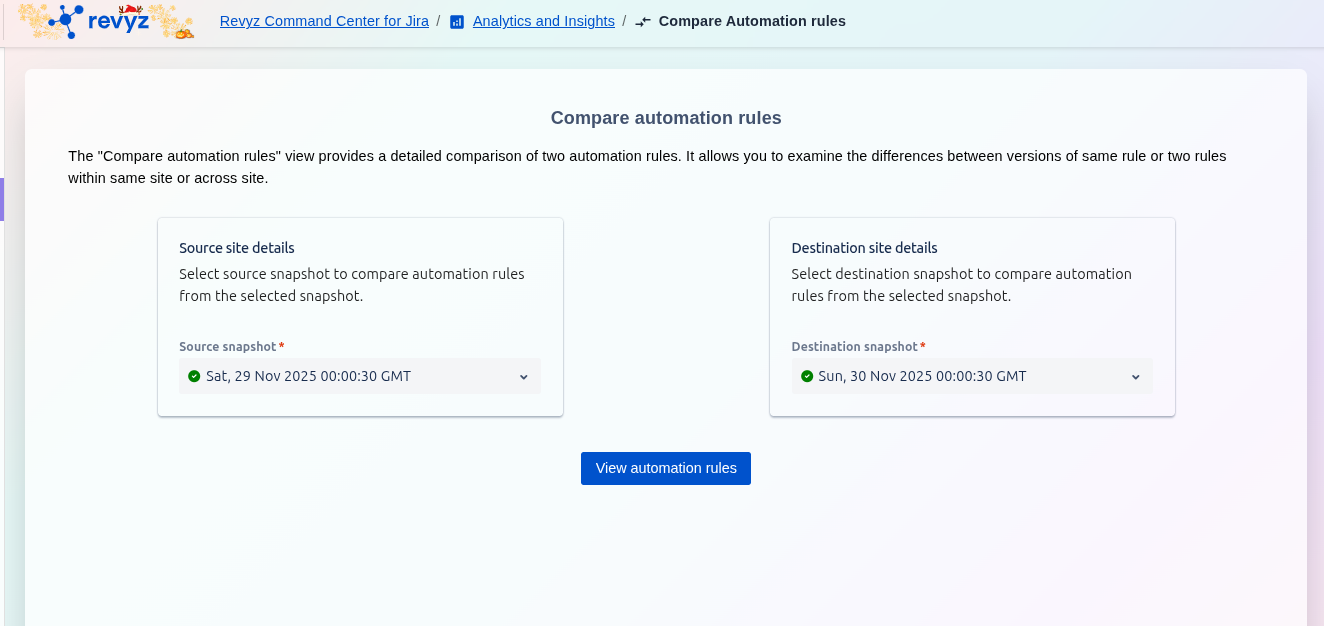
-
Source snapshot
*: This is a required field. Click the dropdown menu to select the first snapshot you want to compare from (e.g., the older, "working" version). -
Destination snapshot
*: This is a required field. Click the dropdown menu to select the second snapshot you want to compare to (e.g., the newer, "broken" version). -
Destination snapshot
*: This is a required field. Click the dropdown menu to select the second snapshot you want to compare to (e.g., the newer, "broken" version).
Step 2: View automation rules
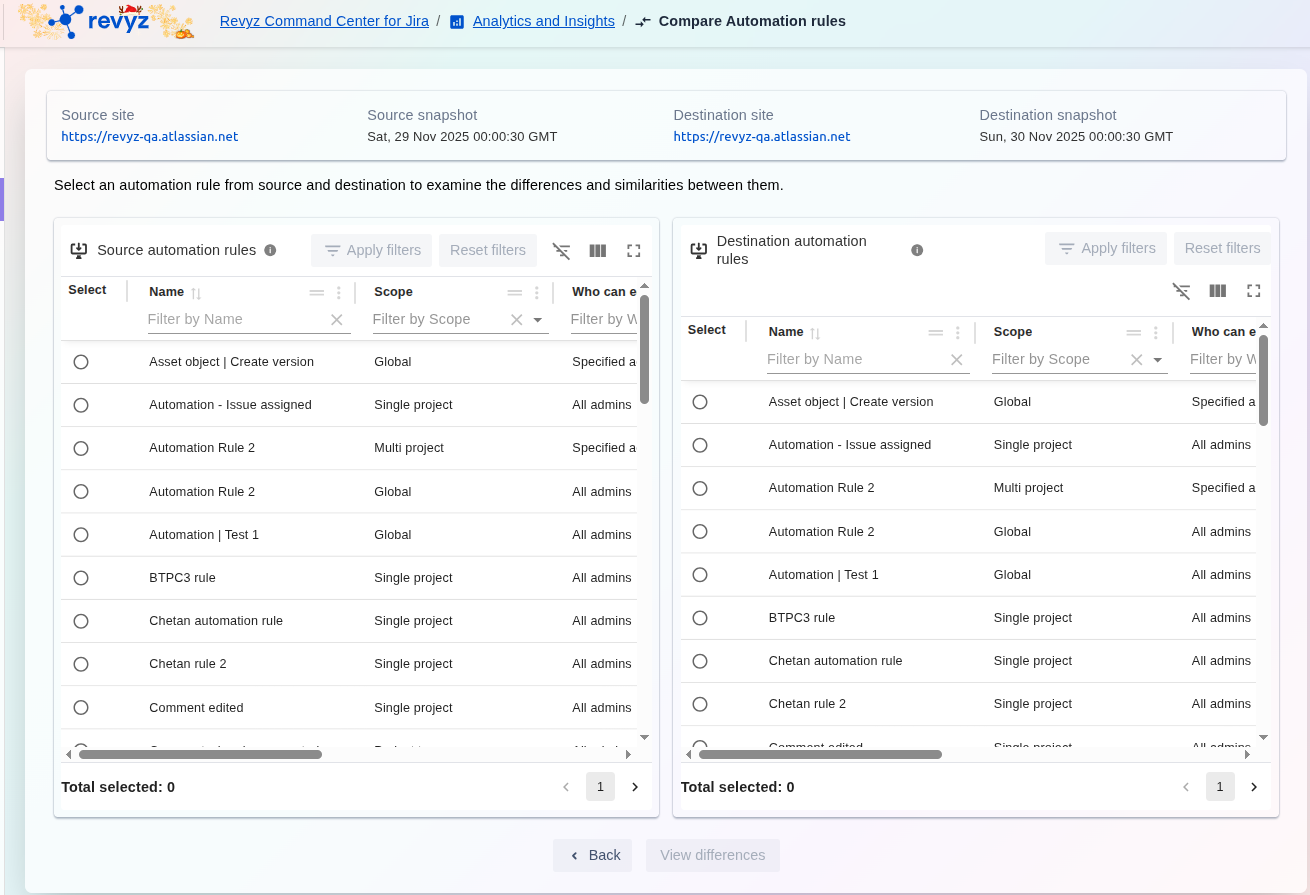
View automation rules
Once you have selected both a source and a destination snapshot, click the View automation rules button. This will take you to the next step, where you can select the specific rules from each snapshot to see a side-by-side comparison.
Step 3: View Differences
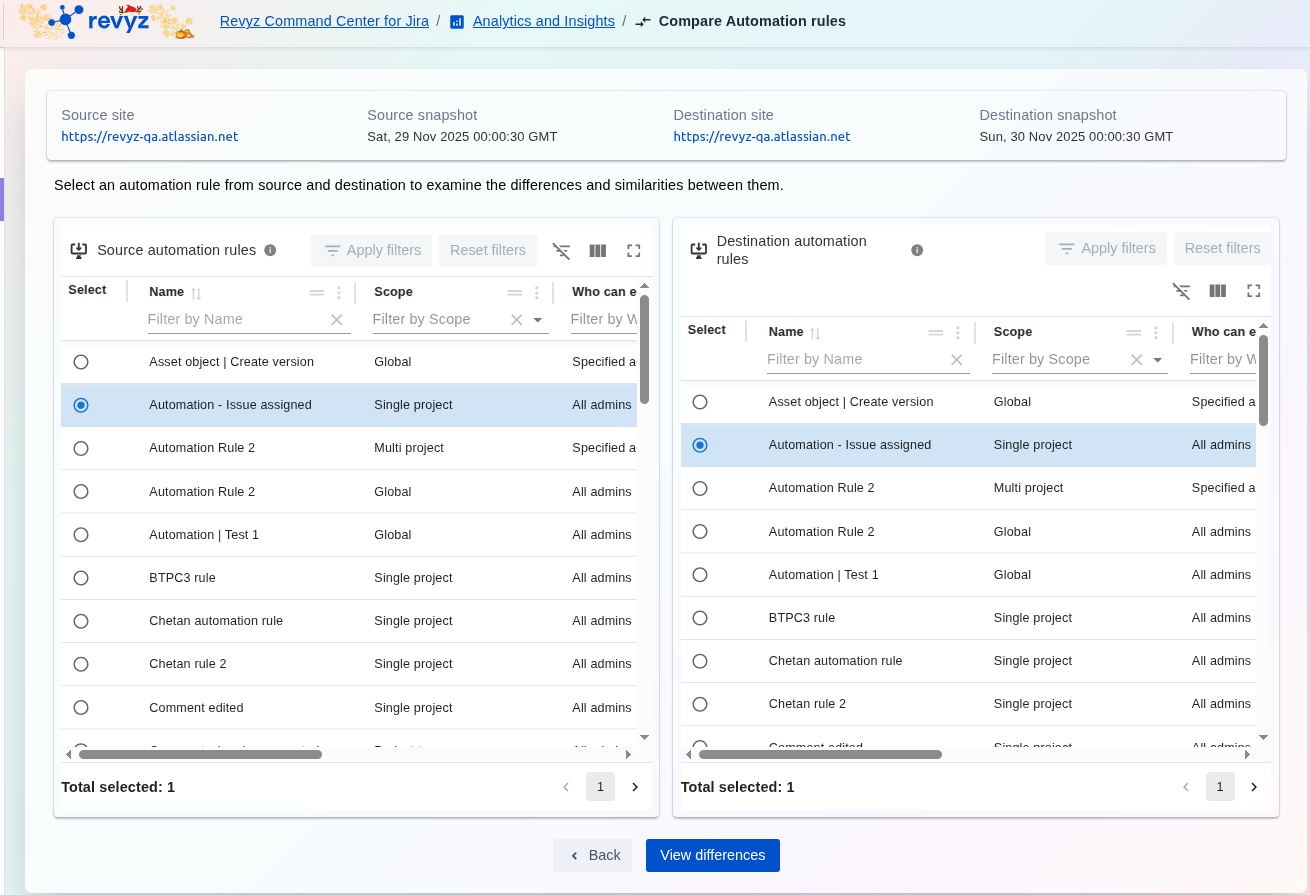
Follow these steps to check for similarities and differences between your automation rules:
-
Select a Source Rule: Choose an automation rule from the left panel (Source automation rules).
-
Select a Destination Rule: Choose a corresponding rule from the right panel (Destination automation rules).
-
Review Comparison: Click "View differences" to generate a report detailing every change in the rule's components (Name, Scope, Who can execute, Triggers, Conditions, and Actions).
Use the available filters to quickly narrow down the list of rules by Name, Scope, or Execution Permissions.
Step 4: Click on the corresponding cards
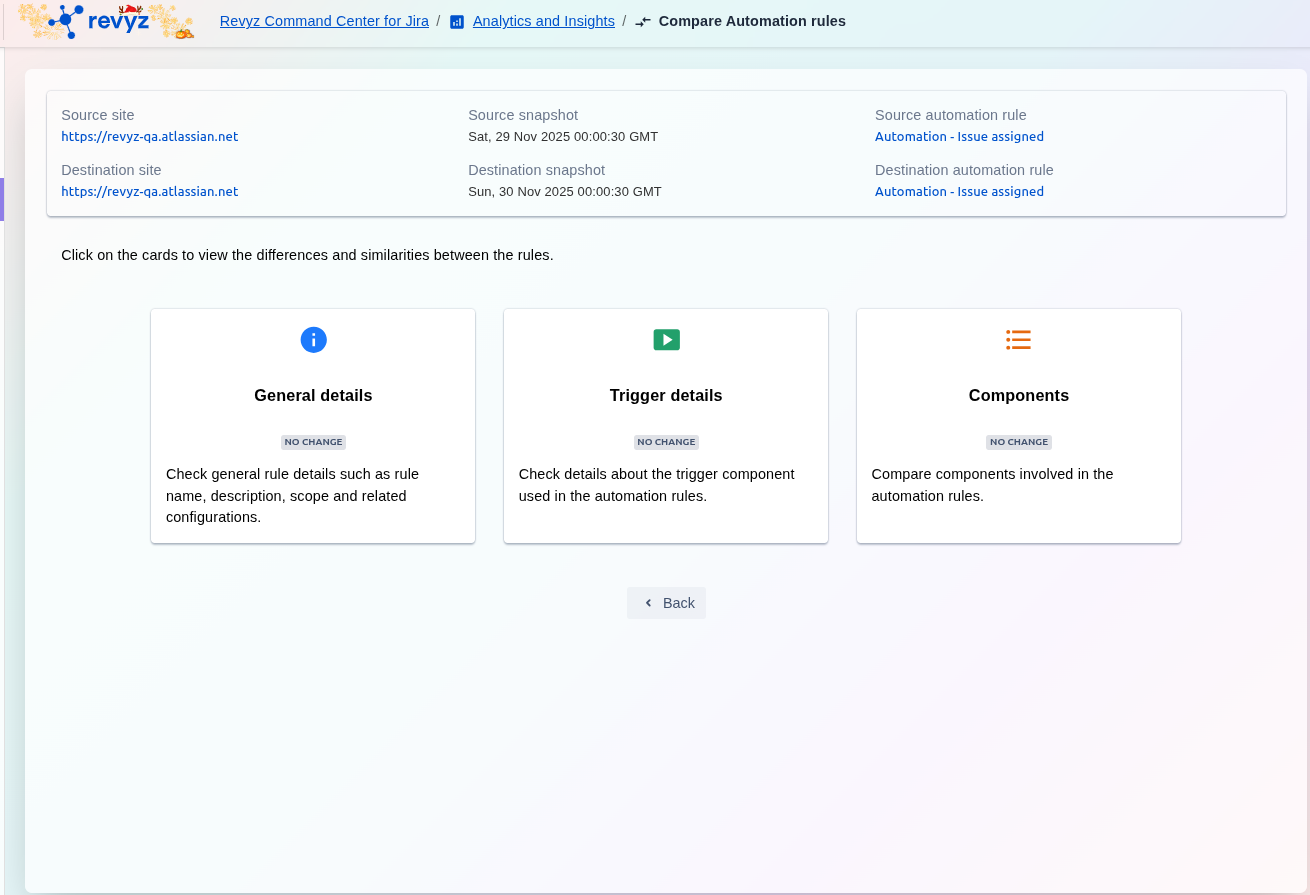
To examine the specific aspects of the two rules, click on the corresponding card below:
General Details
Check details such as the rule name, description, scope, and related configurations (e.g., project key). This helps confirm if the fundamental identity of the rules is the same.
Trigger Details
Examine the specific event that activates the rule. You will see details about the trigger component, including the event type (e.g., Issue Assigned) and any related conditions. This is critical for ensuring both rules start under the same exact conditions.
Components
Compare all other building blocks of the rule. This includes details on Conditions (e.g., JQL validation) and Actions (e.g., Edit Issue, Send Email) used within the automation rule. This is essential for confirming that the rules perform the exact same steps.
Note: The "NO CHANGE" badge displayed on a card indicates that the content within that specific section (e.g., General details, Trigger details) is identical between the Source automation rule and the Destination automation rule. Clicking the card will confirm the matching details.
Step 5: Check the comparison report
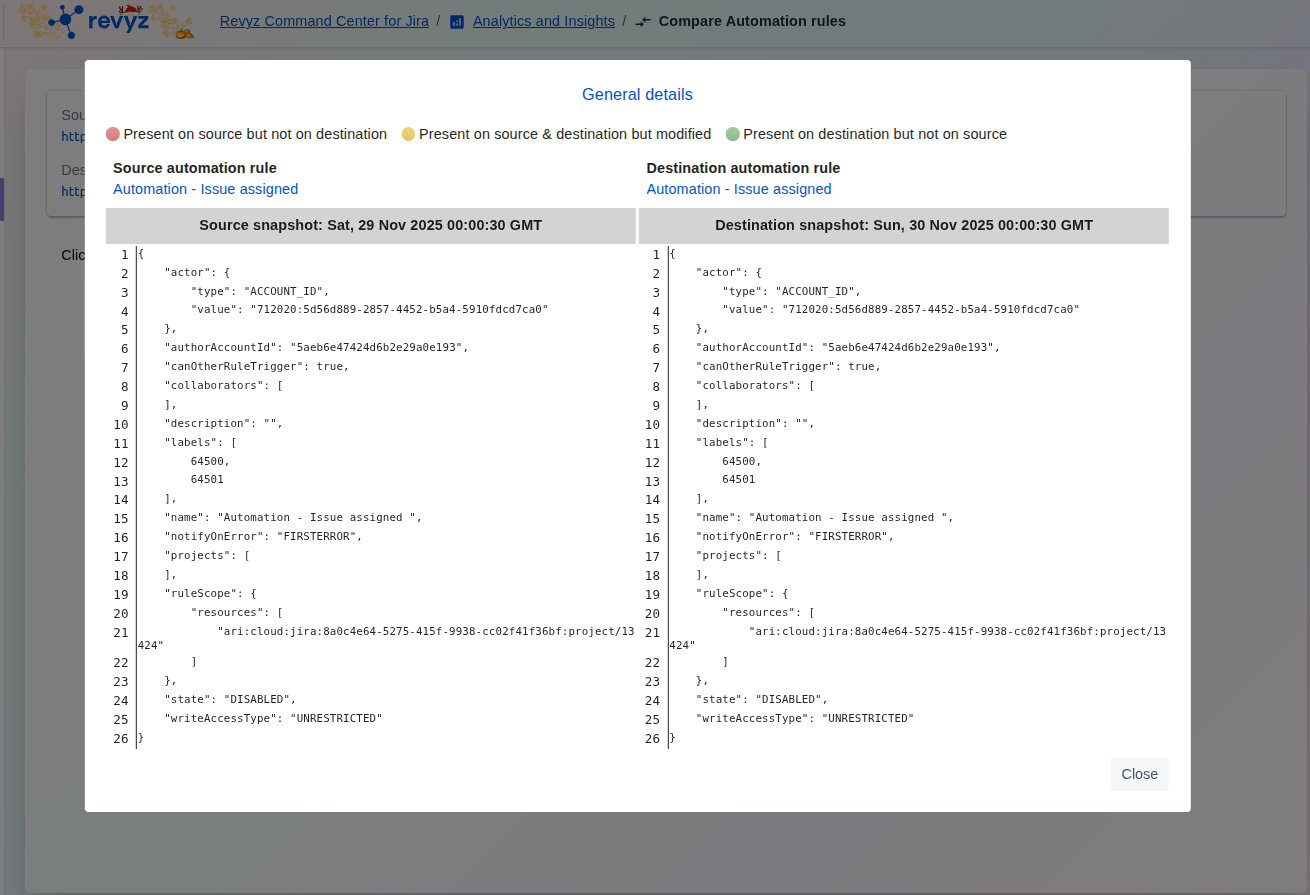
This screen appears when you click the "General details" card. It provides a side-by-side, detailed JSON view of the core properties and configuration metadata for the selected Source and Destination automation rules.