
About this page
This page talks about Jira Audit Logs, a feature that provides access to the native Jira audit logs that have been captured in your backup snapshots. It allows you to review a historical record of key activities and system changes from a specific point in time.
What is the Use Case?
Use this for historical investigations, security audits, or compliance checks. You can find out who made what change and when, even if the live audit logs in your Jira instance have since been rotated or are no longer available.
This feature is applicable to:
Command center for jira *Advanced
How to Use the Jira Audit Logs Viewer?
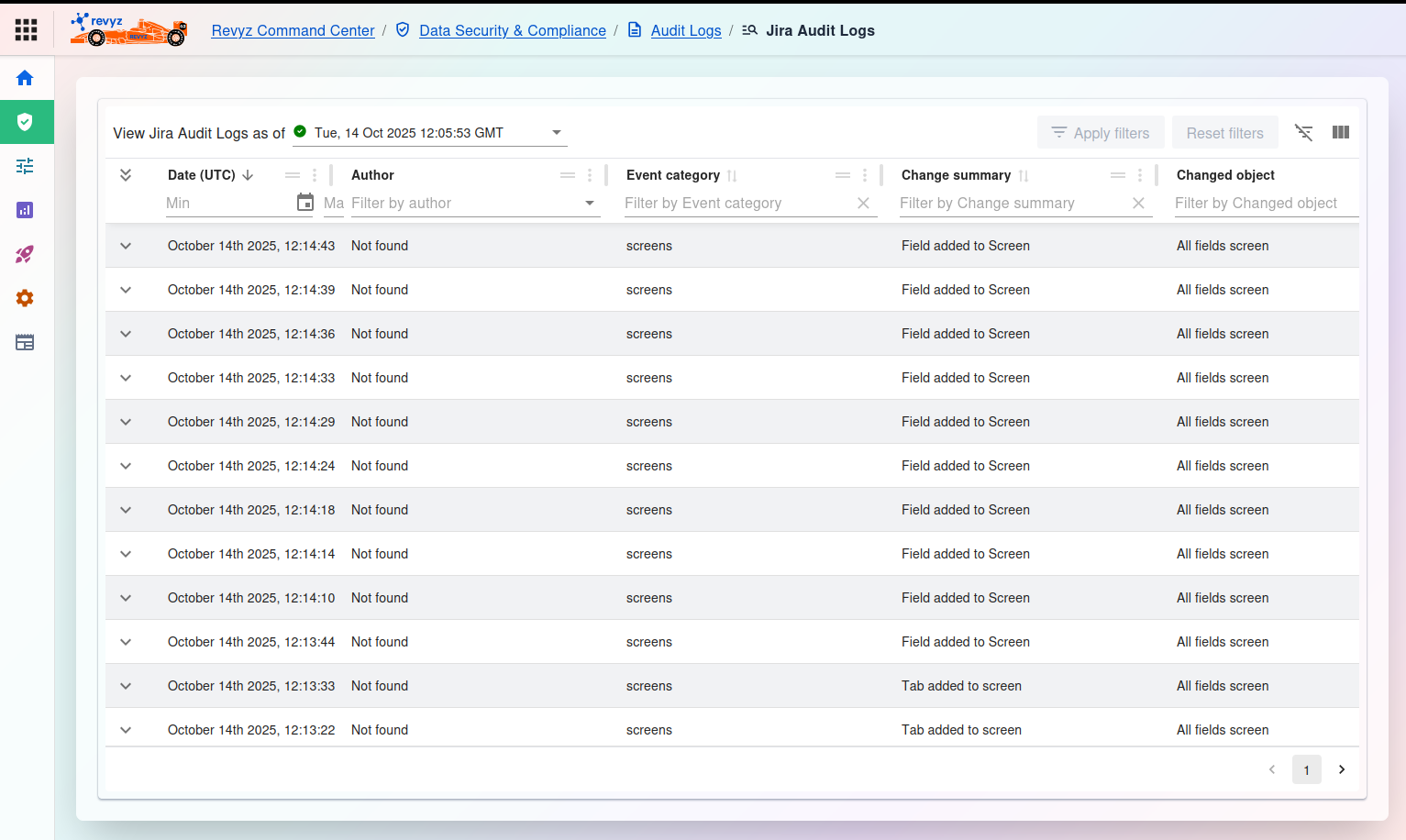
The "Jira Audit Logs" page provides a powerful interface for searching and filtering the audit logs captured from your Jira instance. To begin, you must select a snapshot.
1. Select Snapshot
View Jira Audit Logs as of: This is the most important step. Click this dropdown menu and select the specific backup snapshot you wish to investigate. The table will then load all the Jira audit log events that were saved as part of that backup.
2. Filter the Logs
Once the logs are loaded, you can use the filter row beneath the column headers to find specific events.
3. Manage Your Search
If no events are found for your selected snapshot or filters, the message "No Jira Audit Logs found" will be displayed in the table.