
About this Page
This guide explains how to spin up and share your offline Revyz data backup whenever Atlassian services go down. Follow these simple steps to launch the local ExportViewer, giving your team immediate, read-only access to critical Jira work items, attachments, and logs.
During an outage, your backed-up data keeps your business running locally:
-
Offline Availability: Access your data in a universal format, completely independent of external cloud services.
-
Secure Internal Access: Your team can safely view critical work items, documents, and attachments directly on your own network.
-
Business Continuity: Stay productive and compliant with instant, read-only access when primary systems go down.
For detailed steps, contact Revyz support.
In the event of an active outage, how do I make this exported data available to my users?
Because a native cloud restore is impossible during severe Atlassian outages, you must host the locally downloaded offline snapshot using the ExportViewer execution file.
Step 3. Distribute Access Links to Users
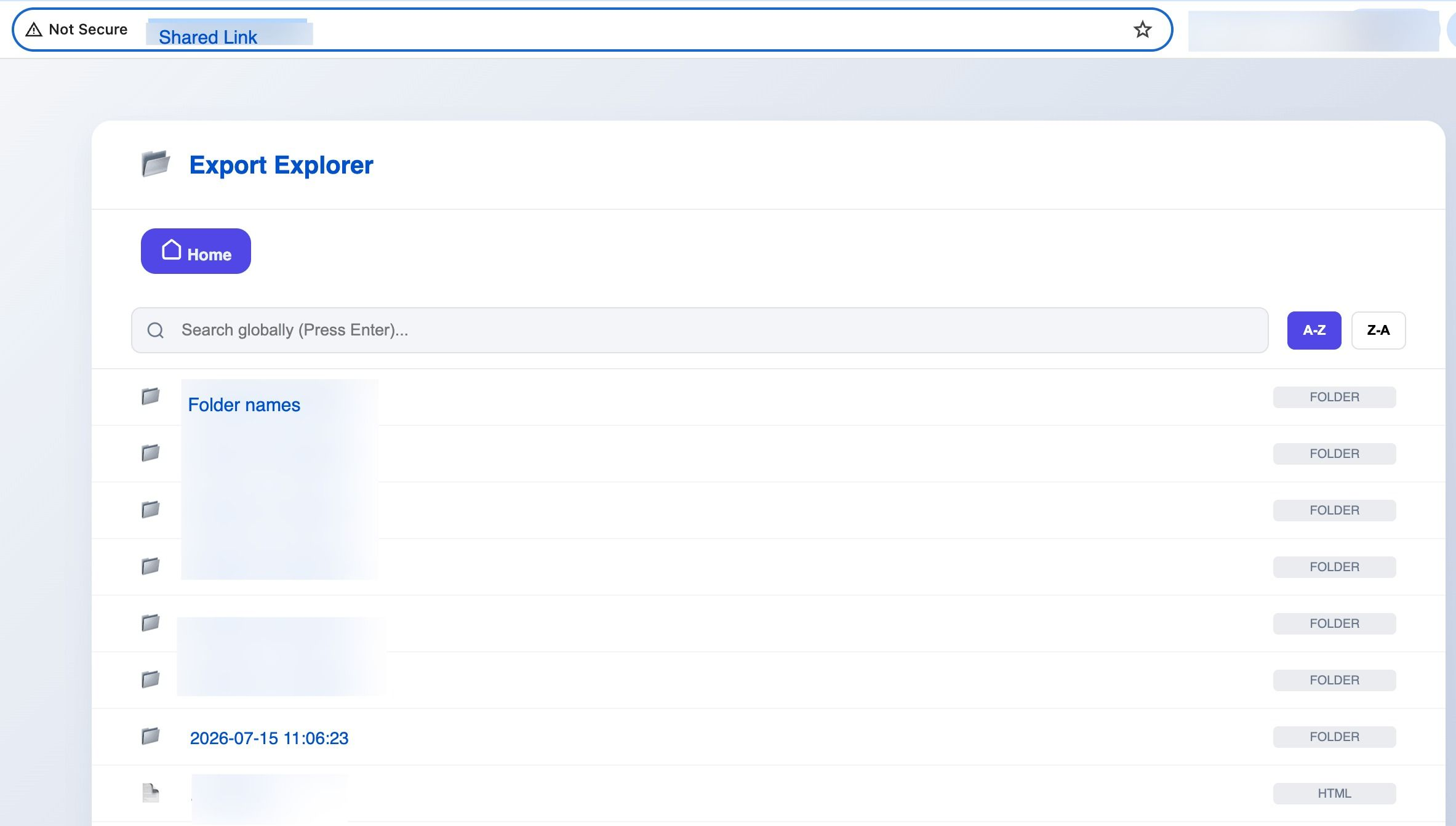
A link will be generated in the terminal.
The admin can share this link with the team so they can view the HTML format of the work items during an outage. Distribute Access Links to Users
Provide your team members with the destination URL.
Users will be greeted by the Export Explorer web dashboard, where they can browse, search, and safely view vital Jira work items and embedded attachments completely offline
Step 4: Open the Work Item
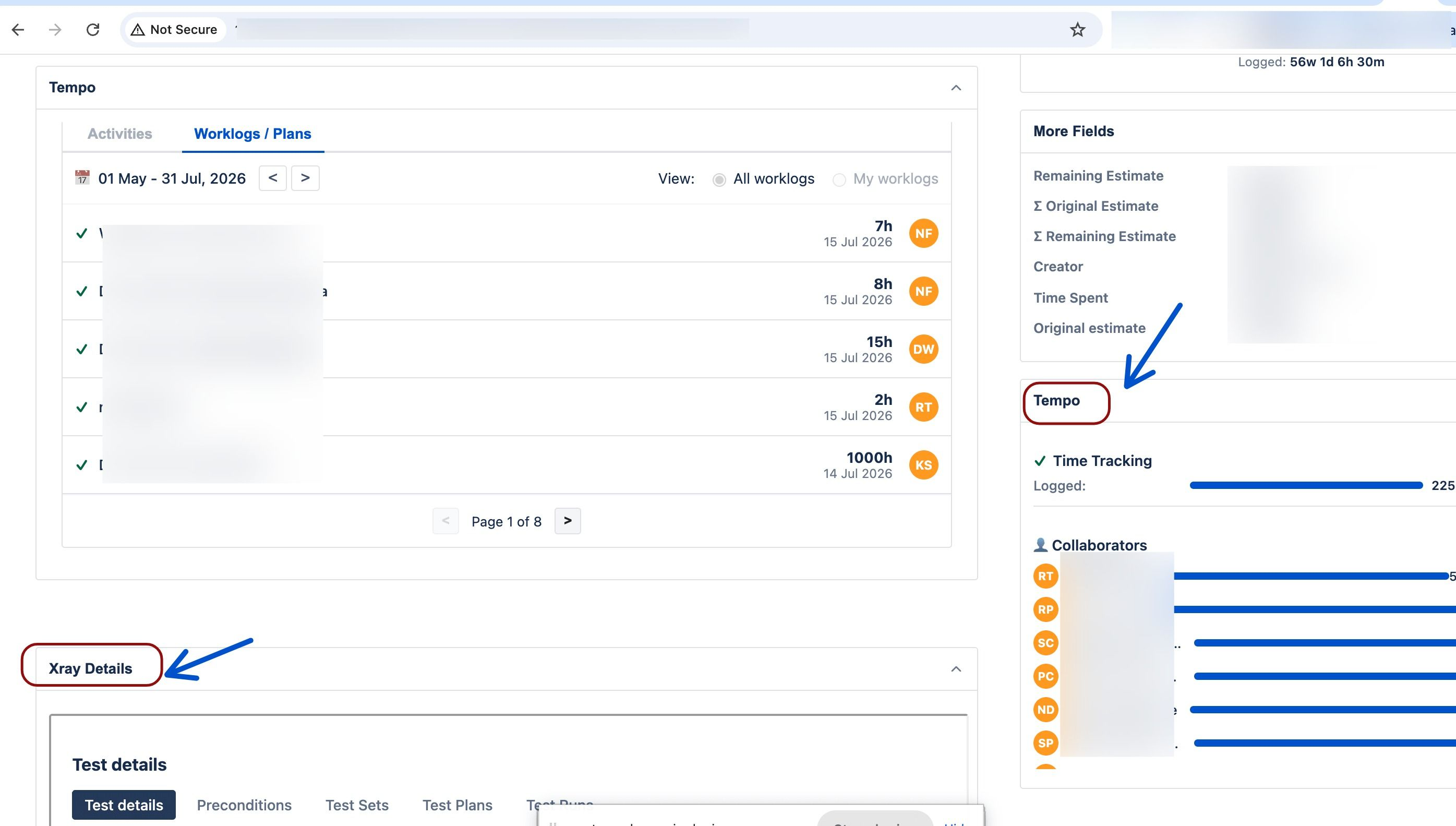
Open any work item, and you will also be able to see Xray and Tempo worklogs data.