
About this Page
This page talks about about Assets Object Restore, a data recovery tool for your Jira Service Management (JSM) Assets database. It allows you to restore individual, specific objects or even entire object schemas from a previously created backup.
What is this use case?
Use this to recover specific assets (like a server, laptop, or software license object) or a whole object schema that was accidentally deleted or corrupted, without performing a full site restore.
This feature is applicable to:
command center for jira assets data manager for jira
Step 1: Define Source and Selection Method
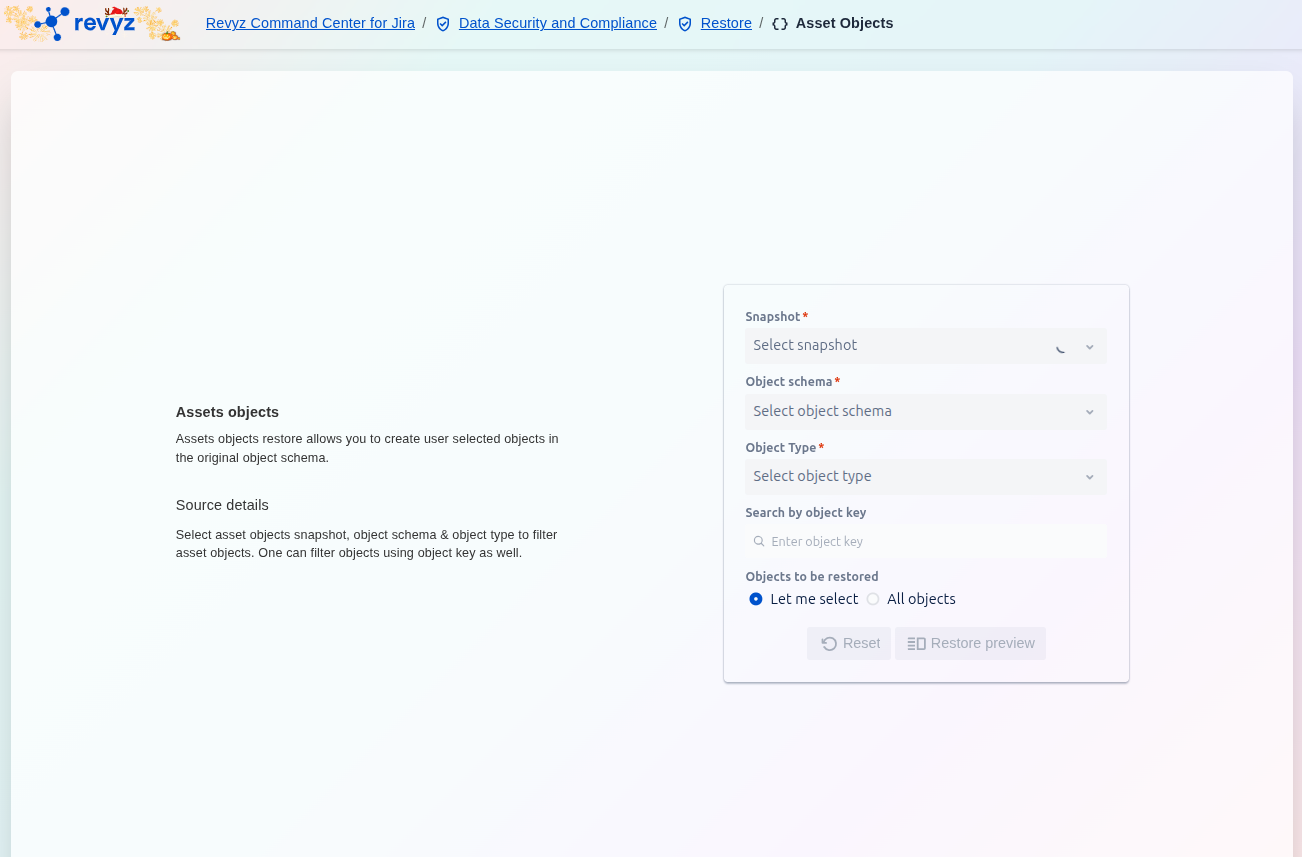
-
Select the Snapshot* containing the Asset Objects you wish to restore.
-
Choose the Object schema* and the specific Object Type* from the selected snapshot.
-
Under Objects to be restored, select one of the following options:
-
Let me select: Allows you to choose specific objects individually (requires clicking Restore preview first).
-
All objects: Restores every object matching the criteria (requires clicking Restore preview first).
-
-
After defining your source and selection method, click Restore preview.
Step 2: Select Asset Objects
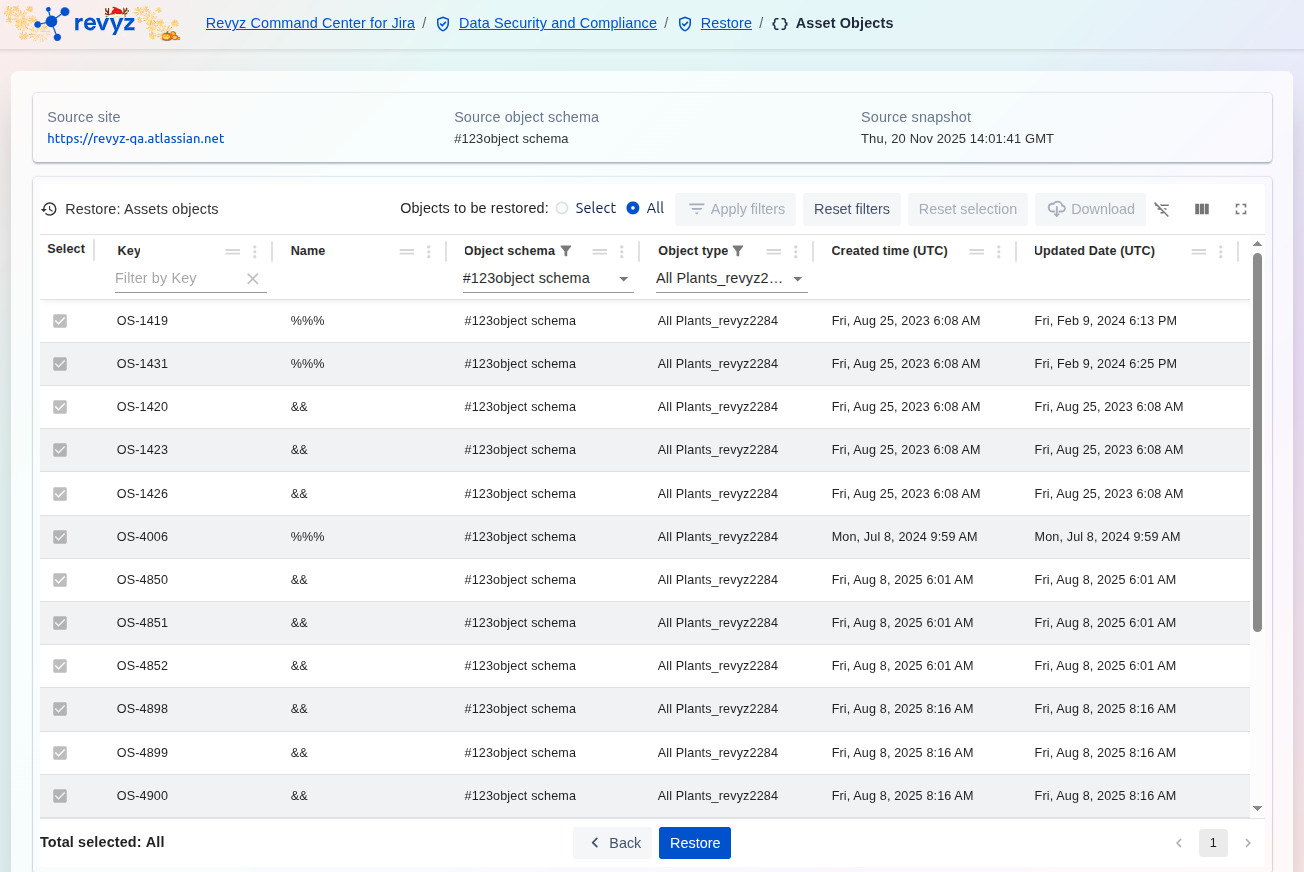
-
The screen will display a table of Asset Objects matching your criteria.
-
If you selected "Let me select" in Step 1, use the checkboxes in the Select column to choose the specific objects you want to restore.
-
Review the selected objects and confirm the details (Key, Name, Object Type, etc.).
-
Click the blue Restore button at the bottom of the screen.
Step 3: Initiate and Confirm Restore
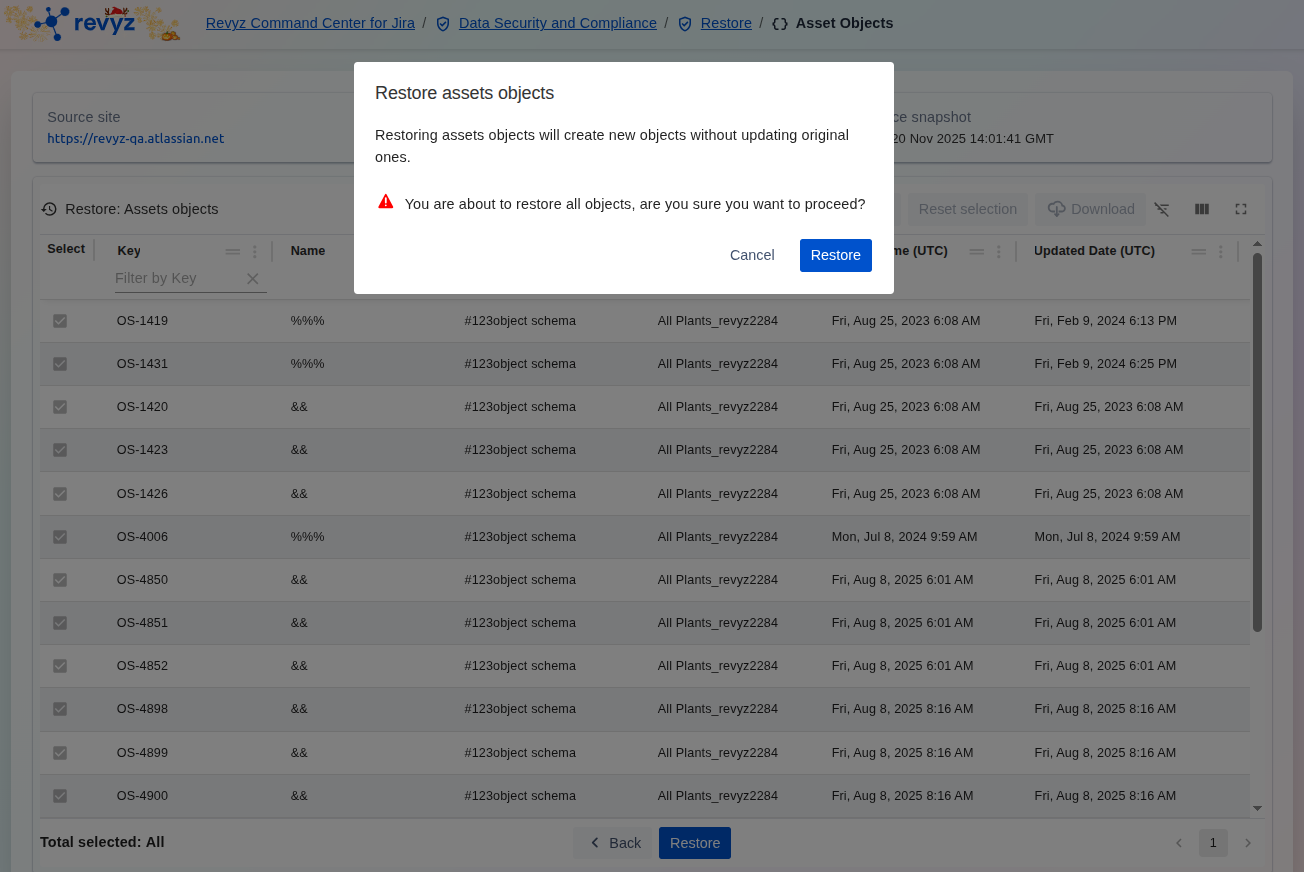
-
A confirmation pop-up titled Restore assets objects will appear.
-
Read the warning, which states: "Restoring assets objects will create new objects without updating original ones."
-
To confirm and start the job, click Restore. (Click Cancel to abort the operation).