
About this Page
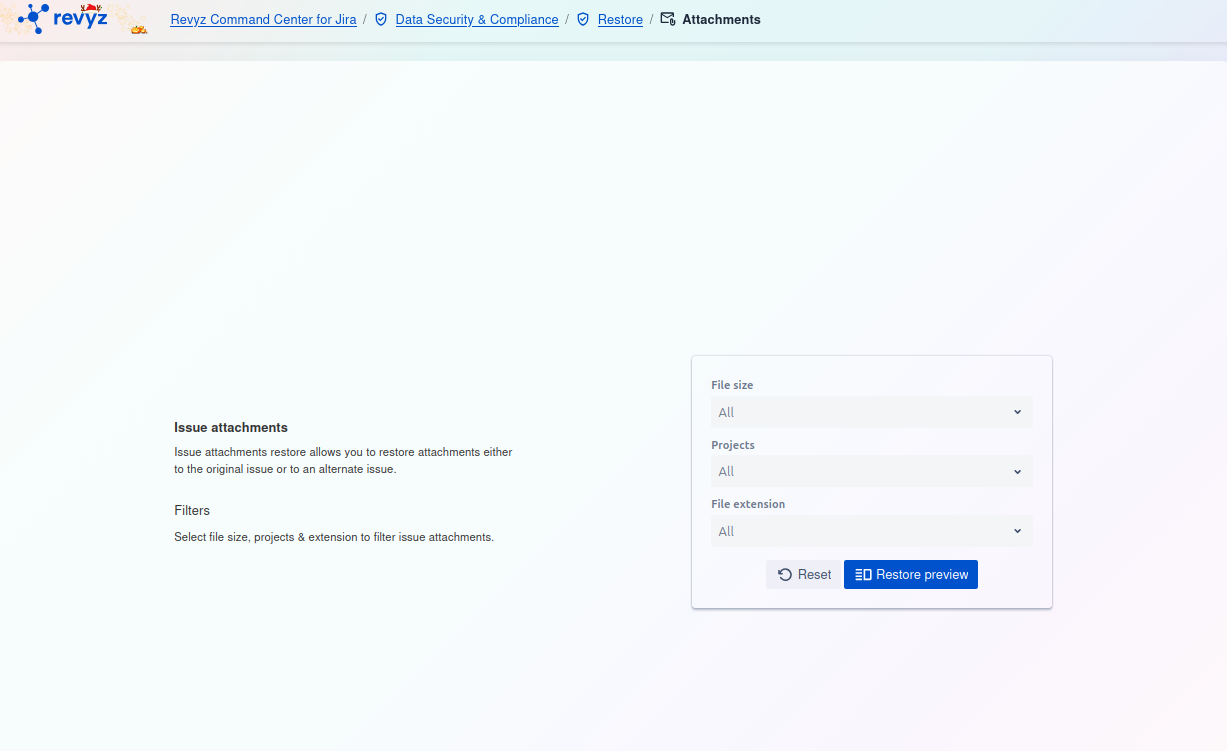
This page talks about the Attachment Restore feature, a data recovery tool that allows you to find and recover specific file attachments that have been deleted from your Jira issues. The restore process does not affect the issue itself, only the attachments.
This feature is applicable to:
command center for jira
What is the use case?
Use this tool to recover one or more specific attachments that were accidentally deleted. You can restore the attachment back to its original issue or choose to attach it to an alternate, different issue.
Step 1: Select Source and Filter Issues
-
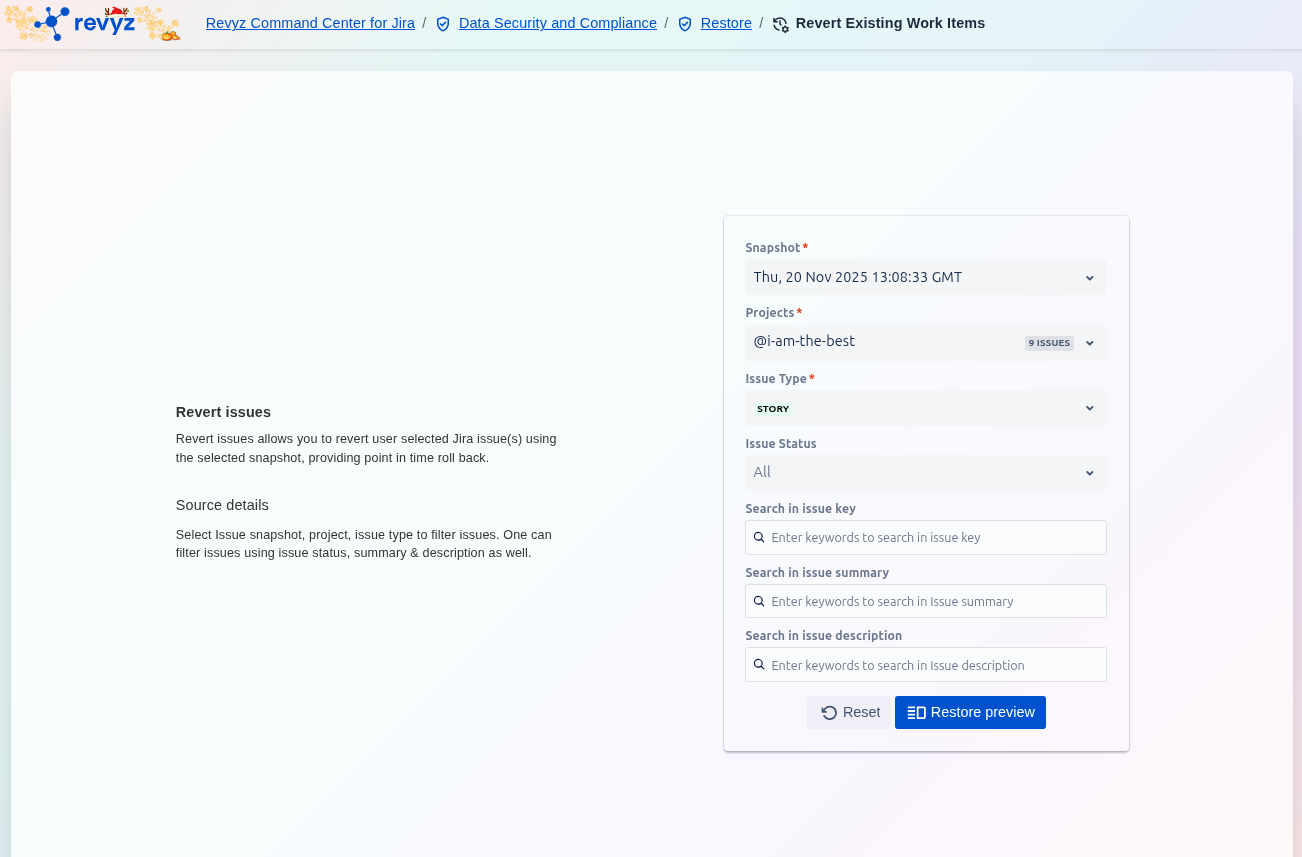
Select the historical Snapshot* you want to revert to.
-
Choose the Projects* and filter the list by Issue Type, Issue Status, or by searching the issue key, summary, or description.
-
Click Restore preview to load the list of revertible issues based on your selected criteria.
Step 2: Select Issues to Revert
-
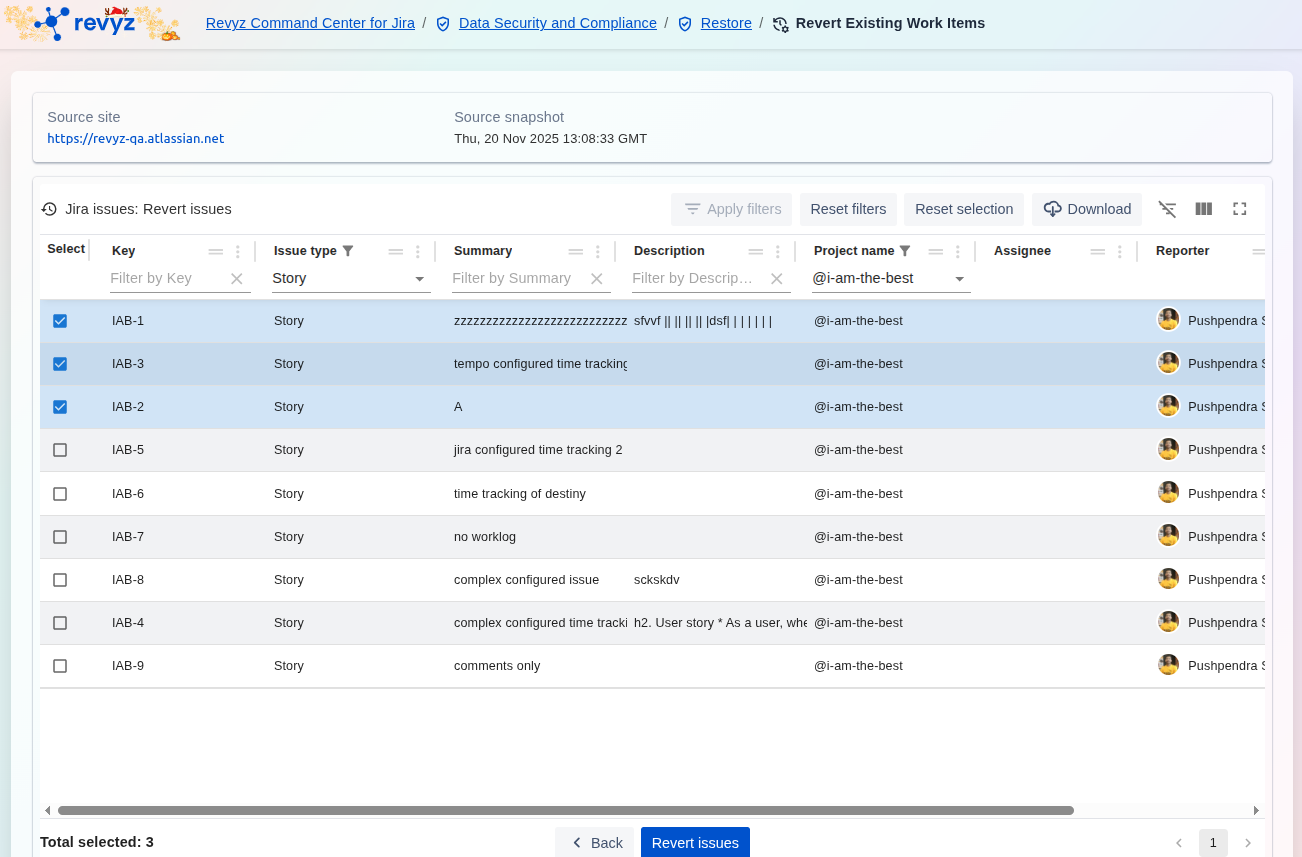
Review the table labeled Jira issues: Revert issues, which lists all issues found in the selected snapshot.
-
Use the checkboxes under the Select column to choose the specific work items you want to roll back to the state captured in the snapshot.
-
Once the issues are selected (e.g., "Total selected: 3"), click the Revert issues button.
Step 3: Confirm Revert Action
-
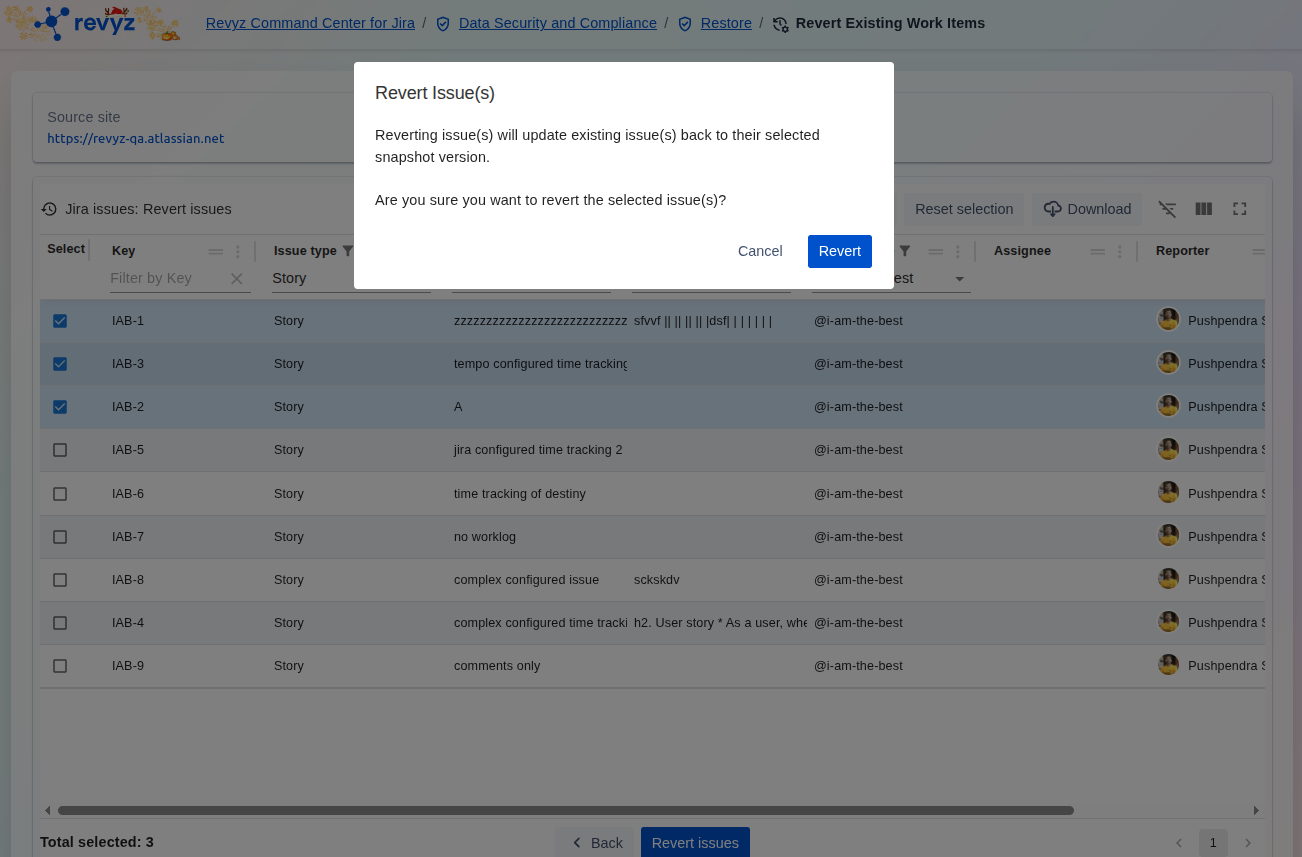
A confirmation box labeled Revert Issue(s) will appear, warning you that this action will update existing issues back to the selected snapshot version.
-
To proceed, click Revert. (Or click Cancel to stop the process).
Step 4: Completion of Revert Issues
Review and complete the “Revert Issues” process.