Revyz Command Center for Jira
Breadcrumbs

Xray Explorer

About this Page

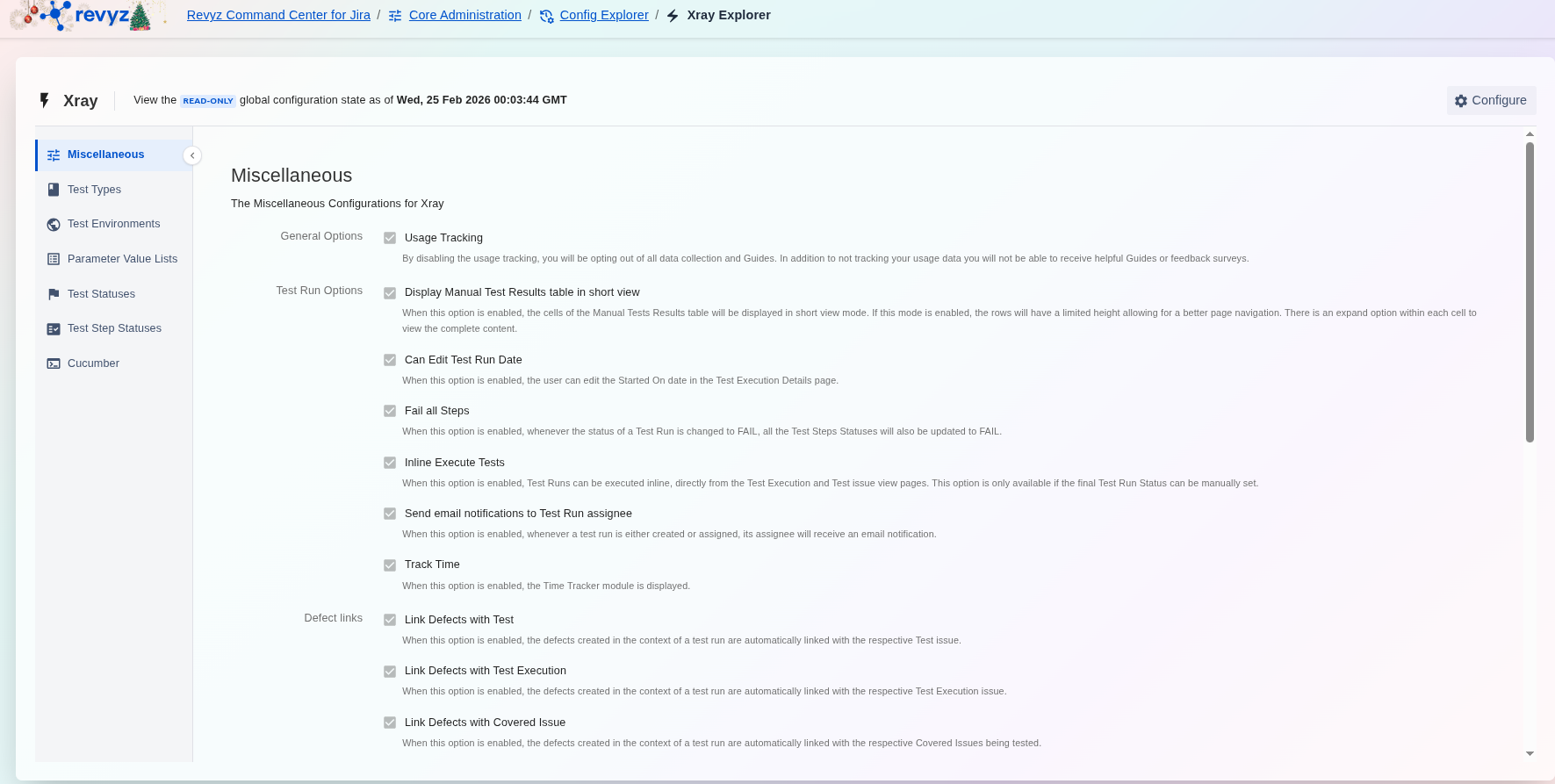
The Xray Explorer is a read-only auditing tool that allows you to explore historical global configurations for Xray. By selecting specific snapshots, you can review the state of your test management settings as they existed at a particular point in time. This provides a mirrored interface of your Xray environment, specifically focused on global settings rather than individual issue data.

What is the Use Case?

The Xray Explorer is designed to help teams maintain high standards for their testing infrastructure through:

  • Historical Configuration Review: Easily look back at previous snapshots to see how your Xray environment was configured on a specific date.

  • Audit Readiness: Provide auditors with a clear view of your critical test types, statuses, and environment configurations from any backed-up point in time.

  • Troubleshooting & Comparison: If a testing workflow changes unexpectedly, use the explorer to verify if global settings, such as "Test Run Options" or "Defect links", were modified.

  • Configuration Tracking: Monitor changes to critical settings like "Usage Tracking," "Inline Execute Tests," or "Link Defects" across different versions of your configuration.

This feature is applicable to

command center for jira Advanced
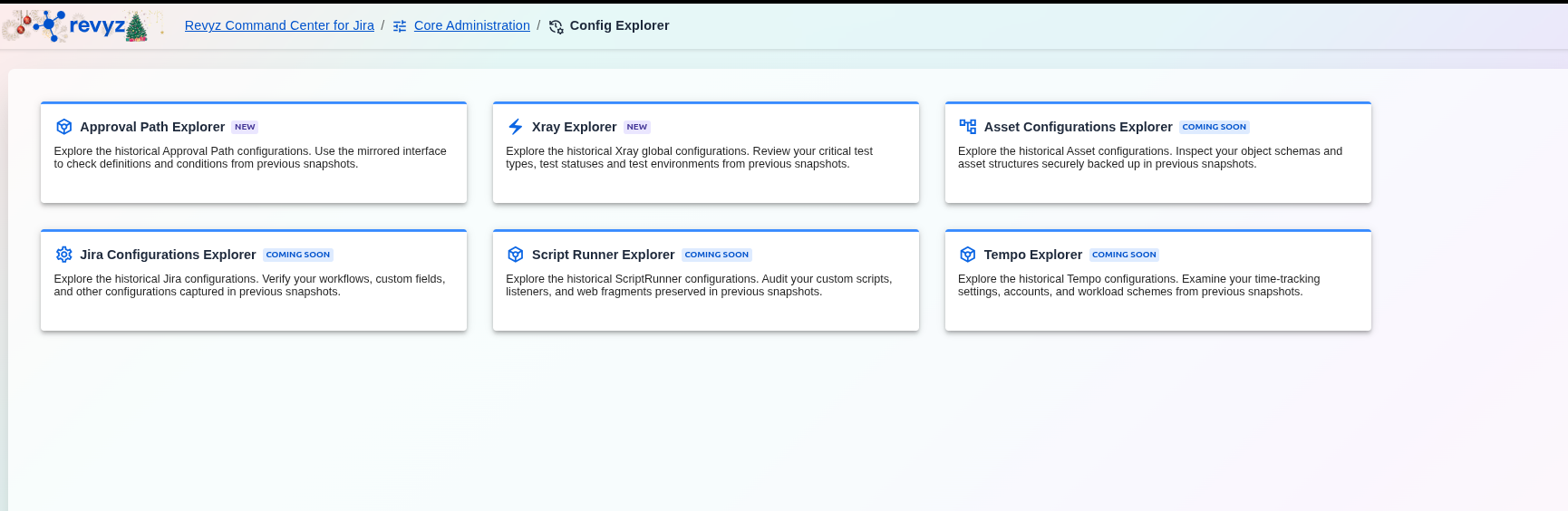
image-20260225-130349.png

How to use the Xray Explorer

image-20260225-153931.png


Access:
  1. From the Revyz Command Center, navigate to Config Explorer and select the Xray Explorer card.

Select a Snapshot:

Use the Configure button at the top right to select the historical date and time you wish to view. The header will display the "READ-ONLY global configuration state" for that specific time.

Browse Configuration Categories

Use the left-hand sidebar to navigate through different global setting categories:

  1. Miscellaneous: Review general options, test run options, and defect link settings.

  2. Test Types: View the historical list of defined test types.

  3. Test Environments: See the environments configured at the time of the snapshot.

  4. Parameter Value Lists: Check the historical values available for test parameters.

  5. Test Statuses / Test Step Statuses: Review the custom statuses used in your testing workflows.

  6. Cucumber: Inspect specific settings for Cucumber-based testing.

Verify Settings

Within each category, you can see the specific checkboxes and text fields as they were set during the snapshot (e.g., whether "Fail all Steps" was enabled).

Limitations
  • Test Statuses and Test Step Statuses: Specific "Projects" column that associates statuses with particular Jira projects is currently not reflected in this view.

  • Cucumber Language Display: The Language field currently references standardized language codes rather than localized display names.

  • Test Run Status: Custom statuses are displayed as IDs rather than names due to current API data retrieval constraints.