
About this Page
This page explains the Asset Explorer feature and what an auditor or admin can do with it—view how an Asset object (object schema, object type, objects, and attributes) looked at a past point in time.
What is the Use Case?
Asset Explorer lets an auditor select a past snapshot and see exactly how an Asset object looked at that point in time, giving you a point-in-time view of your Jira Assets data for audit, review, or investigation purposes.
This feature is applicable to:
command center for jira ASSETS DATA MANAGER FOR JITA
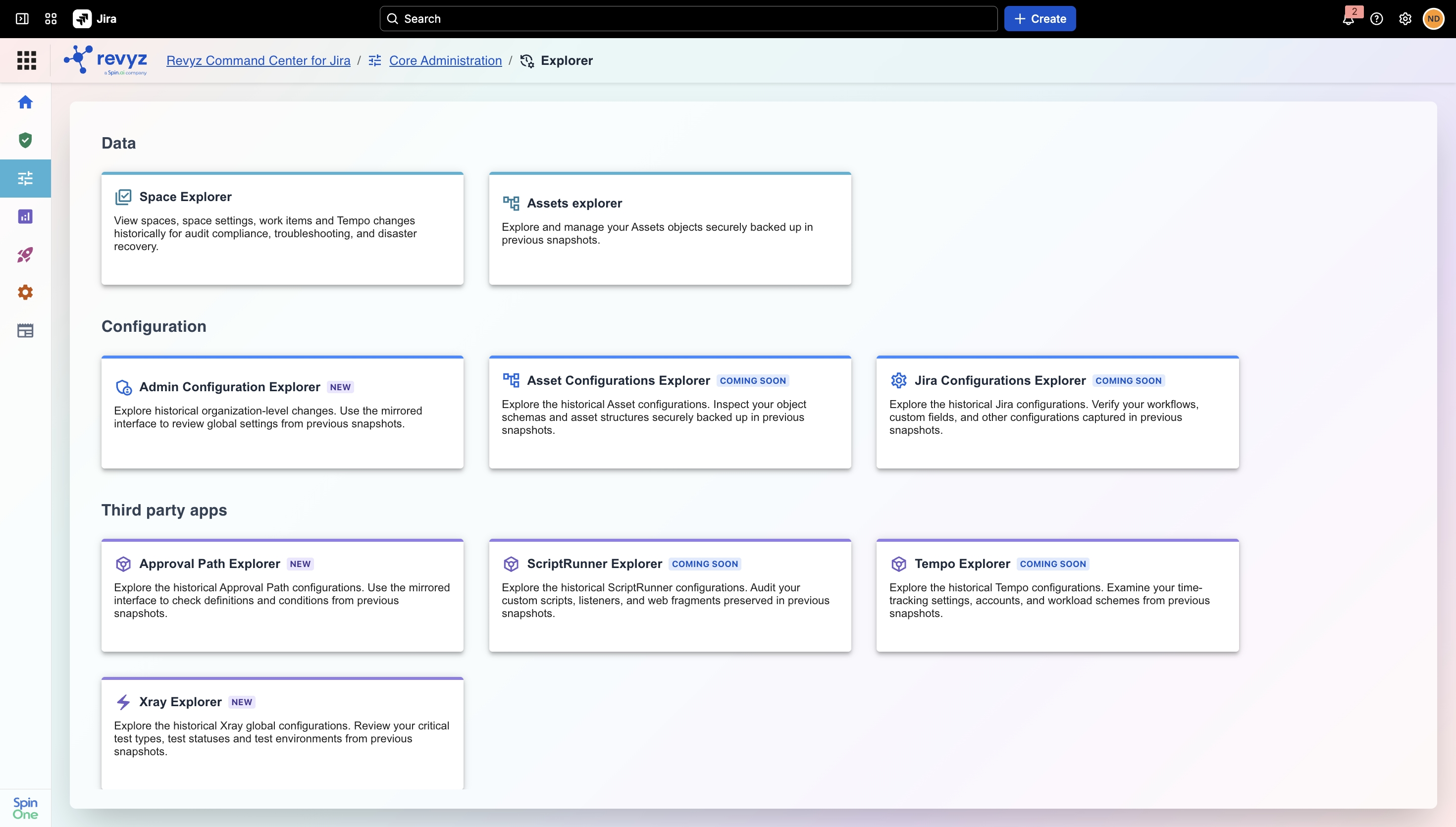
How to Navigate the Assets Explorer?
Navigate to Assets Explorer
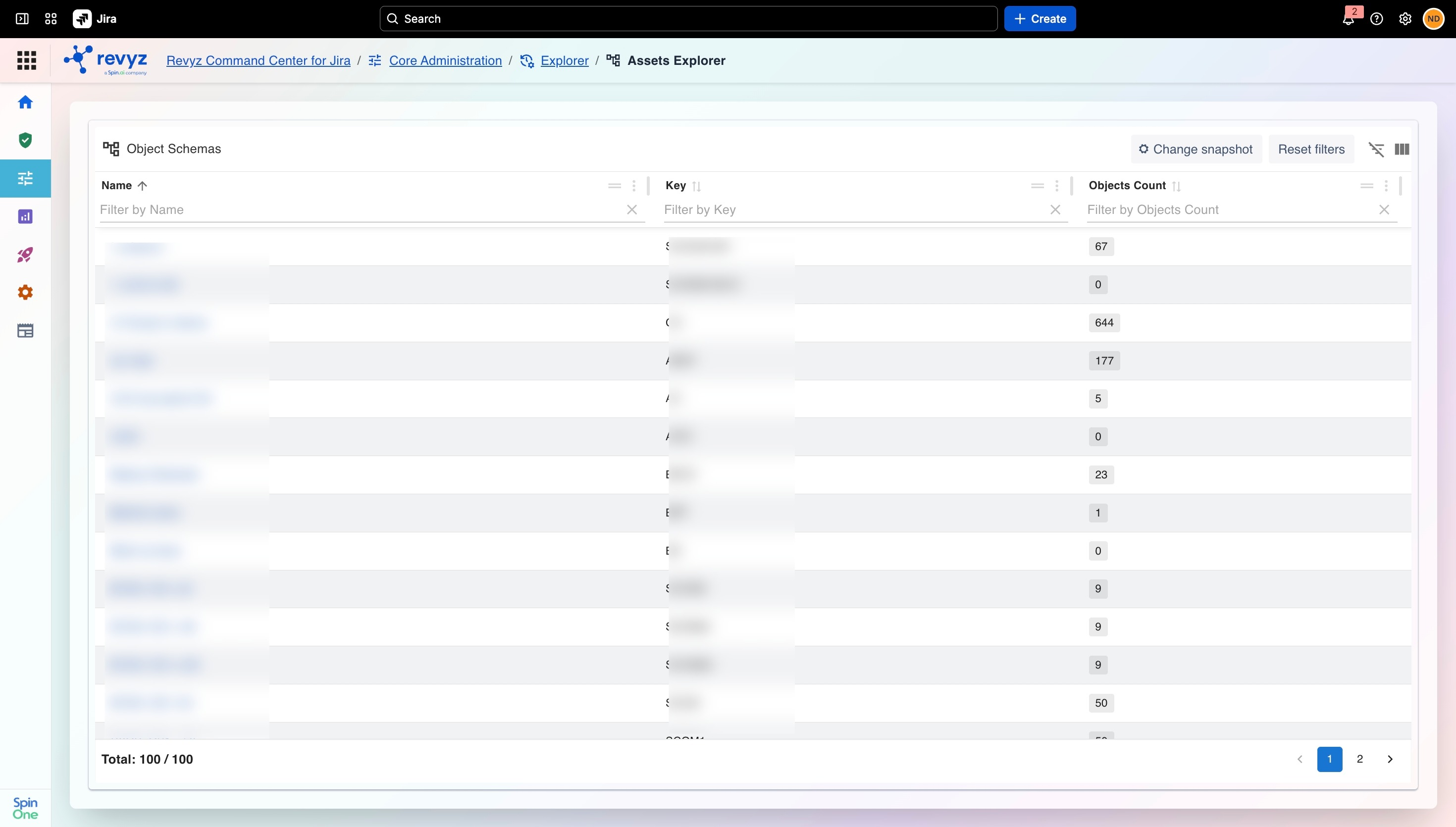
Navigate to: Admin Portal → Core Administration → Explorer → Asset Explorer
How to View them?
Object Schema
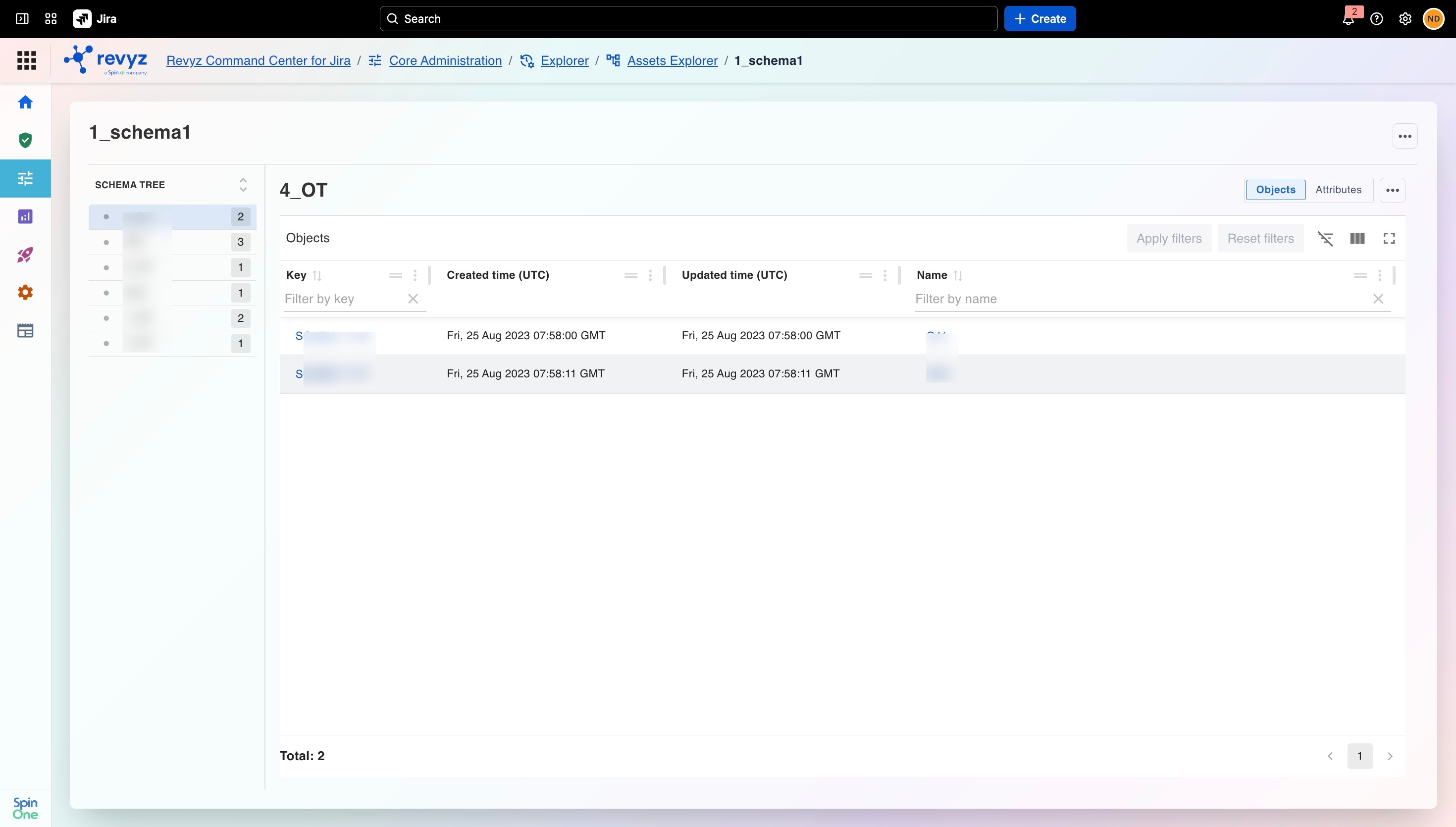
Just like the Jira UI, Asset Explorer shows you the Name, Key, and Object Count for each object schema. On top of that, you get a snapshot selector—so you can pick a past point in time and see exactly how the schema looked back then.
Object Schema Settings
Asset Explorer mirrors the Jira UI's Object Schema Settings tabs: General, Reference type, and Status and Rule.
-
Reference type: Global references are captured and available to view.
-
Status: Global statuses are captured and available to view.
Object Type
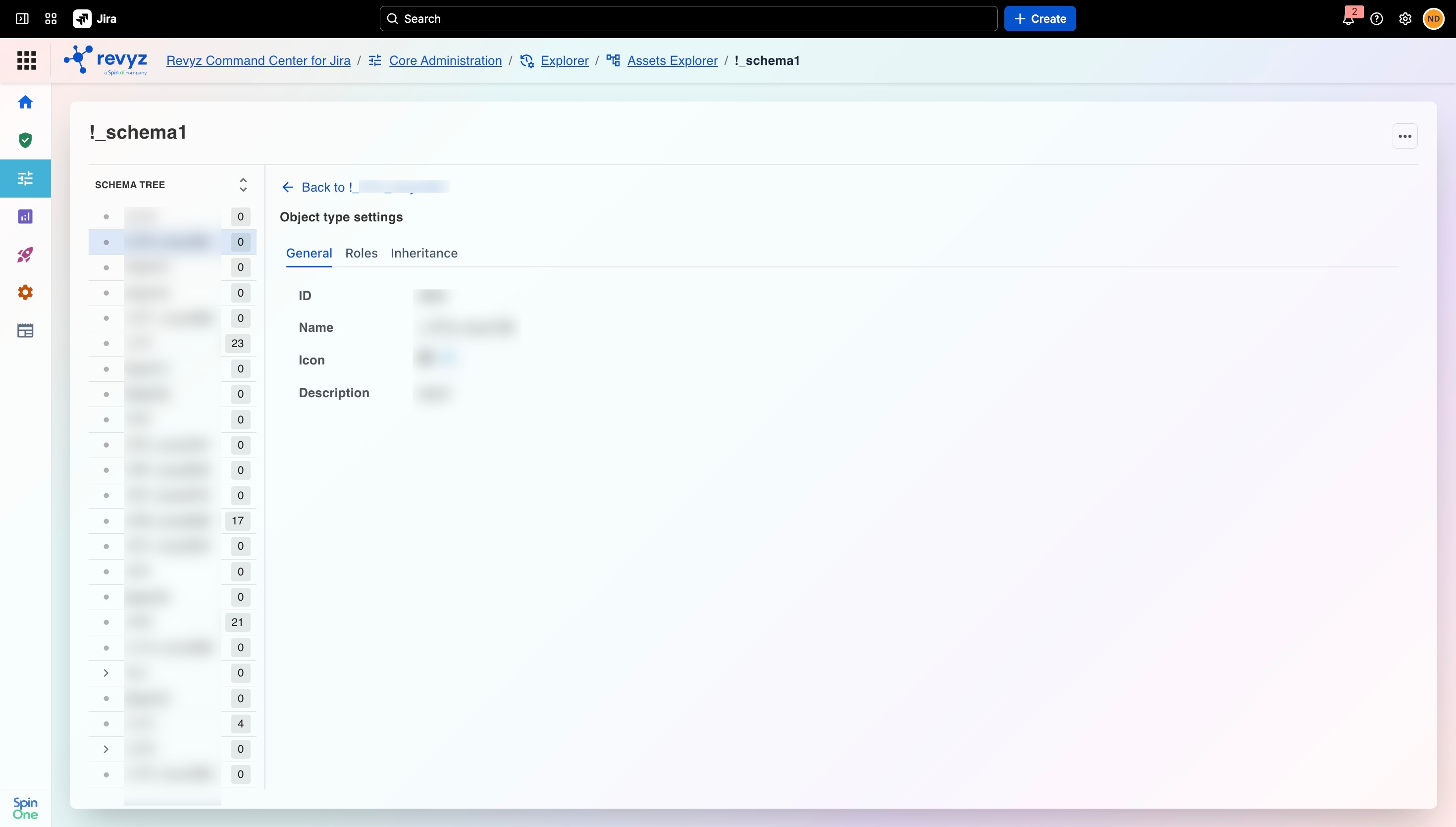
Asset Explorer shows the same tabs as the Jira UI: General, Roles, and Inheritance.
Inheritance is fully supported end to end—you get full access and control, including passing attributes
Objects
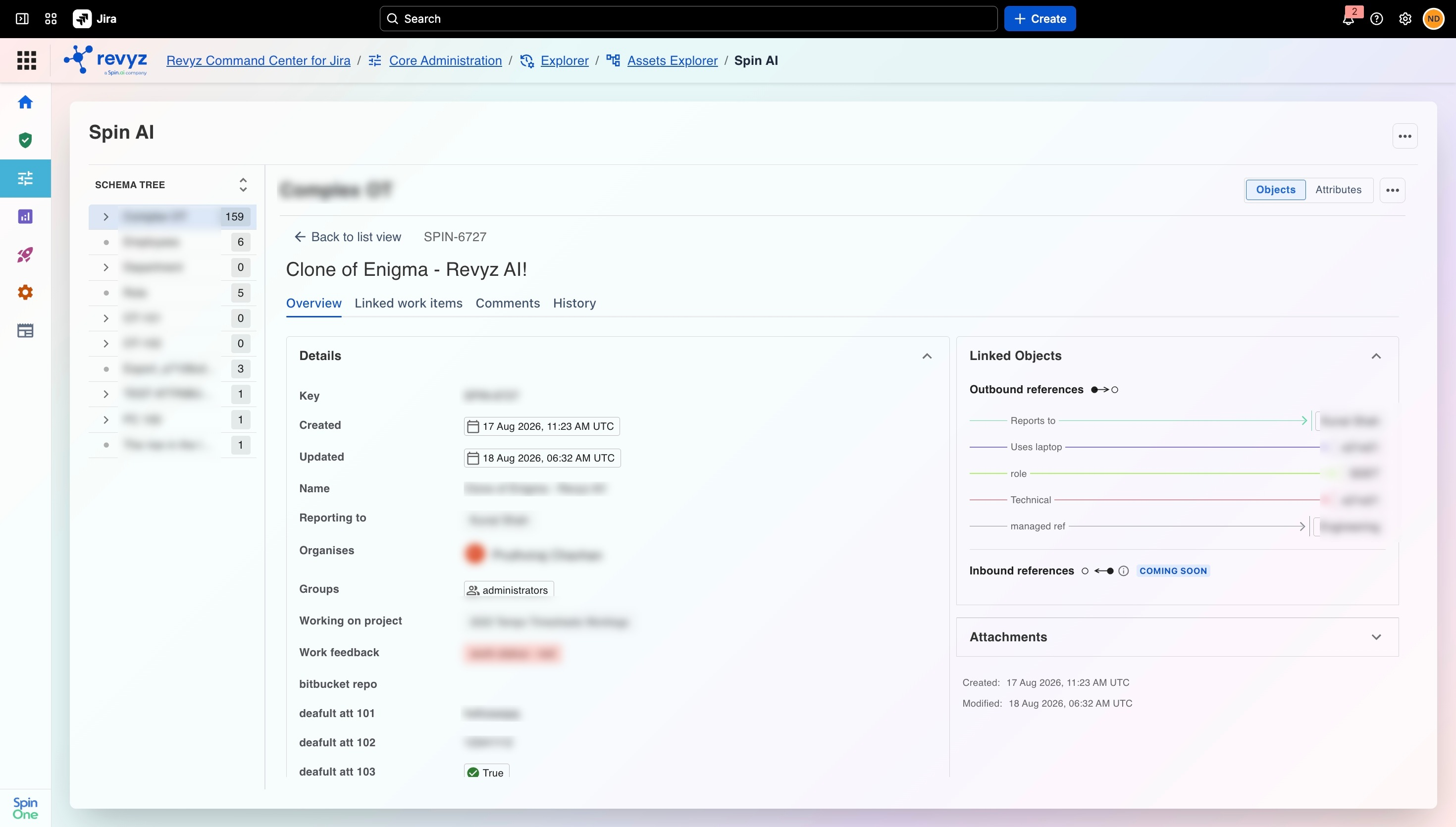
The Objects view gives you the same listing table and object data you'd see in Jira, so you can review individual asset records as they existed in a given snapshot.
Linked Work Items & Objects
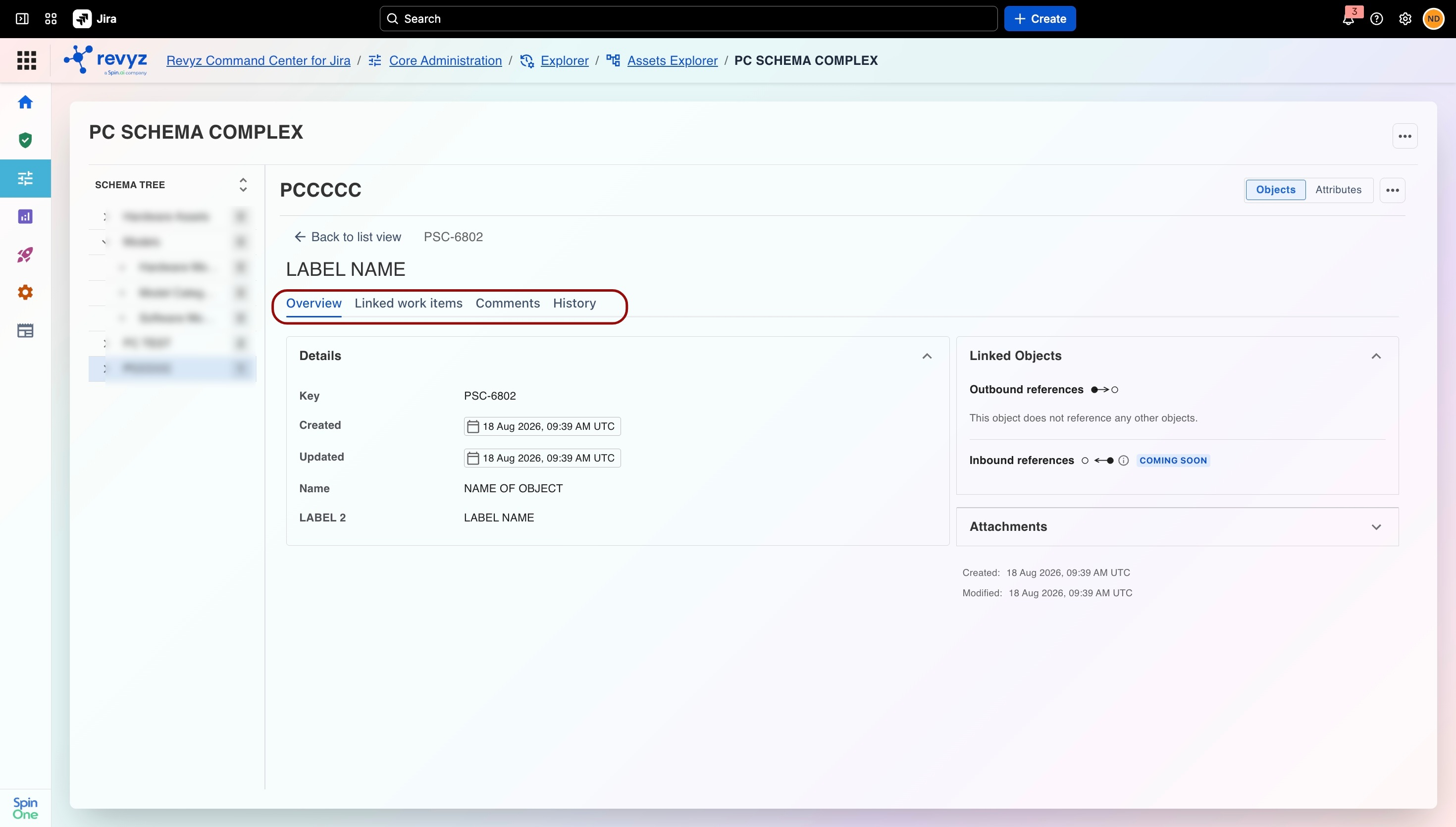
Linked work items appear in their own dedicated column, and outbound object references are shown clearly, so you can trace how assets connect to other work and to each other.
Comments
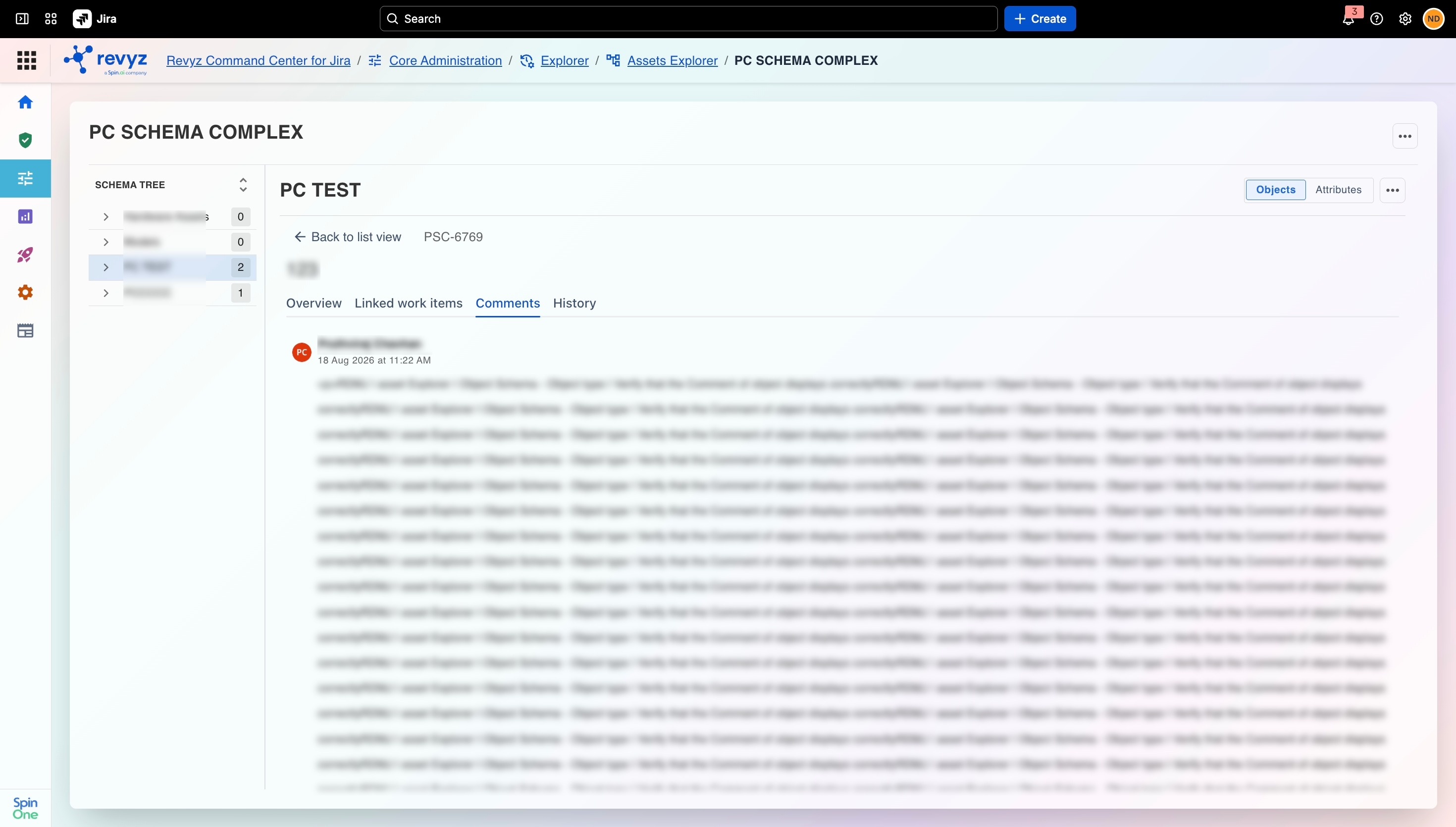
Comments display with the author name and timestamp, matching Jira.
History
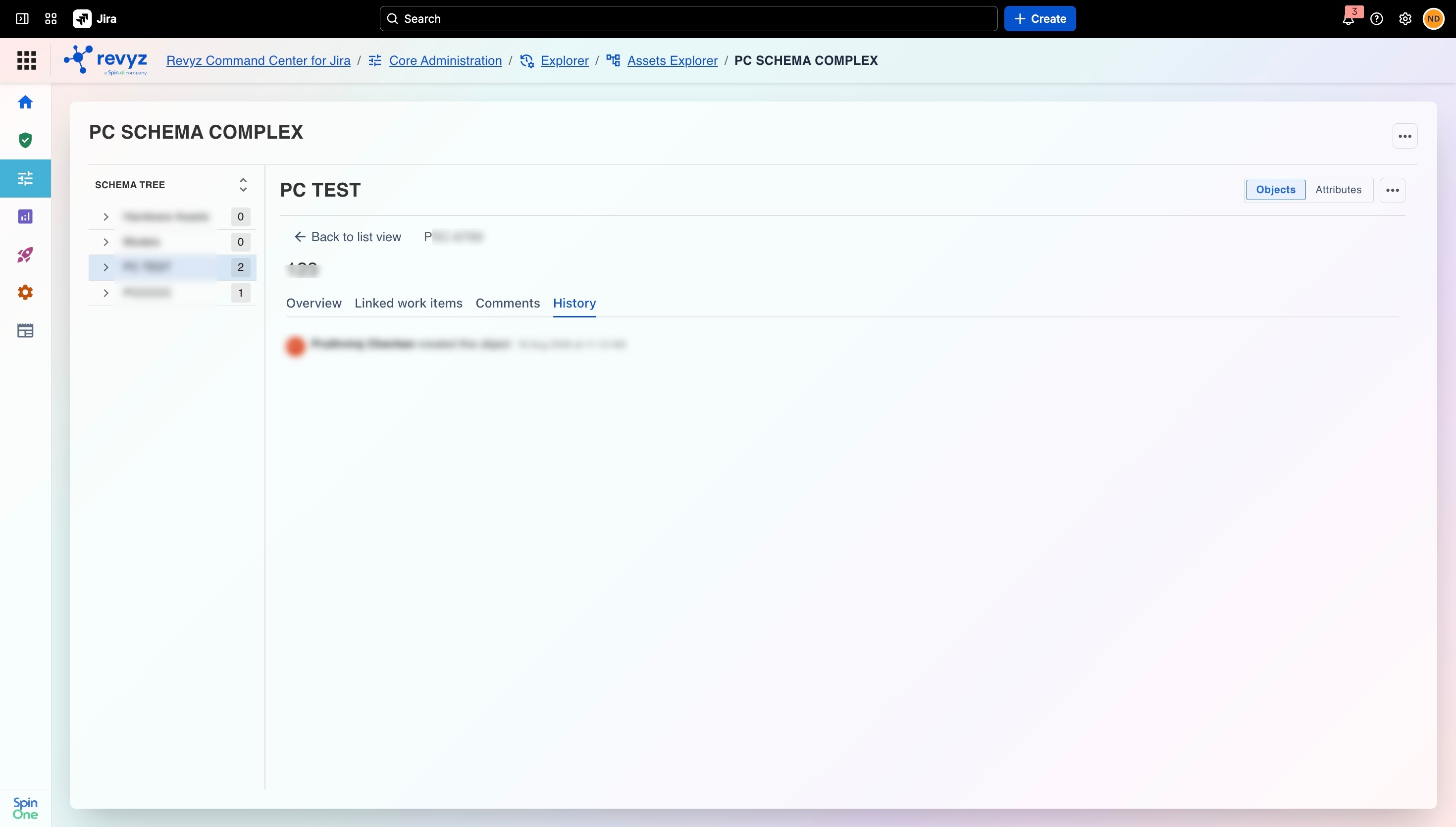
History is shown as a separate tab from Comments (Jira combines both into one Activity view) — each entry logs who made the change and when.
Attributes
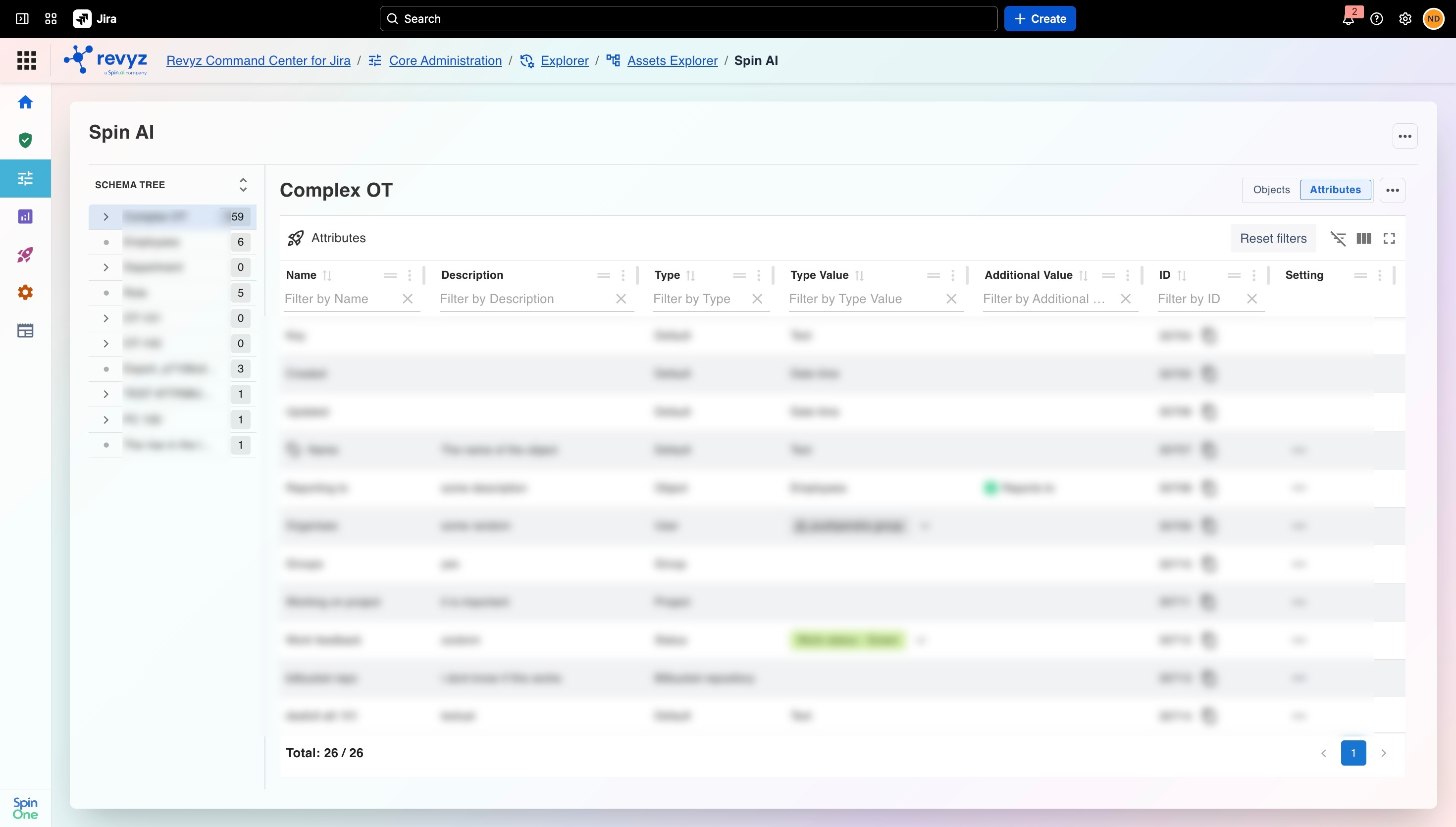
Attributes view offers full parity with Jira, you can see all groups, statuses, and attribute settings, view attribute values & colors, and copy the attribute ID directly from the Revyz UI.
A few areas are on our roadmap or depend on Atlassian making new APIs available. None of these affect your ability to use Asset Explorer for its core purpose—reviewing point-in-time snapshots of your Assets data.