
About this Page
The Backup Jobs page provides a comprehensive view of all running, scheduled, completed, and failed backup tasks, allowing administrators to monitor job status, track progress, and manage the data protection lifecycle.
What is the use case?
Monitor and manage all your backup operations, viewing their status, history, and detailed logs. Click here to verify that your scheduled or on-demand backups have completed successfully, are still in progress, or have failed. The logs provide details for any troubleshooting.
This feature is applicable to:
Command center for jira config manager for jira assets data manager for jira
How to see Backup Jobs?
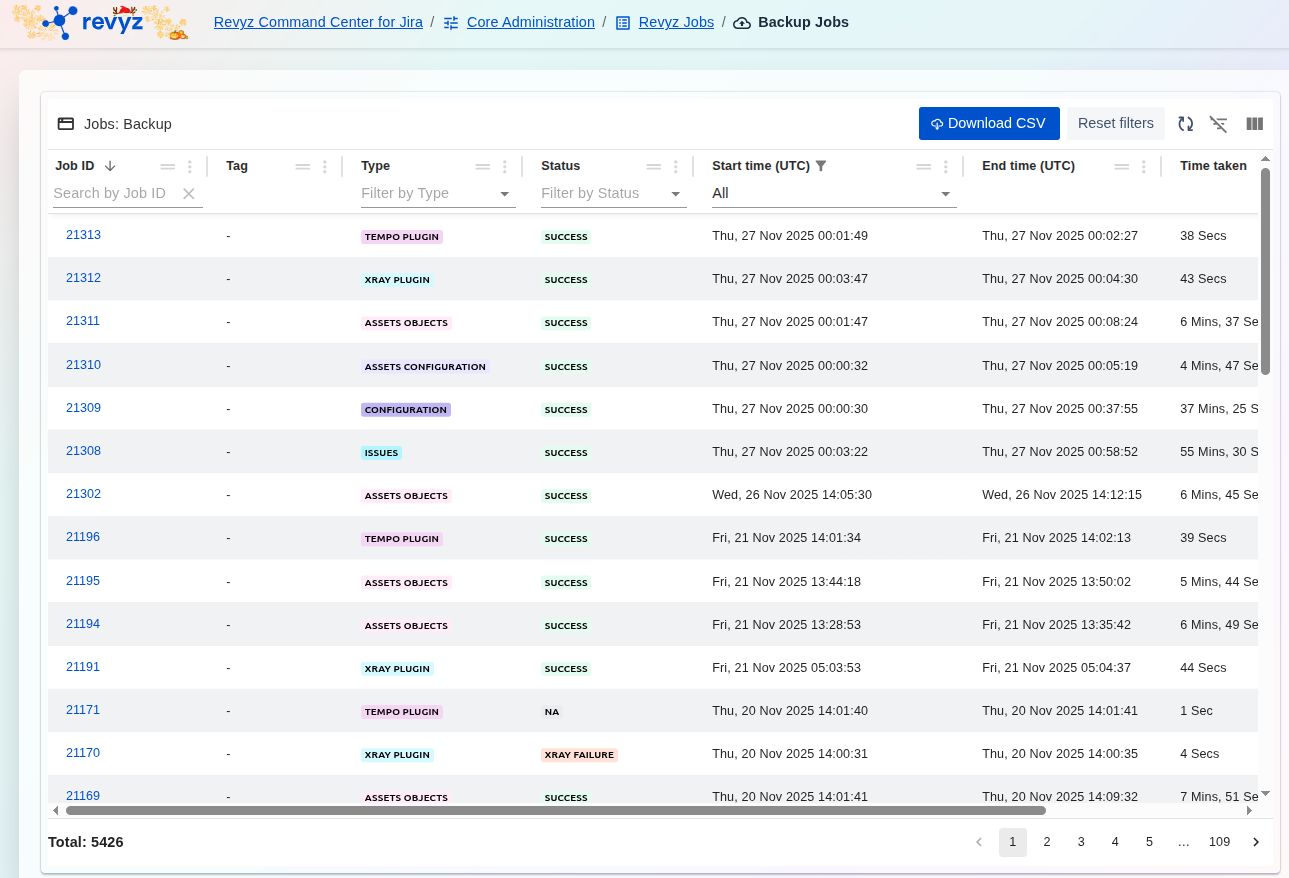
This screen provides a detailed, searchable, and filterable record of every backup job run across your Jira instance. Each entry includes essential metrics such as the Job ID, the data Type (e.g., Issues, Assets Objects, Configuration), the final Status (e.g., SUCCESS, FAILURE), and the total Time taken.
The primary use case is to ensure the integrity and compliance of your data protection strategy:
-
Monitoring and Verification: Easily verify that scheduled backup jobs are running successfully and on time.
-
Troubleshooting: Quickly identify failed jobs (XRAY FAILURE, etc.) and use the Job ID to access detailed logs for root cause analysis.
-
Reporting and Auditing: Use the sorting/filtering features and the Download CSV option to gather data necessary for audit logs, capacity planning, and SLA reporting.
How to View Backup Job Details
To find and inspect the details of a specific backup operation:
-
Filter/Search: Use the filter bars at the top (e.g., Job ID, Type, or Status) to quickly locate the job you are interested in.
-
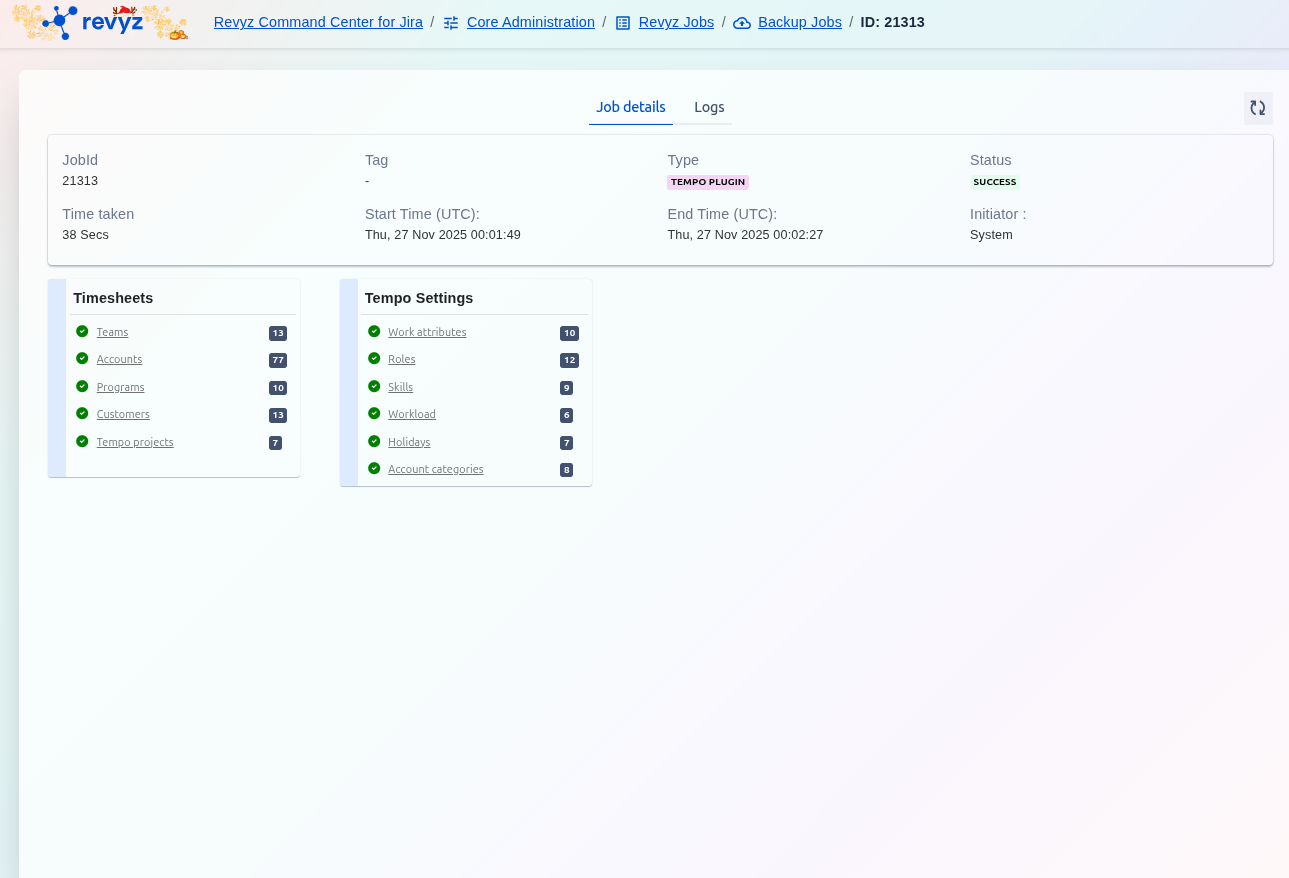
View Details: Click on the hyperlinked blue Job ID (e.g., 21313) to open the detailed log view and metadata associated with that specific backup operation.
How to Use This Report?
To Monitor Backup Health:
-
The simplest way to check for problems is to use the "Filter by Status" dropdown and select
FAILED. -
This instantly shows you any jobs that require investigation.
-
You can also check this screen after your scheduled backup window to confirm you have a list of
SUCCESSjobs for all your data types.
To Investigate a Specific Job:
-
Find the job you want to review (e.g., a
FAILEDjob or a manually-run job). -
Click the blue link in the
Job IDcolumn. -
This will open a detailed log output for that job, showing specific steps and any error messages.
To Export Logs for Auditing:
-
Click the
Download CSVbutton in the top-right corner. -
This exports the entire list of jobs, which can be used for compliance records, offline analysis, or performance tracking.