
Example of How to set a connection to Recover your source site data
Source site - revyz5.atlassian.net
Recovery site - revyz3.atlassian.net (Destination site)
Note: Revyz app with same region should also be installed on destination site.
-
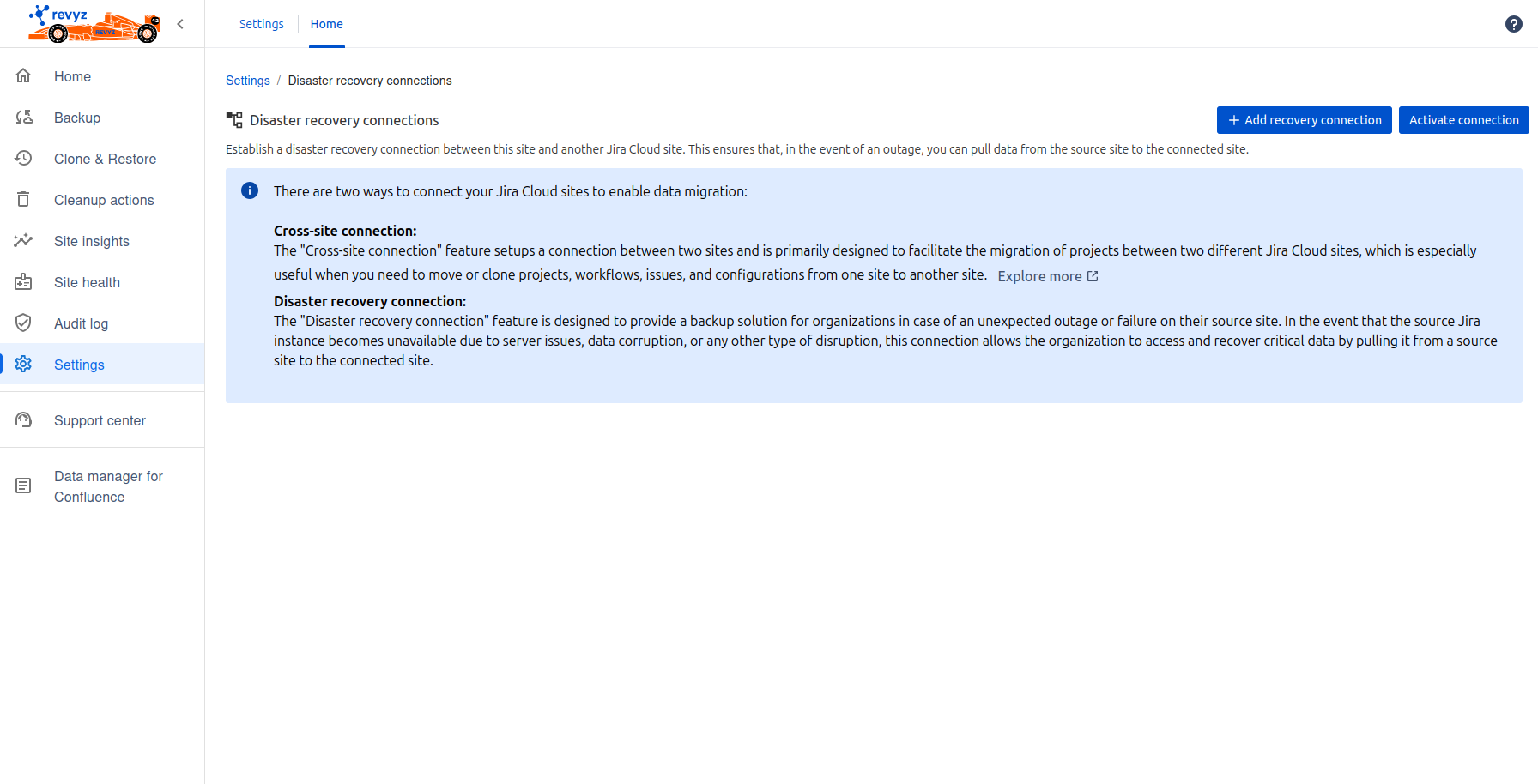
Go to Settings in left navbar - > Click on 'Disaster recovery connections' card under Connections settings.
-
Click on “Add recovery connection“ button.
-
Enter connection name and click on “Add connection“ button.
-
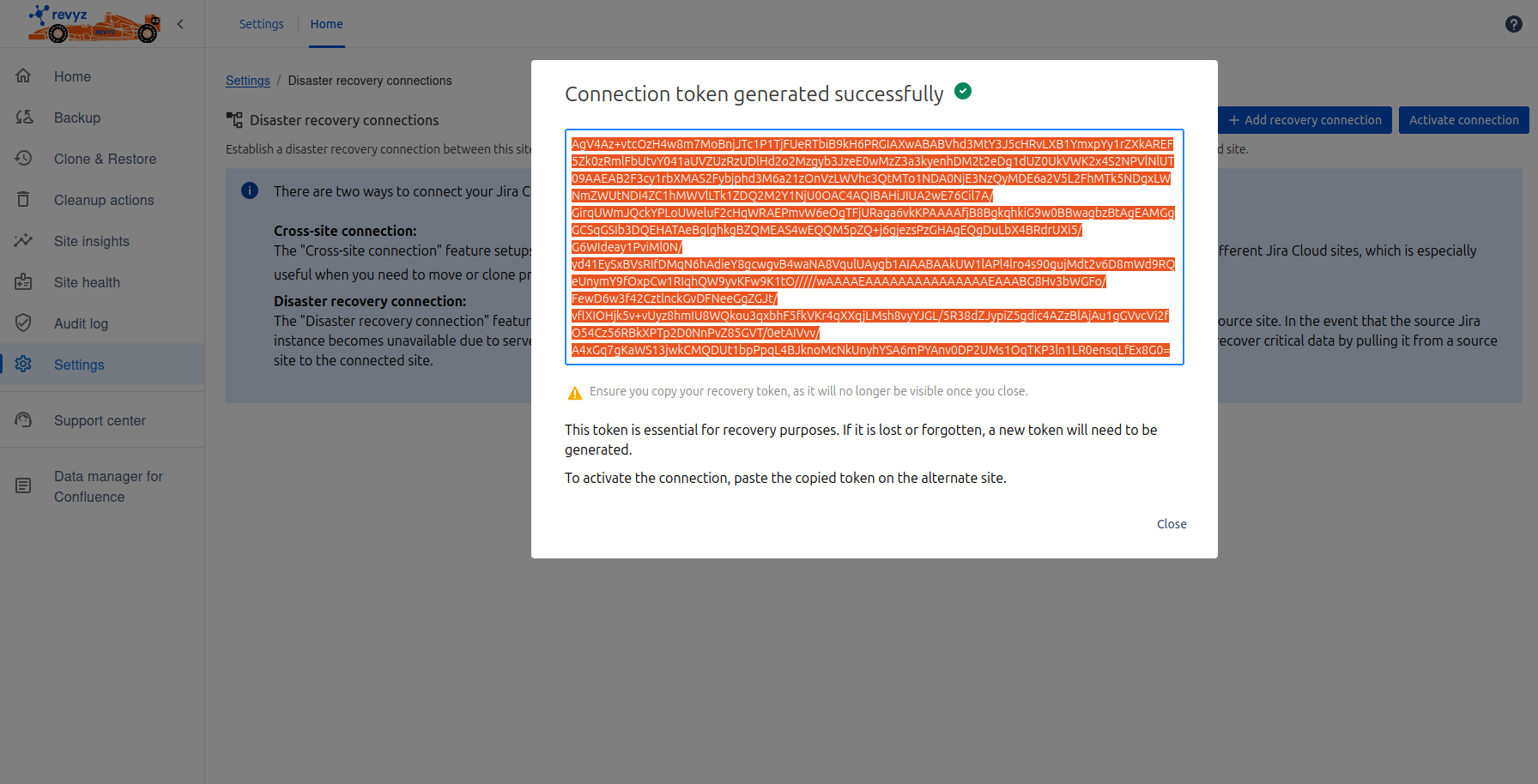
It will generate connection token. Copy the token.
-
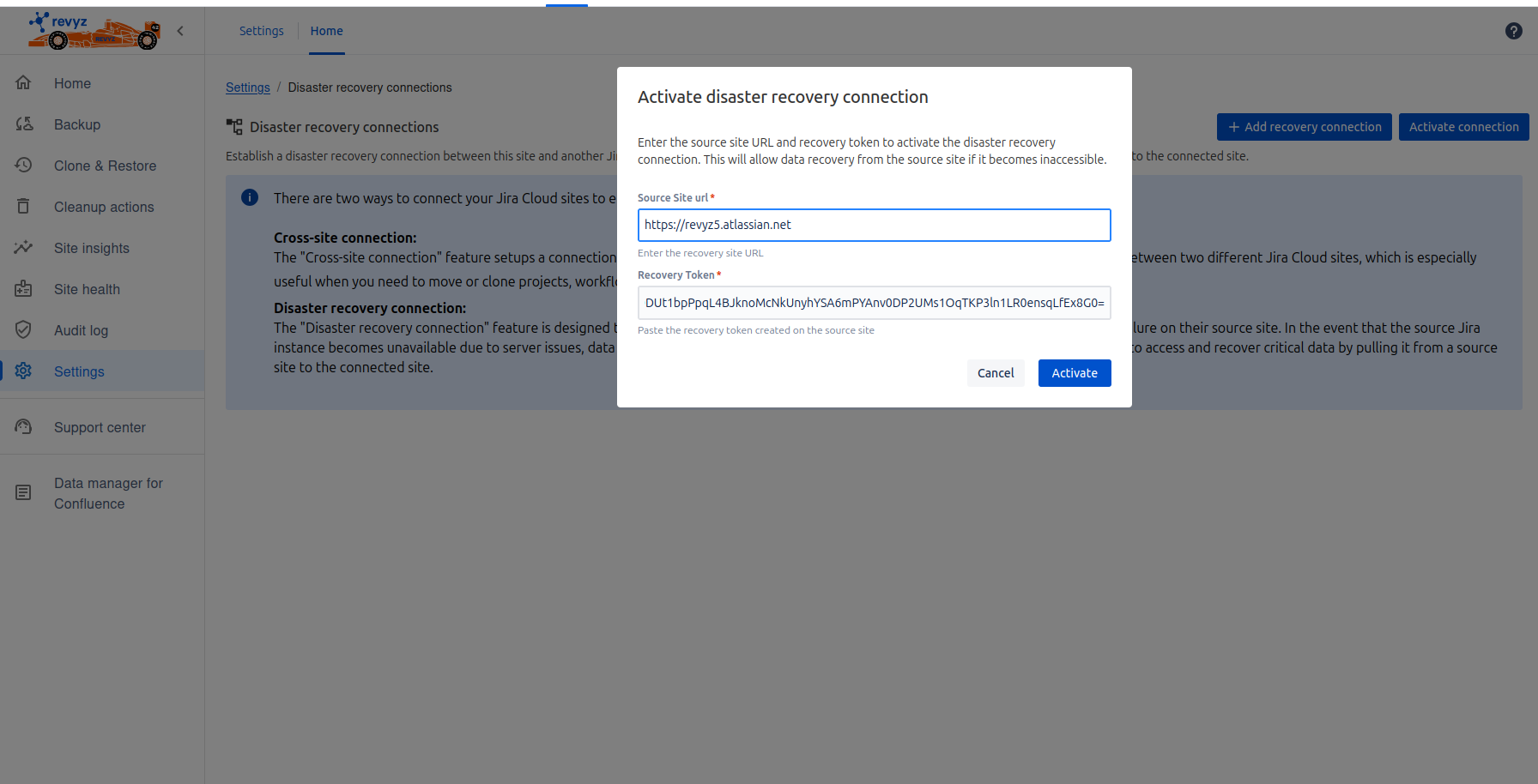
Go to Destination site where you want to recover the data and click on “Activate connection“
-
Enter source site URL - https://revyz5.atlassian.net
-
Paste copied token
-
-
Click on Activate - Connection will get activated.
-
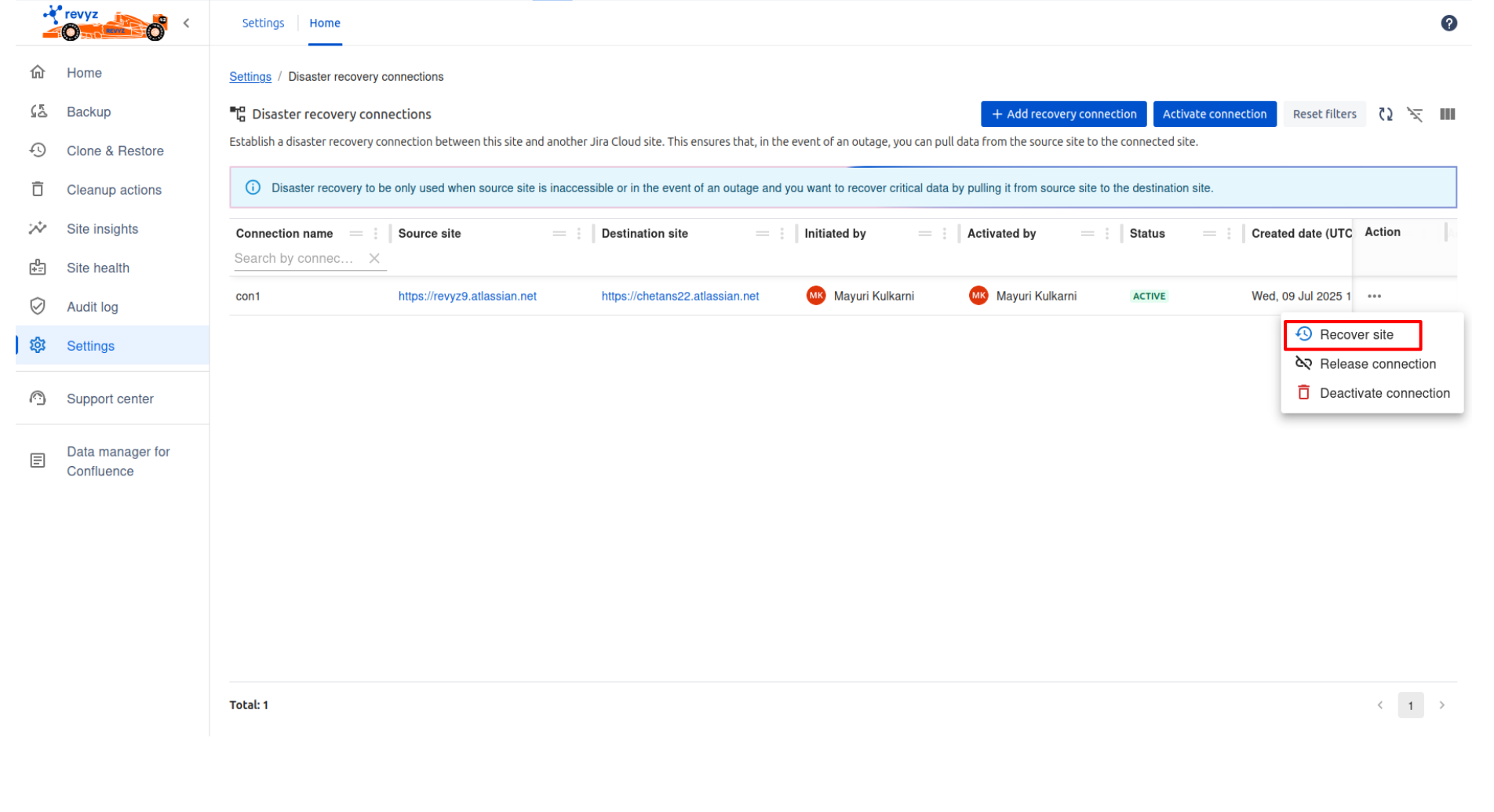
Connection is successful when Status is “Active”.
-
-
Click on Action (…) and click on “Recover site” option.
-
Click on “Contact support” link.
-
For security concerns, Revyz will get the request. After approving the request, you can recover the data from source site.
-