
Revyz will create ticket for each action i.e after triggering backup jobs, restore jobs, Cleanup actions jobs & notify you through email. Revyz will create issue ticket and associated it to project you created. In that project you can check all the created issues.
-
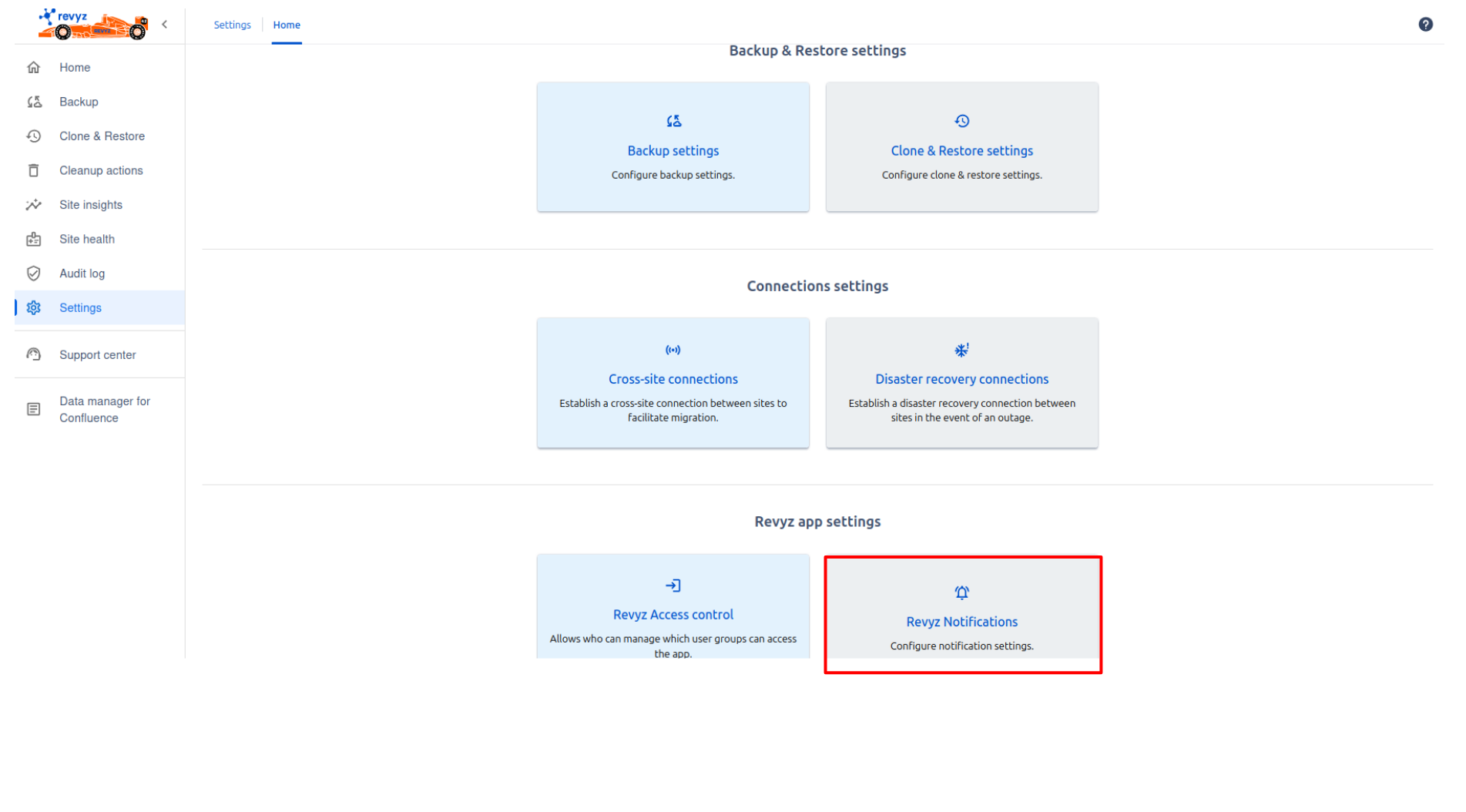
To know more details about Notifications , Click on Settings in left navbar and click on ‘Revyz Notifications’ card under Revyz app settings.
-
Enter project name.
-
Project key will be generated automatically.
-
Search for a project lead.
-
Click on 'Next' and click on Create project.
-
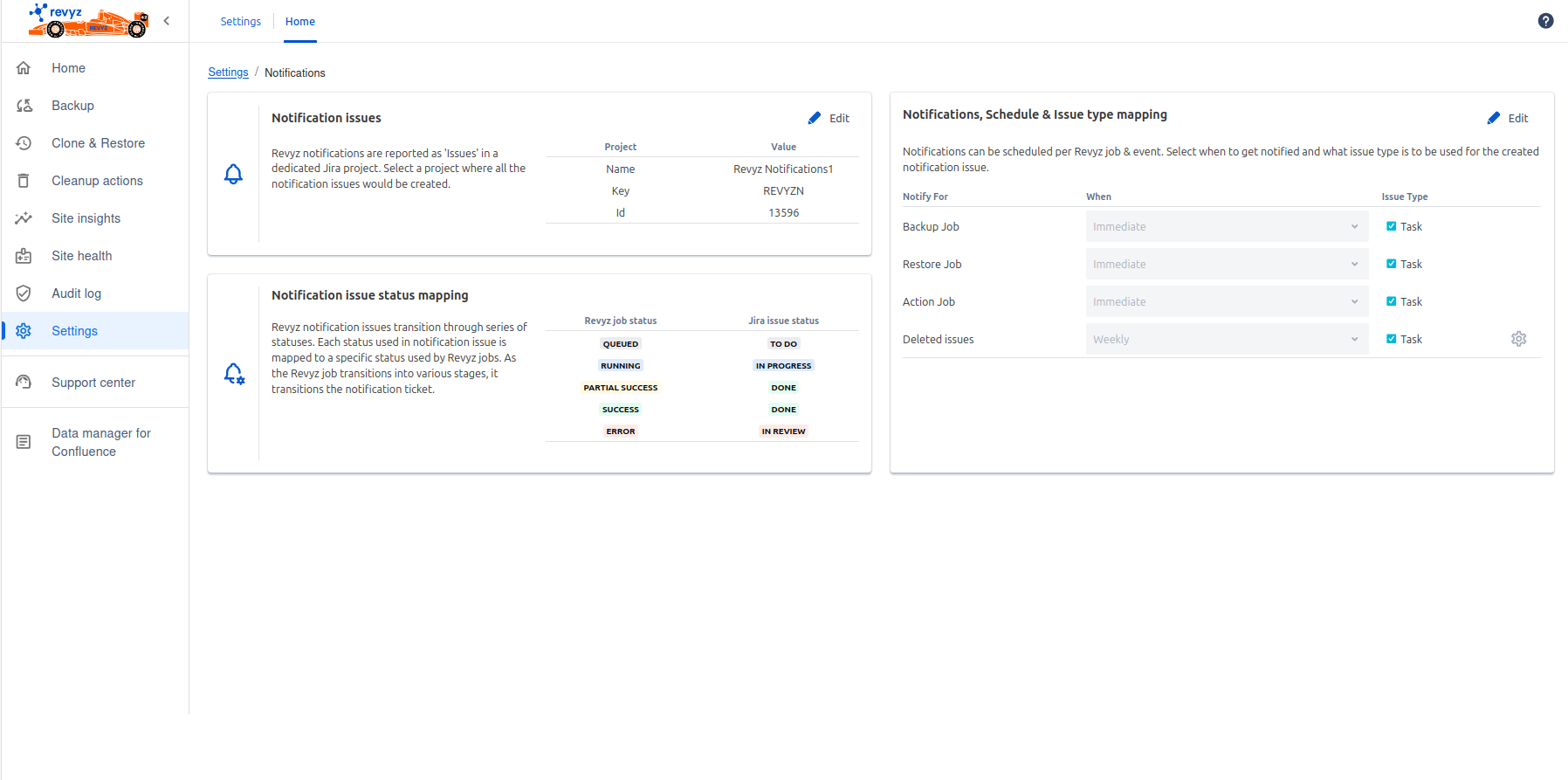
Notification issues
-
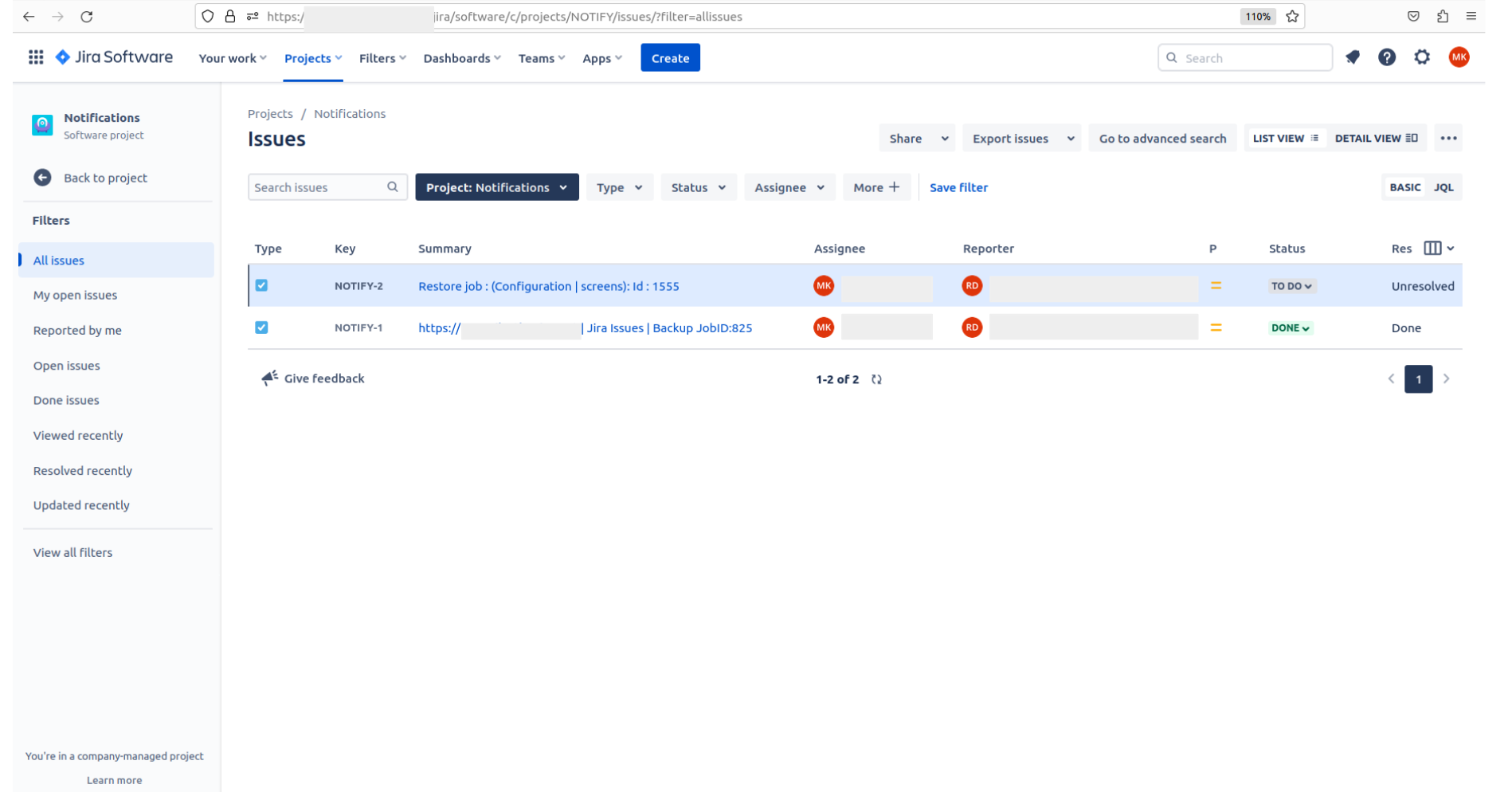
All created issues i.e tickets of each action will created in this project “New projects for notifications“
-
E.g. In following screenshot, User has created new project notifications & triggered two jobs so two issues are created in notifications project
2. Notification issue status mapping
-
After triggering job, Issue will get created in your project. so it will change the states as per your job state for e.g
Queued - > To Do
Running - > In progress
Success - > Done
-
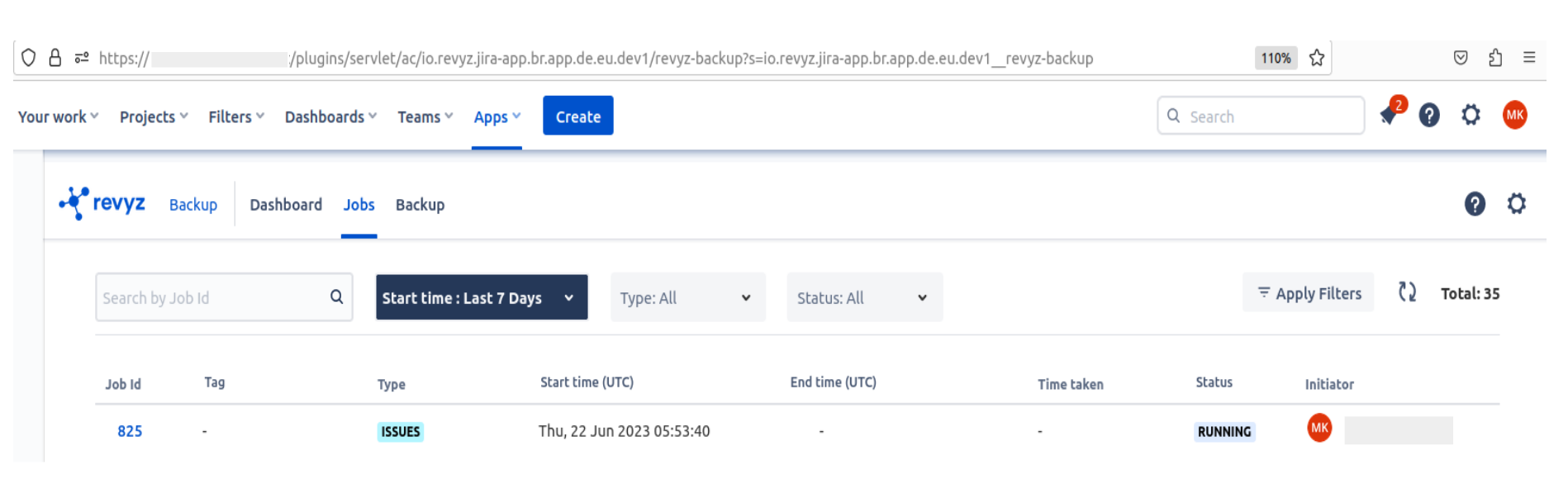
In following screenshot, triggered backup job is in running state and created issue is in In Progress state

3. Notifications,Schedule & Issue type mapping
-
You can select when to notified.
-
By clicking on Edit button, you can change the settings.
-
Deleted issues report - Click on settings icon
-
Include / exclude projects
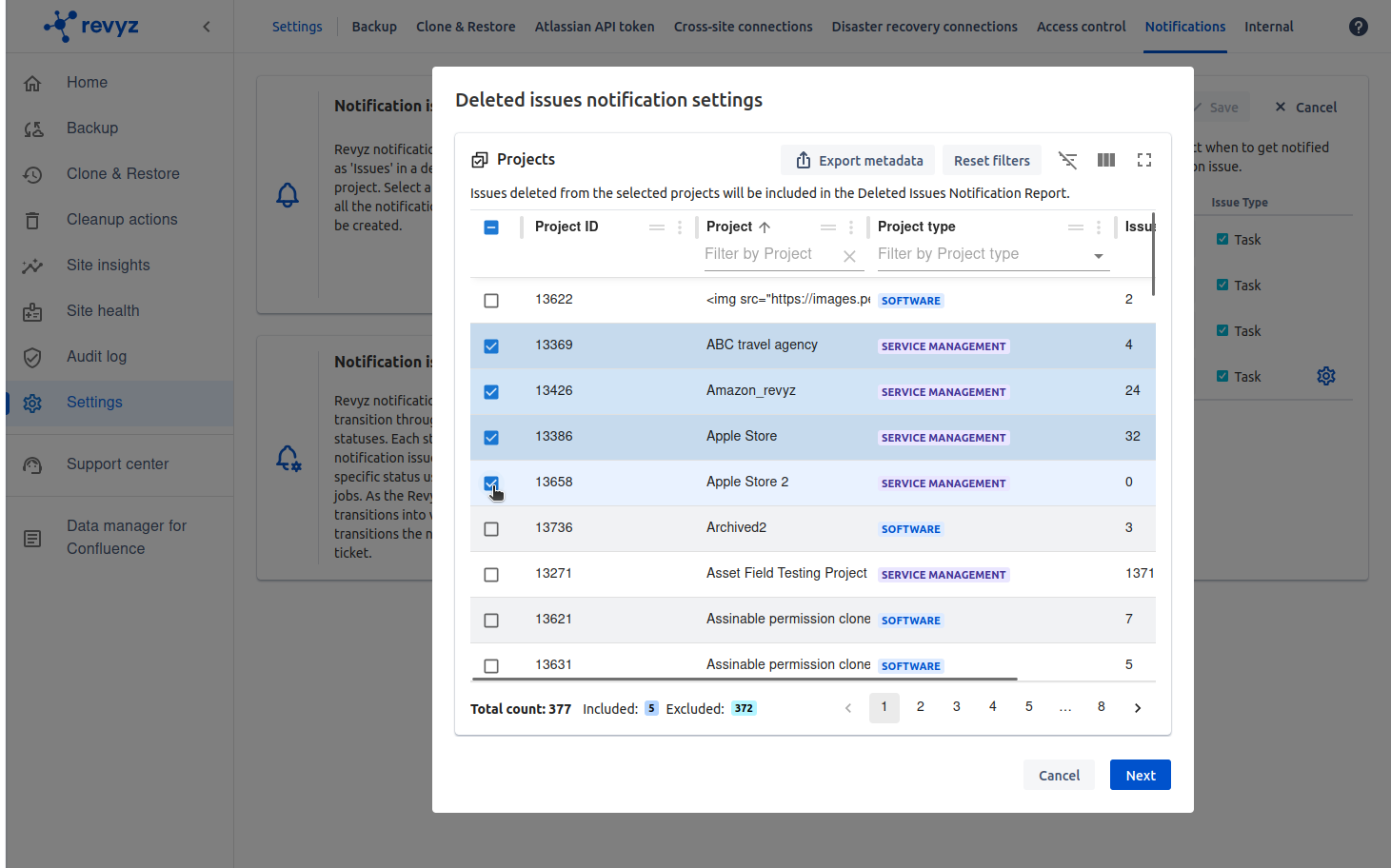
-
Click on next and select the preference - Include / exclude the new projects.
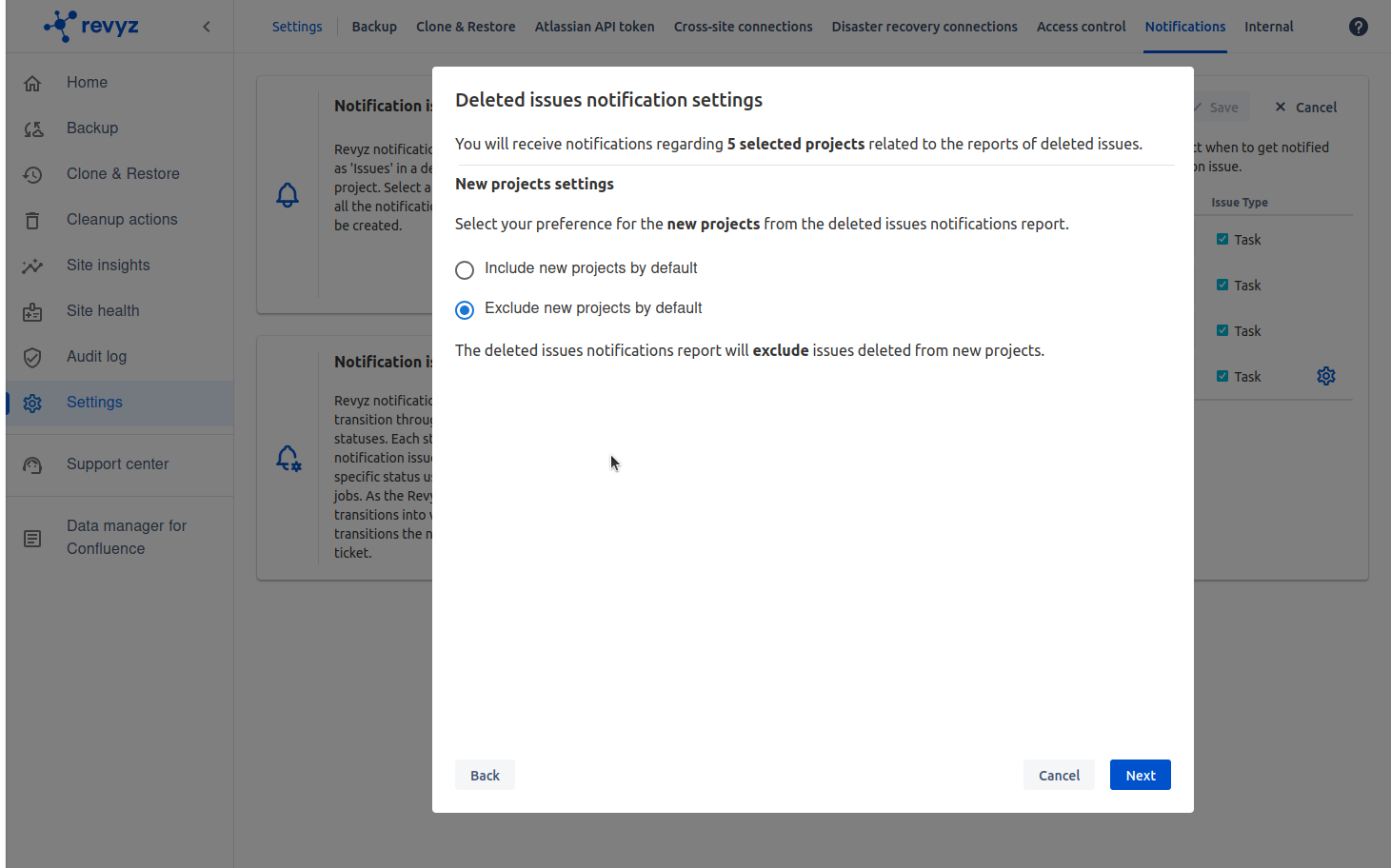
-
Click on next and confirm selected settings
-
Click on “Yes”
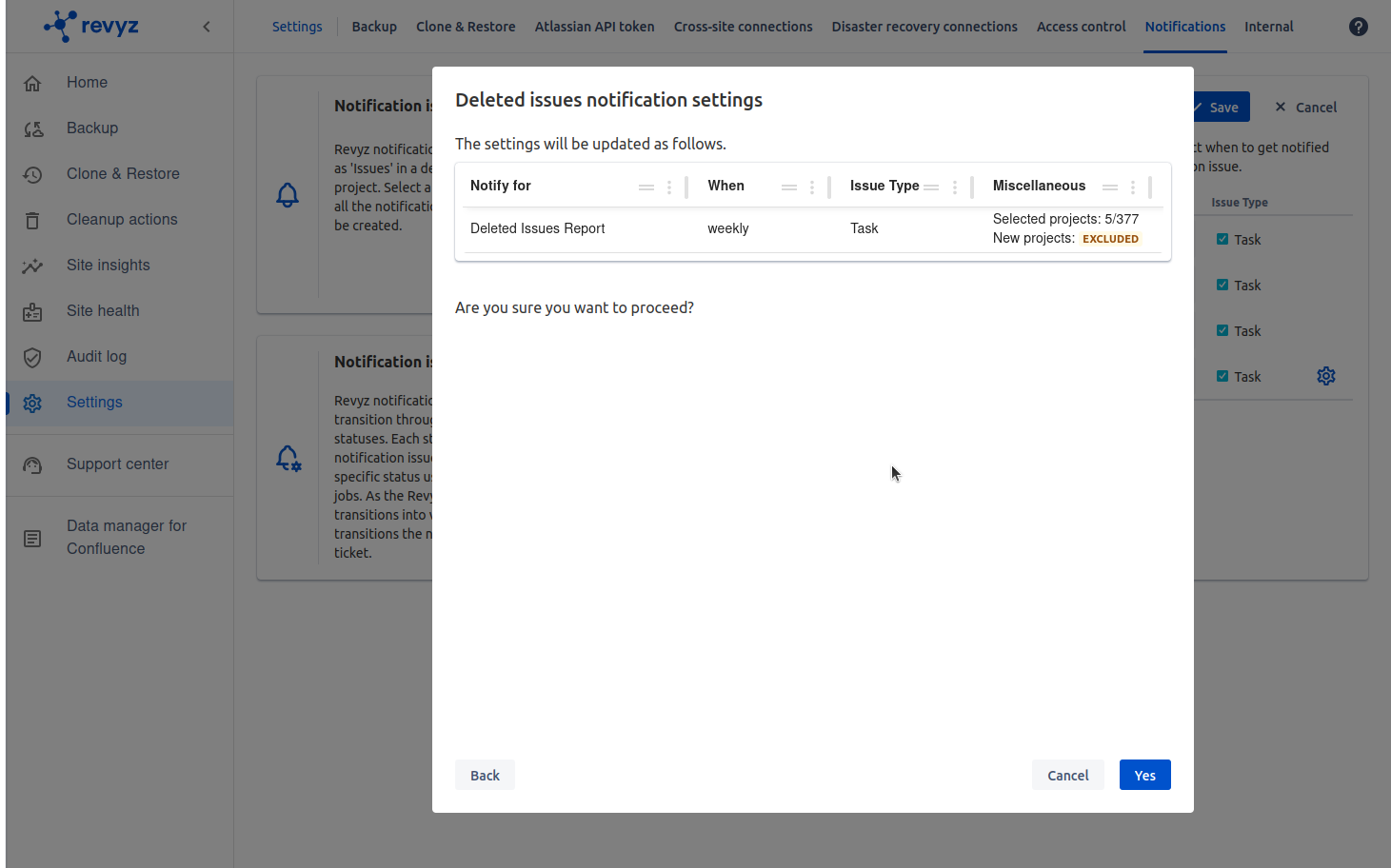
-