
About this Page
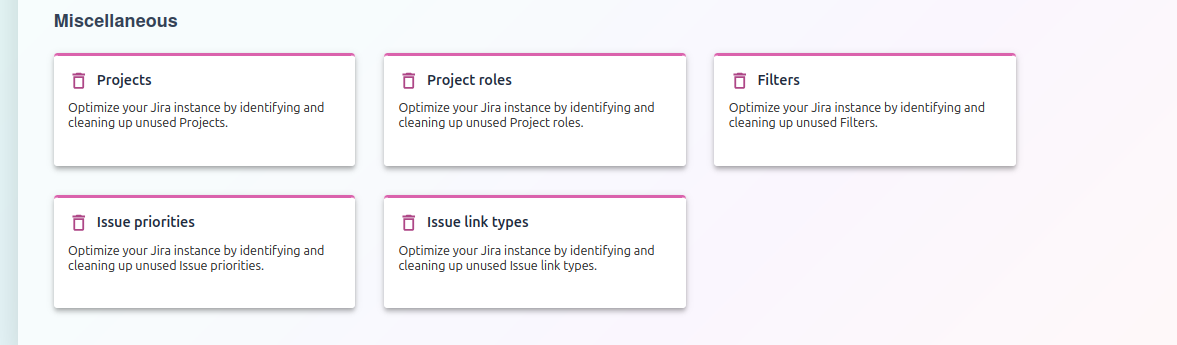
This feature is a collection of scanners that help you find unused configuration items like projects, roles, filters, priorities, and link types. It's an administrative toolkit designed specifically for cleaning up and maintaining your Jira instance.
What is the Use Case?
The main use case is to identify and remove obsolete configurations that clutter your system and slow it down. By cleaning up these unused items, you can improve instance performance, simplify administration, and make Jira easier for your teams to use.
This feature is applicable to:
command center for jira *Advanced config manager for jira *Advanced
1. Projects
This tool scans for projects that are inactive or have no recent issue updates. Archiving or deleting them reduces clutter and can improve overall system performance.
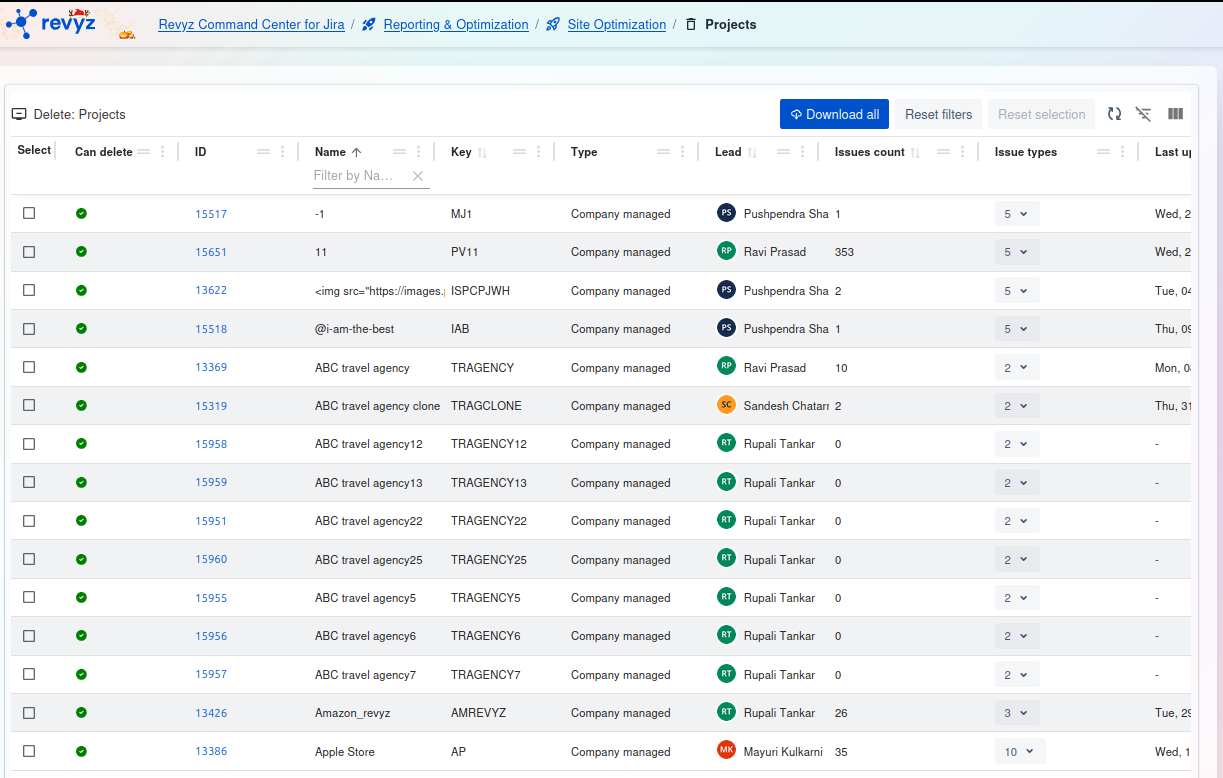
The Projects dashboard (under Reporting & Optimization) provides a complete list of all projects in your instance. It's an administrative tool used to audit, identify, and delete unused or inactive projects to improve site performance and reduce clutter.
Key Data for Cleanup
Focus on these columns to find projects to remove:
-
Last updated: Sort by this to find old, "stale" projects that are no longer in use. -
Issues count: Sort by this to find empty (0issues) or test projects. -
Can delete: A vital safety check. The green checkmark confirms a project is not system-level and can be removed. -
Lead: Shows who owns the project, so you can confirm with them before deleting.
How to Use This Report
To Find Projects for Deletion:
-
Find inactive projects: Click the
Last updatedcolumn header to sort from oldest to newest. -
Find empty projects: Click the
Issues countcolumn header to sort from lowest to highest. -
Find test projects: Use the "Filter by Name" box to search for terms like "test," "demo," or "copy."
To Delete Projects:
-
Select one or more projects using the checkbox in the first column.
-
Verify they all have a green checkmark in the
Can deletecolumn. -
Click the Delete: Projects button that appears in the toolbar.
-
Carefully review the confirmation list and finalize the deletion.
Warning: Deleting a project is permanent and cannot be undone. All associated issues, attachments, and configurations will be lost. Always verify with project leads before deleting.
To Export Your Project List:
Click the Download all button to get a complete CSV report of all projects for offline analysis or archival.
2. Project Roles
This finds custom project roles that are not assigned to any users or permission schemes. Cleaning them up simplifies your security configuration and makes user management easier.
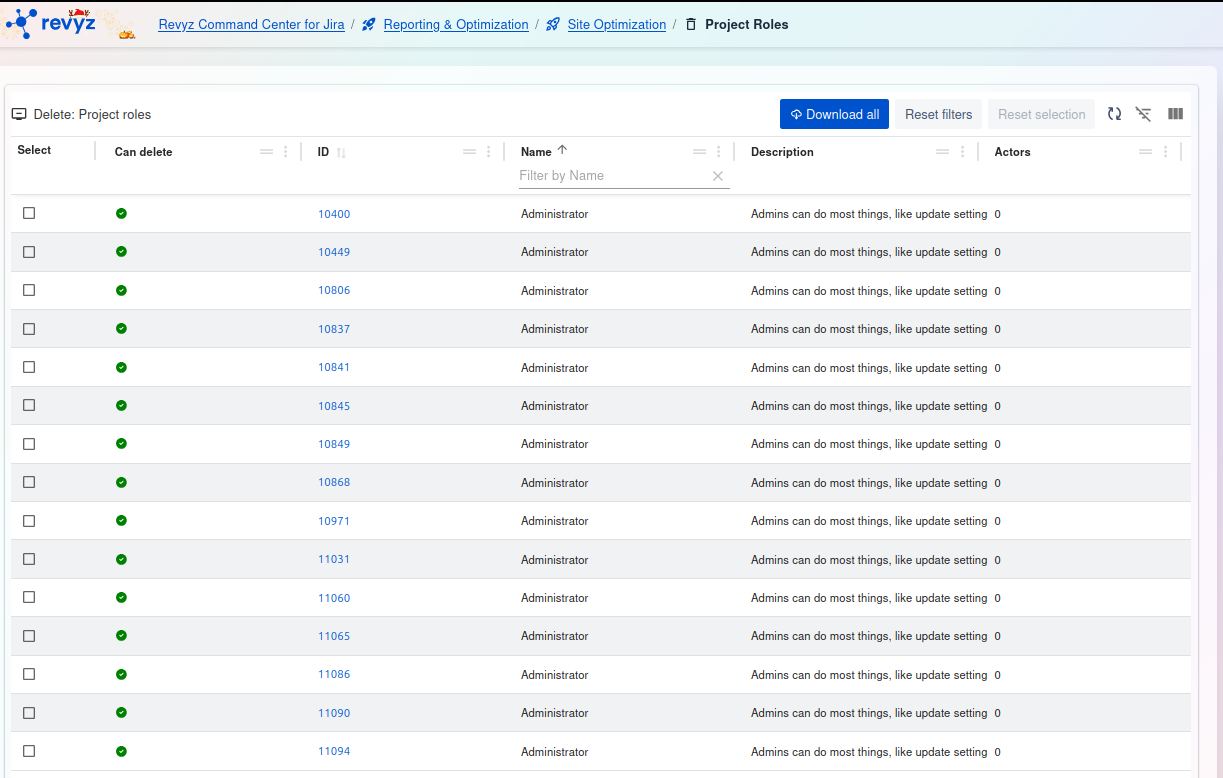
The Project Roles dashboard (under Reporting & Optimization) lists every project role in your instance. It's an administrative tool used to audit and delete unused or redundant roles to simplify your instance's permission and security configurations.
Key Data for Cleanup
Focus on these columns to find roles to remove:
-
Actors: This is the most critical column. A value of0means no users or groups are assigned to this role, making it a prime candidate for deletion. -
Can delete: The green checkmark confirms this is a custom role (not a default system role like 'Administrator') and can be safely removed. -
Name/Description: Helps you identify the role and its intended purpose.
How to Use This Report?
-
Click the
Actorscolumn header to sort the list from lowest to highest. -
All roles with an
Actorscount of0are unused and can typically be deleted. -
Use the "Filter by Name" box to find specific roles (e.g., "Temp Role," "Test").
To Delete Roles:
-
Select one or more roles (that have
0actors) using the checkbox in the first column. -
Verify they all have a green checkmark in the
Can deletecolumn. -
Click the Delete: Project roles button that appears in the toolbar.
-
Carefully review the confirmation list and finalize the deletion.
Warning: Deleting a project role that is in use (Actors > 0) can break project permission schemes. We strongly recommend only deleting roles where Actors = 0.
To Export Your Role List:
Click the Download all button to get a complete CSV report of all project roles for offline auditing before you make changes.
4. Issue priorities
This tool locates issue priority options (e.g., "Trivial," "Highest") that no issues are using. It allows you to simplify the priority list, making issue creation and triage faster for teams.
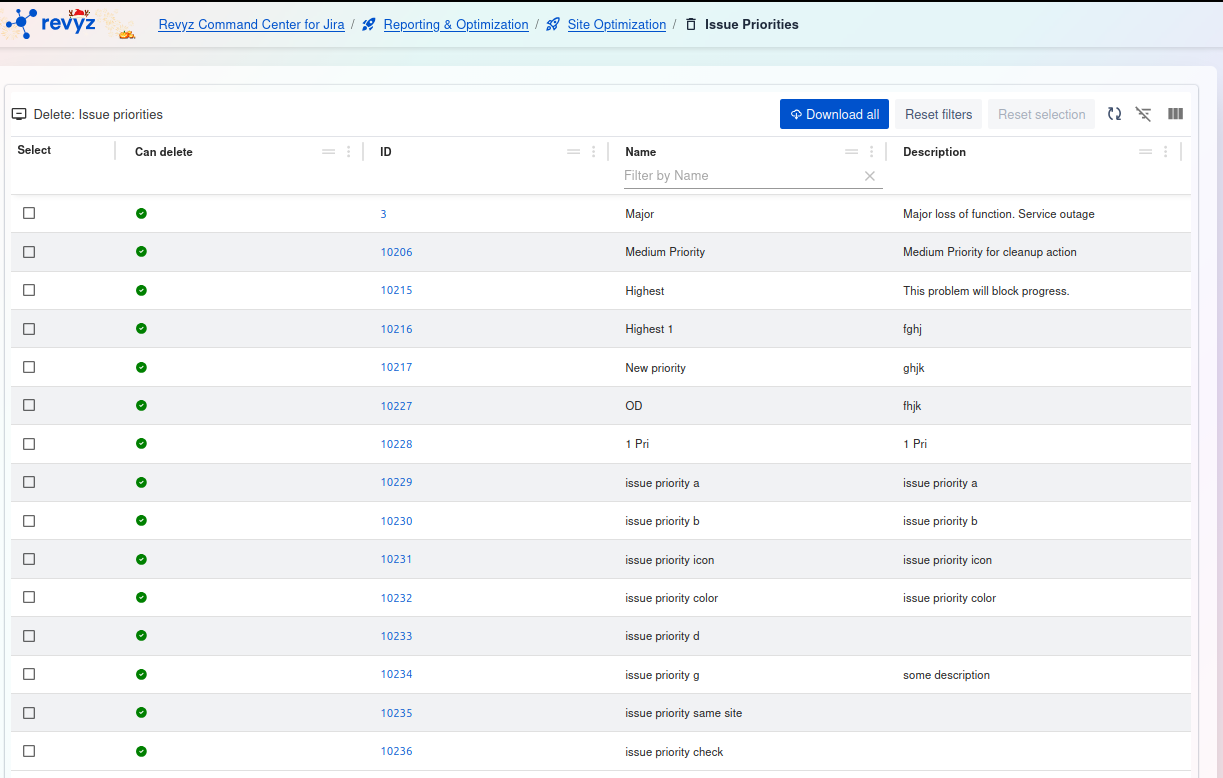
The Issue Priorities dashboard (under Reporting & Optimization) lists all the custom issue priorities in your instance. It's an administrative tool used to audit and delete unused, duplicate, or test priorities to clean up your instance and simplify the "Priority" field for users during issue creation.
Key Data for Cleanup
This report relies on manual review, as it does not show an active "usage count."
-
Name/Description: Your main tool. Scan this list to find typos, test priorities (e.g., "1 Pri," "issue priority a"), or redundant entries (e.g., "Highest 1" when you already have "Highest"). -
Can delete: The green checkmark confirms this is a custom priority (not a default system one like "High") and is eligible for deletion.
How to Use This Report?
To Find Priorities for Deletion:
-
Manually review the
NameandDescriptioncolumns to spot obvious test data or typos. -
Identify redundant or confusingly similar priorities that can be consolidated.
-
Use the "Filter by Name" box to search for specific terms (e.g., "test," "copy").
To Delete Priorities:
-
Select one or more priorities you have identified as unused or redundant using the checkbox in the first column.
-
Verify they all have a green checkmark in the
Can deletecolumn. -
Click the Delete: Issue priorities button that appears in the toolbar.
-
Carefully review the confirmation list and finalize the deletion.
Warning: Deleting a priority is permanent. Before deleting, ensure the priority is not being used in any Issue Priority Schemes, as this can cause issues in projects that use those schemes.
To Export Your Priority List:
Click the Download all button to get a complete CSV report. This is useful for offline analysis or to get approval from stakeholders before performing a bulk cleanup.
5. Issue link types
This finds issue link types (e.g., "relates to," "blocks") that are not connecting any issues. Removing them streamlines the "Link Issue" dialog so users only see relevant options.
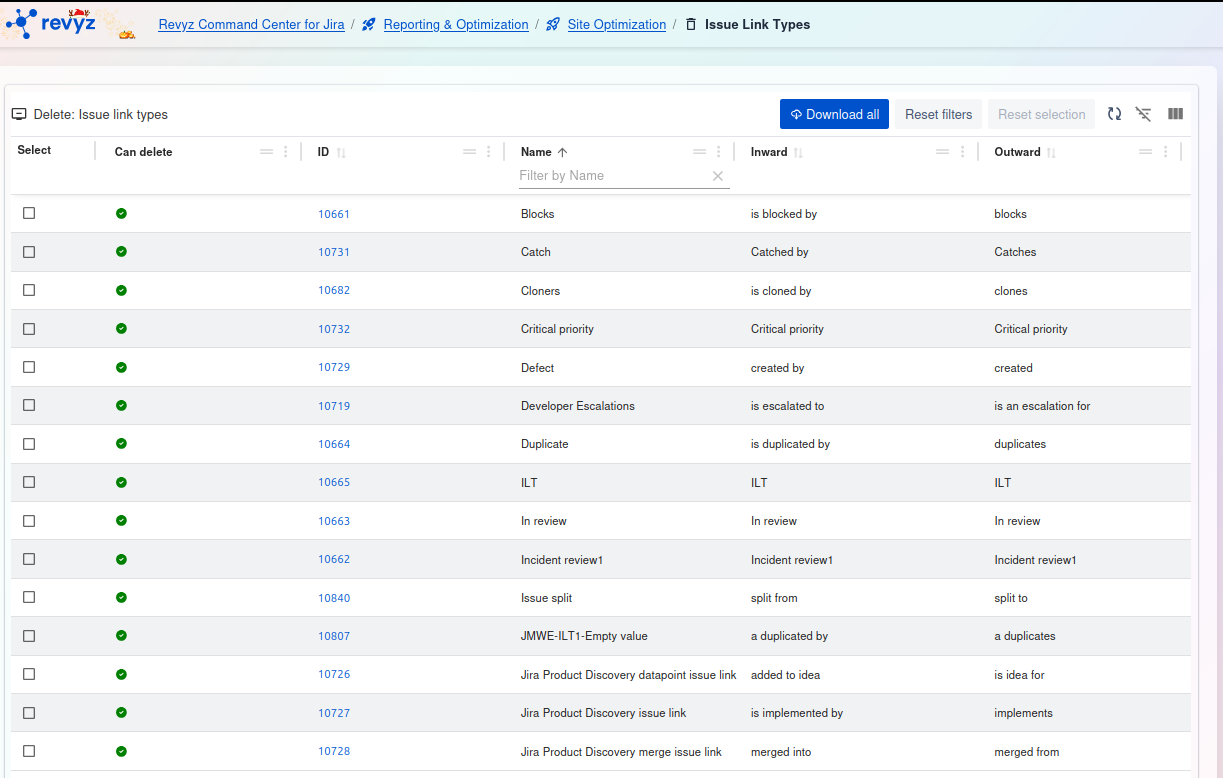
The Issue Link Types dashboard (under Reporting & Optimization) lists all the issue link types configured in your instance. It's an administrative tool used to audit and delete unused, test, or redundant link types to simplify the "Link Issue" dialog box for all users.
Key Data for Cleanup
This report relies on manual review, as it does not show an active "usage count."
-
Name/Inward/Outward: Your main tool. Scan this list to find test links (e.g., "ILT"), typos ("Defect" vs "Defects"), or redundant links. -
Can delete: The green checkmark confirms this is a custom link type (not a default system one like "Blocks") and is eligible for deletion.
How to Use This Report?
To Find Link Types for Deletion:
-
Manually review the
Name,Inward, andOutwarddescriptions to spot obvious test data or duplicates. -
Identify confusing or obsolete links that are no longer part of your team's workflow.
-
Use the "Filter by Name" box to search for specific terms (e.g., "test," "review").
To Delete Link Types:
-
Select one or more link types you have identified as unused using the checkbox in the first column.
-
Verify they all have a green checkmark in the
Can deletecolumn. -
Click the Delete: Issue link types button that appears in the toolbar.
-
Carefully review the confirmation list and finalize the deletion.
Warning: Deleting a link type is permanent. This report does not show if a link type is actively in use. Deleting a link type that is currently connecting issues will break those existing links. Always investigate usage before deleting.
To Export Your Link Type List:
Click the Download all button to get a complete CSV report. This is useful for offline analysis or to investigate usage with your team before performing a cleanup.
5. Issue link types
This finds issue link types (e.g., "relates to," "blocks") that are not connecting any issues. Removing them streamlines the "Link Issue" dialog so users only see relevant options.
The Issue Link Types dashboard (under Reporting & Optimization) lists all the issue link types configured in your instance. It's an administrative tool used to audit and delete unused, test, or redundant link types to simplify the "Link Issue" dialog box for all users.
Key Data for Cleanup
This report relies on manual review, as it does not show an active "usage count."
-
Name/Inward/Outward: Your main tool. Scan this list to find test links (e.g., "ILT"), typos ("Defect" vs "Defects"), or redundant links. -
Can delete: The green checkmark confirms this is a custom link type (not a default system one like "Blocks") and is eligible for deletion.
How to Use This Report?
To Find Link Types for Deletion:
-
Manually review the
Name,Inward, andOutwarddescriptions to spot obvious test data or duplicates. -
Identify confusing or obsolete links that are no longer part of your team's workflow.
-
Use the "Filter by Name" box to search for specific terms (e.g., "test," "review").
To Delete Link Types:
-
Select one or more link types you have identified as unused using the checkbox in the first column.
-
Verify they all have a green checkmark in the
Can deletecolumn. -
Click the Delete: Issue link types button that appears in the toolbar.
-
Carefully review the confirmation list and finalize the deletion.
Warning: Deleting a link type is permanent. This report does not show if a link type is actively in use. Deleting a link type that is currently connecting issues will break those existing links. Always investigate usage before deleting.
To Export Your Link Type List:
Click the Download all button to get a complete CSV report. This is useful for offline analysis or to investigate usage with your team before performing a cleanup.