
About this Page
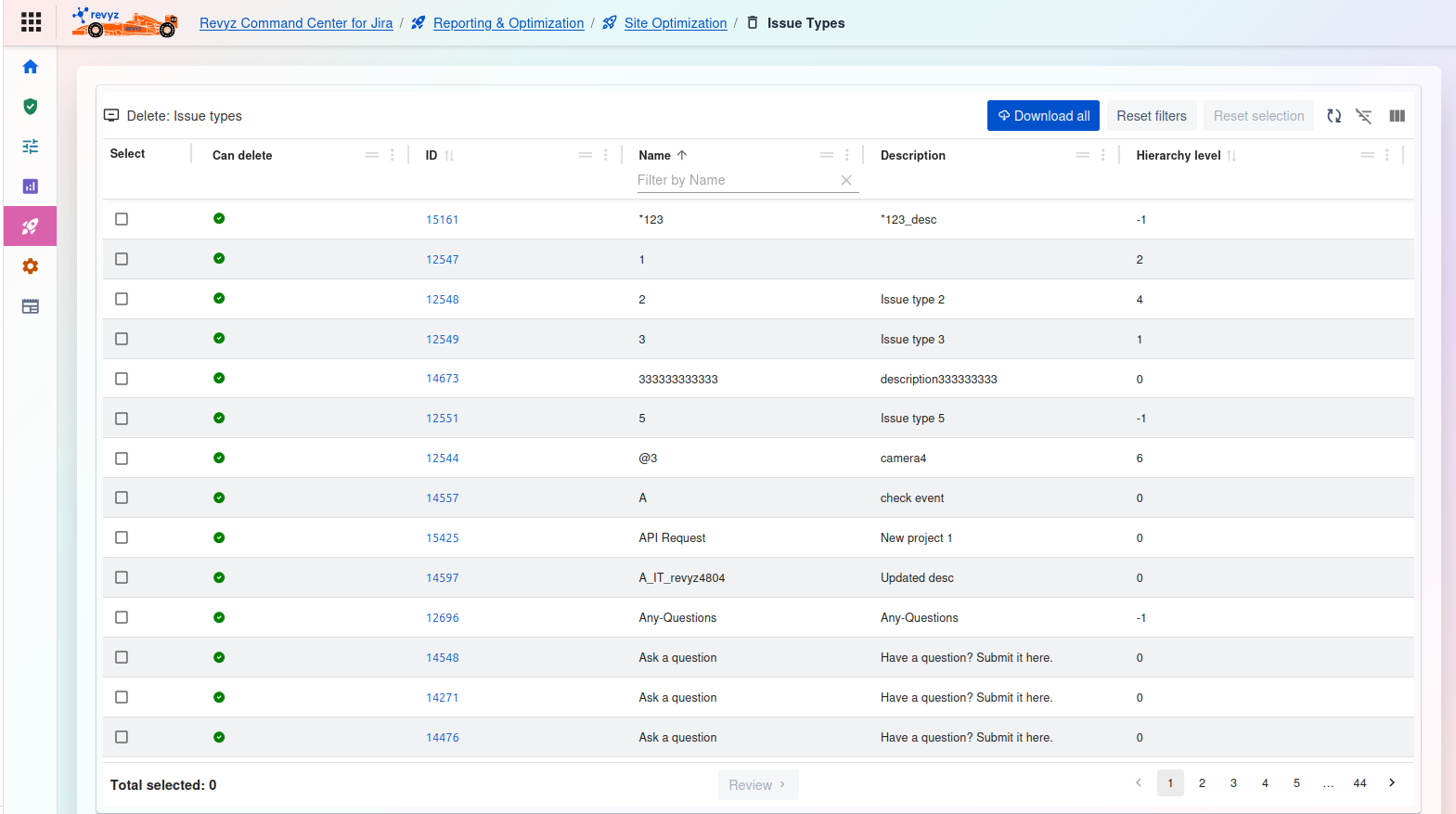
This page is about Work type (Issue types) feature, a Site Optimization tool that scans your Jira instance and provides a complete list of all configured work types. It analyzes each one to determine if it is unused and can be safely deleted.
What is the Use Case?
Use this to declutter your instance by identifying and removing "orphaned" or legacy work types that are not part of any scheme. This simplifies project setup and makes Jira easier for users to navigate.
This feature is applicable to:
command center for jira *Advanced config manager for jira *Advanced
2. Work Type Schemes
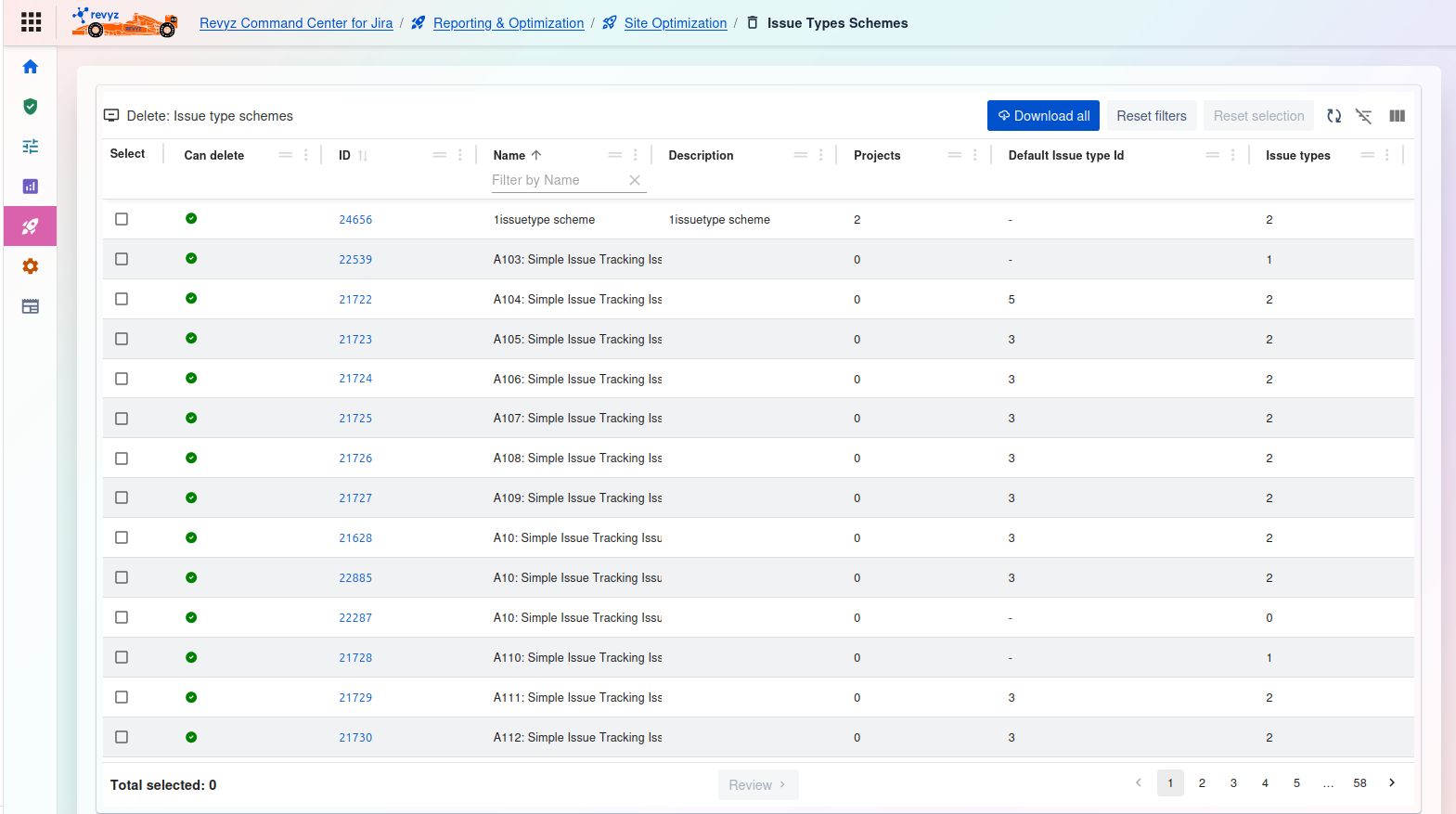
Delete: Work type schemes
This page displays a list of all Work Type Schemes in your Jira instance. It highlights schemes that are not associated with any projects and can be safely deleted.
Management and Filtering:
-
Download all: Exports a complete list of all work type schemes shown in the table.
-
Reset filters: Clears any filters you have applied to the table.
-
Reset selection: Un-checks any work type schemes you have selected in the list.
-
Table tools (right side): Use these icons to toggle the filter row or customize the visible columns.
Work Type Schemes Table:
-
Select: A checkbox to select one or more schemes for review and deletion.
-
Can delete: A status icon indicating if the scheme can be safely deleted.
-
Green Checkmark: The scheme is not associated with any projects (see the "Projects" column is
0) and is safe to be deleted.
-
-
ID: The unique internal ID for the work type scheme (e.g.,
24656). -
Name: The name of the scheme as it appears to users (e.g.,
A103: Simple Issue tracking Iss). You can filter this column by name. -
Description: The description associated with the scheme.
-
Projects: The number of projects currently using this scheme. A value of
0indicates it is unused and can be deleted. -
Default work type id: The internal ID of the default work type for this scheme.
-
Issue types: The number of work types included in this scheme.