
About this Page
This is a suite of Site Optimization tools focused on your Jira workflows. It provides separate utilities to analyze and clean up unused Statuses, the Workflows themselves, and Workflow Schemes.
What is the Use Case?
Use this to streamline your entire workflow configuration. By identifying and removing "orphaned" statuses, inactive workflows, and unassociated workflow schemes, you reduce clutter and simplify instance administration.

Optimization Tools
-
Statuses: Optimize your Jira instance by identifying and cleaning up unused Statuses.
-
Workflows: Optimize your Jira instance by identifying and cleaning up unused Workflows.
-
Workflow schemes: Optimize your Jira instance by identifying and cleaning up unused Workflow schemes.
This feature is applicable to:
command center for jira *Advanced config manager for jira *Advanced
1. Statuses
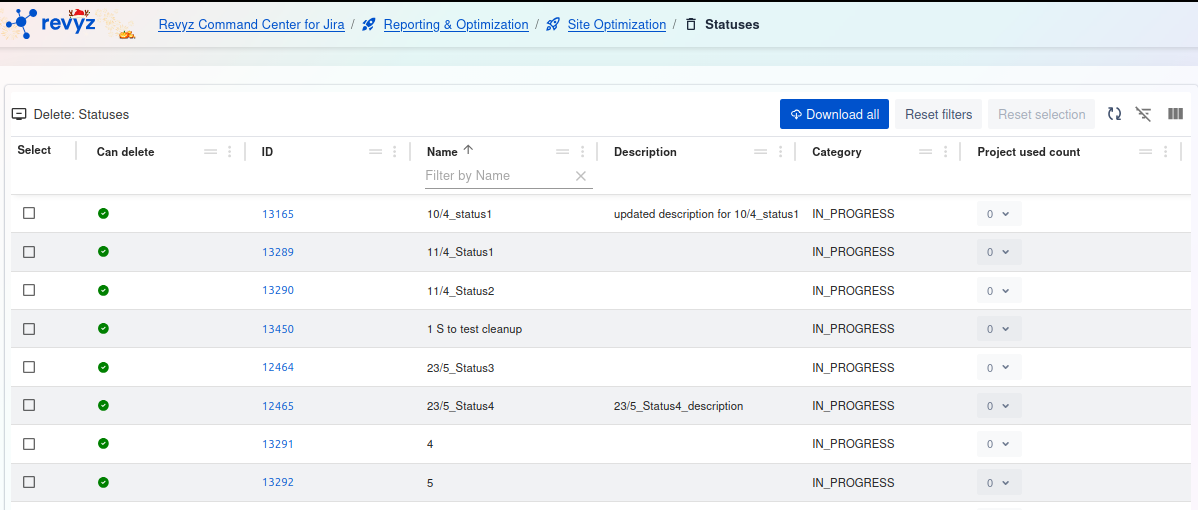
This page displays a list of all Statuses in your Jira instance. It highlights which statuses are not currently used in any workflow and are therefore safe to be deleted.
Management and Filtering:
-
Download all: Exports a complete list of all statuses shown in the table.
-
Reset filters: Clears any filters you have applied to the table.
-
Reset selection: Un-checks any statuses you have selected in the list.
-
Table tools (right side): Use these icons to toggle the filter row or customize the visible columns.
Statuses Table:
-
Select: A checkbox to select one or more statuses for review and deletion.
-
Can delete: A status icon indicating if the status can be safely deleted.
-
Green Checkmark: The status is not associated with any workflow and is safe to be deleted.
-
(Other Icon/No Icon): The status is currently in use by one or more workflows and cannot be deleted.
-
-
(ID Column): The blue number (e.g.,
13165) is the unique internal ID for the status. -
Name: The name of the status as it appears to users (e.g.,
10/4_status1,Approval). You can filter this column by name. -
Description: The description associated with the status.
-
Category: The category the status belongs to (e.g.,
IN_PROGRESS,DONE).
2. Workflows
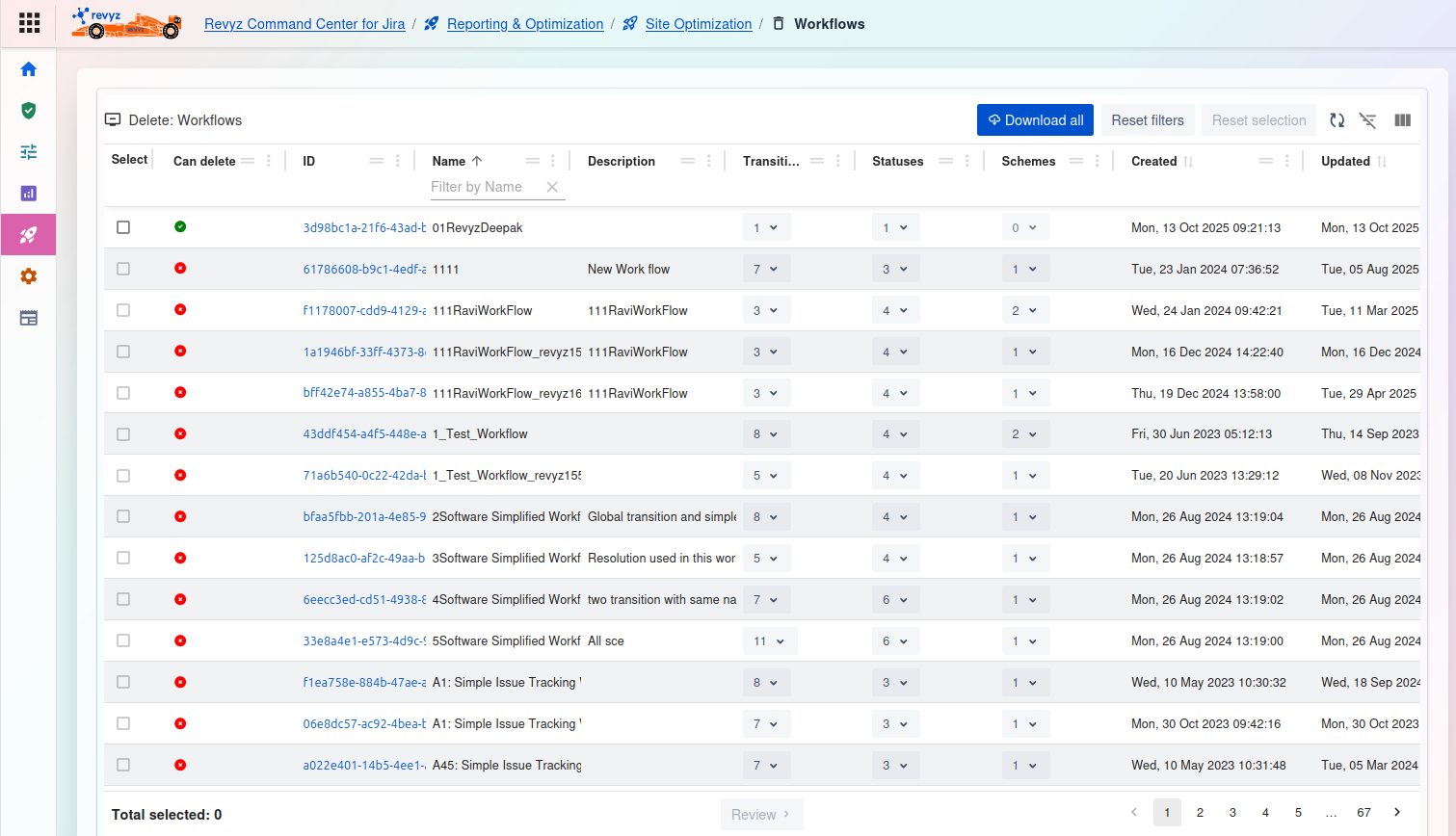
Delete: Workflows
This page displays a list of all Workflows in your Jira instance. It indicates which workflows are active in schemes (and cannot be deleted) and which are "orphaned" (and can be safely deleted).
Management and Filtering:
-
Download all: Exports a complete list of all workflows shown in the table.
-
Reset filters: Clears any filters you have applied to the table.
-
Reset selection: Un-checks any workflows you have selected in the list.
-
Table tools (right side): Use these icons to toggle the filter row or customize the visible columns.
Workflows Table:
-
Select: A checkbox to select one or more workflows for review and deletion.
-
Can delete: A status icon indicating if the workflow can be safely deleted.
-
Green Checkmark: The workflow is not part of any workflow scheme (as shown in the "Schemes" column is
0) and is safe to be deleted. -
Red Circle (Dash): The workflow is active and part of one or more Workflow Schemes (e.g., "Schemes" count is
1or2) and cannot be deleted.
-
-
ID: The unique internal ID for the workflow (e.g.,
3d98bc1a-21f6-43ad-t). -
Name: The name of the workflow (e.g.,
01RevvzDeepak,Software Simplified Workf...). You can filter this column by name. -
Description: The description associated with the workflow.
-
Transitions: The number of transitions (steps) in the workflow.
-
Statuses: The number of statuses used by the workflow.
-
Schemes: The number of workflow schemes this workflow is associated with. A value of
0indicates it is unused and can be deleted. -
Created: The date and time the workflow was created.
3. Workflow Schemes
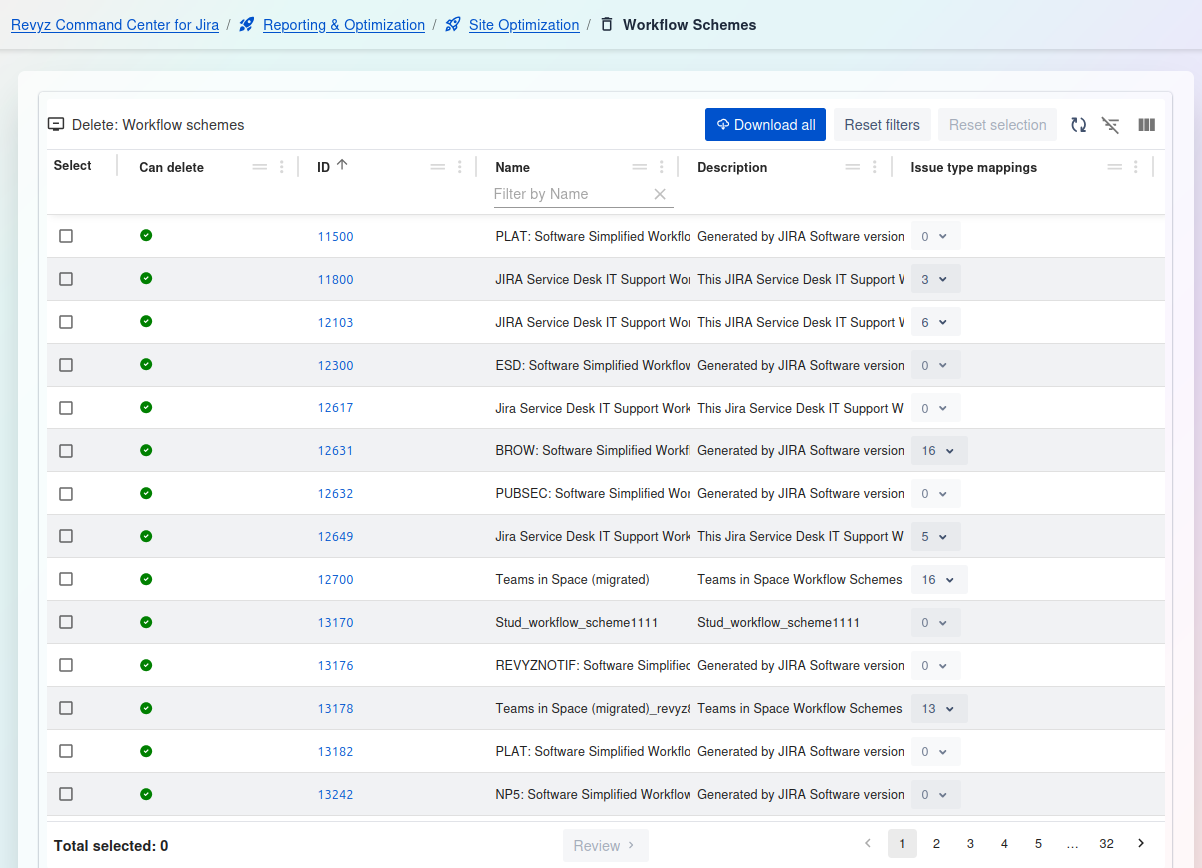
This page displays a list of all Workflow Schemes in your Jira instance. It highlights schemes that are not associated with any projects and are therefore safe to be deleted.
Management and Filtering:
-
Download all: Exports a complete list of all workflow schemes shown in the table.
-
Reset filters: Clears any filters you have applied to the table.
-
Reset selection: Un-checks any workflow schemes you have selected in the list.
-
Table tools (right side): Use these icons to toggle the filter row or customize the visible columns.
Workflow Schemes Table:
-
Select: A checkbox to select one or more schemes for review and deletion.
-
Can delete: A status icon indicating if the scheme can be safely deleted.
-
Green Checkmark: The workflow scheme is not associated with any projects and is safe to be deleted.
-
(Other Icon/No Icon): The scheme is currently in use by one or more projects and cannot be deleted.
-
-
ID: The unique internal ID for the workflow scheme (e.g.,
11500). -
Name: The name of the scheme as it appears to users (e.g.,
PLAT: Software Simplified Workflc). You can filter this column by name. -
Description: The description associated with the scheme.
-
Issue type mappings: The number of issue types that are mapped to specific workflows within this scheme.