
About this Page
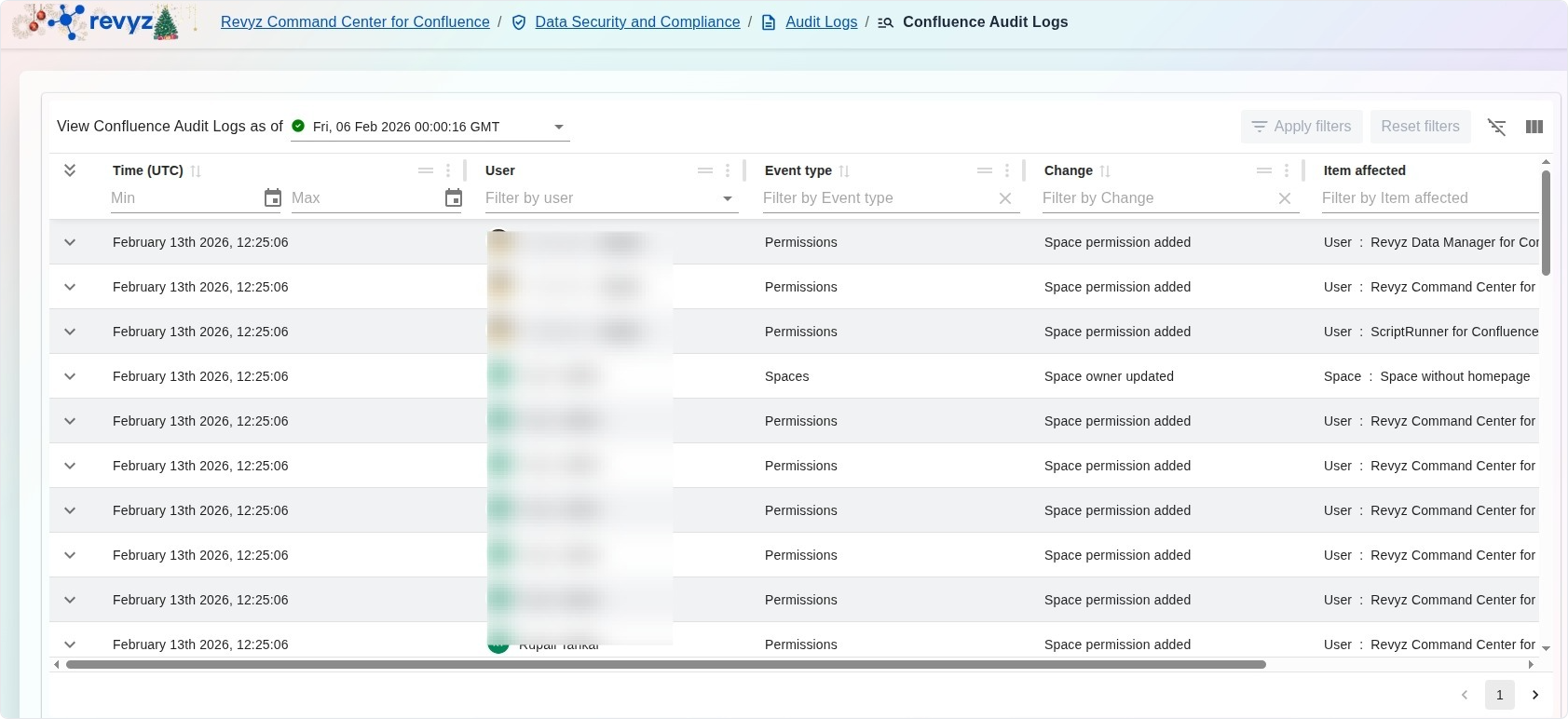
The Confluence Audit Logs page provides a comprehensive security and compliance dashboard that captures a detailed record of administrative changes within your Confluence environment. This interface allows administrators to view a point-in-time snapshot of the site's audit history, facilitating deep investigations into environmental modifications, permission changes, and space management activities.
What is the Use Case?
-
Security & Compliance Auditing: Review a verifiable log of "Who, What, and When" for critical site changes to meet internal governance or external regulatory requirements.
-
Permission Tracking: Monitor granular changes to user access, such as when a Space permission is added or a Space owner is updated.
-
Incident Investigation: Investigate the root cause of environmental issues by filtering logs for specific event types or changes that occurred during a particular time window.
-
Operational Visibility: Track the activities of automated tools and individual administrators to ensure all site modifications align with organizational policies.
Features
The interface organizes audit events into a highly detailed table for precise analysis:
-
Time (UTC): Records the exact timestamp of each event down to the second
-
User: Identifies the specific administrator or automated system account (e.g., Revyz Command Center for Confluence) that initiated the change.
-
Event type: Categorizes the nature of the action, such as Permissions or Spaces.
-
Change: Describes the specific modification performed, such as Space permission added or Space owner updated.
-
Item affected: Specifies the exact object modified, such as a particular user account or a specific space (e.g., Space: Space without homepage).
Management Tools
-
Snapshot Selection: Use the View Confluence Audit Logs as of dropdown to select and view the audit history from a specific backup snapshot.
-
Advanced Filtering: Narrow down the log entries by searching for specific Users, Event types, Changes, or Affected items.
-
Date Range Filters: Use the Min and Max time fields to isolate events that occurred within a specific historical window.
-
Reset & Apply: Quickly clear search parameters with Reset filters or update the view after adjusting criteria using Apply filters.