
About this Page
The Deploy Spaces page is a core administrative tool designed for the seamless migration and replication of entire Confluence spaces across your connected environments. This interface allows you to select spaces from a source backup and deploy them to a target site, effectively duplicating the space structure, settings, and content.
What is the Use Case?
This feature is essential for scaling operations and maintaining environmental parity. Key use cases include:
-
Site Migration: Moving specific spaces from one Confluence instance to another during organizational mergers or site consolidations.
-
Sandbox Testing: Replicating production spaces into a sandbox environment to test new apps or configurations without risking live data.
-
Template-Based Provisioning: Deploying a pre-configured "Master Space" to create new, standardized departmental spaces across the organization.
-
Project Archival: Offloading completed project spaces to a secondary "Archive Site" while maintaining their original structure.
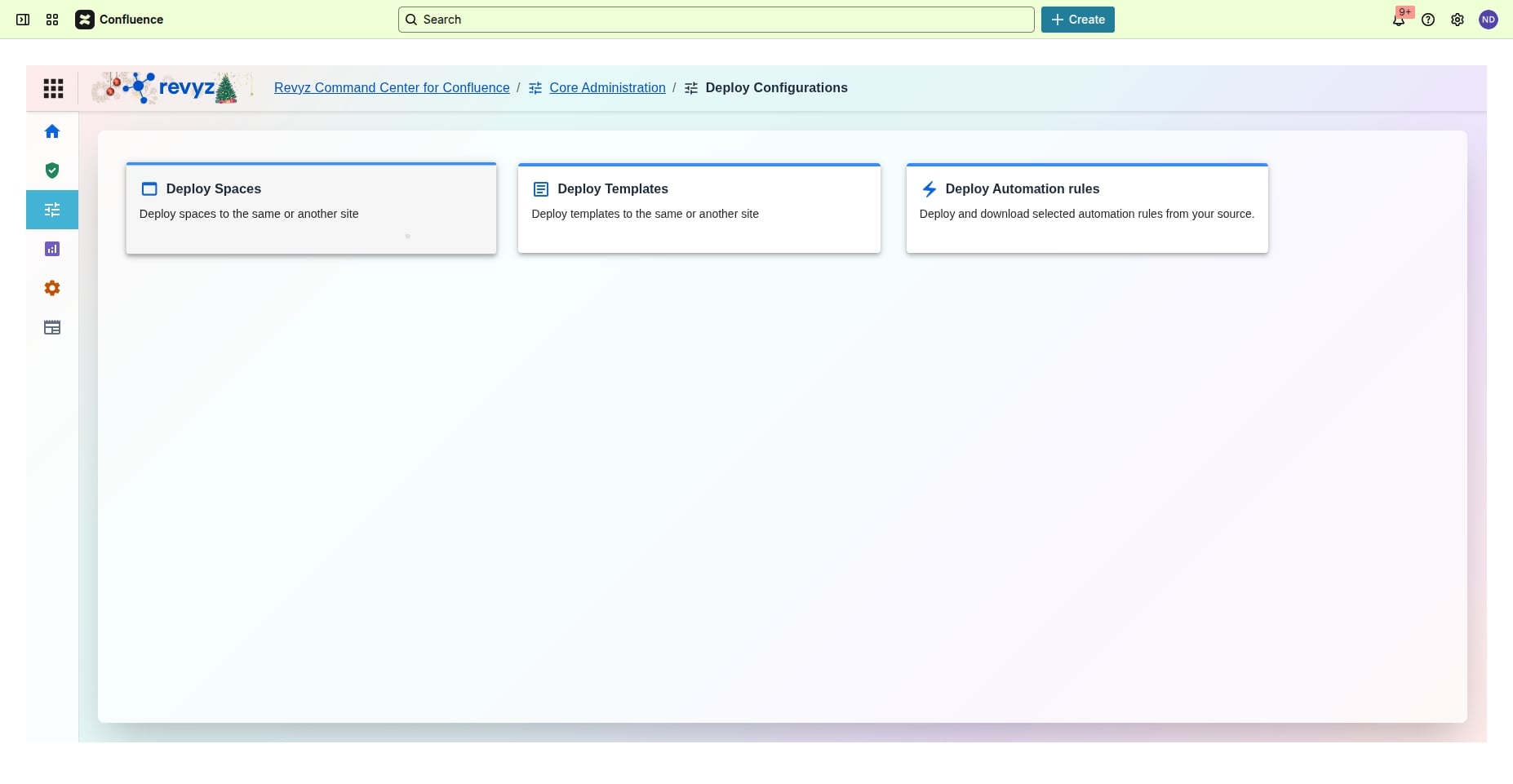
How to Deploy Spaces?
Step 1: Select Deploy Spaces
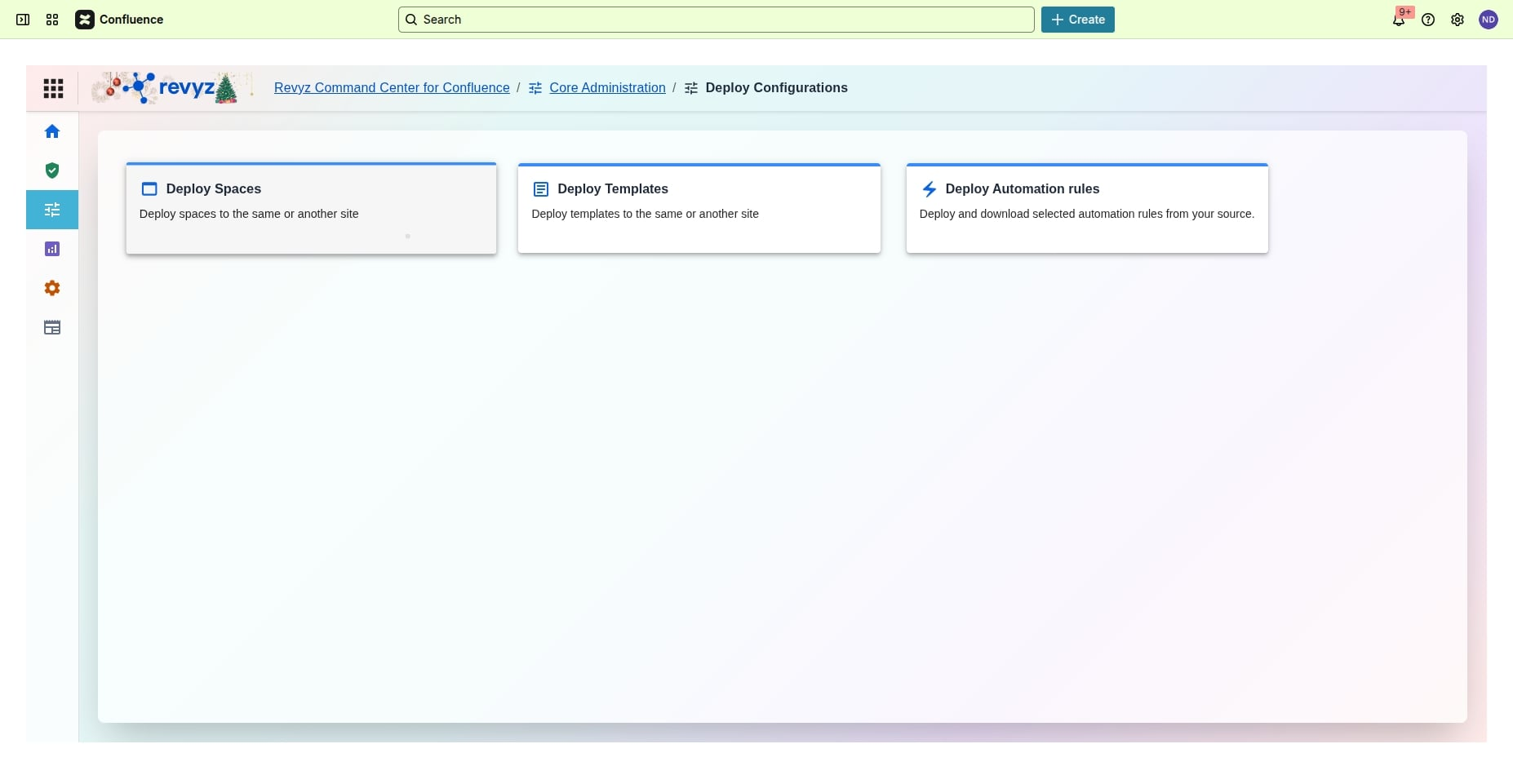
Step 2: Source site details
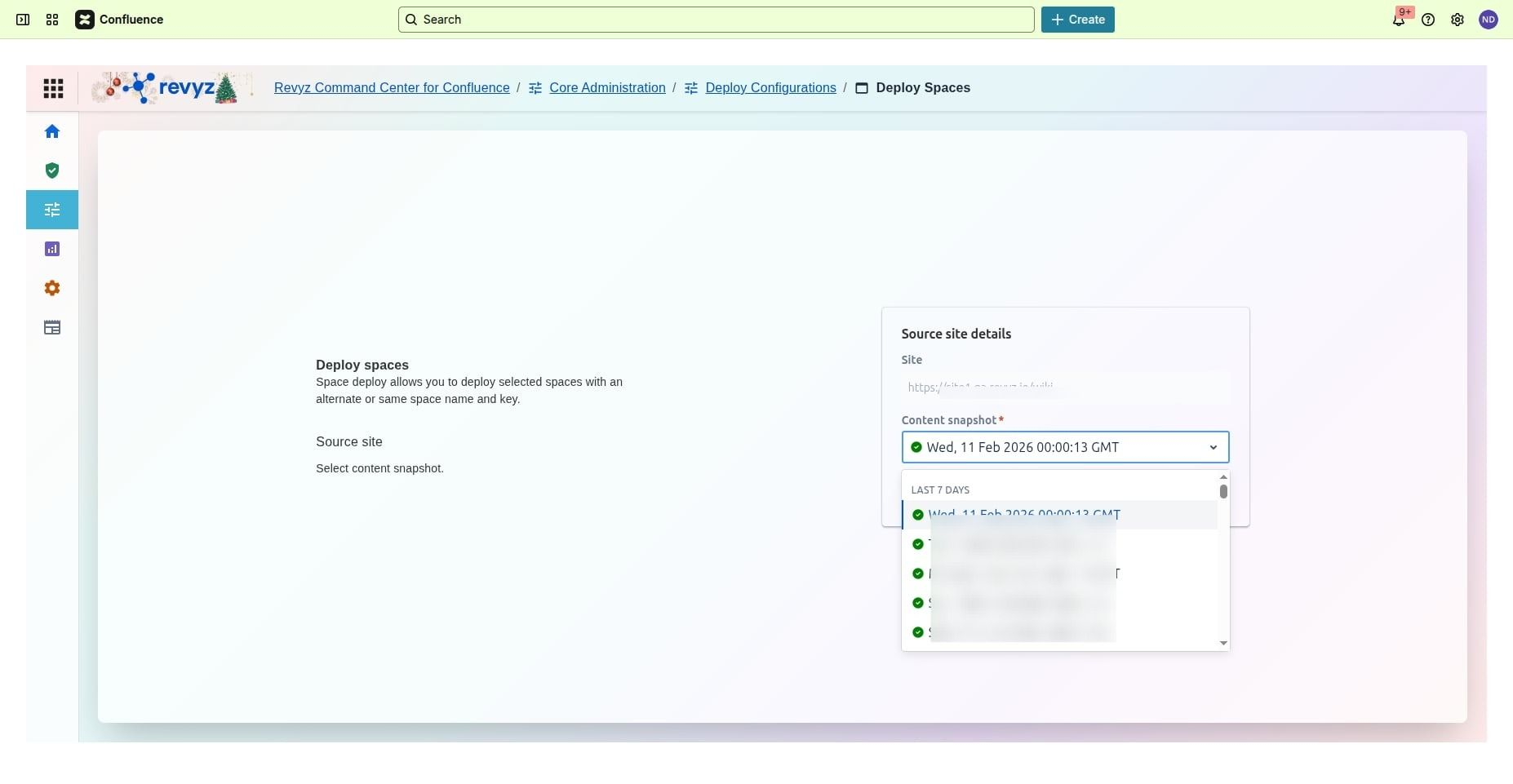
Select the desired source site and the snapshot.
Step 3: Select content snapshot
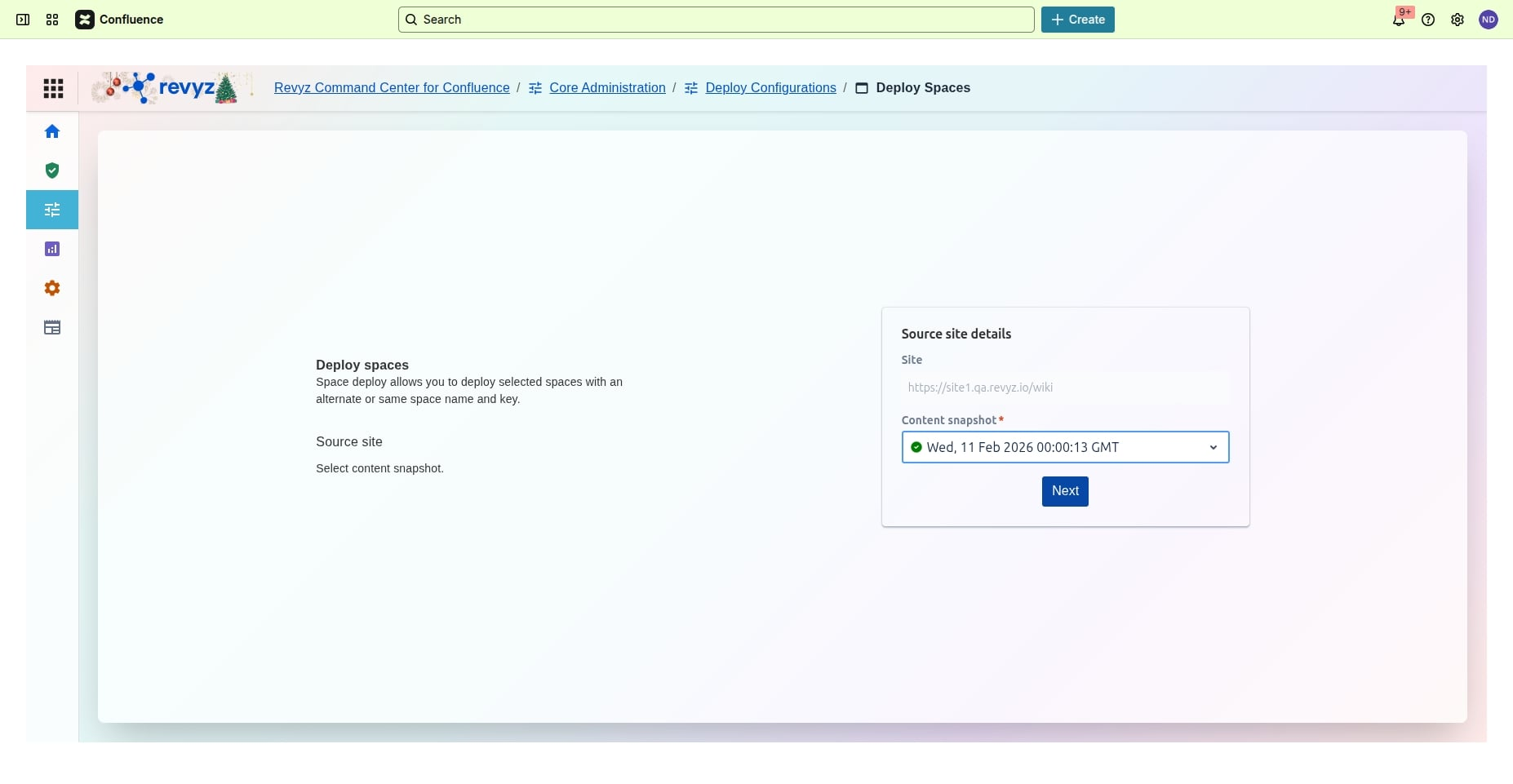
Click on “Next”
Step 4: Select Destination Details
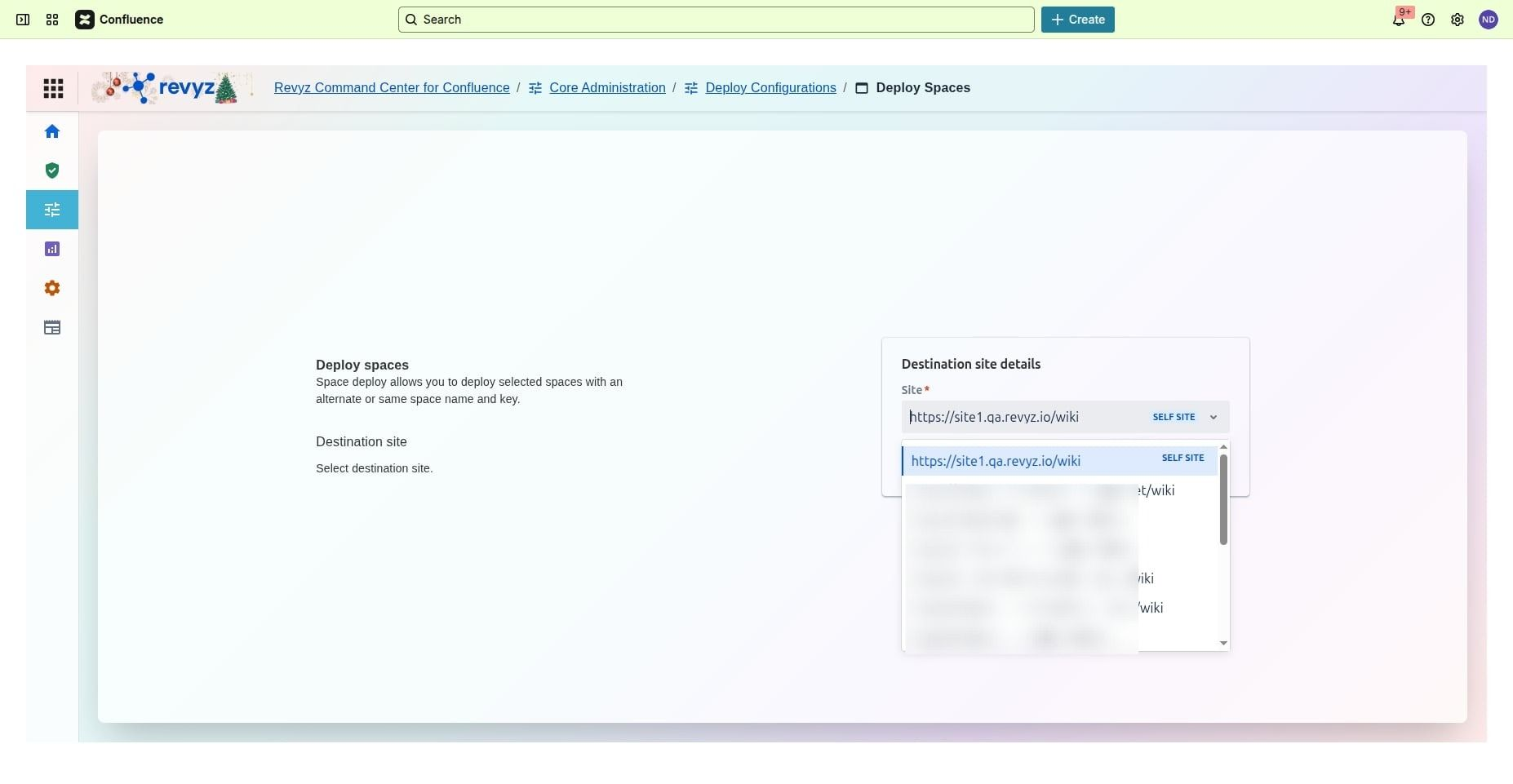
Select the destination where you want to deploy the spaces and the desired snapshot.
Step 5: Preview Spaces
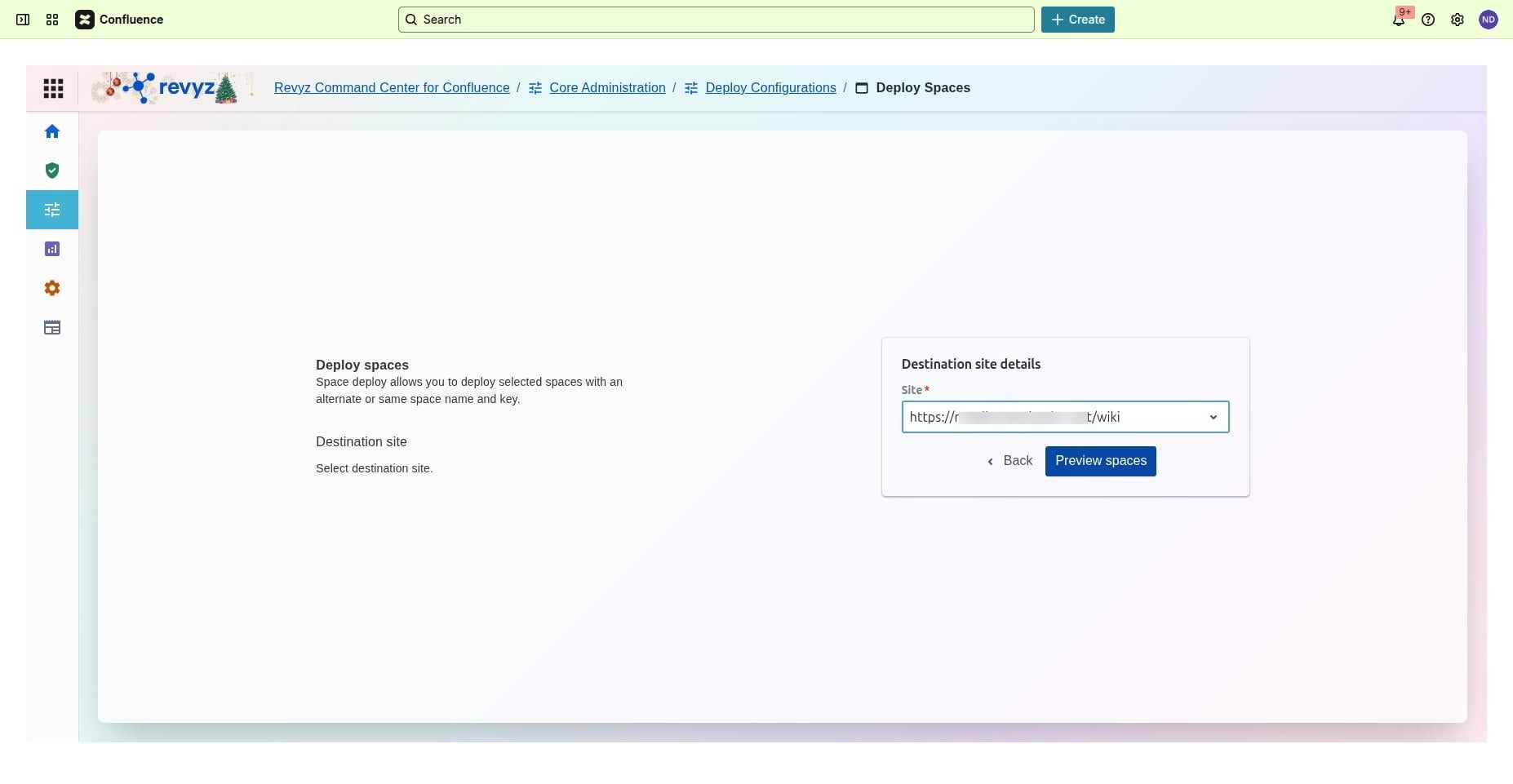
Click on Preview Spaces.
Step 6: Review Details
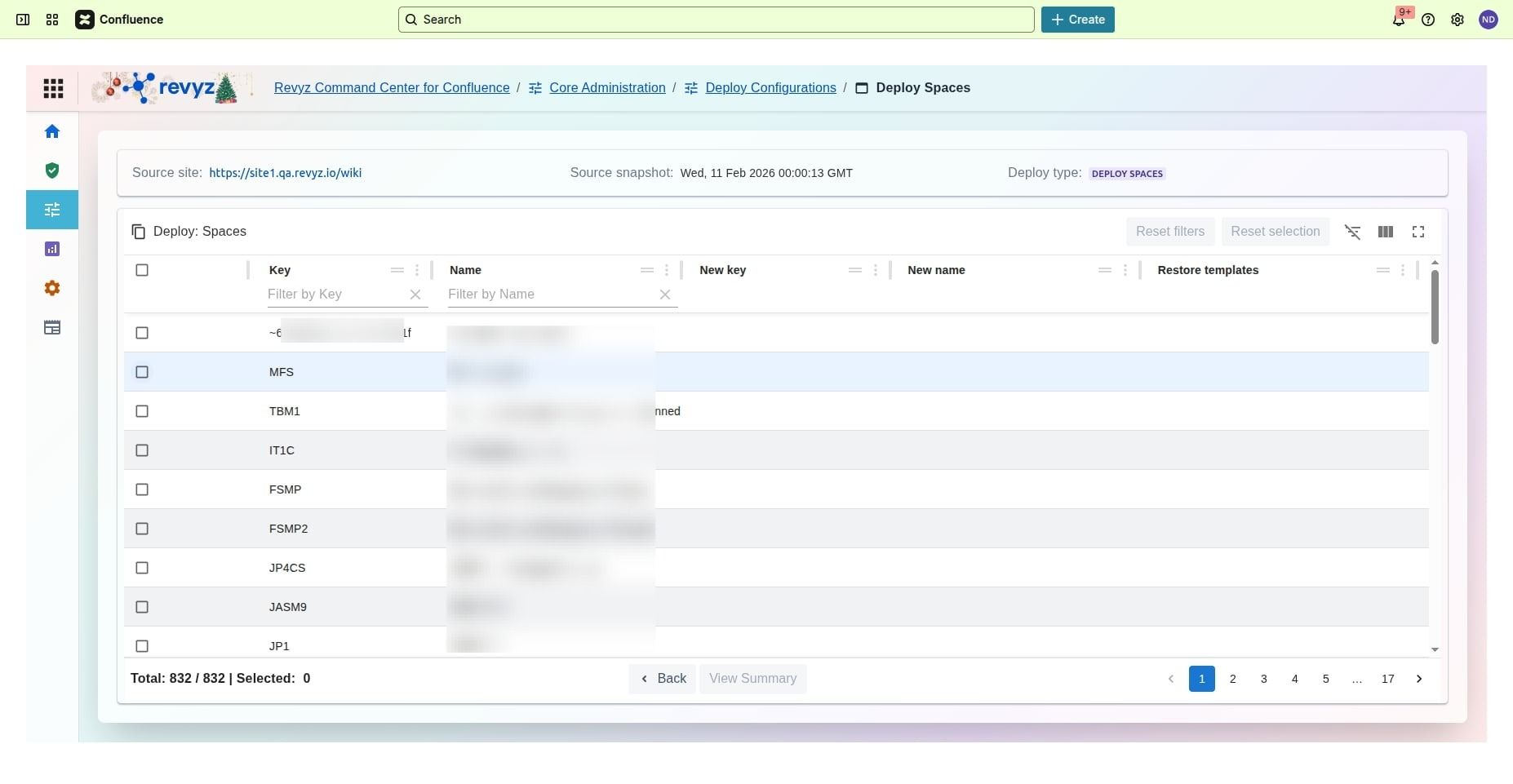
Review the details of spaces you want to deploy.
Step 7: Select Spaces to deploy
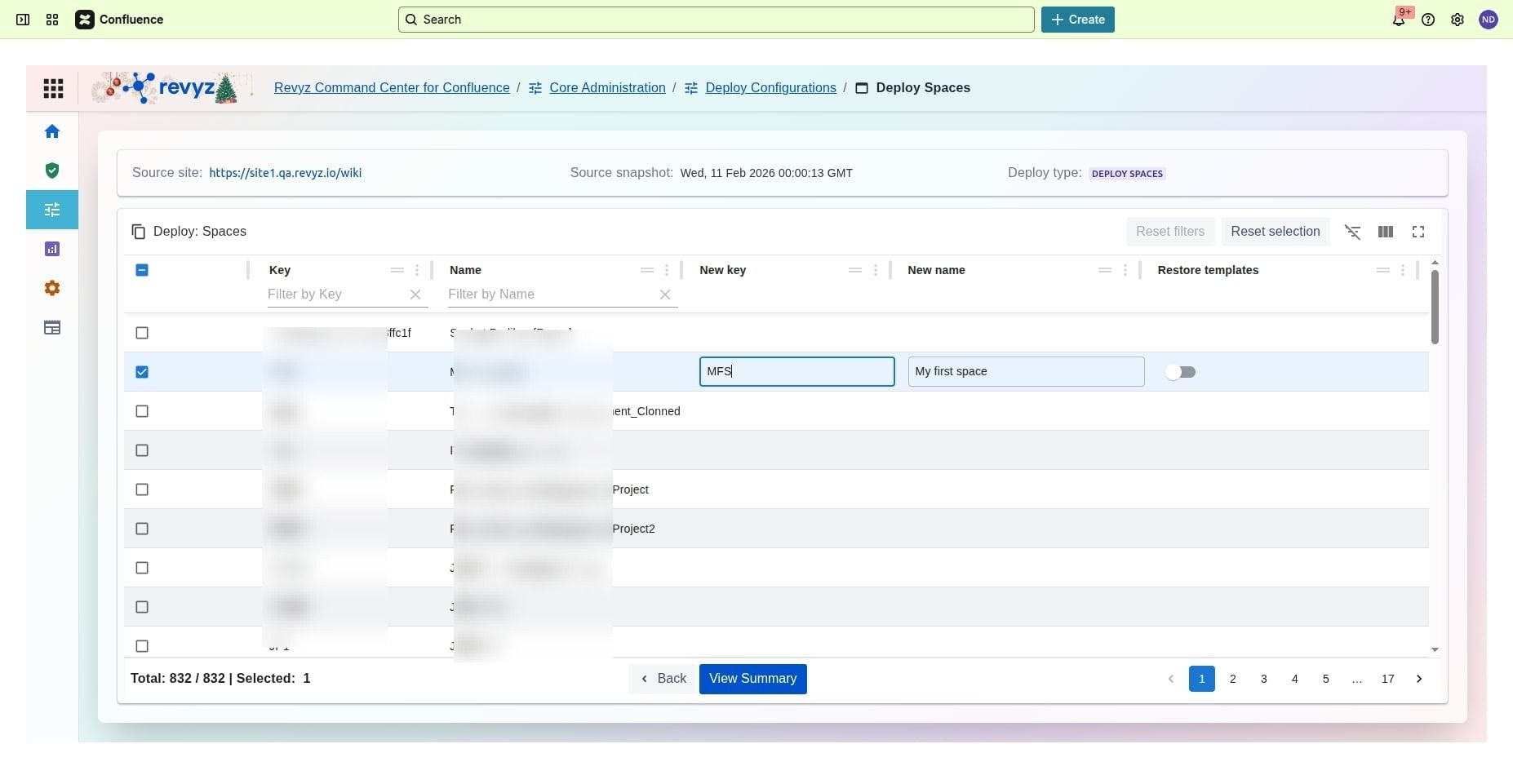
Click on “View Summary”.
Step 8: Change key details
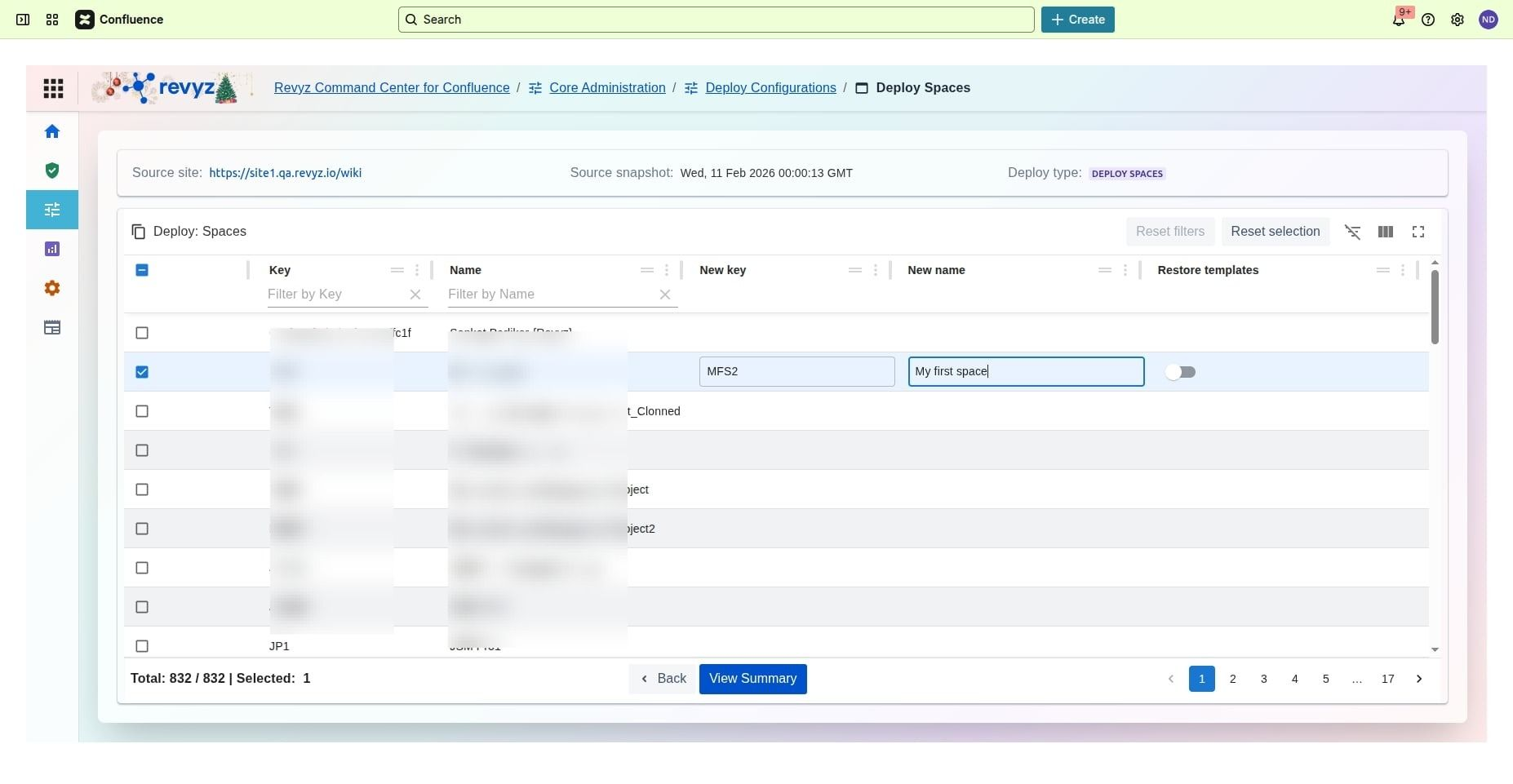
Write a new key and new name and click on “View Summary”.
Step 9: Click on Deploy
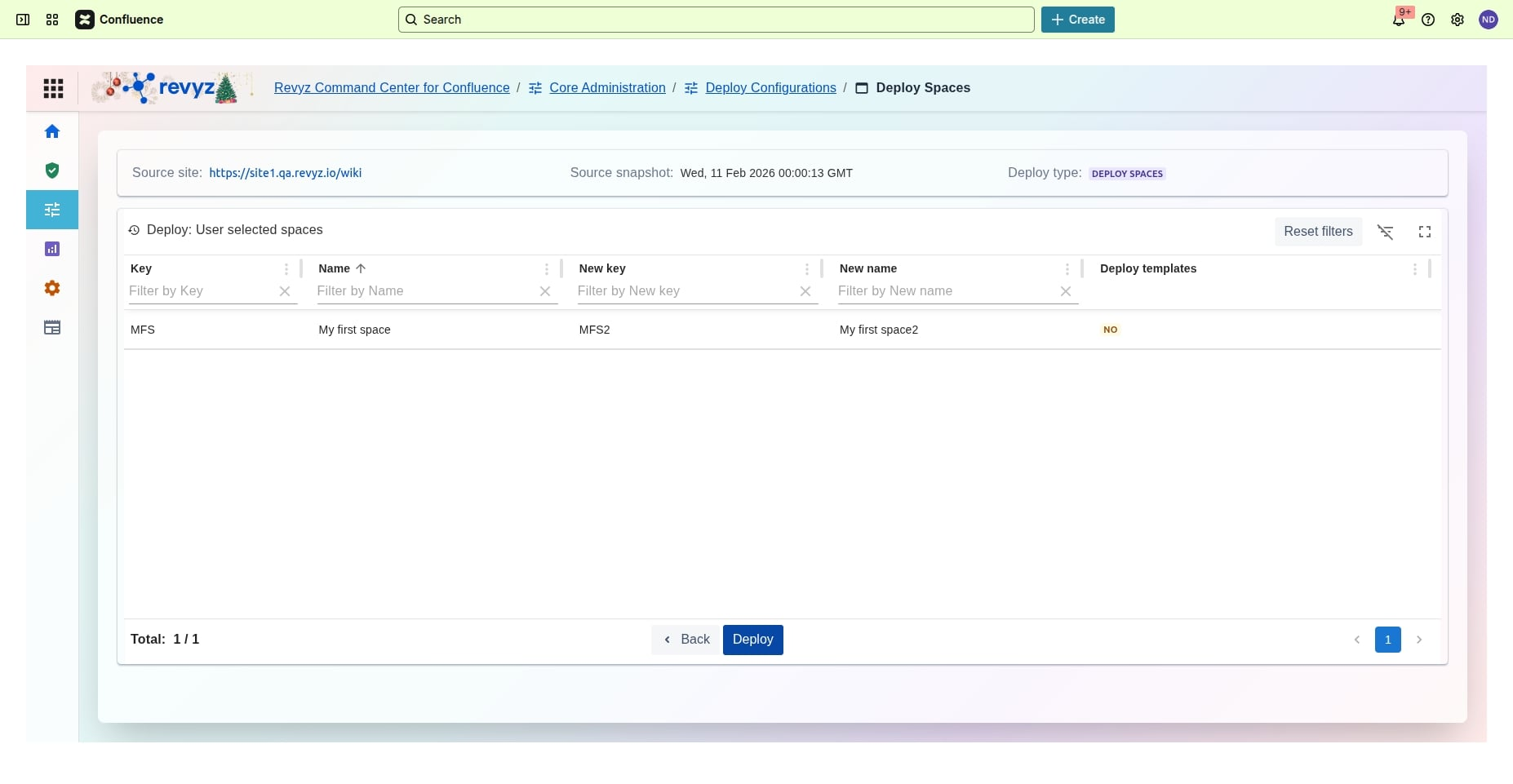
After a final review, select “Deploy”.
Step 10: Trigger the job
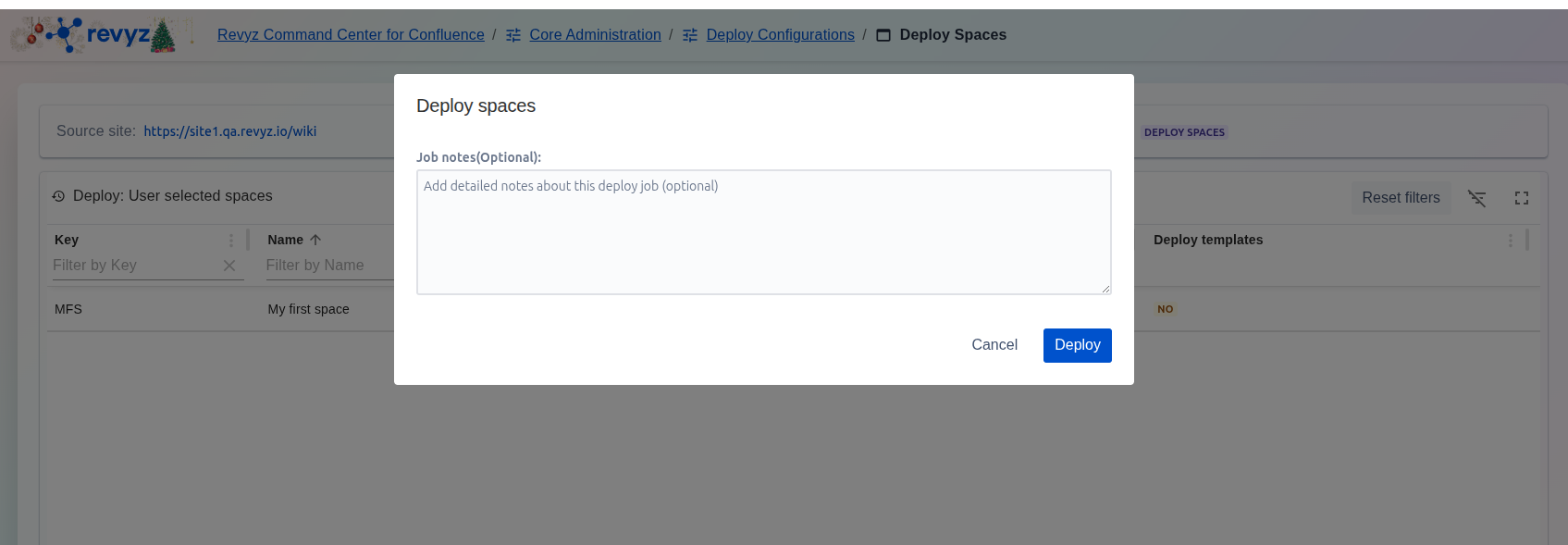
Add job notes and click on “Deploy”.
Step 11: View Job Details
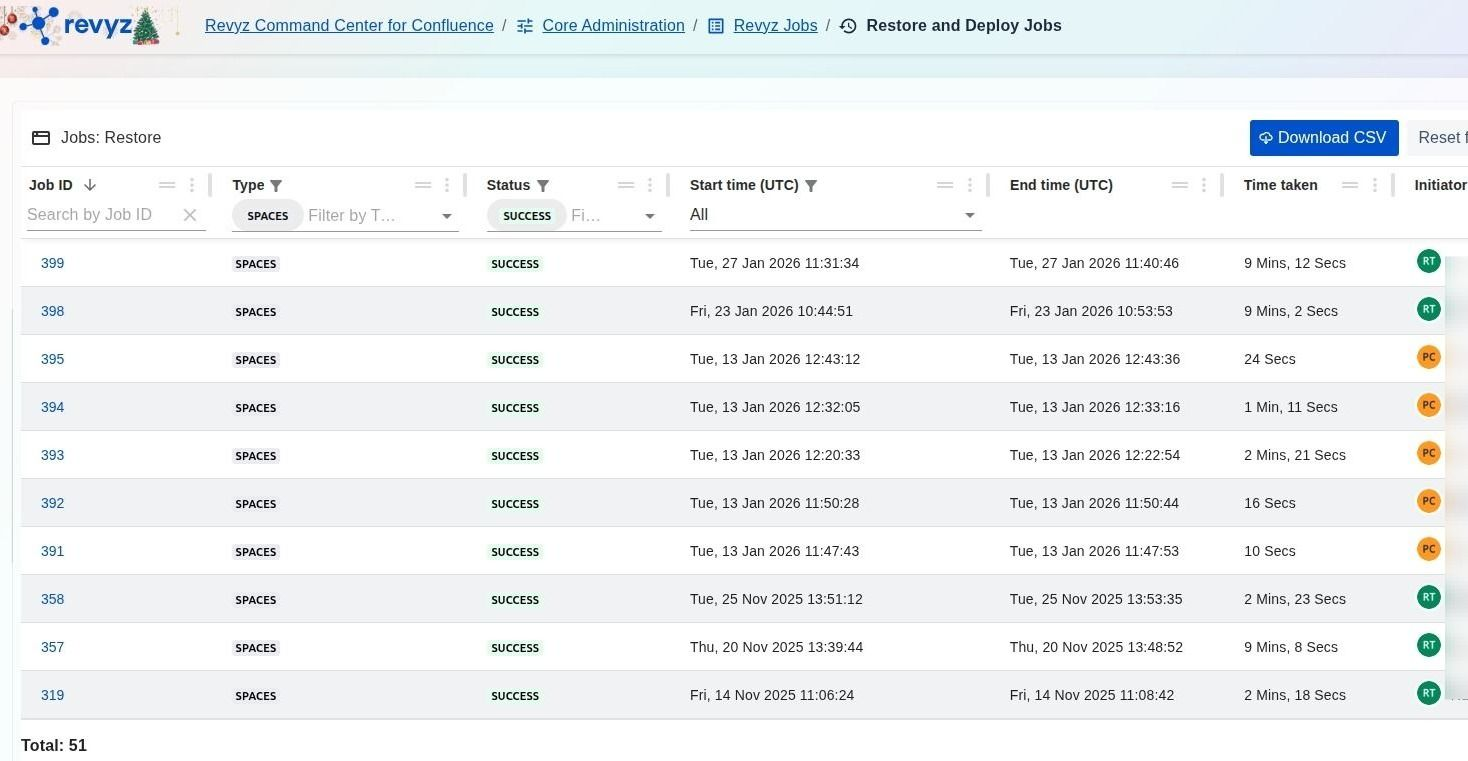
Click on the relevant job id to view the details.
Step 12: Download Reports
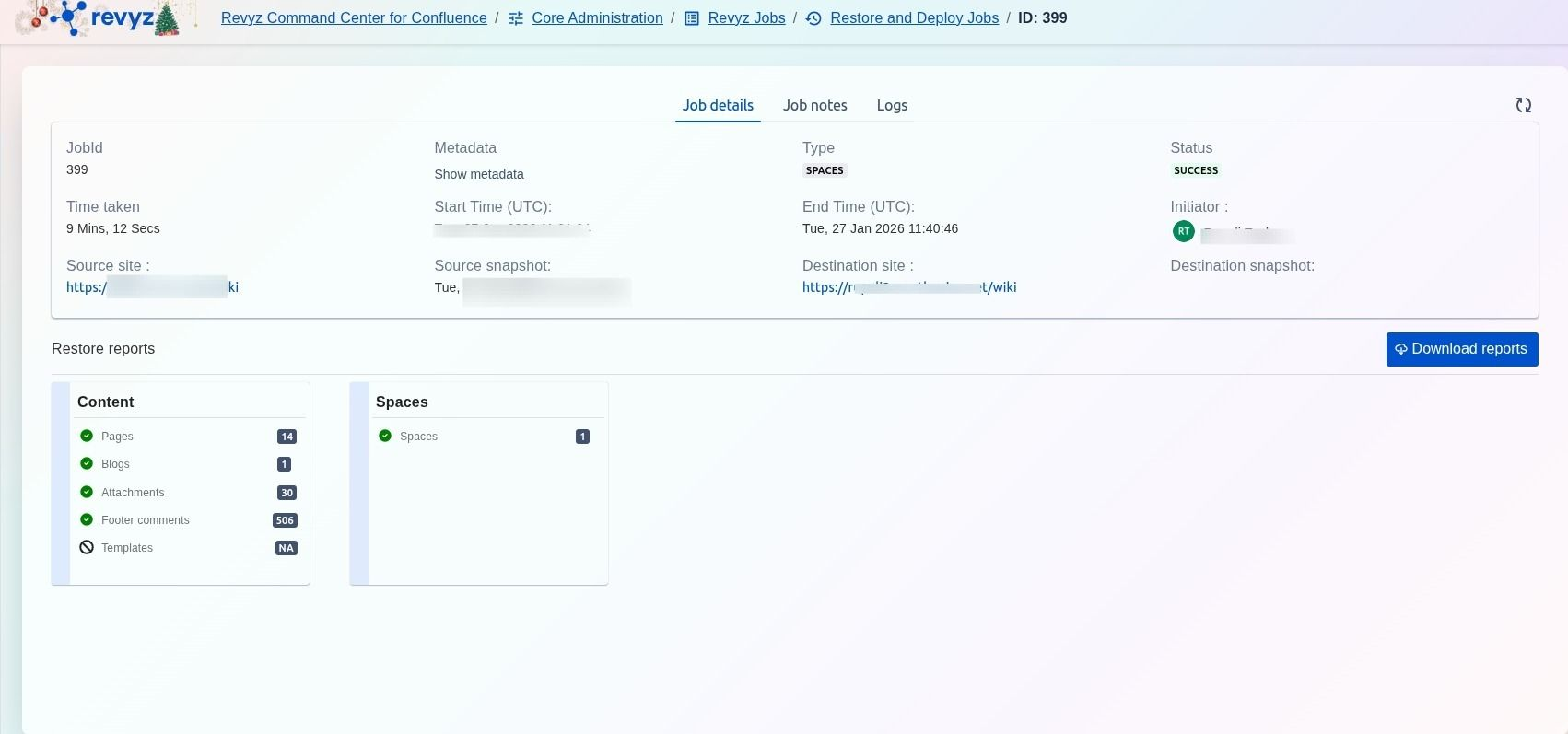
View the job details and click on Download Reports for documentation purposes. If the job is marked as partial success or error, check the job logs for further information.