
About this Page
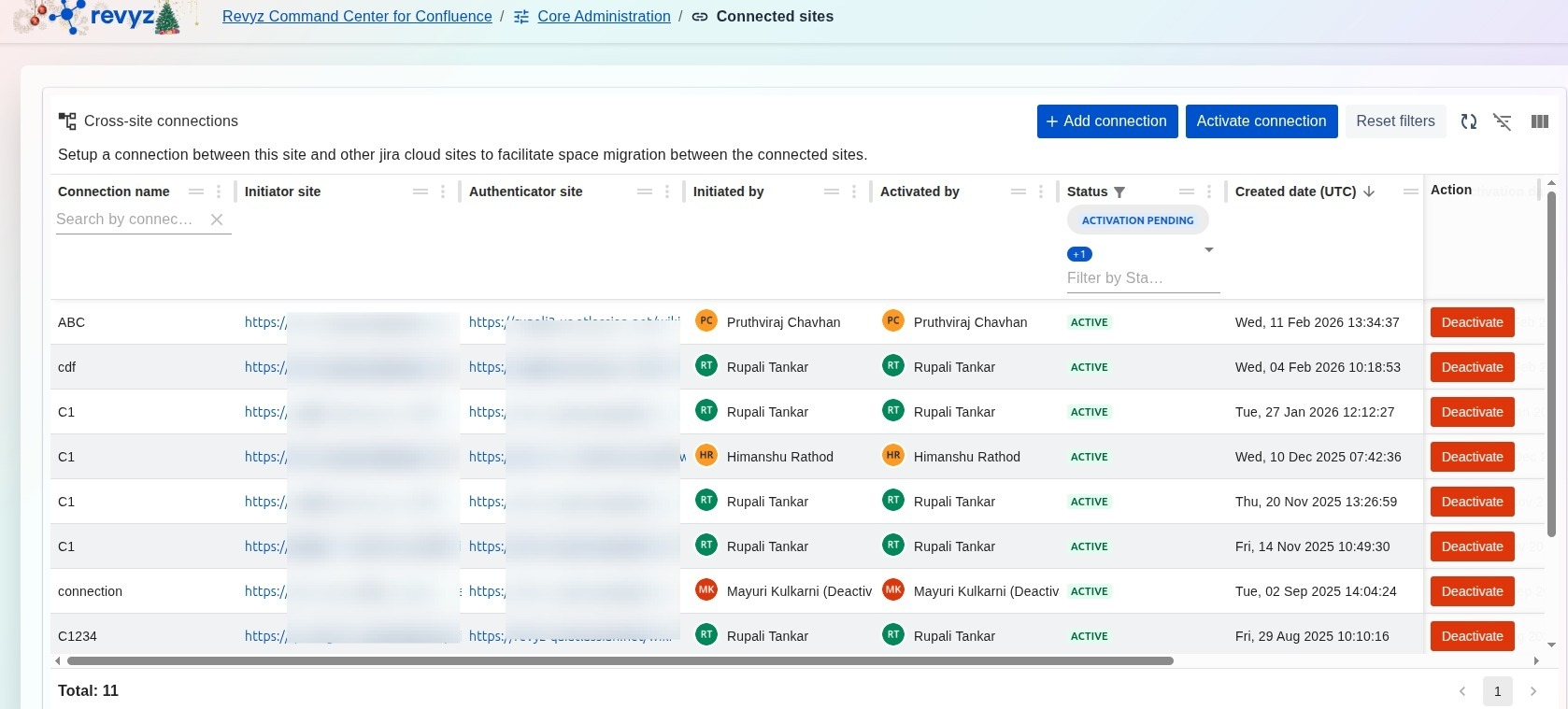
The Connected sites page is a management hub used to set up and authorize secure links between your current Confluence instance and other Atlassian cloud sites. This centralized table provides full visibility into the status and ownership of all cross-site connections, which are necessary for performing complex administrative tasks across multiple environments.
What is the Use Case?
-
Facilitate Data Migration: Establish the necessary secure tunnels required to migrate or clone spaces from one Confluence site to another.
-
Disaster Recovery Orchestration: Authenticate connections to secondary recovery sites, ensuring a target destination is ready for data restoration during an outage.
-
Environment Management: Maintain an organized list of active links between production, sandbox, and development environments for configuration syncing.
-
Security Oversight: Monitor exactly who initiated and activated each site connection to maintain strict control over cross-environment data access.
How to set up a new cross-site connection?
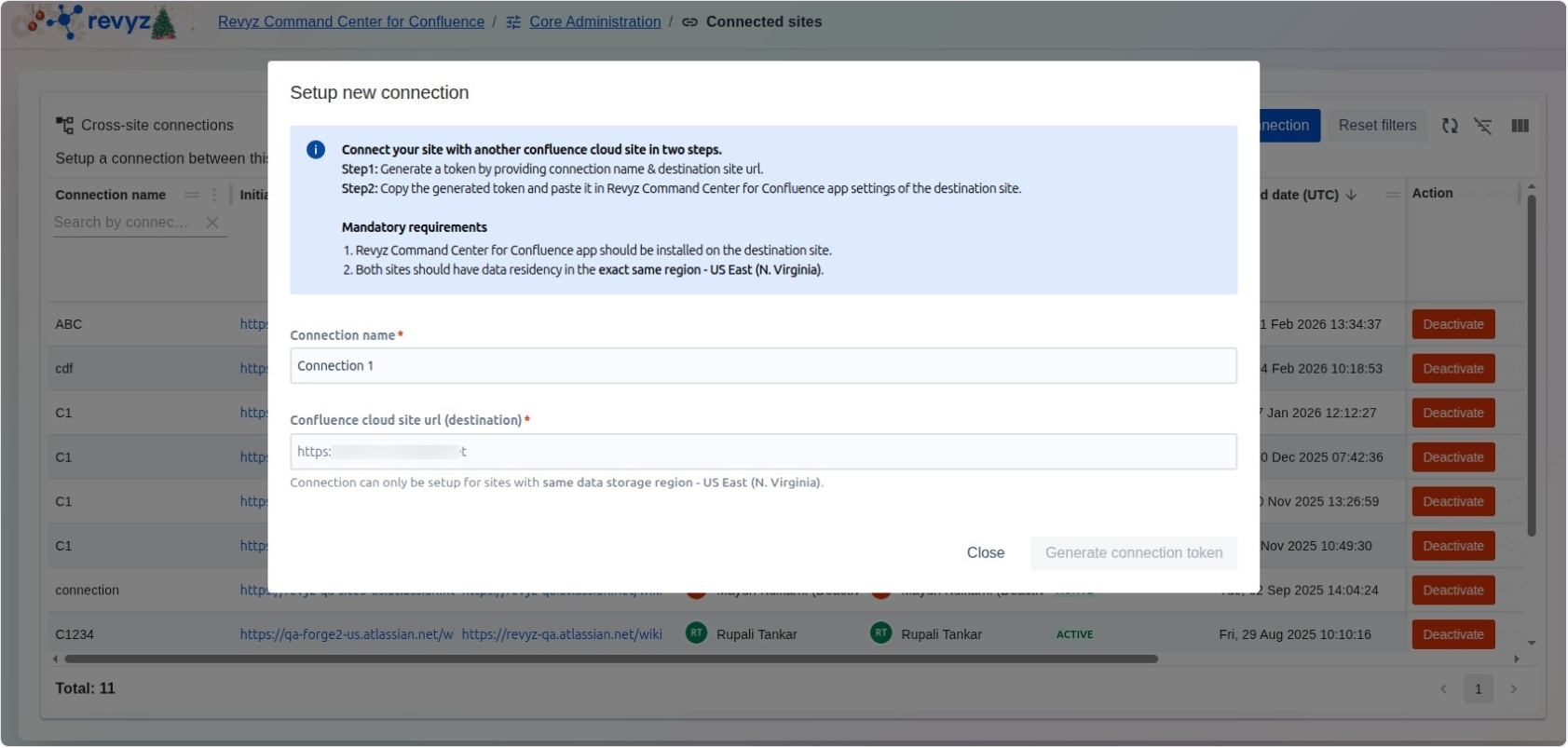
Step 1: Click on "Add Connection"
-
Access Connection Dashboard: Navigate to the Core Administration section and select Connected sites.
-
Initiate Setup: Click the + Add connection button located at the top right of the dashboard.
-
Provide Connection Details: In the "Setup new connection" modal, enter a unique Connection name for easy identification.
-
Enter Destination URL: Type or paste the full Confluence cloud site url for the target destination site.
-
Generate Token: Click the Generate connection token button.
Mandatory Requirements
Before starting, ensure the following conditions are met:
-
The Revyz Command Center for Confluence app must be installed on the destination site.
-
Both sites must have data residency in the exact same region (e.g., US East (N. Virginia)).
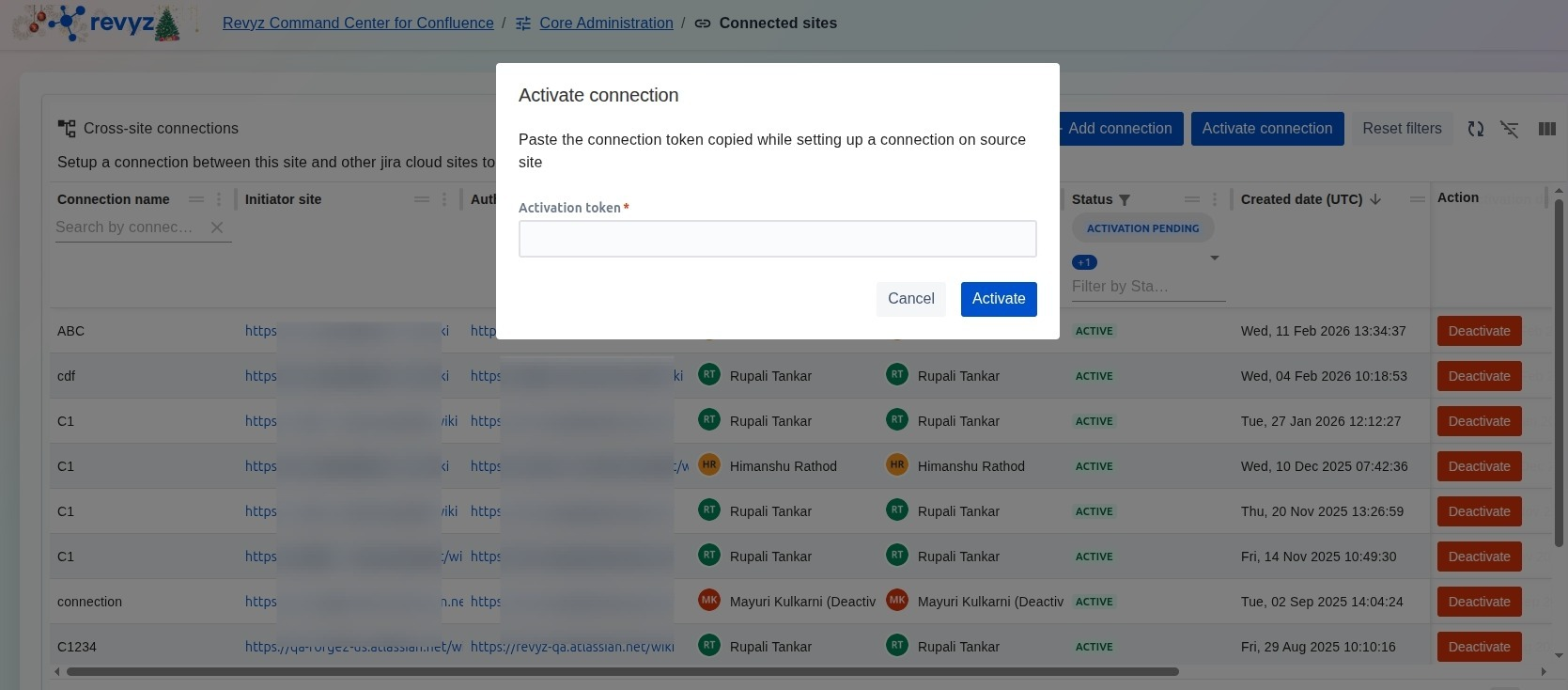
Step 2: Complete Activation
-
Complete Activation: Copy the generated token and paste it into the Revyz Command Center app settings on the destination site to finalize the link.
-
Verify Status: Return to the Connected sites table to confirm the connection status has moved from "ACTIVATION PENDING" to ACTIVE.
-
You can deactivate any existing connected sites by clicking on the “Deactivate” button.