
What is this feature?
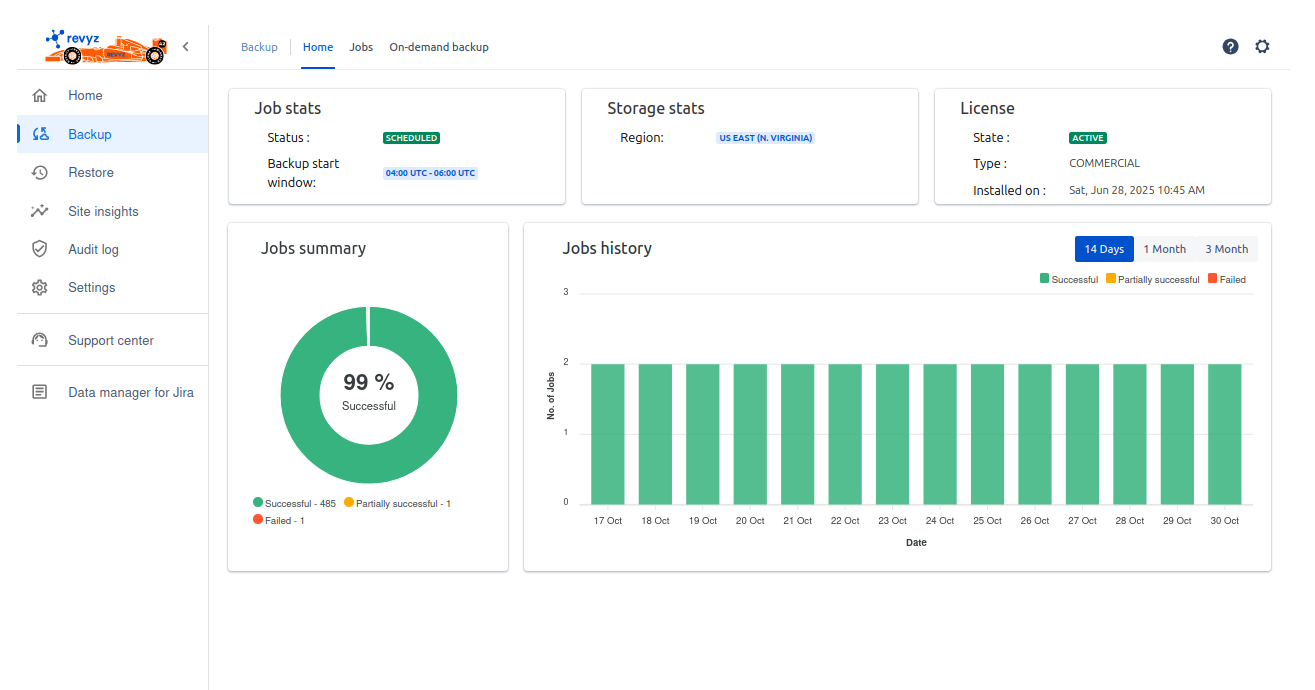
This is the main "Backup" dashboard, which serves as a high-level summary of your entire backup operation. It provides an "at-a-glance" view of your backup schedule, job health, storage location, and license status.
-
Use Case: This is the first page you should check to monitor the health of your backups. You can instantly see if your backups are scheduled, if any have failed recently, where your data is being stored, and when your license was installed.
Dashboard Sections:
This dashboard is divided into several key information cards:
1. Job stats:
-
Status: Shows the overall status of your automated backup plan.
SCHEDULEDindicates that daily backups are active and running. -
Backup start window: This is the two-hour window, in UTC time (e.g.,
04:00 UTC - 06:00 UTC), during which your daily scheduled backup will begin.
2. Storage stats:
-
Region: This is an informational card that displays the physical data center region where your backup snapshots are securely stored (e.g.,
US EAST (N. VIRGINIA)).
3. License:
-
State: Shows the current status of your app license (e.g.,
ACTIVE). -
Type: Shows the type of license you have (e.g.,
COMMERCIAL). -
Installed on: The date and time your license was first activated.
4. Jobs summary:
-
Donut Chart: This chart provides a simple percentage (e.g.,
99% Successful) of all your backup jobs to date. -
Legend: Below the chart, you can see the precise total counts for each job status (e.g.,
Successful - 495,Partially successful - 1,Failed - 1).
5. Jobs history:
-
Bar Chart: This chart visualizes your backup trends over a set period. Each bar represents a day and is color-coded (green for success, red for failure, orange for partial success) to show the outcome of the jobs on that day.
-
Time Toggles: You can change the time range displayed on this chart by selecting
14 Days,1 Month, or3 Month.
Navigation Tabs:
This dashboard is the "home" page for the backup section. From here, you can also navigate to:
-
Jobs: A detailed, filterable list of every backup job ever run.
-
On-demand backup: A screen where you can manually trigger a new backup immediately.