
About this Page
The Pages restore page is a dedicated recovery interface that allows administrators to restore selected Confluence pages from a historical backup snapshot
What is the Use Case?
The primary goal of Pages Restore is to provide precise data recovery without the need to revert an entire environment.
How to Restore Pages?
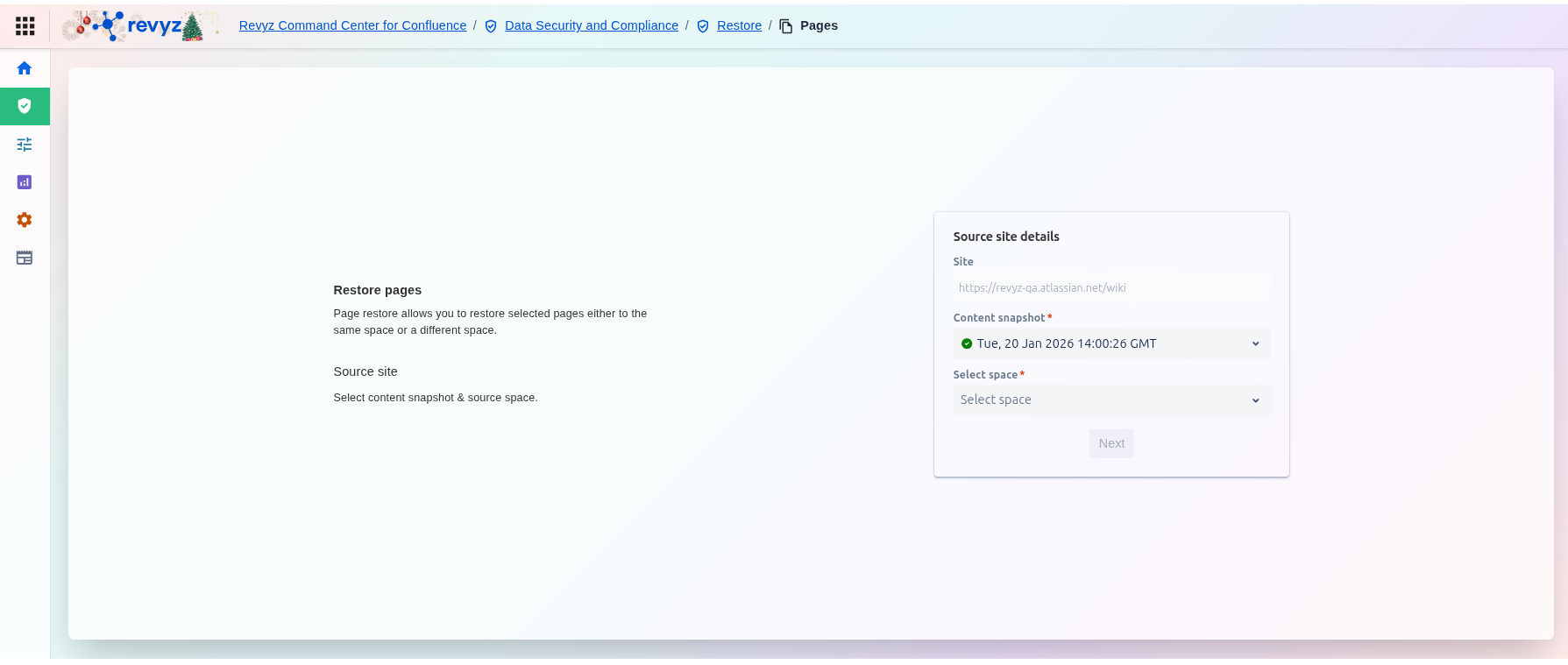
Step 1: Navigate to the Pages Restore Card
-
Navigate to the Data recovery dashboard.
-
Click the Pages restore card.
Step 2: Enter Source Site Details
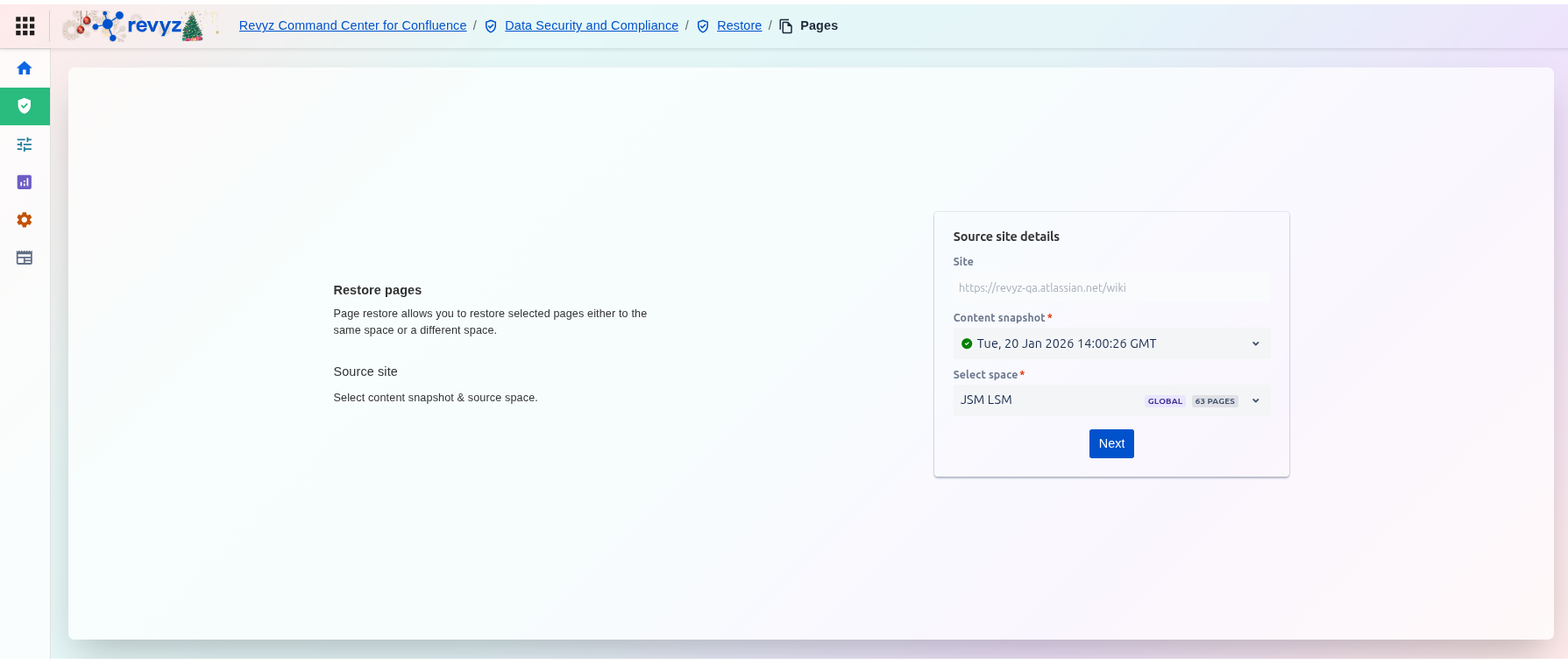
Identify the data you wish to recover:
-
Site: The source Confluence URL where the backup originated.
-
Content snapshot: Select a specific point-in-time backup from the dropdown menu.
-
Space selection: Select from the dropdown list, all the available spaces within the chosen snapshot.
Step 3: Enter Destination Site Details
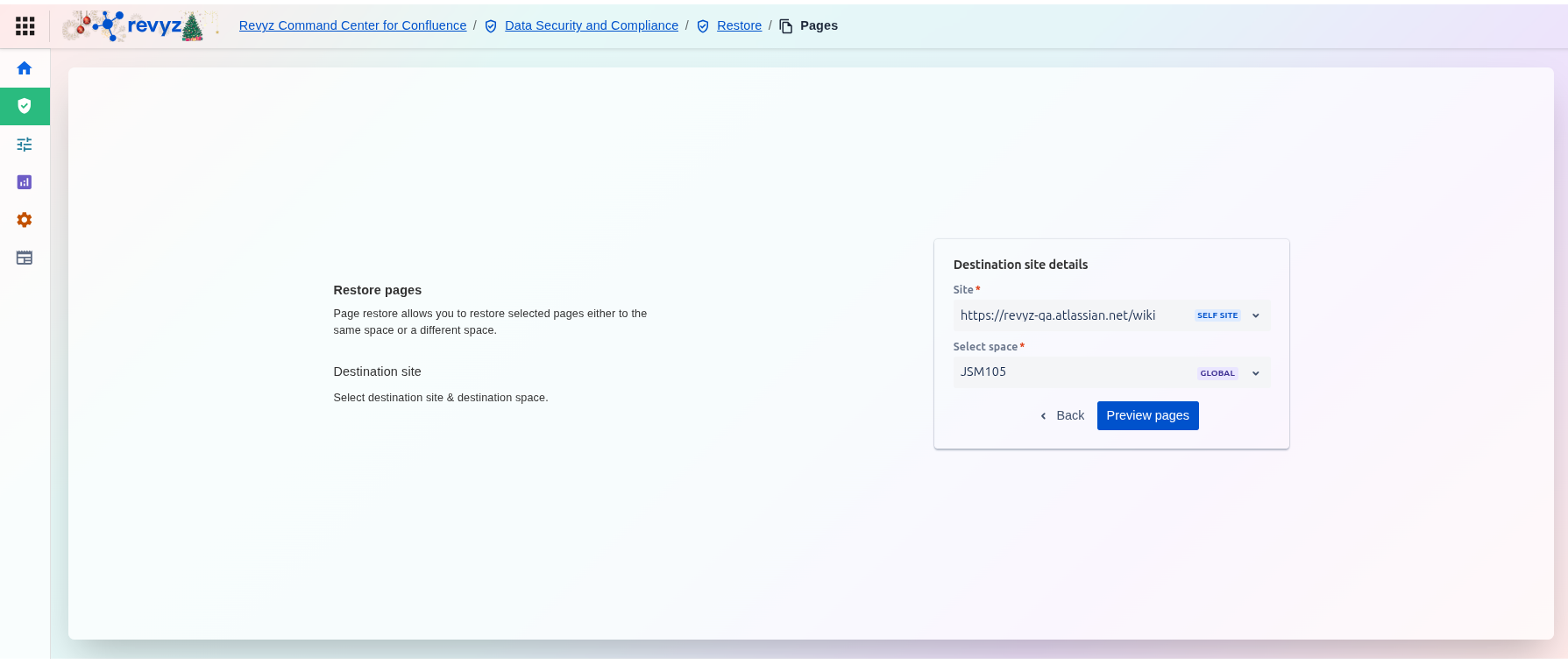
Next, define where the data will be placed:
-
Destination Site: Select the target site (original sites are labeled SELF SITE).
-
Destination Space (Pages only): For page restores, select the target space where the pages will reside.
Step 4: Selection of Pages and Final Review
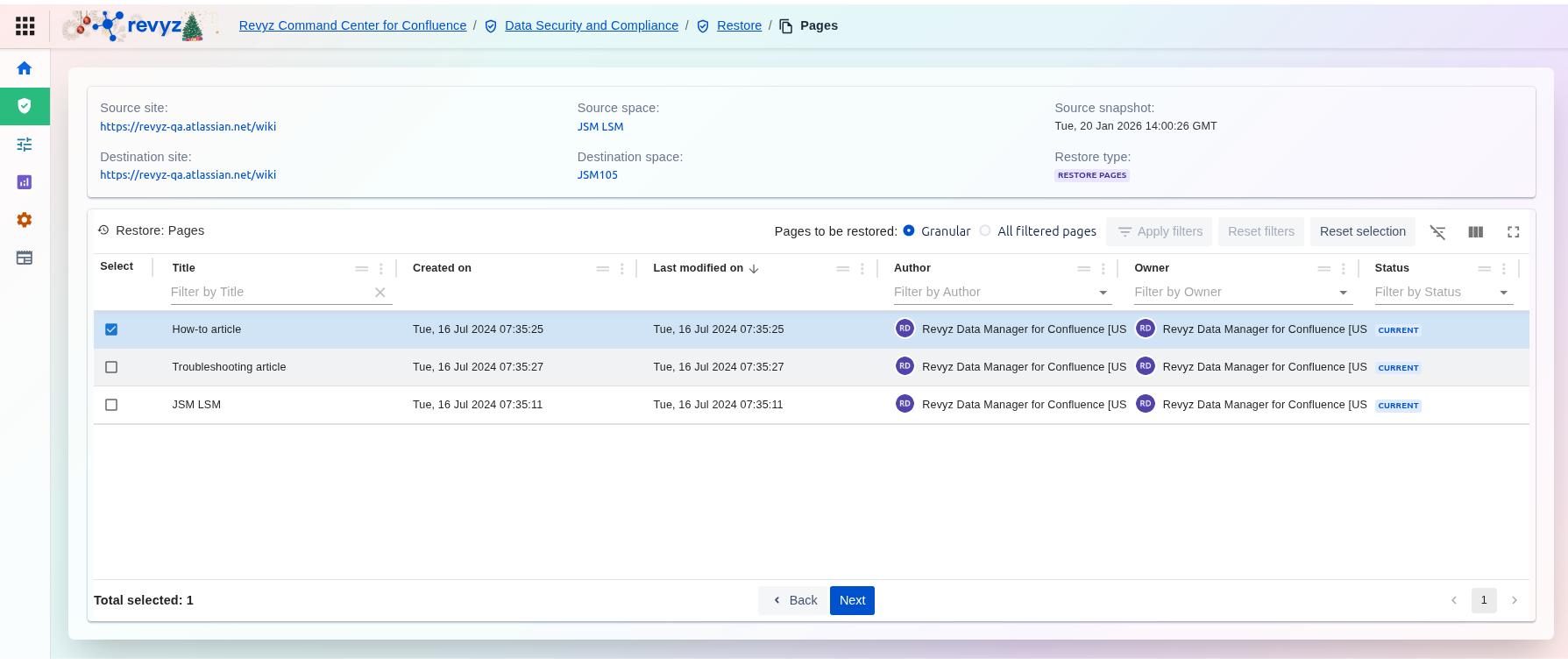
Select the pages you want to restore on the destination site
Step 5: Configuration of the Restore job
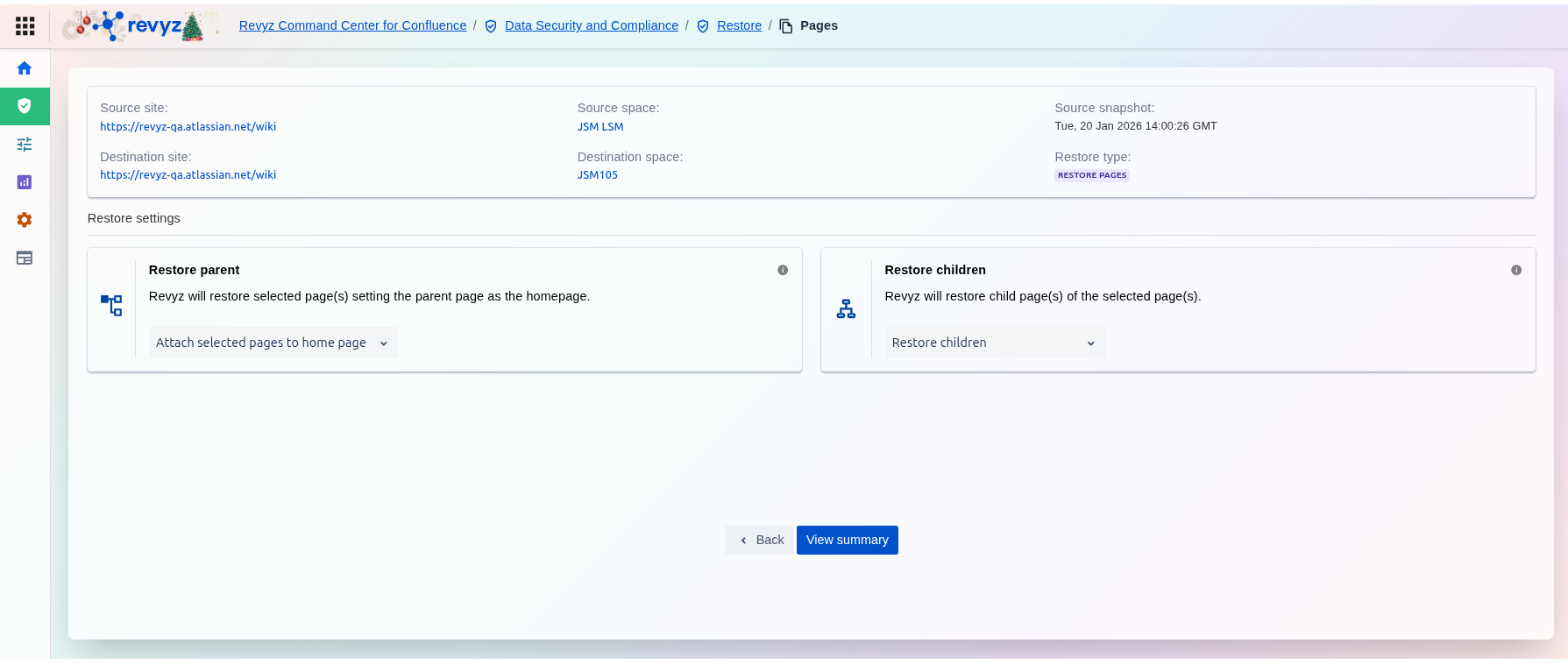
-
Restore Parent
This setting determines the top-level location for your selected pages in the destination space.
-
Function: Revyz will restore the selected page(s) by setting a specific parent page as the new container.
-
Primary Option: Attach selected pages to home page: This automatically places the restored content directly under the destination space's homepage.
2. Restore Children
This setting manages the recovery of any pages nested beneath your primary selection.
-
Function: Revyz will restore the child page(s) that belong to your selected parent page(s).
-
Dropdown Menu: Allows you to toggle the inclusion of child pages during the restore job.
Step 6: Review the Changes and Initiate Restore
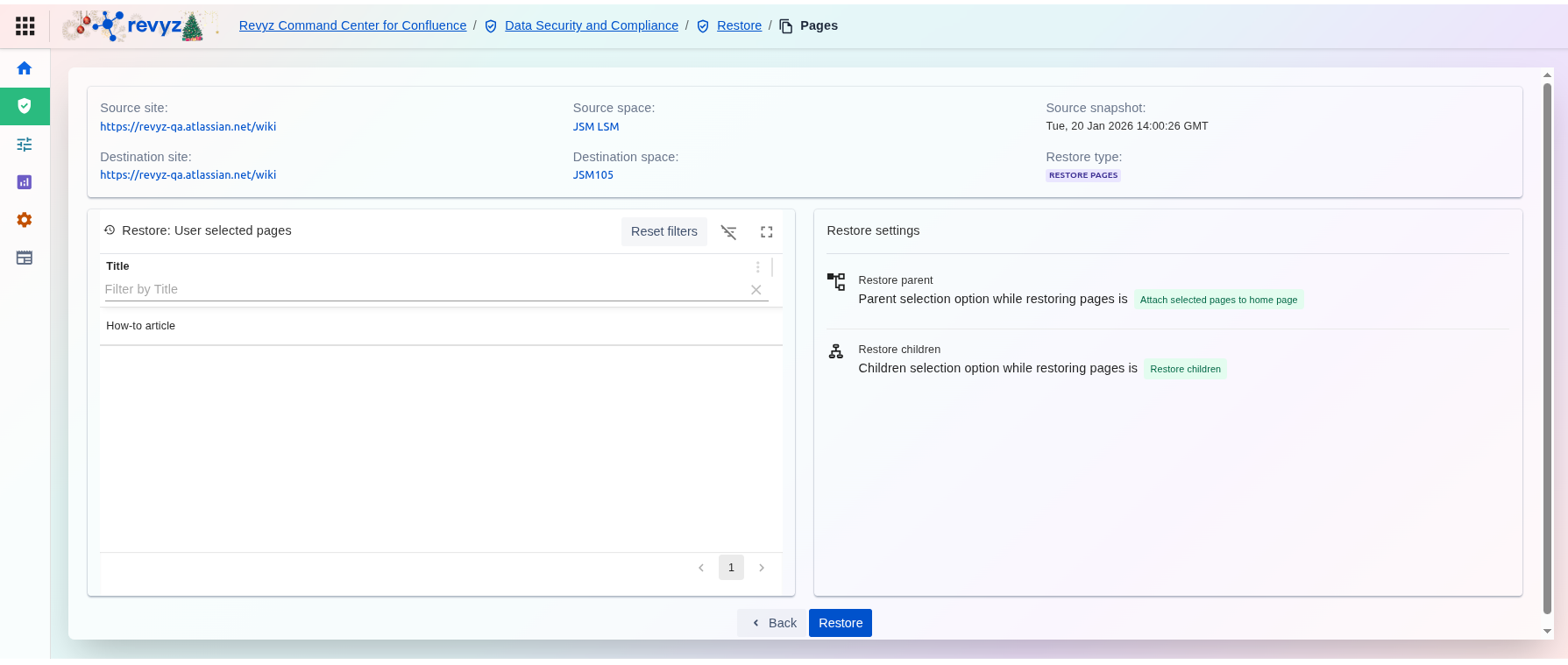
-
Job Metadata: A final glance at the top header confirms the Source site, Source space, Destination site, and Destination space.
-
Back: If any errors are found, use the Back button to return to the selection or settings stages.
-
Restore: Once all details are verified, click the Restore button to initiate the background recovery task.