
About this Page
This page talks about recovering Confluence templates that have been modified or deleted.
What is the Use Case?
The primary use case for this feature is to ensure brand and structural consistency across your organization by restoring standardized layouts that have been lost.
-
Accidental Deletion: Recover custom global or space-level templates that were deleted by a user.
-
Configuration Errors: Roll back a template to a previous version if a recent edit broke formatting or macros.
-
Cross-Site Deployment: Restore selected templates to a different connected site to quickly replicate standardized document structures in a new environment.
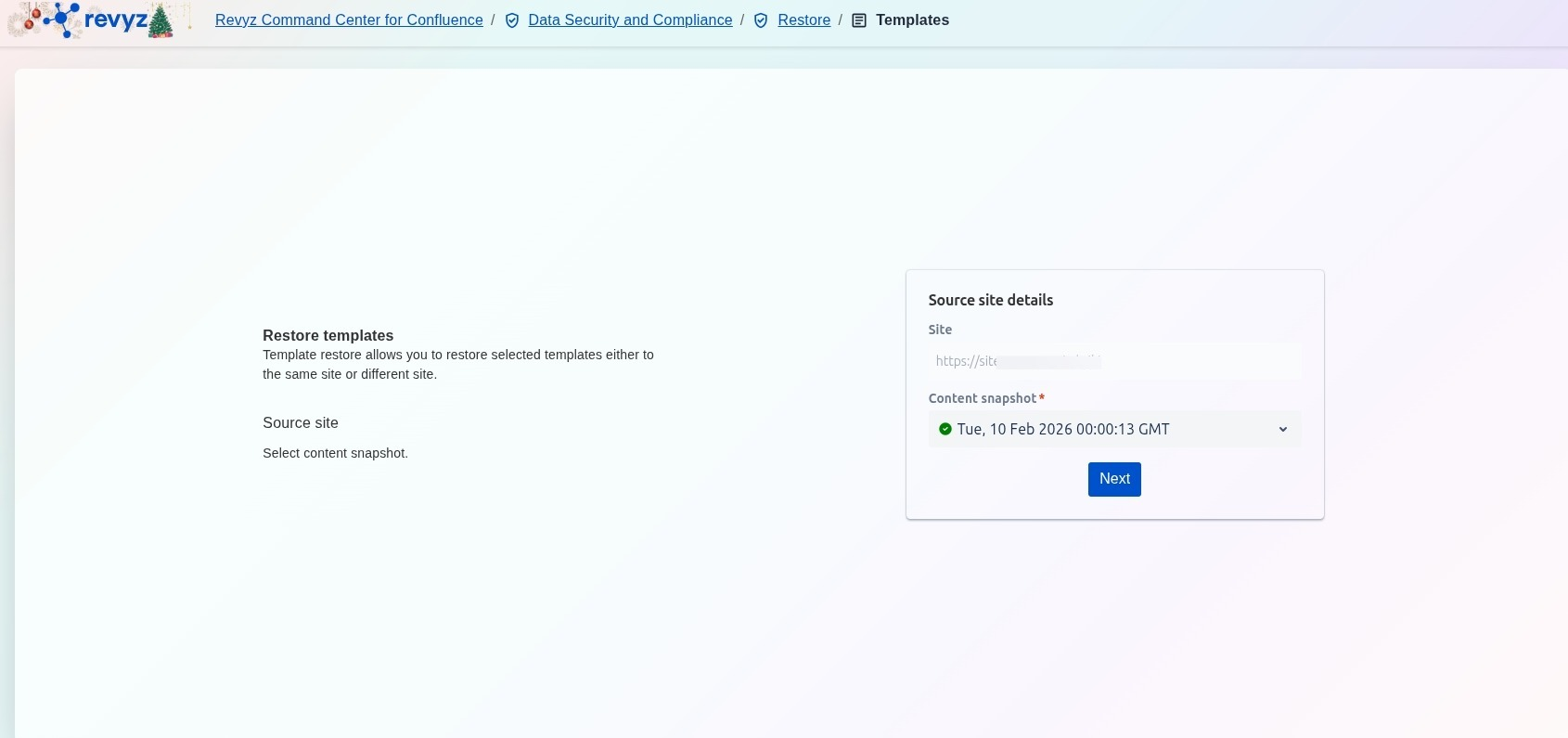
How to Restore Templates?
Step 1: Source Site Details
-
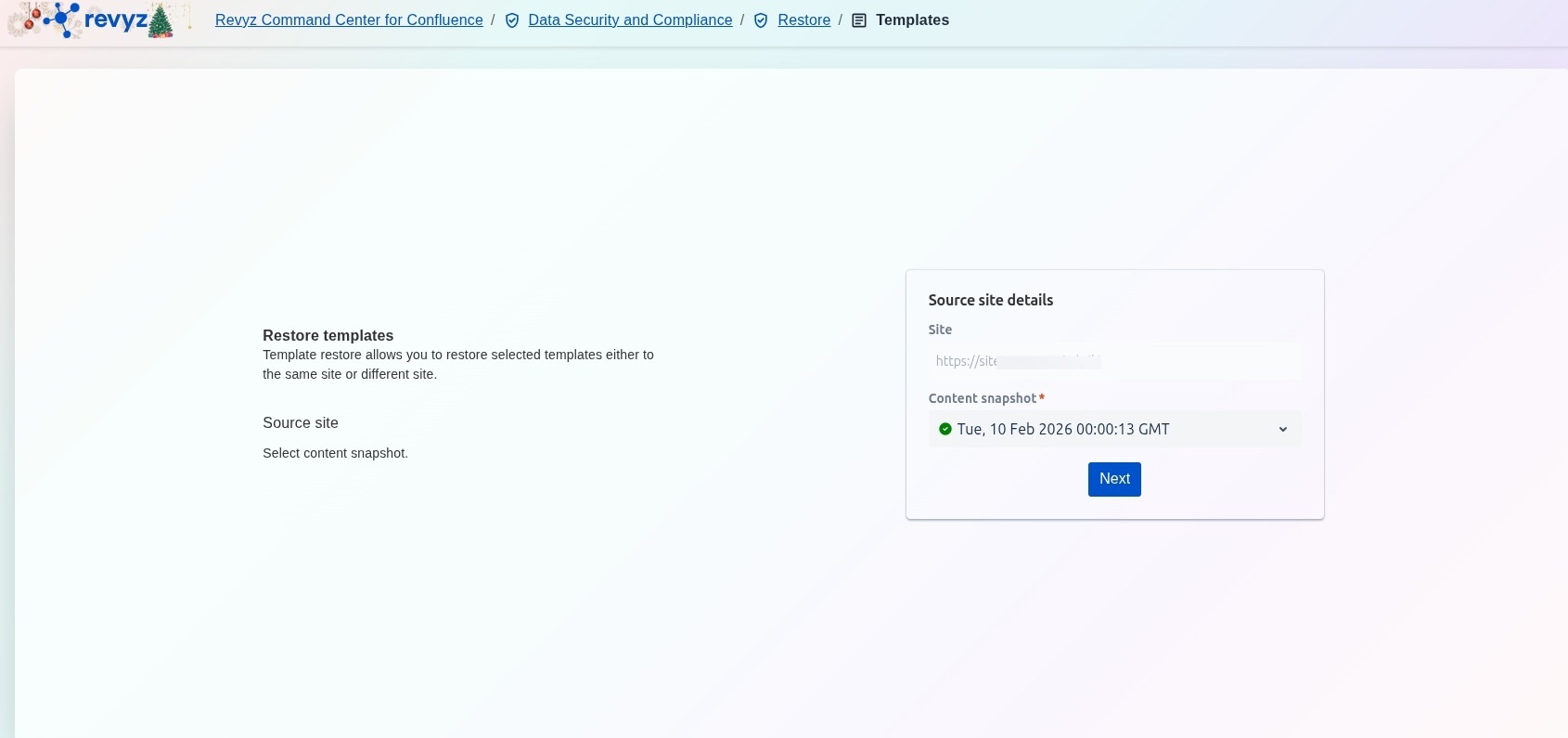
Source Site Details: Displays the specific Confluence instance from which the templates will be retrieved.
-
Content Snapshot: A mandatory selection that allows you to choose a specific backup date and time (e.g., Tue, 10 Feb 2026).
-
Selection Workflow: Once a snapshot is selected, clicking Next allows you to move to the granular selection of individual templates.
Step 2: Destination Configuration
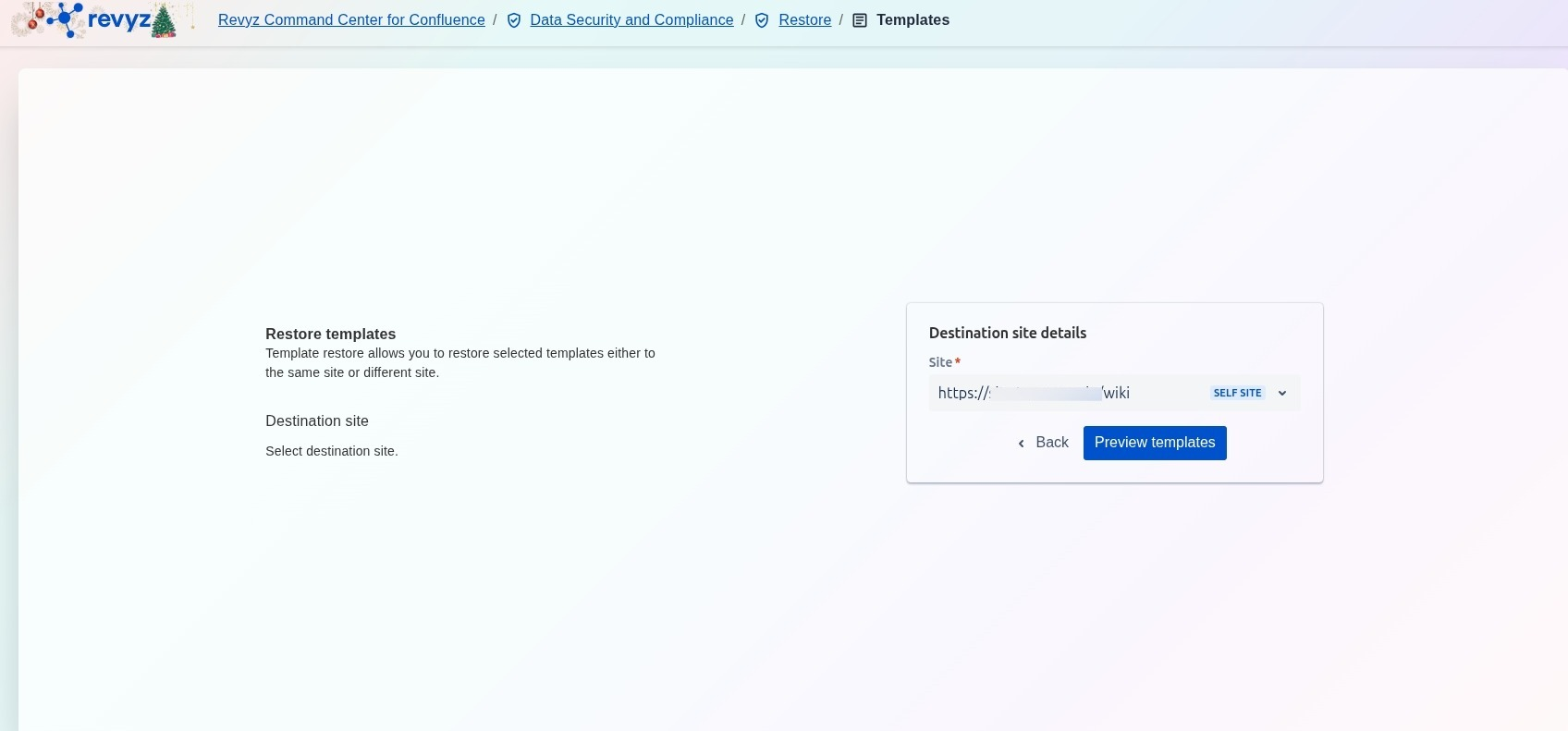
Select the destination site and click on preview templates.
Step 3: Selection of templates
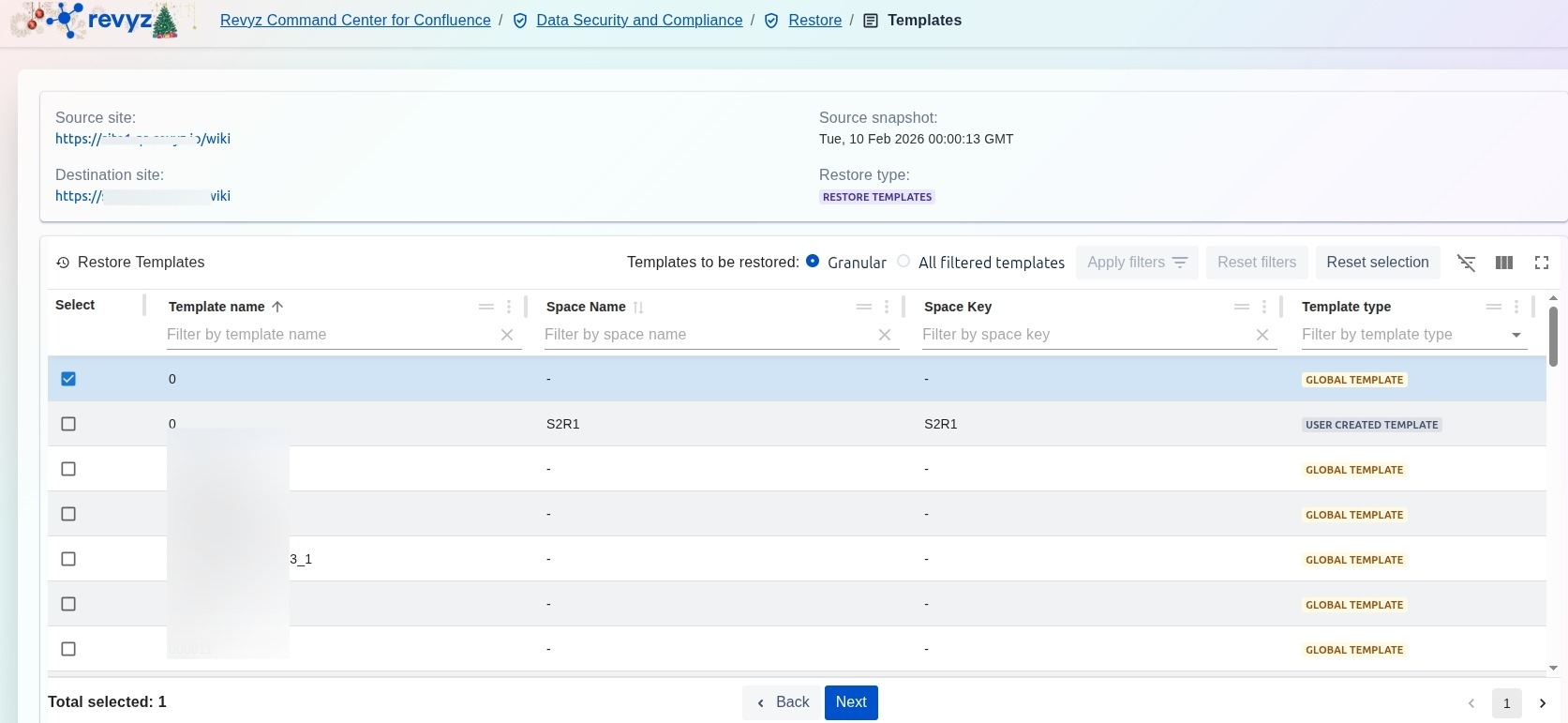
Select the templates you want to restore and click on “Next”
Step 4: Select type of template
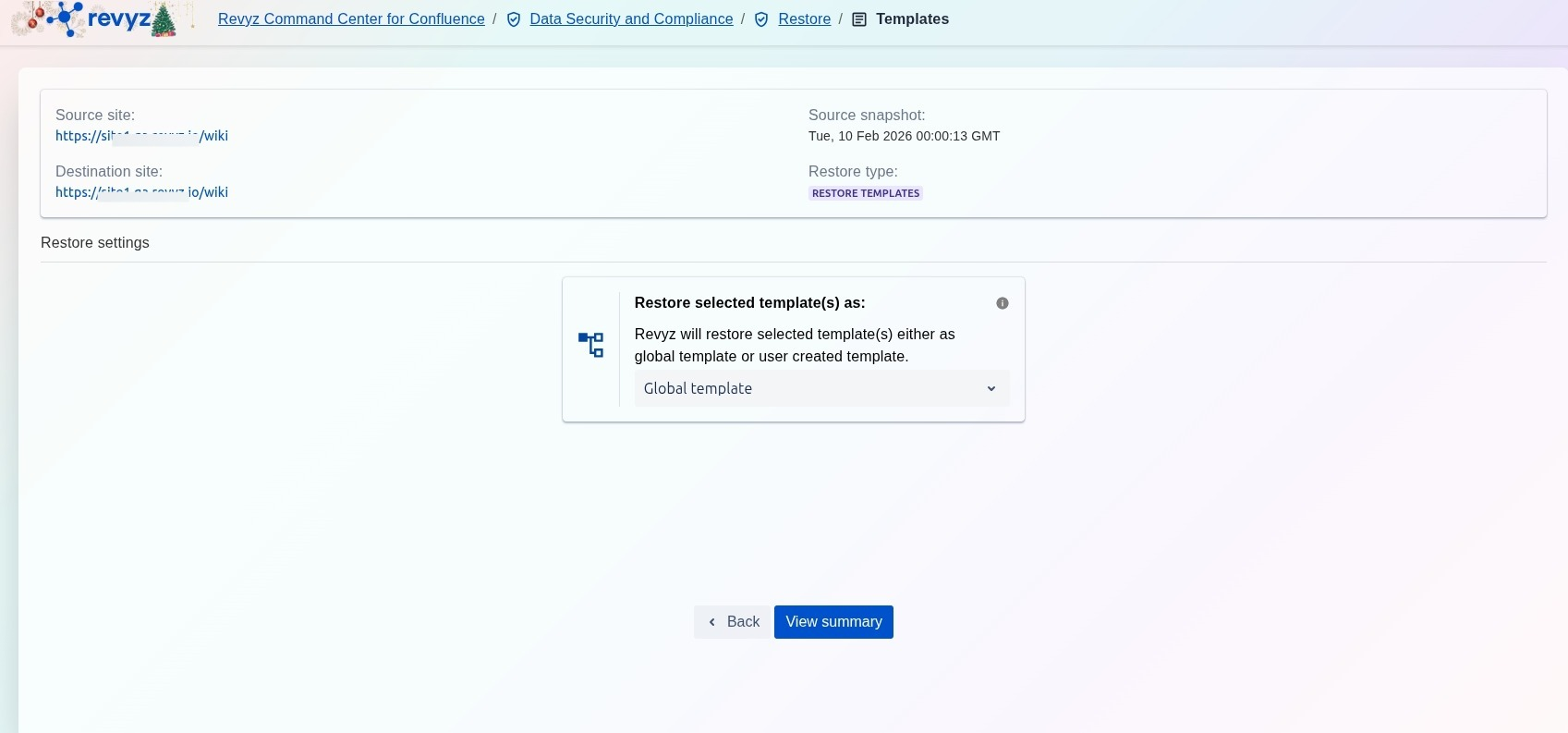
Select how you wish to restore your template as: Global or user created template. “Click on “View Summary” .
Step 5: Click on "Restore"
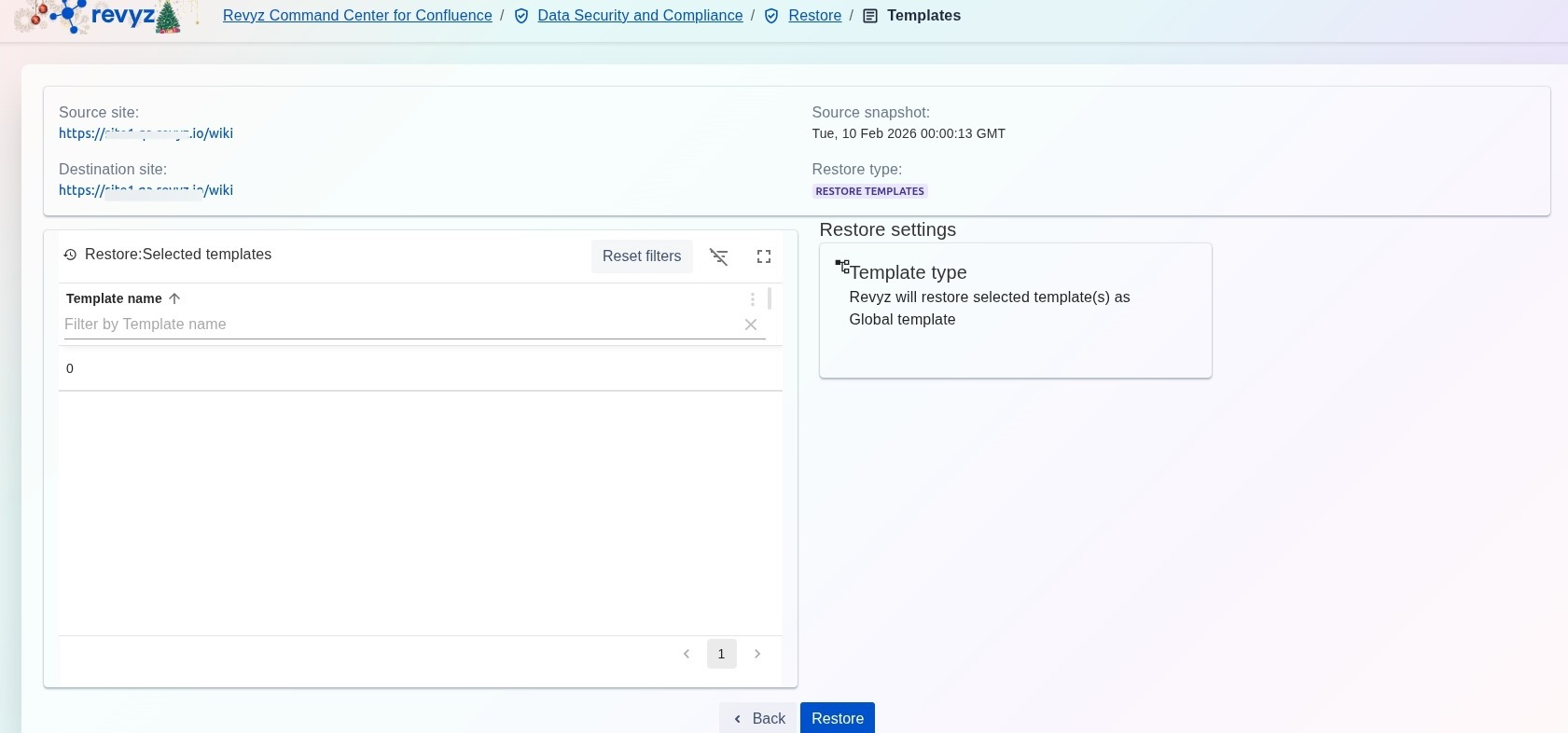
Click on “Restore”.
Step 6: Check on Revyz Jobs
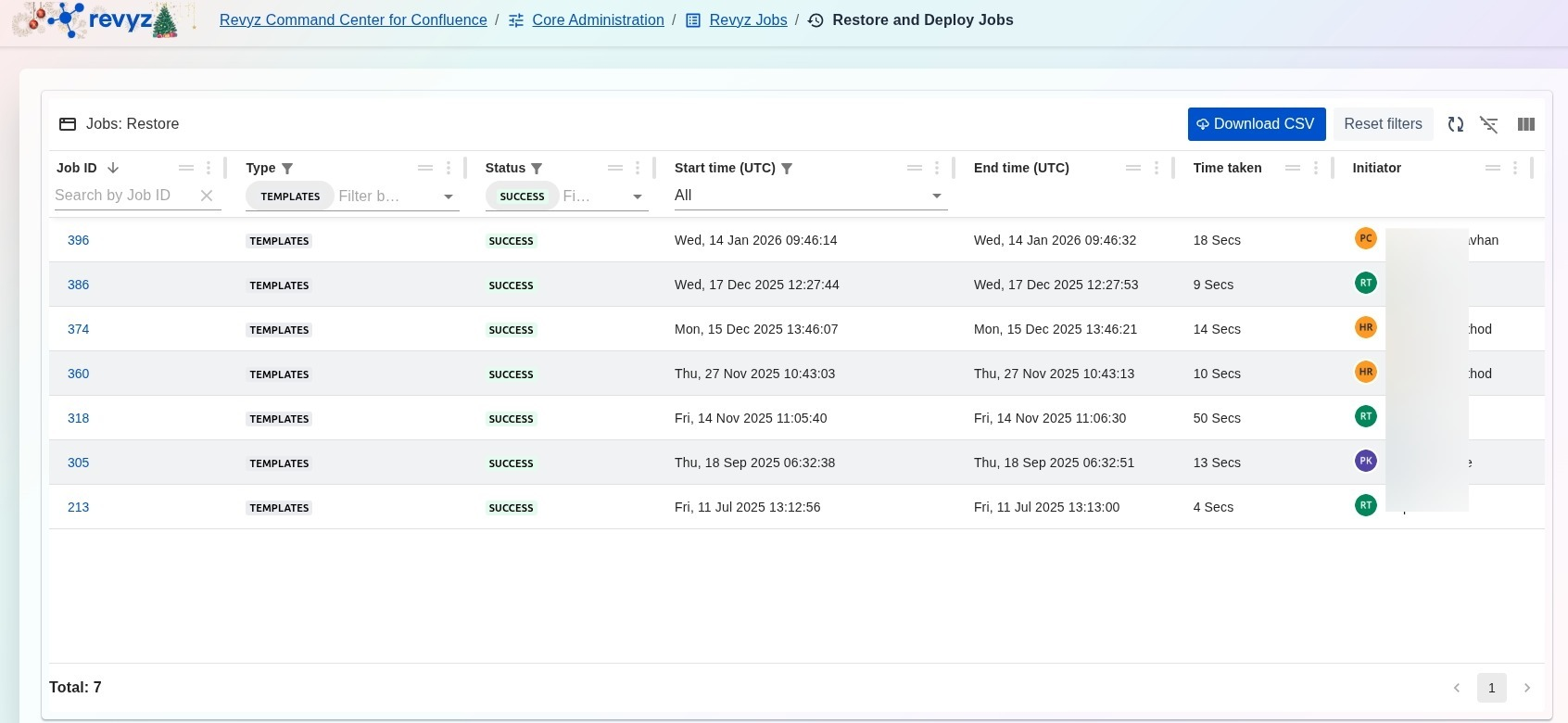
Select Core Administration > Revyz Jobs > Restore and Deploy Jobs to view the relevant job details.