
About this Page
The On-demand backup page allows administrators to manually initiate immediate backup jobs for specific Confluence data. This feature is separate from daily automated schedules and provides a way to capture the current state of your site content and configurations instantly.
What is the Use Case?
-
Pre-Change Protection: Creating a manual restore point immediately before performing major site updates, app installations, or configuration changes.
-
Immediate Data Archival: Securing critical data following a large project milestone or high-volume content update.
-
Selective Backups: Performing targeted backups of either Content or Configurations based on specific administrative needs.
-
Snapshot Tagging: Adding custom tags to manual backups to make them easily identifiable during a restoration process.
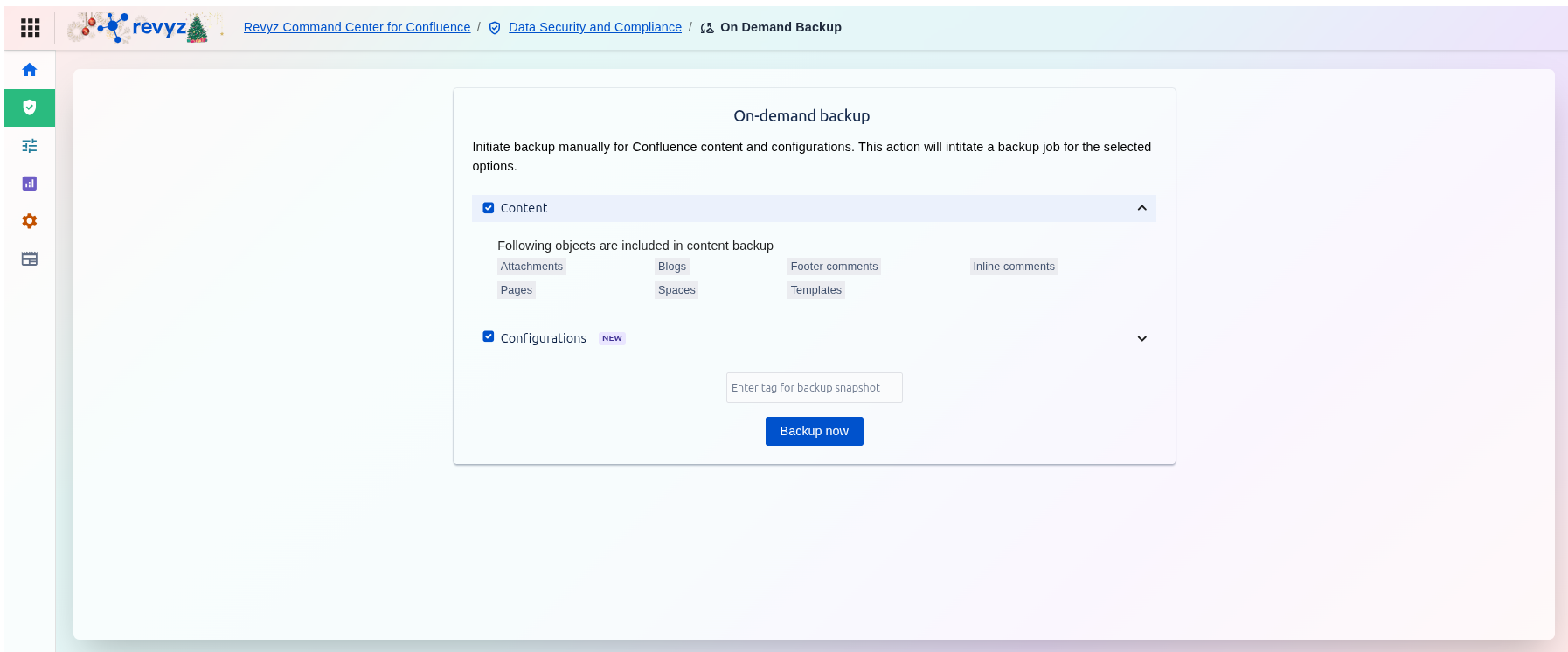
Performing an On-Demand Backup
To manually secure your data, navigate to the On-demand backup section located under Data Security and Compliance.
Step 1: Navigation
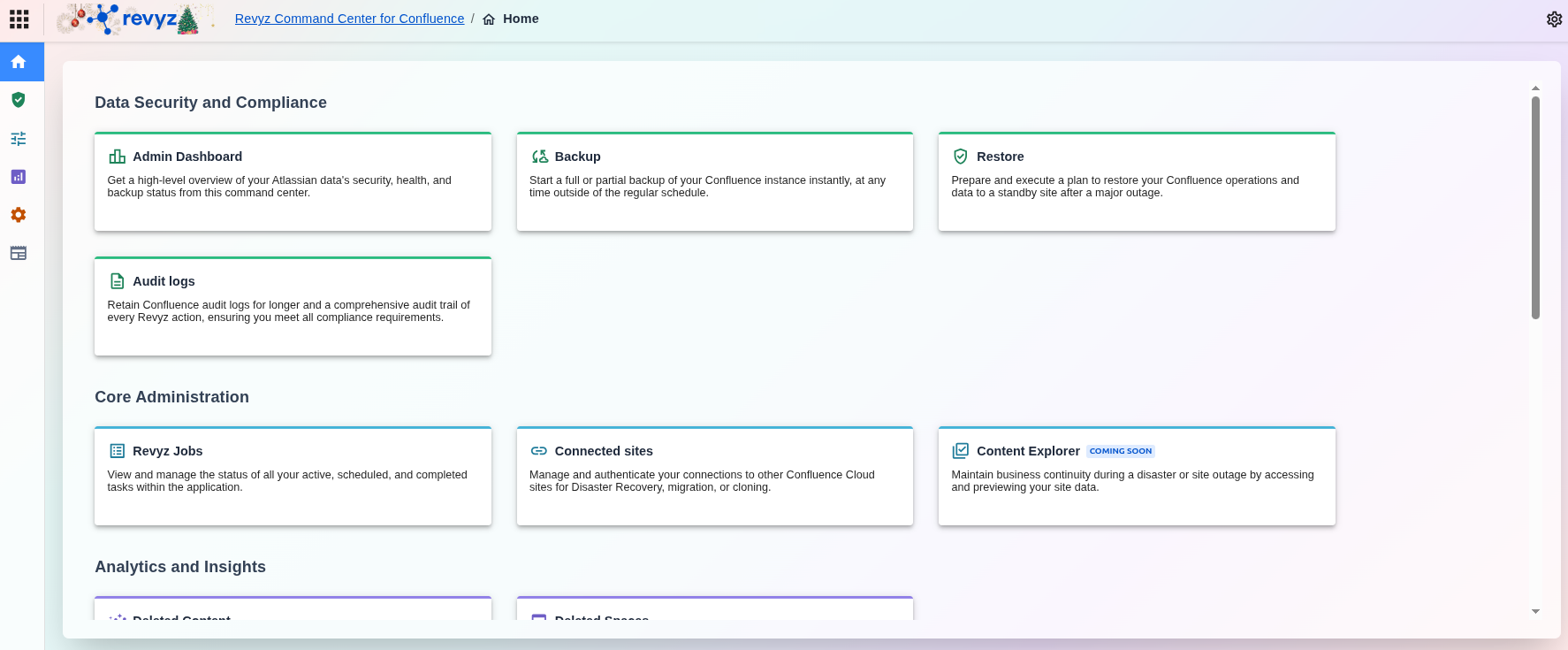
Step 2: Select Backup Scope
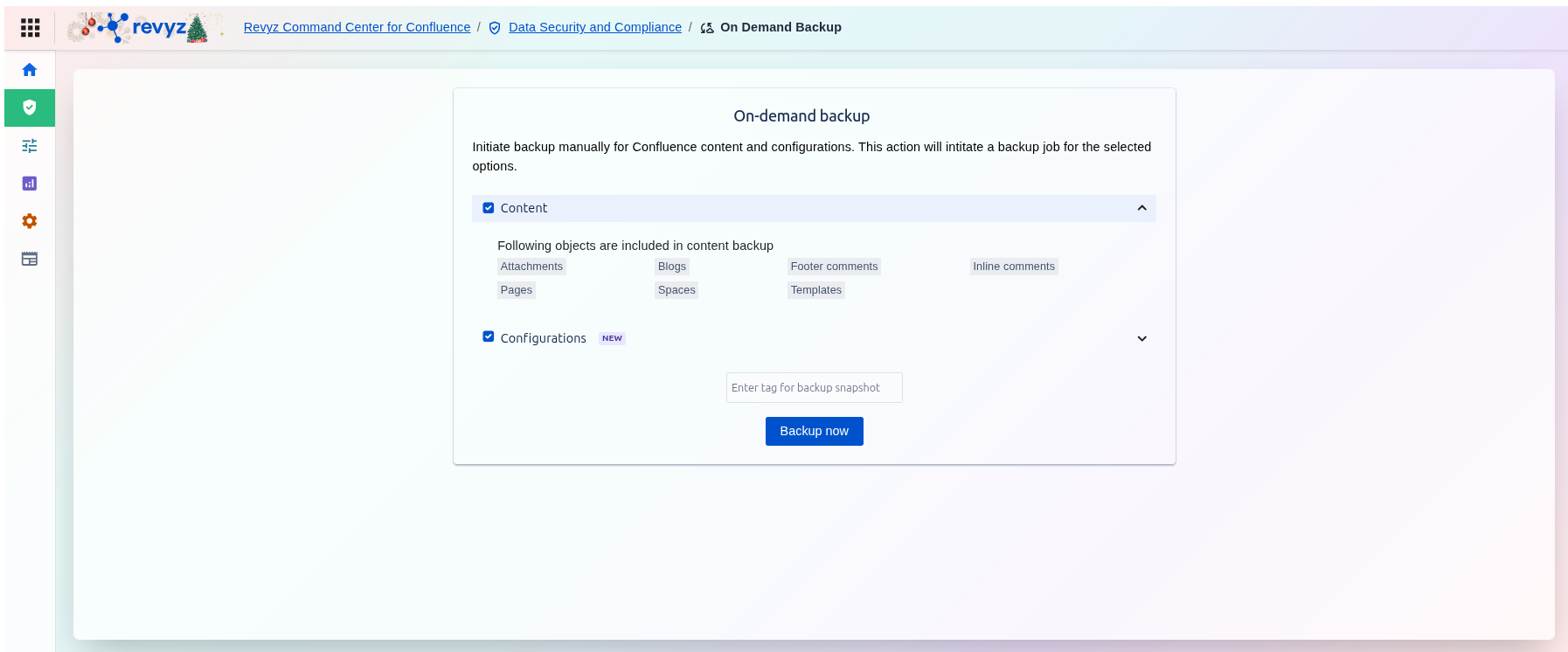
You can customize the backup job by choosing the specific types of data you wish to protect:
-
Content: Selecting this option includes the following objects in your backup:
-
Attachments
-
Blogs
-
Footer comments
-
Inline comments
-
Pages
-
Spaces
-
Templates
-
-
Configurations: Check this box to include your Confluence configuration settings in the backup job.
Configurations Backup
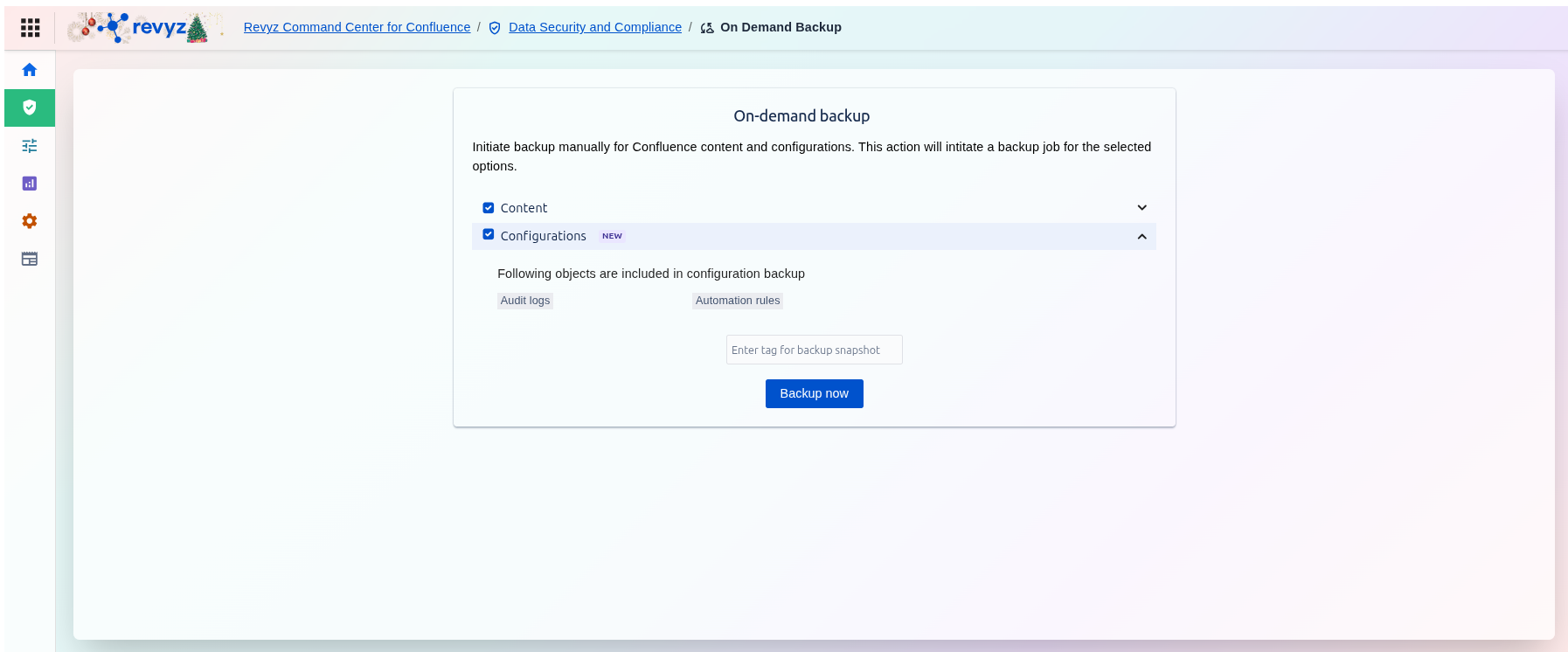
Configurations: This new feature captures essential administrative settings:
-
Audit logs: Backs up Atlassian audit trails beyond the standard 180-day native limit.
-
Automation rules: Secures business logic and automation rules for restoration or cross-site cloning.
Initiate Backup
Label Your Snapshot
Before starting the job, you must "Enter tag for backup snapshot" in the provided text field. Using descriptive tags (e.g., Pre-Upgrade-Jan-2026) is a best practice for identifying specific recovery points later.
Initiate Backup
Click the Backup now button to start the process. Once triggered, you can monitor the status and view detailed logs of the backup in the Revyz Jobs section.