
About this Page
This page allows you to initiate the attachment recovery process by selecting a specific backup snapshot from your source site to preview and restore lost files.
What is the Use Case?
The Restore attachments feature allows you to recover specific files and documents that were previously backed up from your Confluence instance. This workflow is essential for retrieving accidentally deleted media or documents from a specific point in time.
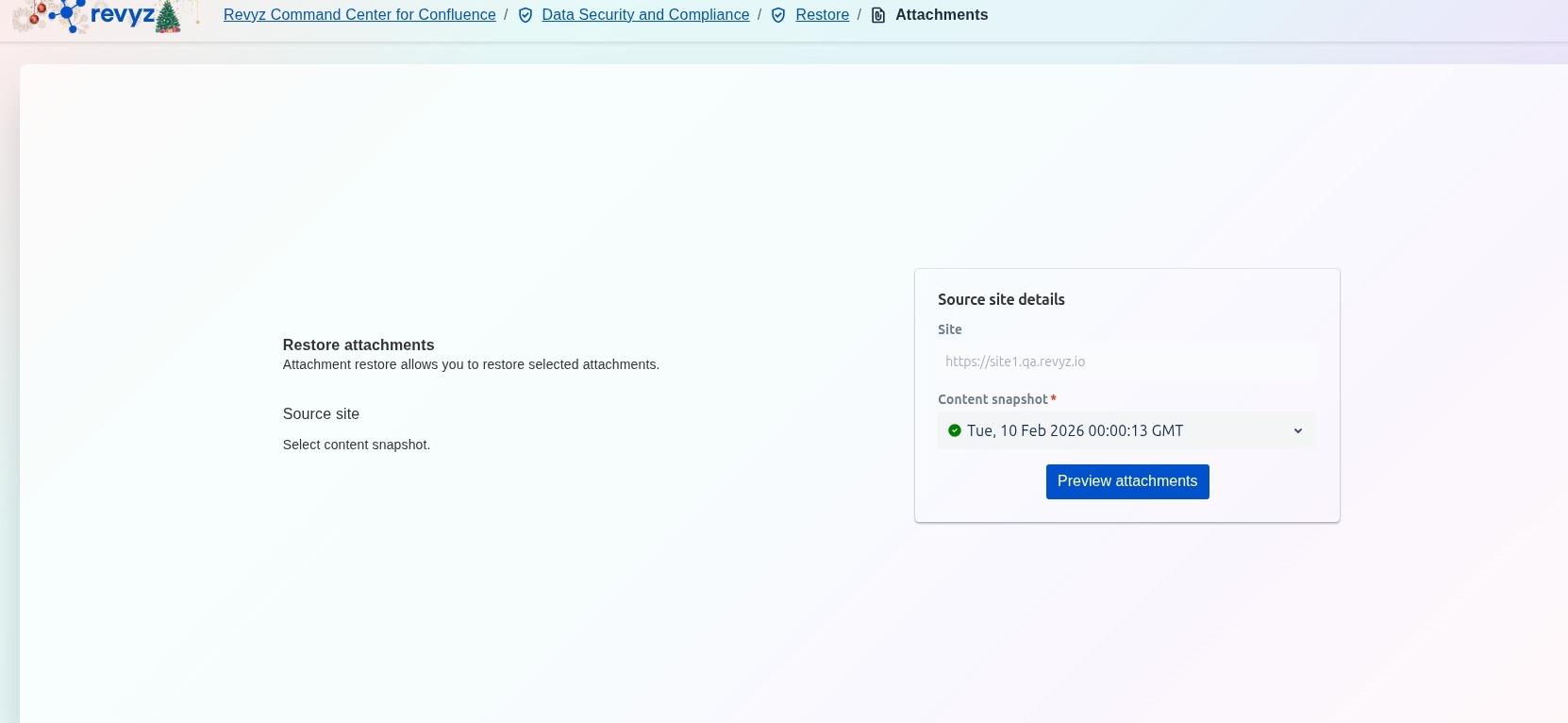
How to Restore Attachments?
Step 1: Select Source Site Details
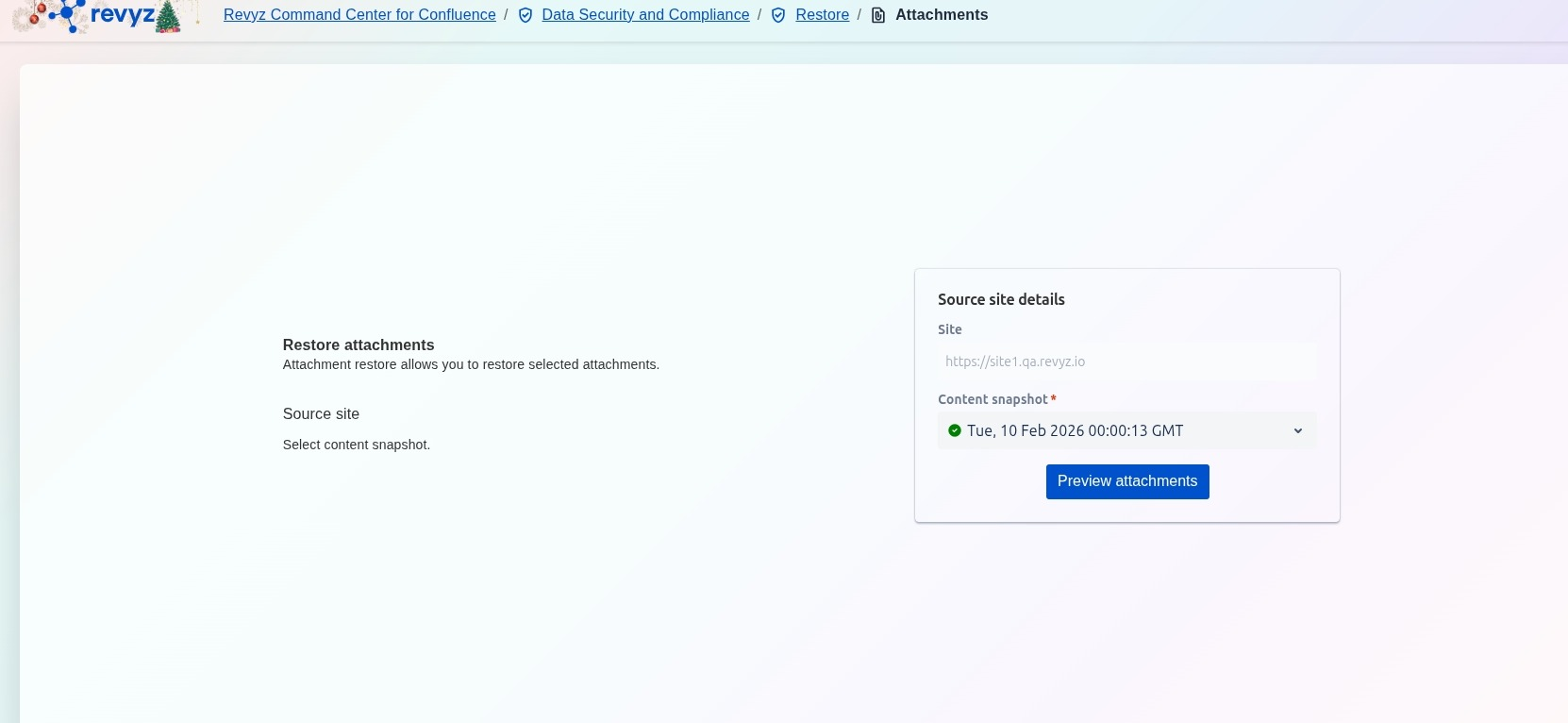
Select the desired source site and snapshot. Click on “Preview Attachments”.
Step 2: Review Attachments
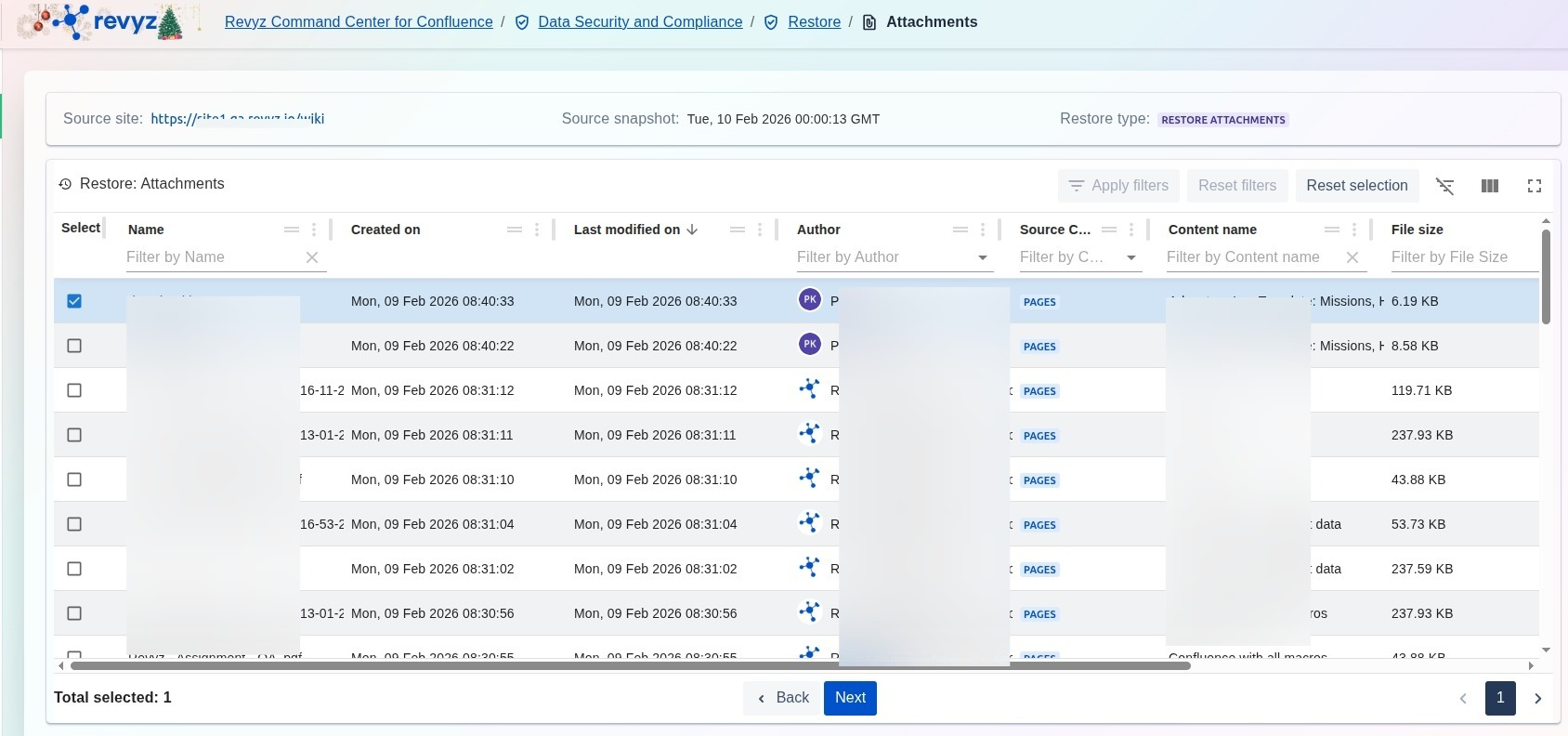
This table lists all files available in the selected snapshot for recovery. You can identify and manage your selection. Click on “Next”.
Step 3: Configure Restore Settings
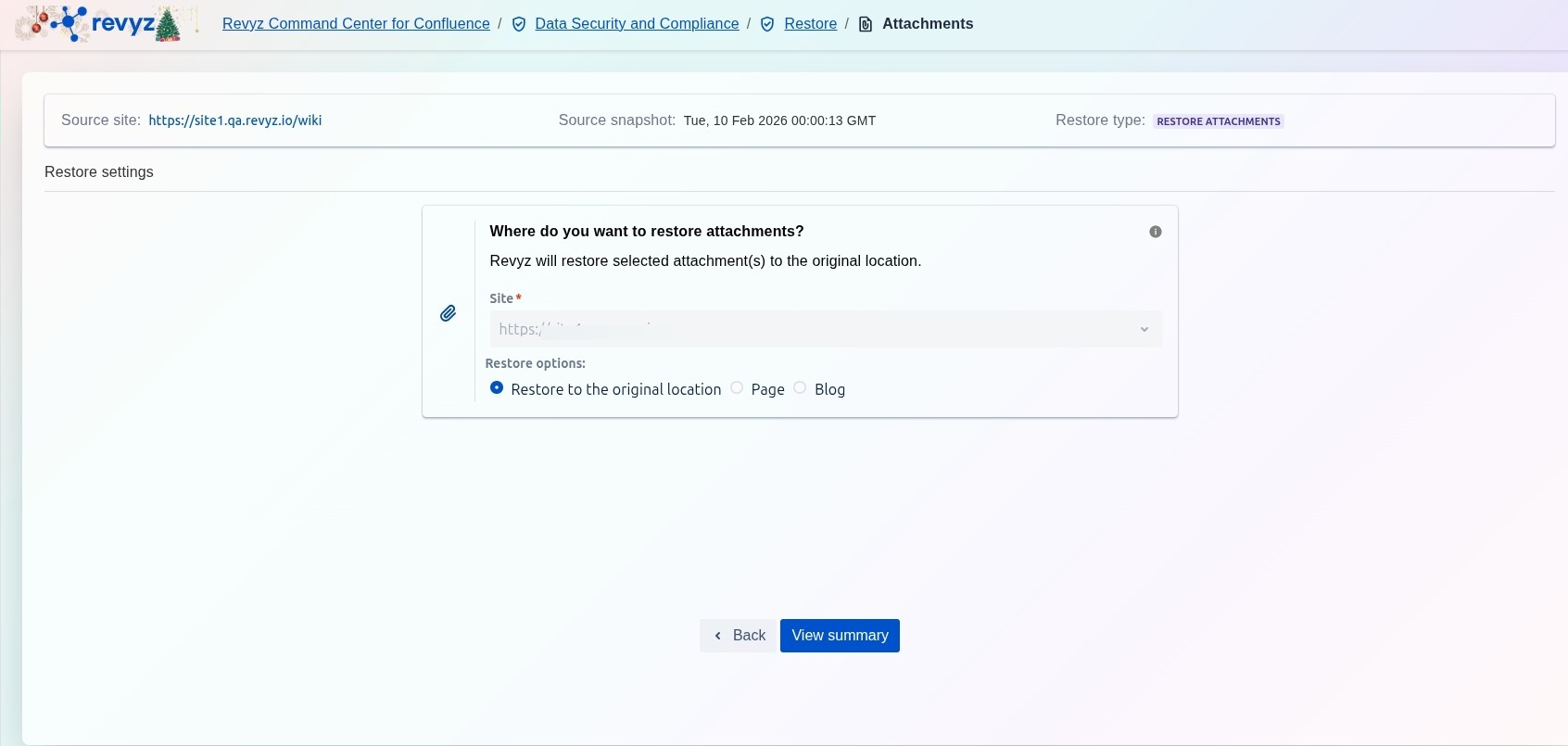
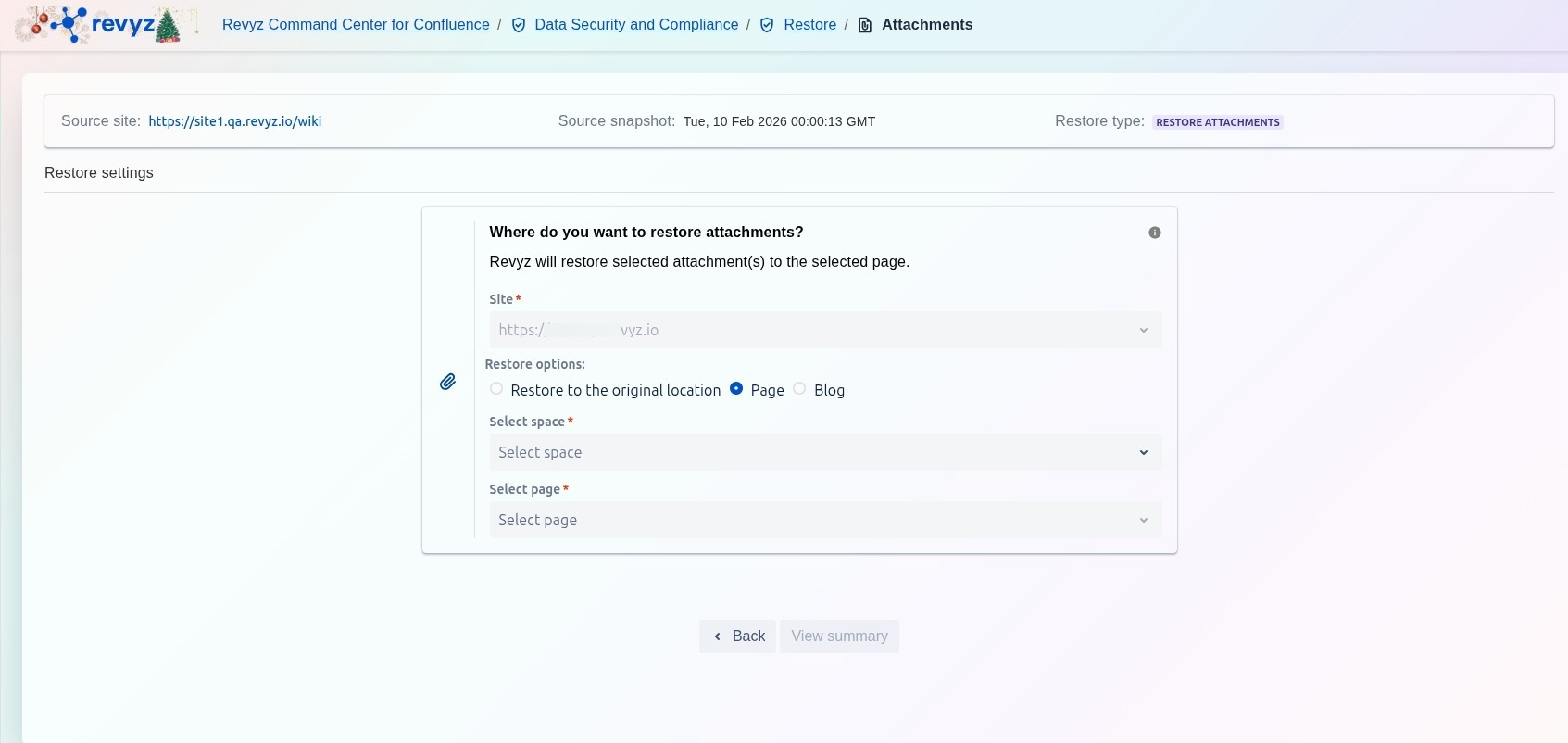
In this final step, you specify exactly where the restored attachments should be placed:
-
Destination Site: Select the target Confluence site from the Site dropdown menu.
-
Restore Options: Choose how the system should handle the file placement:
-
Restore to the original location: Automatically returns the file(s) to the specific page or blog post they were previously attached to.
-
Page: Allows you to select a specific page as the new destination.
-
Blog: Allows you to select a specific blog post as the new destination.
-
Once your settings are configured, click View summary to conduct a final review before initiating the restore.
Step 4: Restoration Summary Overview
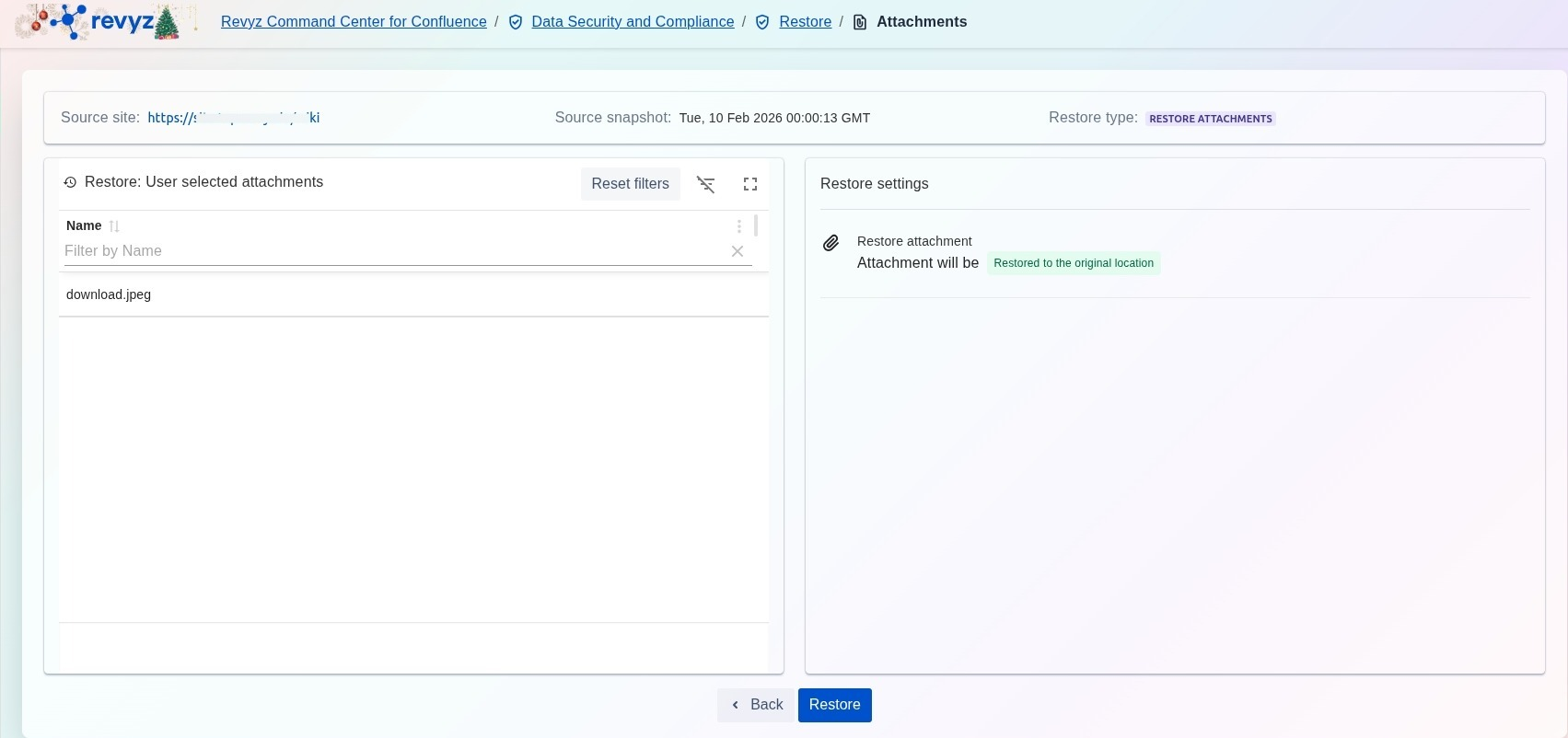
-
Verify all information in both panels is correct.
-
Click Back if you need to modify your file selection or destination settings.
-
Click the Restore button to finalize the process and begin the data recovery.
Step 5: Check Revyz Jobs
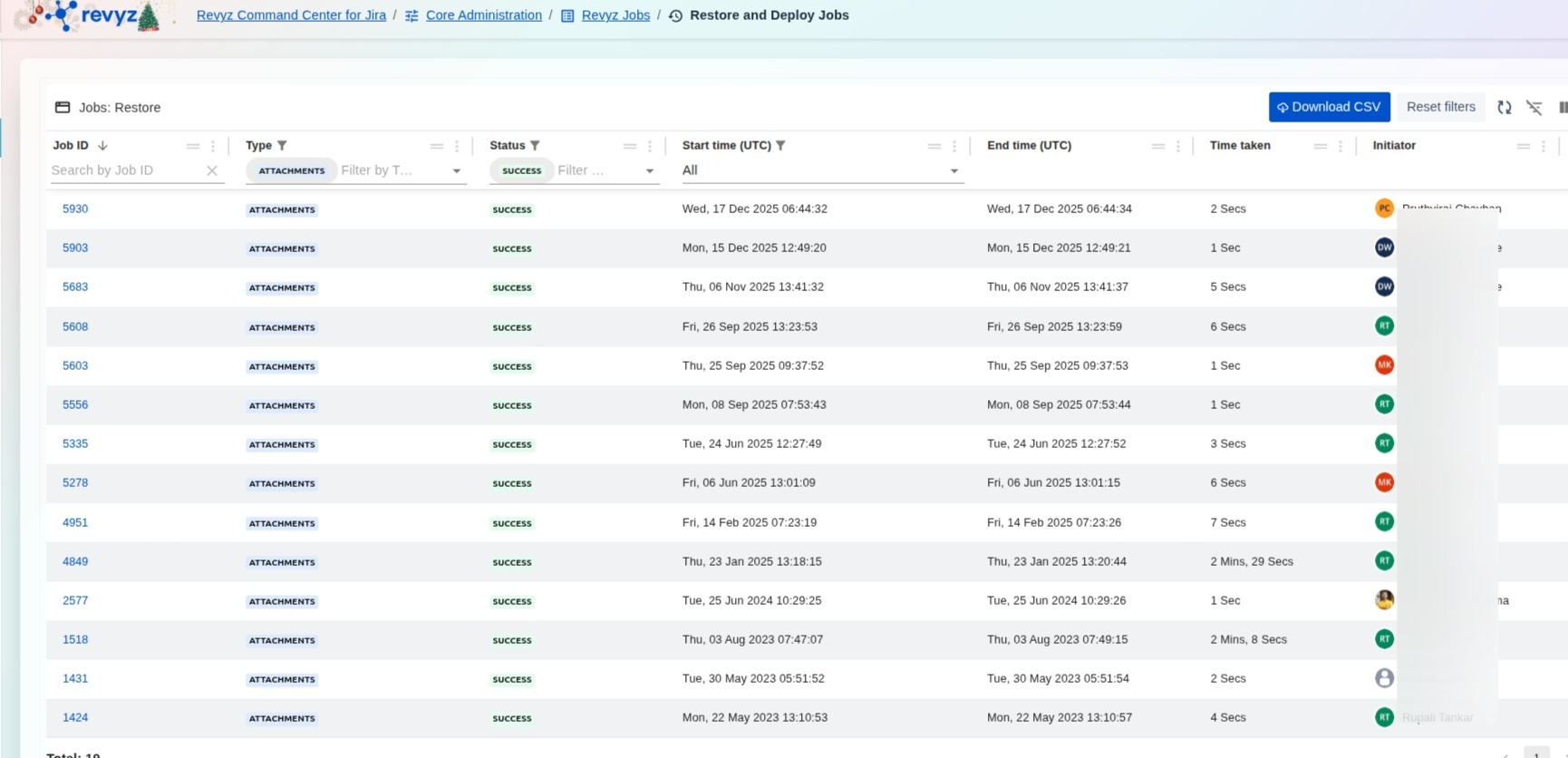
Go to Core Administration > Revyz Jobs > Restore & Deploy Jobs to review the job details of the Attachment Restore.