
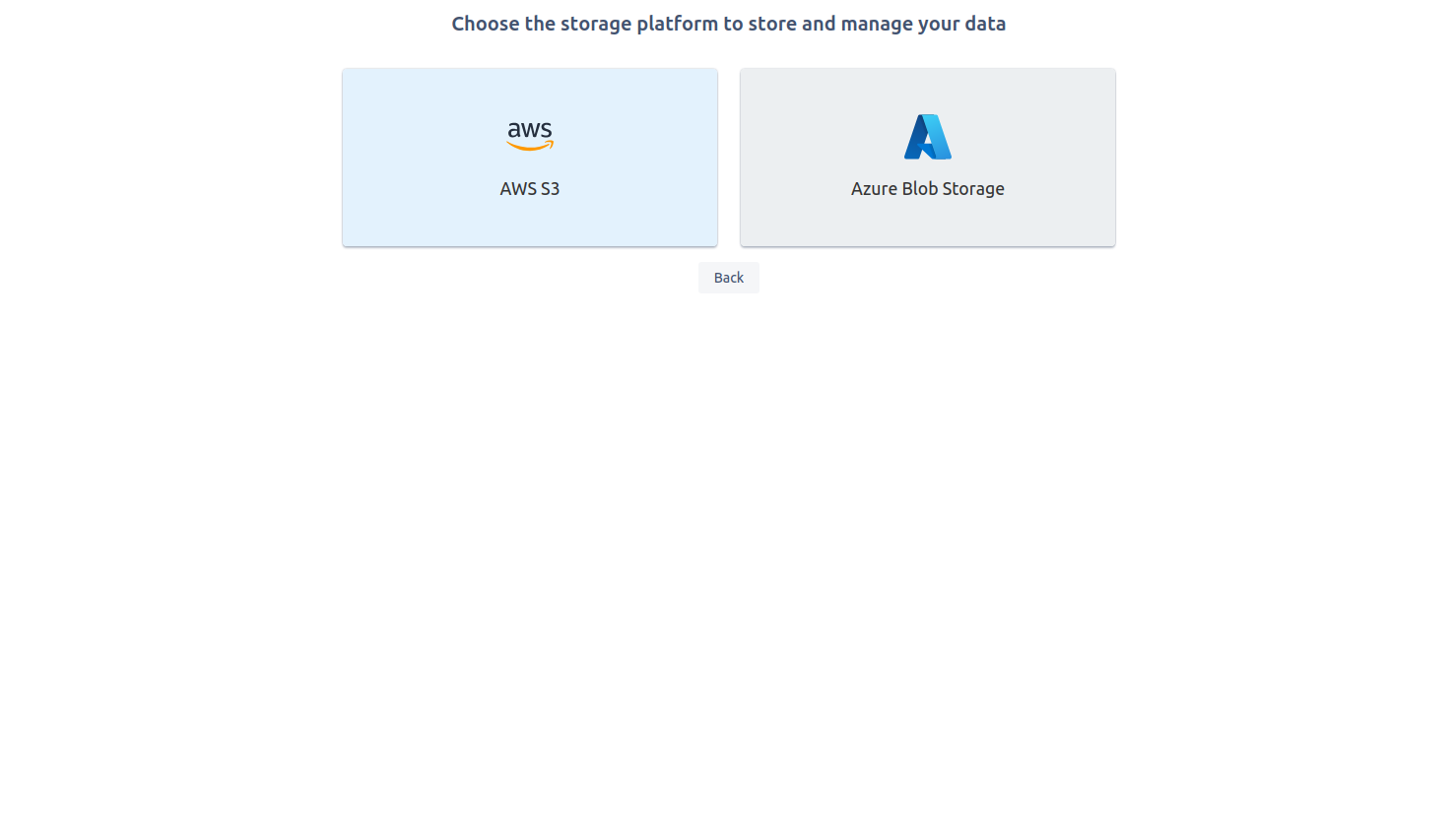
Below are the steps to complete Azure Blob storage setup.
-
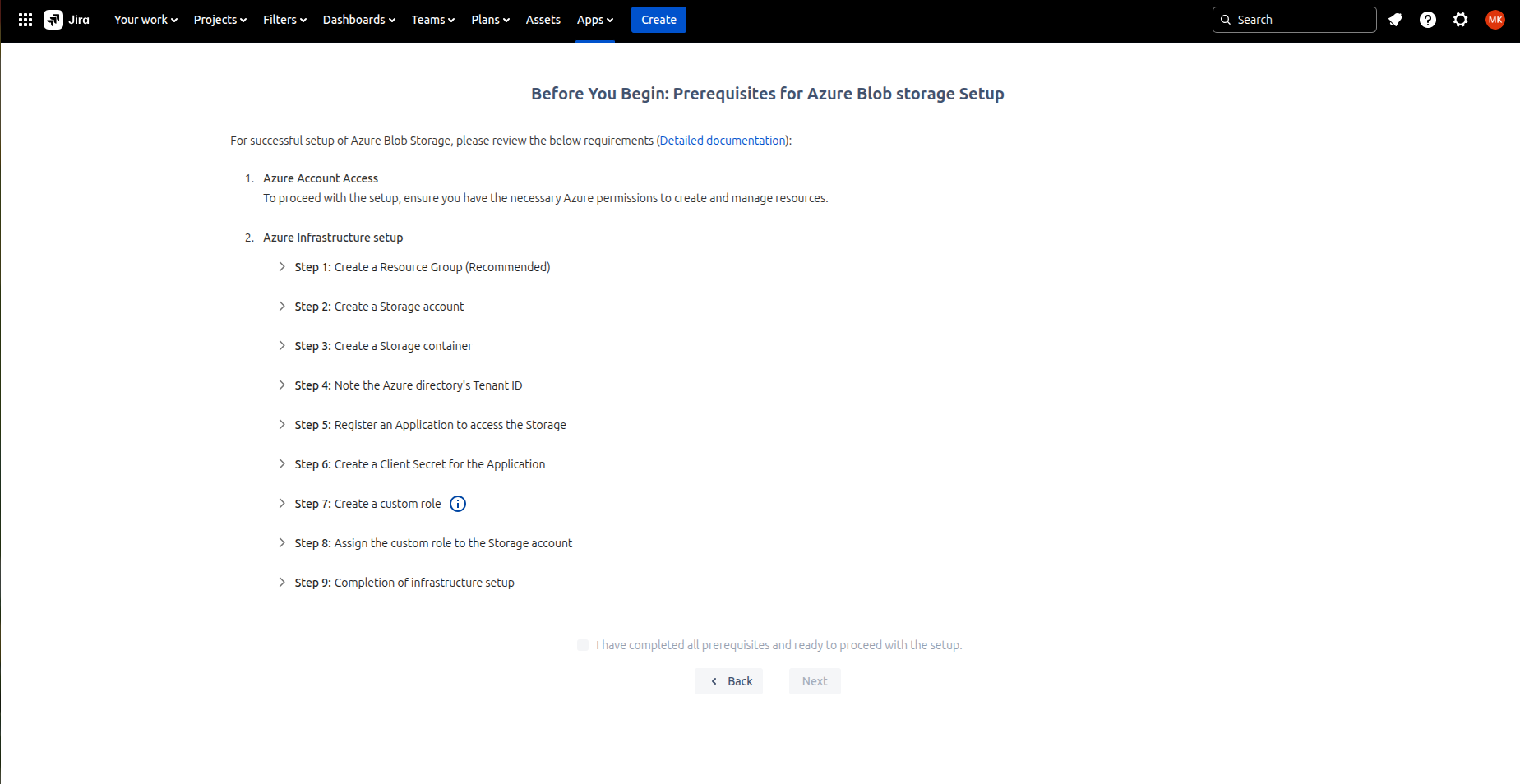
Download the JSON from Step: 7 and check ‘I have completed all prerequisites and ready to proceed with the setup’ and click on 'Next'.
-
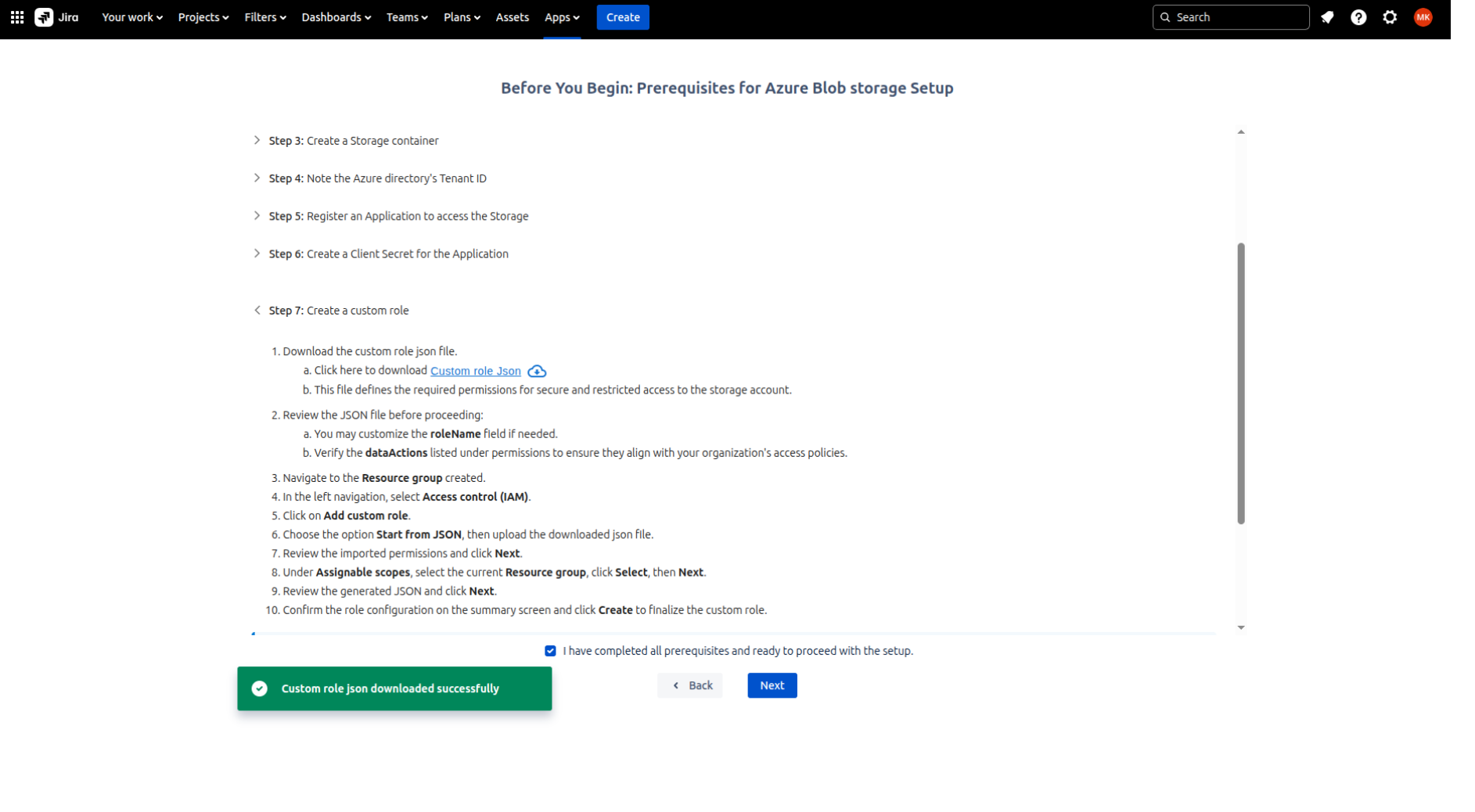
Give Azure storage account name and Azure storage container name which was created in your Azure account.
-
Click on 'Next'.
-
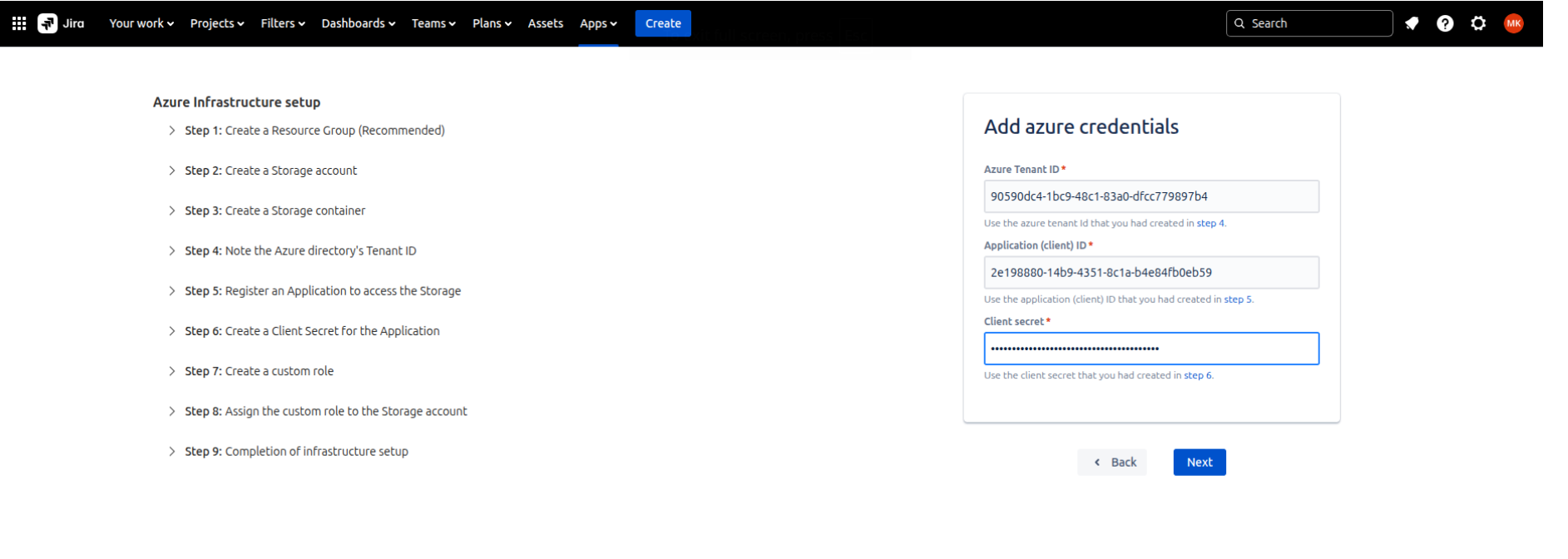
On the next page, Add Azure Credentials:
-
Azure Tenant Id - Which is copied from Microsoft Entra Id.
-
Application (client) Id - Which is copied after creating the app.
-
Client secret - The value is copied after creating secret.
-
-
Click on 'Next'
-
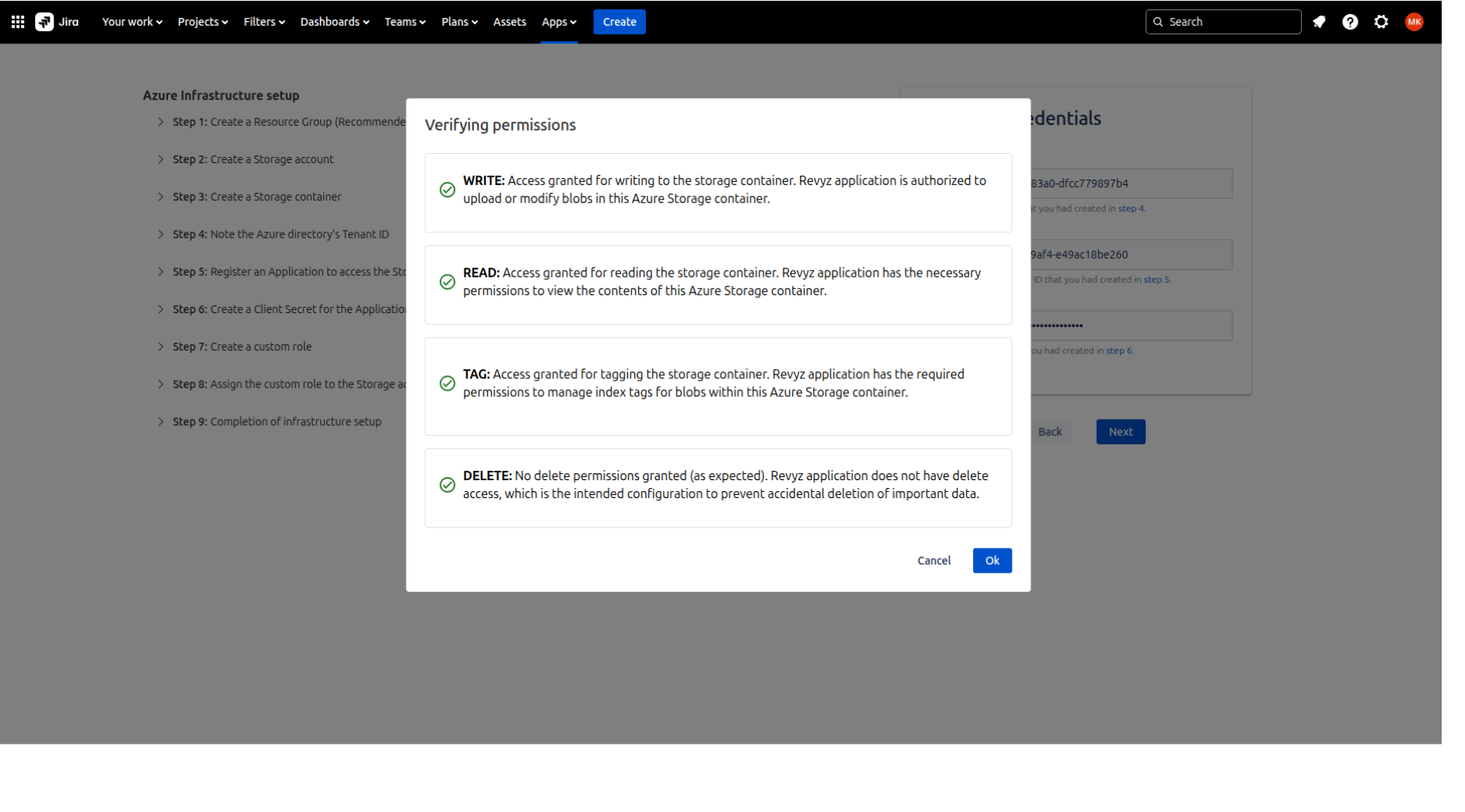
On the next page, it will verify the permissions:
-
Read
-
Write
-
Tag
-
Delete - Revyz can not delete any Blob from the Blob container
-
-
Click on 'Ok'
-
Check settings page, confirm storage details.
-
Click on 'Next'.
-
Check spaces and click on 'Finish'.
-
If you want to run backup immediately, then select Run data immediately option
-
Check ‘I agree to all the settings’ option.