
What is this feature?
This feature is a Site Optimization tool that scans your Jira instance and provides a complete list of all configured Screens. It analyzes each screen to determine if it is actively used in any screen scheme or workflow transition.
-
Use Case: Use this to identify and clean up "orphaned" or legacy screens that are not associated with any screen schemes or workflows. This reduces administrative clutter and simplifies instance configuration.
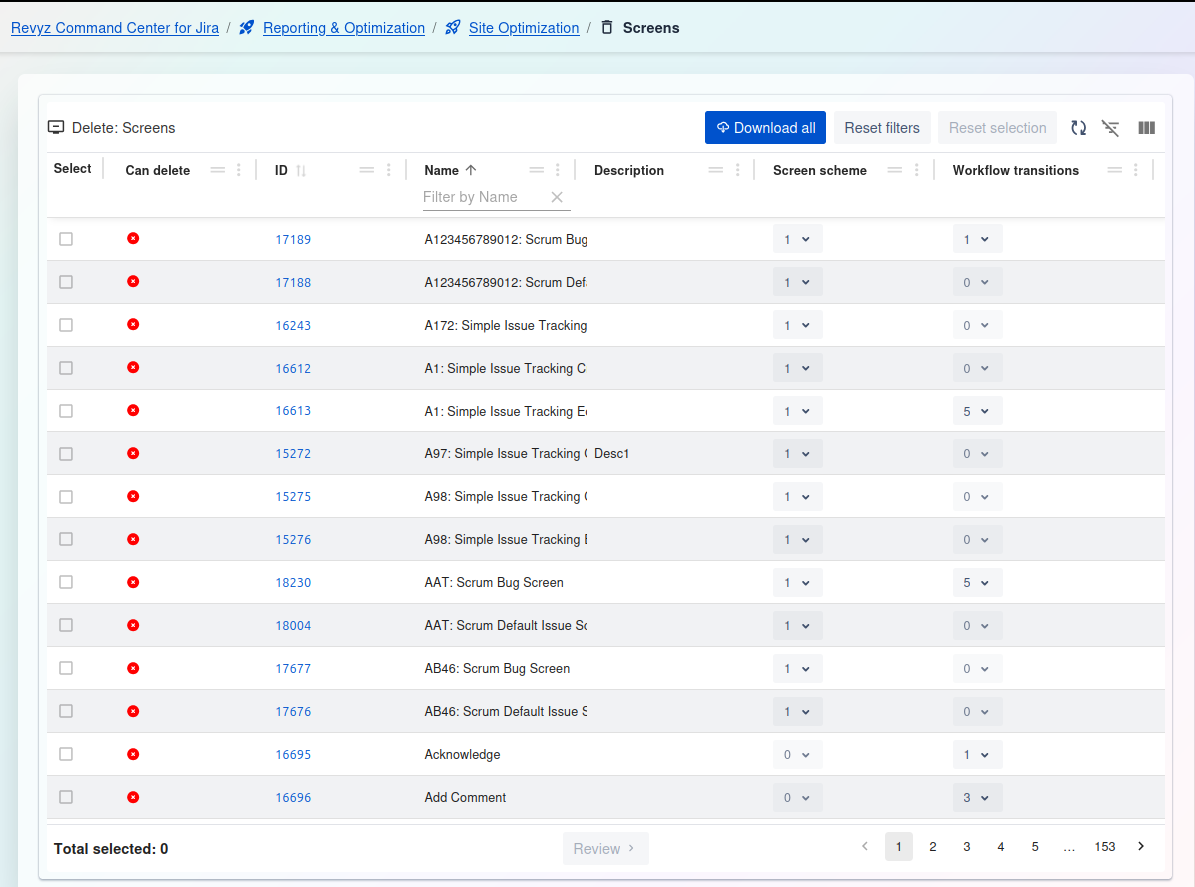
1) Delete: Screens
This page displays a list of all Screens in your Jira instance. It indicates which screens are active (in use) and which are "orphaned" (and can be safely deleted).
Management and Filtering:
-
Download all: Exports a complete list of all screens shown in the table.
-
Reset filters: Clears any filters you have applied to the table.
-
Reset selection: Un-checks any screens you have selected in the list.
-
Table tools (right side): Use these icons to toggle the filter row or customize the visible columns.
Screens Table:
-
Select: A checkbox to select one or more screens for review and deletion.
-
Can delete: A status icon indicating if the screen can be safely deleted.
-
Red Circle (Dash): The screen is active and associated with a Screen Scheme or Workflow Transition (as shown in the columns) and cannot be deleted.
-
Green Checkmark: (Not shown in this view) Would indicate the screen is not associated with any schemes or transitions (i.e., both counts are 0) and is safe to be deleted.
-
-
ID: The unique internal ID for the screen (e.g.,
17189). -
Name: The name of the screen as it appears to users (e.g.,
A123456789012: Scrum Bug). You can filter this column by name. -
Description: The description associated with the screen.
-
Screen scheme: The number of screen schemes this screen is a part of. A value of
0indicates it is not used in any scheme. -
Workflow transitions: The number of workflow transitions that use this screen. A value of
0indicates it is not used by any transitions.
2) Screen Schemes
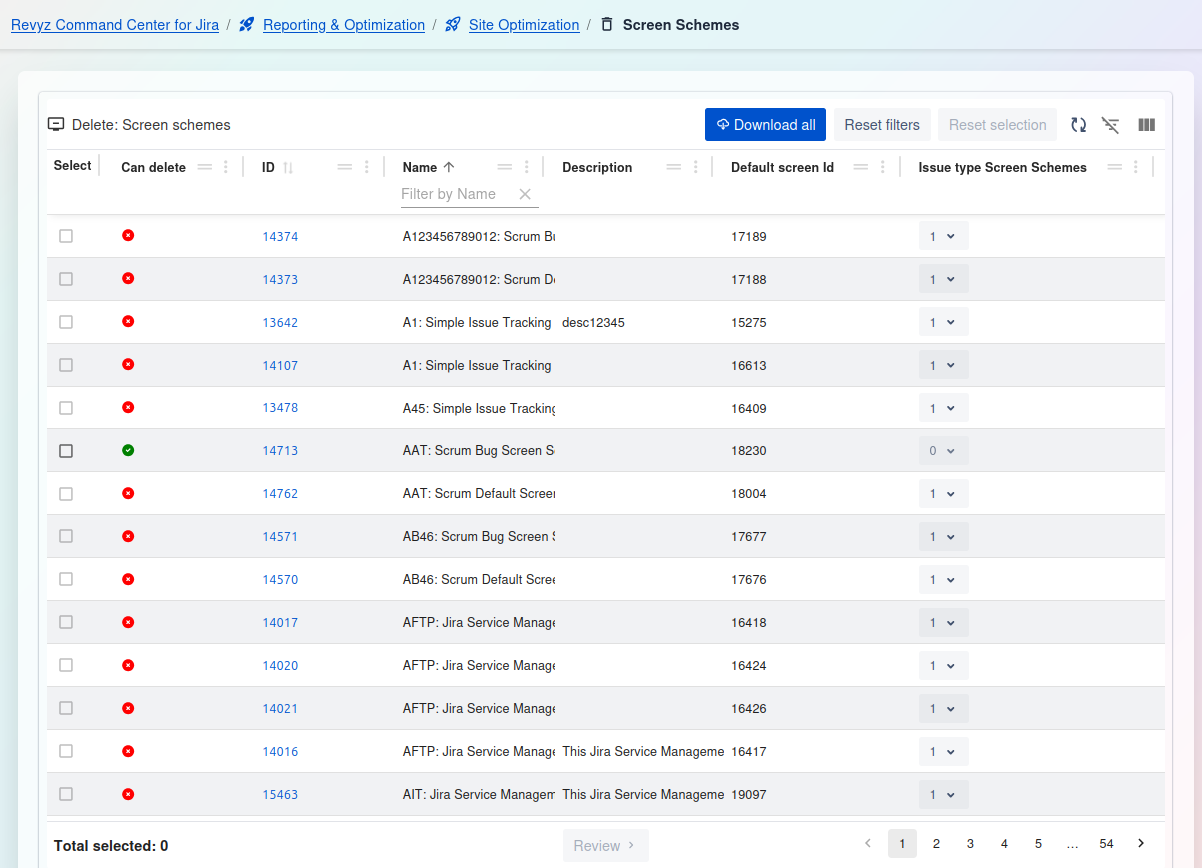
Delete: Screen schemes
This page displays a list of all Screen Schemes in your Jira instance. It highlights which schemes are "orphaned" (unused) and therefore safe to be deleted.
Management and Filtering:
-
Download all: Exports a complete list of all screen schemes shown in the table.
-
Reset filters: Clears any filters you have applied to the table.
-
Reset selection: Un-checks any screen schemes you have selected in the list.
-
Table tools (right side): Use these icons to toggle the filter row or customize the visible columns.
Here is the support documentation for the "Issue type screen schemes" optimization screen, in the requested format.
3) Issue type screen schemes:
-
What is this feature? This feature is a Site Optimization tool that scans your Jira instance and provides a complete list of all configured Issue Type Screen Schemes. It analyzes each scheme to determine if it is actively associated with any projects.
-
Use Case: Use this to identify and clean up "orphaned" Issue Type Screen Schemes that are not being used by any project. This reduces administrative clutter and simplifies the management of screen configurations.
Delete: Issue type screen schemes
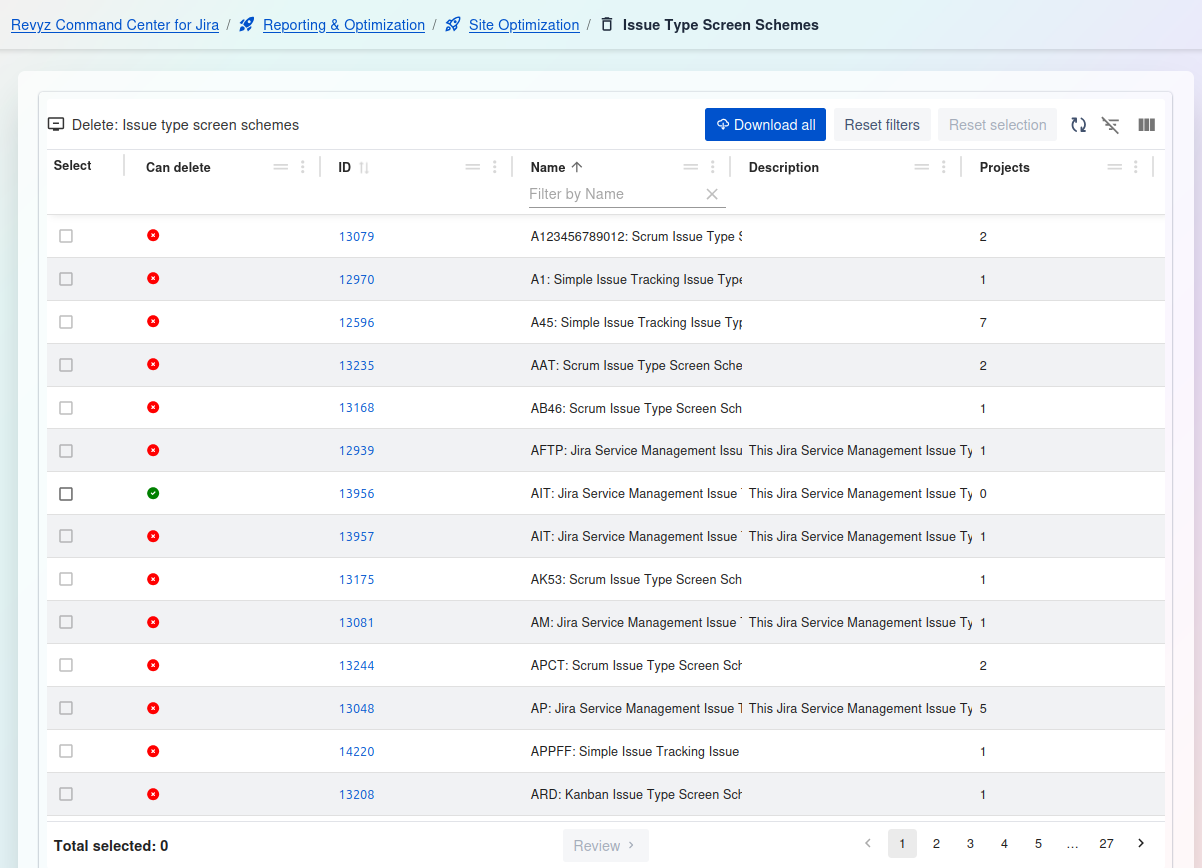
This page displays a list of all Issue Type Screen Schemes in your Jira instance. It highlights which schemes are "orphaned" (unused) and therefore safe to be deleted.
Management and Filtering:
-
Download all: Exports a complete list of all issue type screen schemes shown in the table.
-
Reset filters: Clears any filters you have applied to the table.
-
Reset selection: Un-checks any schemes you have selected in the list.
-
Table tools (right side): Use these icons to toggle the filter row or customize the visible columns.
Issue Type Screen Schemes Table:
-
Select: A checkbox to select one or more schemes for review and deletion.
-
Can delete: A status icon indicating if the scheme can be safely deleted.
-
Green Checkmark: The scheme is not associated with any projects (as shown in the
Projectscolumn is0) and is safe to be deleted. -
Red Circle (Dash): The scheme is active and in use by one or more projects (e.g., project count is
1,2,7) and cannot be deleted.
-
-
(ID Column): The blue number (e.g.,
13079) is the unique internal ID for the scheme. -
Name: The name of the scheme as it appears to users (e.g.,
A1: Simple Issue Tracking Issue Typ...). You can filter this column by name. -
Description: The description associated with the scheme.
-
(Projects Column): The number in the final column indicates the number of projects this scheme is associated with. A value of
0means it is unused and can be deleted.