
What is this feature?
This feature is a suite of advanced utilities designed to capture, clone, and replicate your Jira instance's complex configurations. It allows you to manage and transfer core Jira settings (like workflows, custom fields, permissions), project-specific schemes, JSM Assets (Insight) data, and Automation rules independently from your issue data.
What is the use case?
The primary use case is for instance migration, disaster recovery, and environment replication. An administrator uses these tools to move settings from one instance to another, such as when migrating to a new Jira site, or to create a staging environment that mirrors production, saving hundreds of hours of manual setup.
Configuration Management
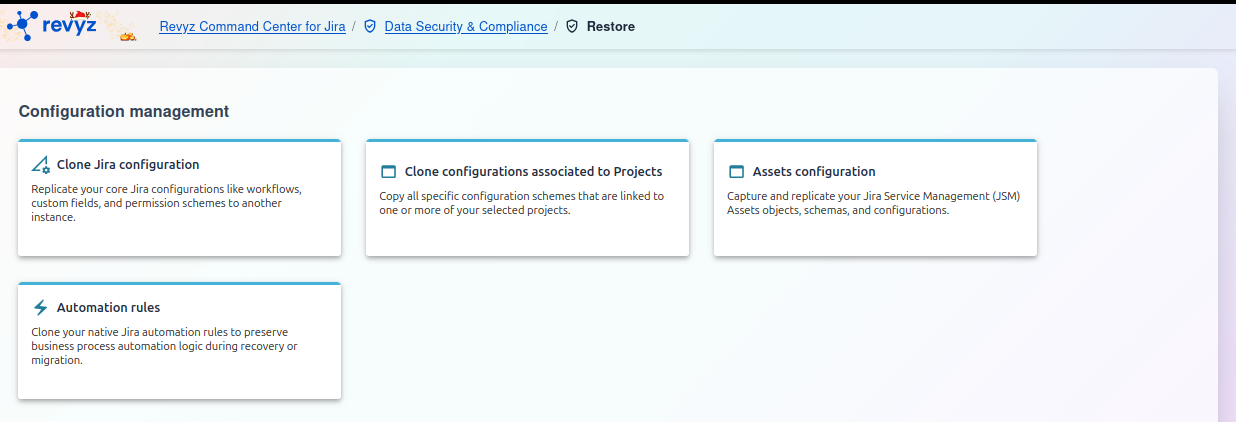
The Configuration Management dashboard provides a set of powerful tools to help you capture, clone, and replicate your instance's settings. These utilities are essential for migrating configurations between different environments (e.g., from staging to production), setting up new instances, or ensuring your business logic is preserved during recovery.
Features
Here is an overview of the available configuration management tools:
1) Clone Jira configuration
What is Jira Configurations Clone?
With this feature, you can replicate your core Jira configurations like workflows, custom fields, and permission schemes to another instance.
Use Case: This tool is ideal for a full-scale migration or for standardizing a new, separate Jira instance to match your primary one.
This feature of the Revyz Command Center for Jira is unavailable for Revyz Assets Data Manager for Jira. To upgrade your version to Revyz Command Center for Jira, connect with support@revyz.io or install the app here.
How to Clone Jira Configurations:
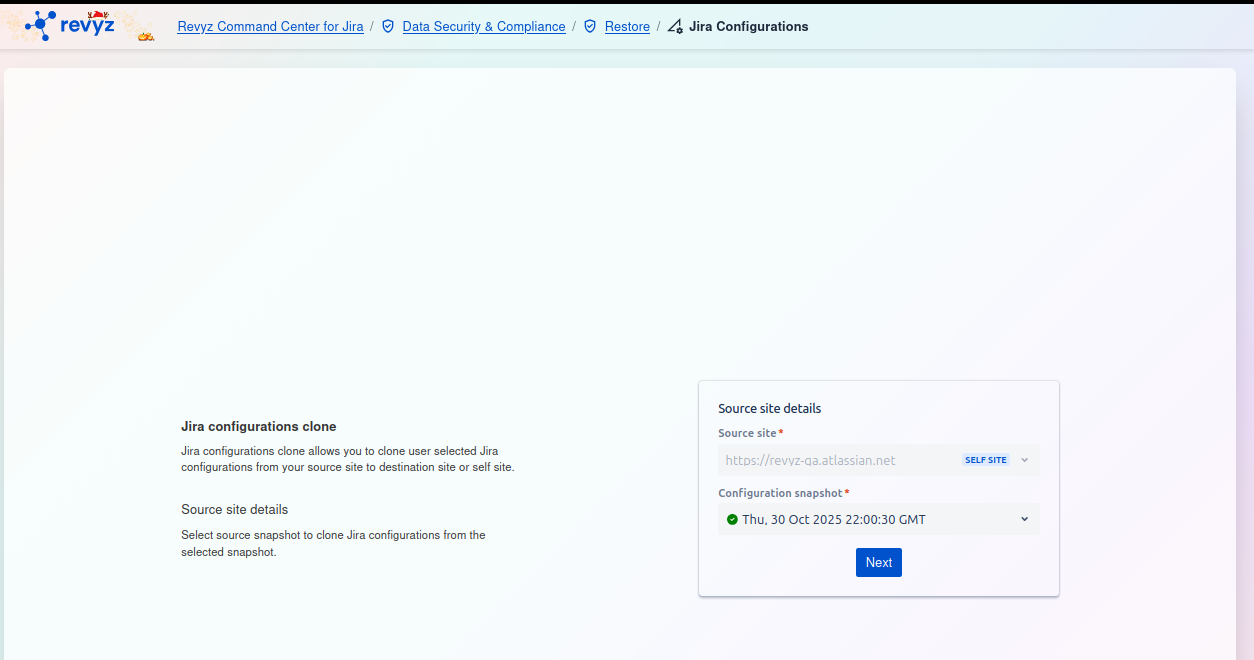
The Jira configurations clone feature allows you to clone selected Jira configurations from a source site to a new destination site or back to the current site (self site). This process begins by selecting the backup snapshot you wish to use as the source.
Source site details
This section is where you define the origin of the configurations you want to clone.
-
Source site:
-
Click this dropdown menu to select the Jira instance from which you want to clone configurations.
-
You can choose your current instance (often marked as
SELF) or another connected Jira site.
-
-
Configuration snapshot:
-
After selecting a source site, this dropdown menu will populate with available backups.
-
Click the menu and select the specific configuration snapshot that contains the settings you want to clone.
-
Once you have selected both the Source site and the Configuration snapshot, click the Next button to proceed with the configuration cloning process.
2) Clone configurations associated to Projects
This feature of the Revyz Command Center for Jira is unavailable for Revyz Assets Data Manager for Jira. To upgrade your version to Revyz Command Center for Jira, connect with support@revyz.io or install the app here.
What is Clone Configs associated to Projects?
With this feature, you can copy all specific configuration schemes that are linked to one or more of your selected projects.
-
Use Case: Use this when you need to move one or more specific projects to another instance and want to ensure all their associated settings (like issue type schemes, screen schemes, and field configurations) are migrated with them.
How to Clone Jira Configurations?
The Jira configurations clone feature allows you to copy selected Jira configurations from a source site to a new destination site or back to the current site. This first step involves selecting the source snapshot and, optionally, filtering by project.
Jira configurations clone
This tool allows you to clone user-selected Jira configurations from your source site to a destination site or even the same site (self site).
Source site details
Select the source snapshot you wish to clone. You can then refine this selection by specifying projects. If you choose projects, only the configurations associated with those projects will be listed. If no projects are selected, all configurations from the snapshot will be available for cloning.
Configuration Steps
On the right side of the screen, you will see the Source site details card.
-
Source site:
-
This field specifies the Jira instance you are cloning from.
-
In the example,
https://revvz-qa.atlassian.netis selected, and theSELF SITEtag indicates it is the current instance.
-
-
Configuration snapshot:
-
This is a required field. Click the dropdown to select the backup snapshot that contains the configurations you want to clone.
-
The example shows a snapshot from
Tue, 21 Oct 2025 22:00:24 GMThas been selected. The green checkmark indicates it's a valid and accessible snapshot.
-
-
Projects (Optional):
-
This optional filter allows you to narrow down the configurations to be cloned.
-
How it works: Choose one or more projects from the dropdown menu. The tool will then filter the snapshot and display only the configurations associated with those selected projects (e.g., their specific workflows, screen schemes, permission schemes, etc.).
-
If you leave this blank: All configurations from the entire snapshot will be available to choose from in the next step.
-
After making your selections, click the Next button to proceed.
3) Assets configuration
What is the assets configuration feature?
Capture and replicate your Jira Service Management (JSM) Assets objects, schemas, and configurations.
-
Use Case: This is a comprehensive tool for backing up or migrating your entire Assets CMDB, including both the data (objects) and the structure (schemas and attributes)
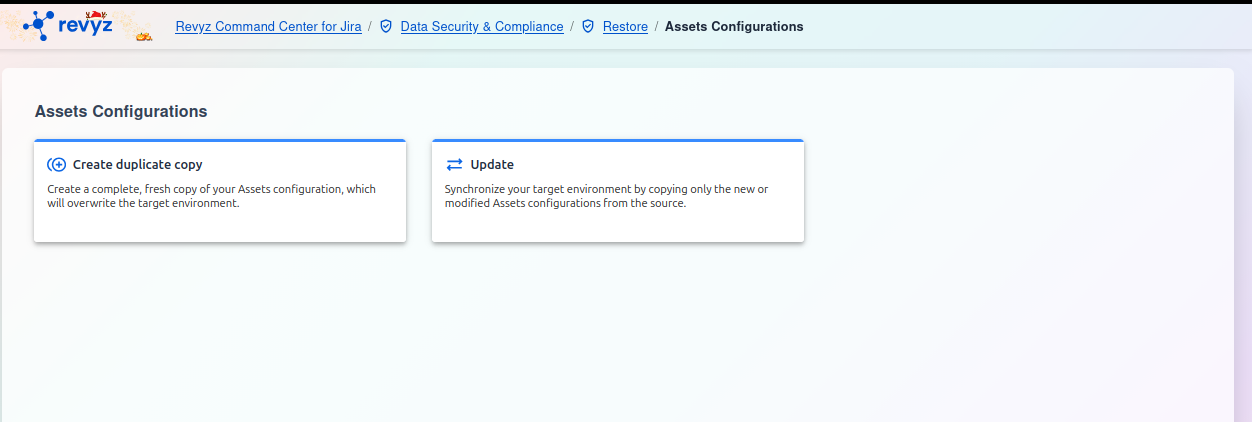
How to Clone Assets Configurations
This page is the starting point for cloning your Assets configurations. The Assets configurations clone feature allows you to copy user-selected Assets configurations (such as object schemas, object types, and attributes) from a source site and apply them to a destination site.
This first step requires you to specify the source of the data you wish to clone.
Source site details
On the left, the page describes the action:
-
Assets configurations clone: This process allows you to clone selected assets configurations, pulling data from your source site to a destination site.
-
Source site details: You must select a source snapshot from which to clone the assets configurations.
On the right, you will find the Source site details card where you must make your selections:
-
Source site
*:-
This is a required field. Click the dropdown menu to select the Jira instance from which you want to pull the configuration data.
-
In the screenshot,
https://revvz-qa.atlassian.netis selected, which is tagged as theSELF SITE(meaning the current instance).
-
-
Assets Configurations snapshot
*:-
This is a required field. After selecting a source site, this dropdown will list all available backup snapshots for that site.
-
Select the specific backup snapshot that contains the configurations you want to clone. The green checkmark indicates a valid and accessible snapshot (e.g.,
Mon, 29 Sep 2025 20:00:25 GMT).
-
Once you have selected both the source site and the snapshot, click the Next button to proceed. The < Back button is disabled as this is the first step in the process.
4) Automation rules
What is automation rules?
Clone your native Jira automation rules to preserve business process logic during recovery or migration.
-
Use Case: This is critical for ensuring your automated business processes are not lost when moving to a new instance or recovering from a backup. It transfers the "if-this-then-that" logic you have built.
Some features of the Revyz Command Center for Jira are unavailable for Revyz Assets Data Manager for Jira. To upgrade your version to Revyz Command Center for Jira, connect with support@revyz.io or install the app here.
How to Clone Automation Rules
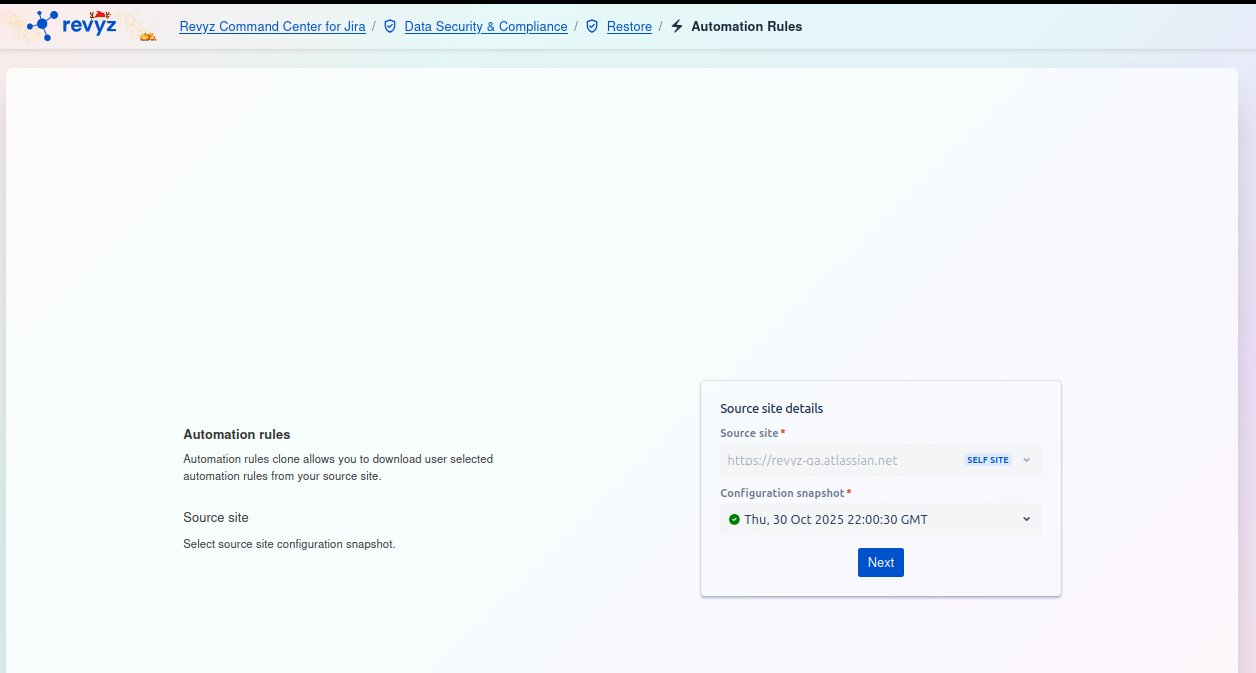
This page begins the "Automation rules clone" process, which allows you to download a selection of your Jira automation rules from a source site. This is useful for migrating business logic or backing up specific rules.
This first step requires you to define the source of the automation rules you wish to clone.
-
Automation rules: The main goal of this feature is to allow you to download user-selected automation rules from a source site.
-
Source site: You must select a source site configuration snapshot to begin.
Source site details
On the right side of the screen, you will find the Source site details card. You must fill in the following required fields:
-
Source site
*:-
This field specifies the Jira instance from which you want to clone the rules.
-
Click the dropdown menu to select the source. In the screenshot,
https://revvz-qa.atlassian.netis selected, which is tagged as theSELF SITE(meaning the current instance you are in).
-
-
Configuration snapshot
*:-
This field specifies which backup you want to pull the rules from.
-
Click the dropdown menu to see a list of available snapshots for the selected source site.
-
Select the specific snapshot that contains the automation rules you want to download (e.g.,
Tue, 21 Oct 2025 22:00:24 GMT). A green checkmark indicates the snapshot is valid.
-
Once you have selected both the Source site and the Configuration snapshot, click the Next button to proceed to the next step.