
The Revyz Admin Dashboard is your central command center for monitoring the health and status of your data protection activities. It provides a high-level overview of backup jobs, storage usage, license information, and recent activity at a glance.
What is this feature?
Get a high-level overview of your Atlassian data's security, health, and backup status from this command center.
-
The Admin Dashboard serves as your primary starting point, presenting the most critical operational metrics in a single, easy-to-read interface. It features widgets that display the status of your most recent backup and restore jobs.
-
It also highlights key findings from the latest site health reports, pointing out potential configuration issues before they escalate.
-
This centralized view helps you proactively monitor the environment, identify potential risks, and quickly navigate to the tools needed to manage their data protection and disaster recovery strategies effectively.
-
It helps you track inactive users, deletions, and manage your Jira and Confluence sites.
This guide will walk you through each section of the dashboard.
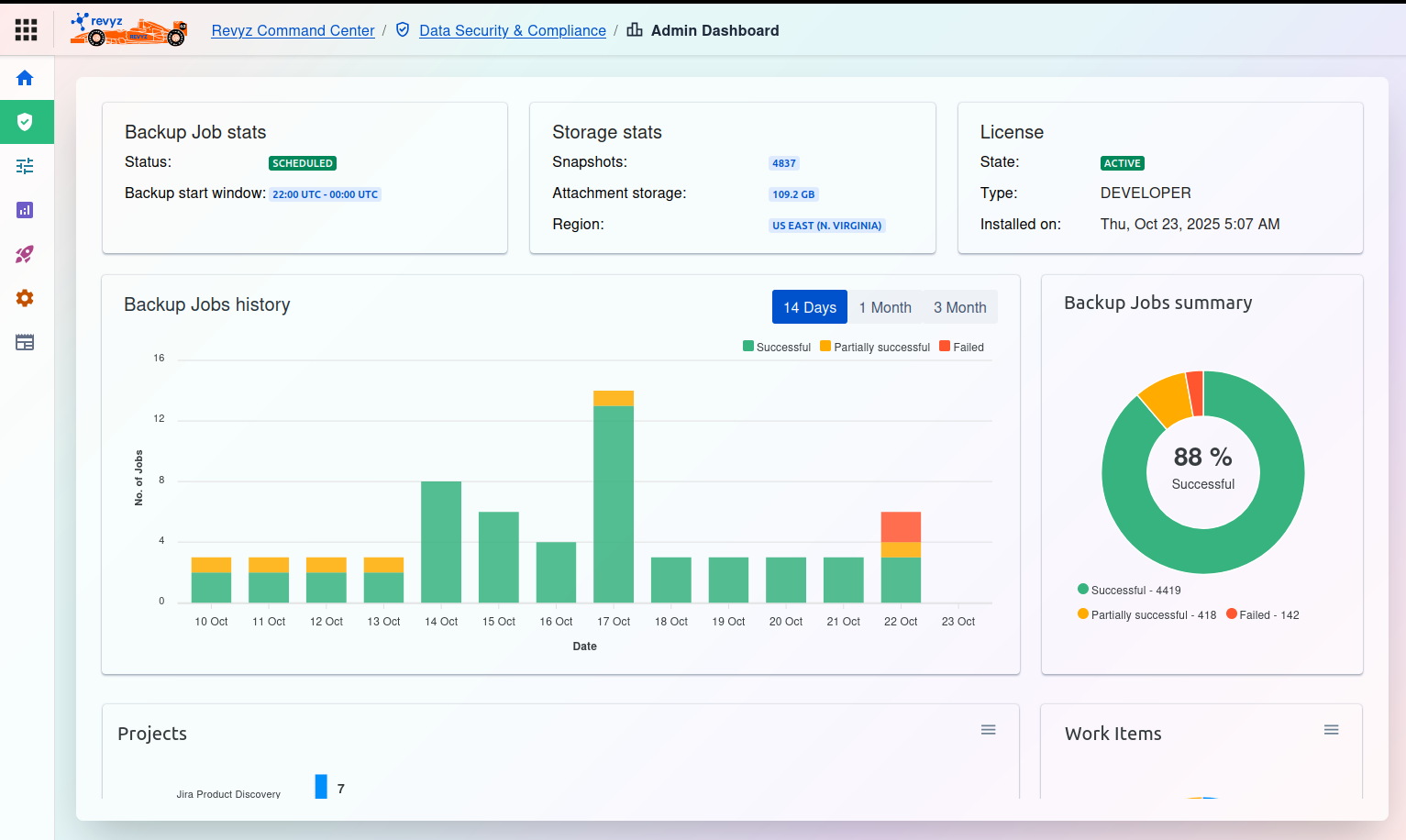
1. Top Status Bar
This section provides real-time, critical information about your Revyz instance.
A. Backup Job stats
This card shows the current state of the backup scheduler.
-
Status: Indicates the immediate status of the backup process. In this example,
QUEUEDmeans the system is waiting for the next scheduled backup window to begin. Other statuses may includeRUNNING,IDLE, orFAILED. -
Backup start window: This is the designated time frame during which your daily backup jobs will automatically start. The time is shown in Coordinated Universal Time (UTC). In the example, jobs are scheduled to begin between
00:00 UTCand02:00 UTC.
B. Storage stats
This card summarizes your backup storage consumption and location.
-
Snapshots: The total number of recovery points (snapshots) currently stored. Each successful backup job creates one or more snapshots.
-
Attachment storage: The total disk space consumed by backed-up attachments.
-
Region: The physical cloud storage region where your backup data is securely stored (e.g.,
US EAST (N. VIRGINIA)).
C. License
This card displays the details of your Revyz software license.
-
State: Shows if your license is
ACTIVEorEXPIRED. -
Type: Describes the license type, such as
Commercial (Trial)orEnterprise. -
Installed on: The date and time the current license was activated.
2. Backup Jobs Monitoring
This section provides a detailed look at the performance and history of your backup jobs.
A. Backup Jobs history
This bar chart visualizes the trend of your backup jobs over a selected period.
-
Controls: You can filter the view to show the last
14 Days,1 Month, or3 Month. -
Y-axis (No. of Jobs): Represents the number of backup jobs run on a specific day.
-
X-axis (Date): Shows the date range for the displayed history.
-
Legend:
-
Green (Successful): The job completed without any errors.
-
Yellow (Partially successful): The job completed, but some non-critical items may have been skipped or encountered issues.
-
Red (Failed): The job did not complete due to critical errors.
-
In the example, we can see one successful backup job was completed on October 8th.
B. Backup Jobs summary
This donut chart provides an aggregate summary of all backup jobs run over a longer period.
-
Percentage: The large number in the center (
50%) shows the overall success rate. -
Legend & Count: The breakdown provides exact counts for each status:
-
Successful: 13 jobs
-
Partially successful: 1 job
-
Failed: 12 jobs
-
Note: The Backup Jobs summary chart shows all-time statistics, while the Backup Jobs history chart is filtered for a specific recent period (e.g., 14 days). This is why the counts between the two charts may not match.
3. Projects and Work Items
These cards provide insights into the specific items being managed and protected by Revyz.
A. Projects
This area lists the projects configured for backup (e.g., from integrated platforms like Jira) and displays the count of items within them that are being protected.
B. Work Items
This card likely shows a summary or count of individual work items (like tickets, issues, or pages) that are included in the backup scope.