
On Demand Backup
Start a full or partial backup of your Jira or Confluence instance instantly, at any time outside of the regular schedule.
What is On-Demand Backup?
Initiate a complete backup of your Jira instance at any time with this feature. When you start an on-demand backup, the system immediately begins capturing a full snapshot of your site, including all project data, user information, attachments, and the latest configurations. This process runs independently of any automated schedules you have configured and provides a distinct, point-in-time recovery point that is added to your list of available backups. You can monitor the job's progress in real-time from the Jobs screen.
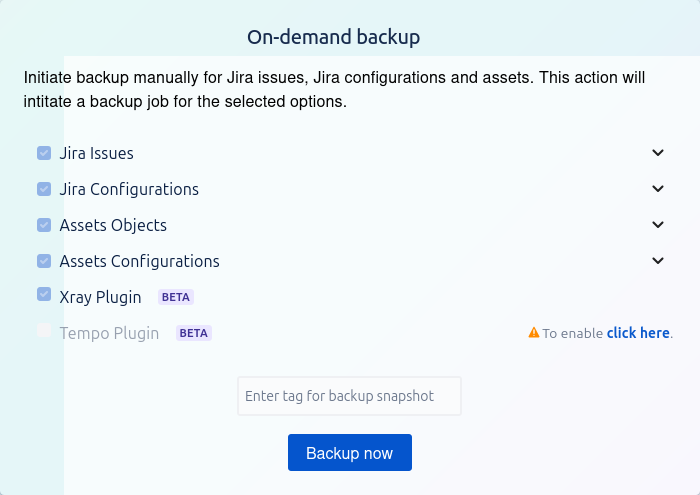
How to Perform an On-demand Backup
The On-demand Backup feature allows you to manually initiate a backup of your crucial data, including Jira issues, configurations, and associated app data. This is useful for creating a restore point before a major change, migration, or for general peace of mind.
Overview
This action will start a backup job for all the components you select on this screen.
Backup Options
You can select which components of your instance you want to include in the backup.
1. Jira Issues
This is a comprehensive backup of your core issue data. Selecting this option will include the following objects:
-
Attachments: All files attached to your Jira issues.
-
Comments: All comments made on issues.
-
Issues: The core issue data itself (summary, description, status, etc.).
-
Link: All issue links (e.g., "is blocked by", "relates to").
-
Votes: User votes on issues.
-
Worklogs: Time tracking and worklog entries.
2. Jira Configurations
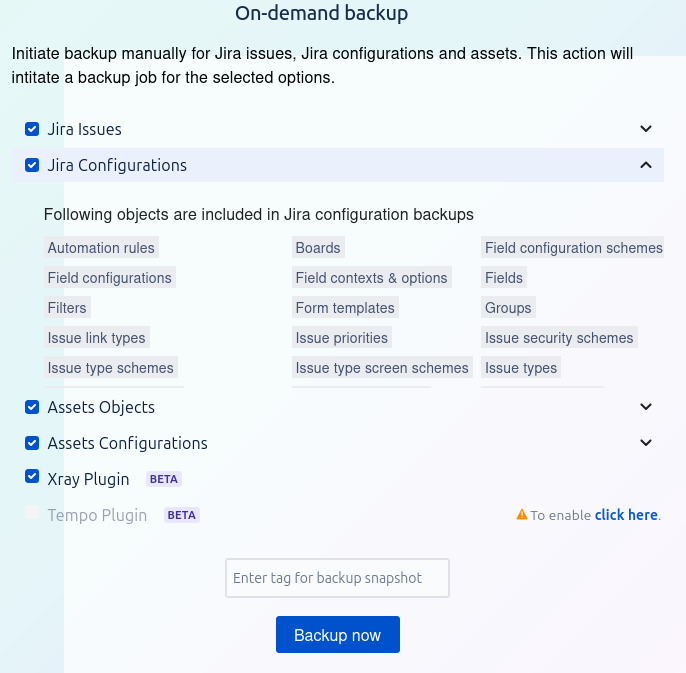
Selecting the Jira Configurations option creates a backup of the essential administrative and project-level settings that govern the structure and behavior of your Jira instance. This backup does not include the individual Jira issues themselves but focuses on the framework that supports them.
Restoring these configurations is critical for rebuilding your environment or migrating to a new instance.
Included Objects in Jira Configuration Backups
The following configuration objects are included in this backup:
-
Automation rules: All global and project-level automation rules you have configured.
-
Boards: Agile boards (both Scrum and Kanban), including their column configurations, quick filters, and swimlanes.
-
Field configuration schemes: Schemes that associate field configurations with issue types for specific projects.
-
Field configurations: Settings that define the behavior of fields, such as whether they are required, hidden, or have a specific renderer.
-
Field contexts & options: Custom field contexts and the specific options available for select list-type fields.
-
Fields: All custom fields created in your instance.
-
Filters: Saved JQL filters used for boards, dashboards, and subscriptions.
-
Form templates: Templates used for issue creation and other forms.
-
Groups: User groups that are used in permission schemes, security levels, and sharing filters.
-
Issue link types: The different ways issues can be linked to each other (e.g., "blocks," "relates to").
-
Issue priorities: The priority levels available for issues (e.g., Highest, High, Medium).
-
Issue security schemes: Schemes that control which users or groups can view specific issues.
-
Issue type schemes: Schemes that define which issue types are available for a project.
-
Issue type screen schemes: Schemes that map issue operations (like create, edit, view) to specific screens for different issue types.
-
Issue types: All standard and custom issue types (e.g., Story, Bug, Task, Epic).
3. Assets Objects
This backs up the actual objects, items, and entries stored within your Assets (formerly Insight) database.
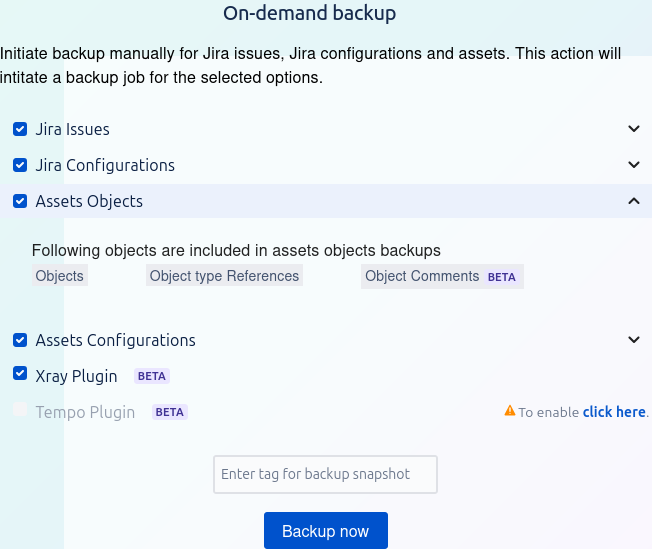
Selecting Assets Objects ensures that all the individual data entries within your Assets (formerly Insight) database are included in the backup.
This option backs up the data itself, not the configuration or structure of the database (which is handled by Assets Configurations).
Included Objects in Assets Objects Backups
The following data is included when you back up Assets Objects:
-
Objects: All the individual asset objects you have created (e.g., servers, laptops, employees, software licenses).
-
Object type References: The relationships and references connecting different objects (e.g., this server is hosted in that data center, this laptop is used by this employee).
-
Object Comments
BETA: All comments added to individual objects.Note: The backup of object comments is currently a BETA feature.
4. Assets Configurations
This backs up the schema, object types, attributes, and other configurations for your Assets database.
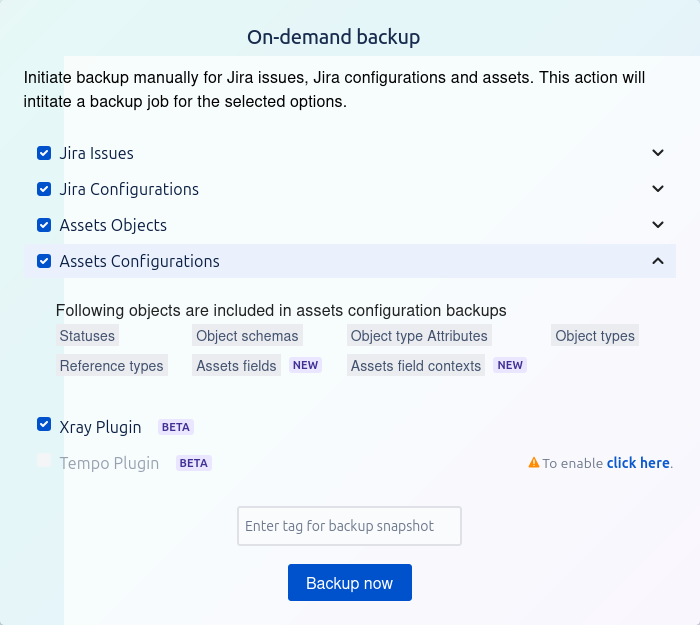
Selecting Assets Configurations backs up the entire structure and setup of your Assets (formerly Insight) database. This includes the "blueprint" of your asset management system, such as how objects are defined, their attributes, and how they relate to each other.
This option backs up the structure itself, not the individual data entries (which are handled by Assets Objects).
Included Objects in Assets Configuration Backups
The following configuration objects are included in this backup:
-
Statuses: The different status options available for objects (e.g., "In Stock," "In Repair," "Disposed").
-
Object schemas: The high-level containers that hold your object types, attributes, and references (e.g., "IT Assets," "Employees").
-
Object type Attributes: The specific fields and attributes defined for each object type (e.g., "Serial Number," "RAM," "Owner" for a laptop object).
-
Object types: The different categories or templates for your assets (e.g., "Laptops," "Servers," "Software").
-
Reference types: The definitions of how different objects can be linked together (e.g., "is used by," "is installed on").
-
Assets fields
NEW: Custom fields related to Assets that can be used in Jira. -
Assets field contexts
NEW: The contexts that define where and how Assets fields are applied within Jira.
5. Xray Plugin BETA
This option allows you to back up data related to the Xray Test Management plugin.
Note: This feature is currently in BETA. While functional, it is still under development and may have limitations.
6. Tempo Plugin BETA
This option allows you to back up data for the Tempo Timesheets plugin.
⚠️ To enable: This option may be disabled by default. If you see a warning icon and a "click here" link, you must follow the link and complete the required configuration steps before you can include Tempo data in your backups.
How to Initiate a Backup
-
Select Components: Check the boxes next to each data type you wish to include in the backup. You can expand the Jira Issues section to see exactly what's included.
-
Tag Your Backup (Recommended): In the text field labeled
Enter tag for backup snapshot, enter a unique and descriptive name for your backup. This will help you easily identify it later.-
Examples:
pre-upgrade-v9.1,eom-backup-oct-2025,before-workflow-cleanup
-
-
Start the Backup: Click the Backup now button.
Once you click Backup now, a backup job will be initiated in the background. You can typically monitor the progress of the job from the main backup or jobs dashboard.