
What is this feature?
-
This feature is a data recovery tool that allows you to select one or more specific projects from a backup. It restores the chosen projects along with all their data, including every associated issue, comment, and attachment.
-
Use Case Use this to recover specific projects that were accidentally deleted or became corrupted, without needing to perform a full site restore. It's the ideal solution for targeted project-level data recovery.
This feature of the Revyz Command Center for Jira is unavailable for Revyz Assets Data Manager for Jira. To upgrade your version to Revyz Command Center for Jira, connect with support@revyz.io or install the app here.
-
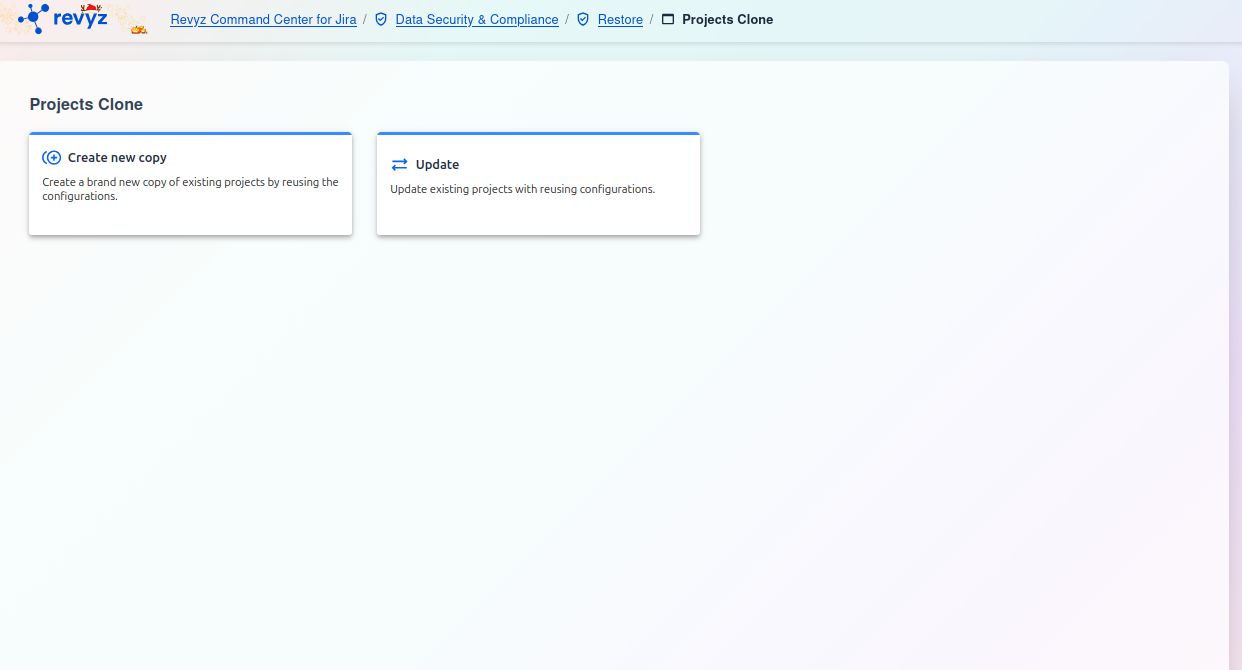
Projects Clone (Create New Copy)
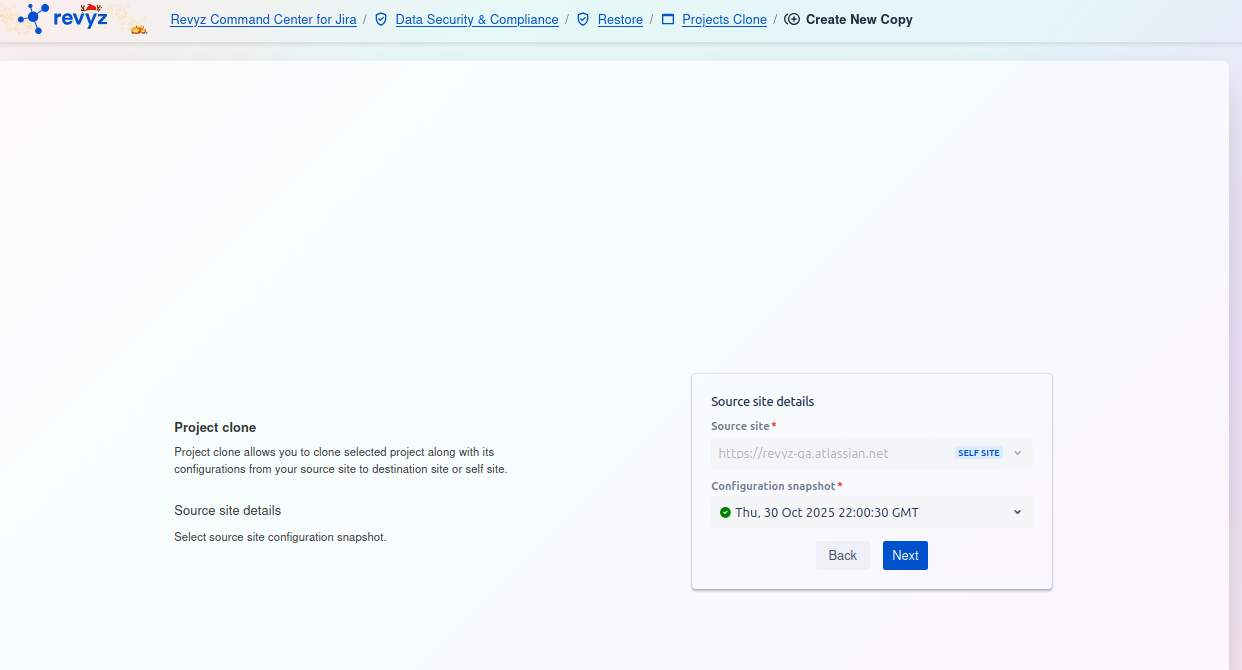
How to Create a New Project Copy:
Select Source Details
This is the first step in the Project clone process. This feature allows you to clone a selected project, along with all its associated configurations, from a source site. You can then restore this project to a new destination site or back onto the current site (self site).
This initial step requires you to define the source of the project and configuration data you wish to clone.
-
Project clone: This tool allows you to clone a selected project and its configurations from a backup snapshot.
-
Source site details: You must select a source site and a specific configuration snapshot to begin.
Source site details
On the right side of the screen, you must complete the Source site details card:
-
Source site
*:-
This is a required field. Click the dropdown menu to select the Jira instance that contains the project you want to clone.
-
In the screenshot,
https://revvz-qa.atlassian.netis selected, which is tagged as theSELF SITE(meaning the current instance).
-
-
Configuration snapshot
*:-
This is a required field. Once the source site is selected, click this dropdown menu to see a list of available backup snapshots.
-
You must select the specific snapshot that contains the project and configuration data you wish to copy (e.g.,
Tue, 21 Oct 2025 22:00:24 GMT). The green checkmark indicates it is a valid and accessible snapshot.
-
After selecting both the Source site and the Configuration snapshot, click the Next button to proceed to the next step of the cloning process. The "Back" button is disabled as this is the first step.
2) Project Update
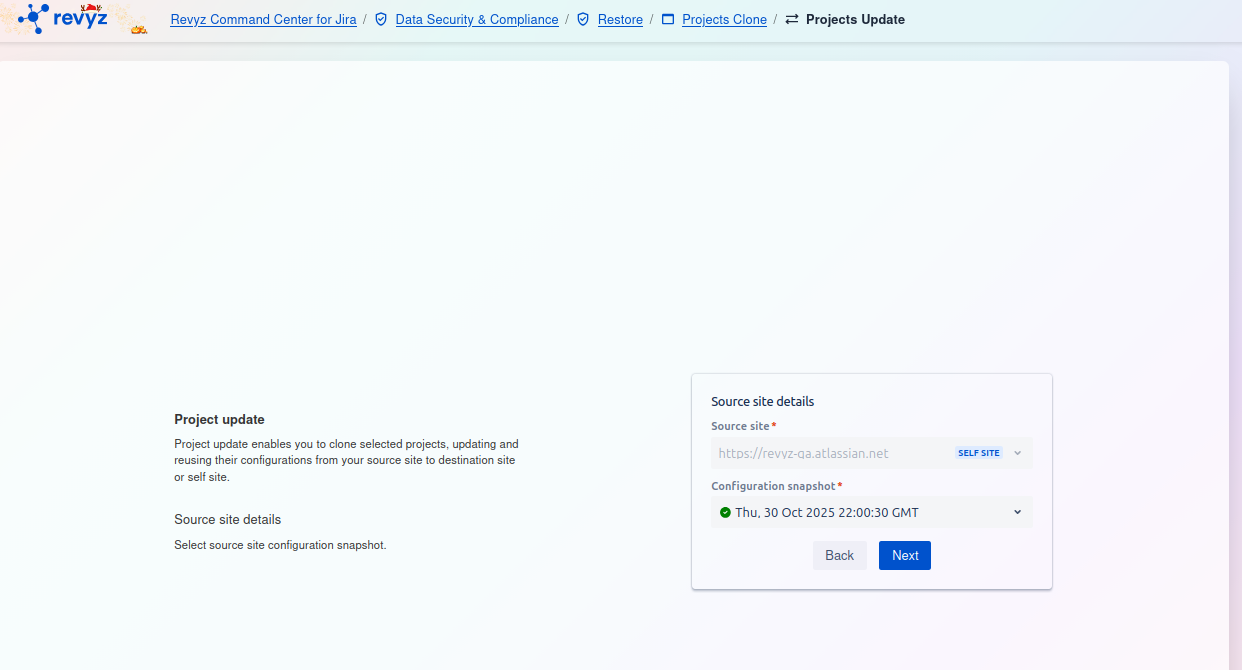
Project Update: Select Source Details
This page is the starting point for the Project update feature. This function is designed to let you select projects that have already been cloned and update them by applying new or refreshed configurations from a source site snapshot.
This process can be used to update projects on a separate destination site or on the current (self) site.
Source site details
On the right side of the screen is the Source site details card. This is where you would normally select the source of your configuration data:
-
Source site
*:-
This required field is for selecting the Jira instance you want to pull configurations from.
-
The field is pre-filled with
https://revvz-qa.atlassian.net, which is tagged as theSELF SITE(the current instance).
-
-
Configuration snapshot
*:-
This required field is for selecting the specific backup snapshot that contains the updated configurations you want to apply.
-