
What is this feature?
This is the central administrative console for configuring every aspect of the Revyz application. It controls your backup and restore strategies, user permissions, disaster recovery connections, and alert notifications.
Use Case: Use this section to perform the initial setup of your backup plan, manage who can perform sensitive operations (like restores), configure connections to a standby site for failover, and set up email alerts for backup failures.
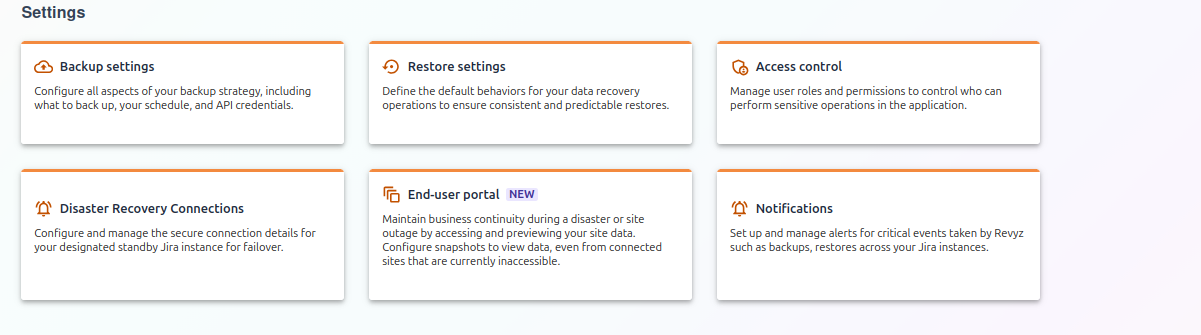
Settings Options:
1. Backup settings
This is the primary control panel for your core backup strategy and the first section you should configure. Use it to provide your Atlassian API token, set your daily backup window to run during off-peak hours, define data retention policies to meet compliance needs, and select exactly which components (like Jira, Assets, Xray, etc.) to include in the backup.
2. Restore settings
This section allows you to define the default behaviors for all data recovery operations, ensuring they are consistent and predictable. Use this to save time during a recovery by pre-configuring how the application should handle restoring issue hierarchies (e.g., "always restore sub-tasks") and parent links, so you don't have to answer the same questions each time.
3. Access control
This is the security and permissions panel for the Revyz application itself, which you can use to enforce the principle of least privilege. It allows you to manage user roles and permissions, controlling which specific Jira user groups can perform sensitive operations, such as granting one group permission to run backups while denying them permission to perform restores.
4. Disaster Recovery Connections
This tool is used to configure and manage the secure, authenticated connection between your primary Jira instance and a designated standby (or "failover") instance. This is a mandatory prerequisite for disaster recovery; you must use this to establish the connection to your standby site before a disaster occurs to ensure the path is clear for data recovery.
5. End-user portal EAP
This Early Access Program feature provides a "read-only" portal that you can activate to maintain business continuity during a disaster. If your main Jira site is down, you can use this to point to the last good backup, giving your users a temporary, read-only "preview" of their issue and asset data so they can continue to find information.
6. Notifications
This is an alerting system used to proactively inform you of the health of your data protection. Use it to set up automatic email alerts for critical events, such as a failed backup, a completed restore, or any other important application activity.