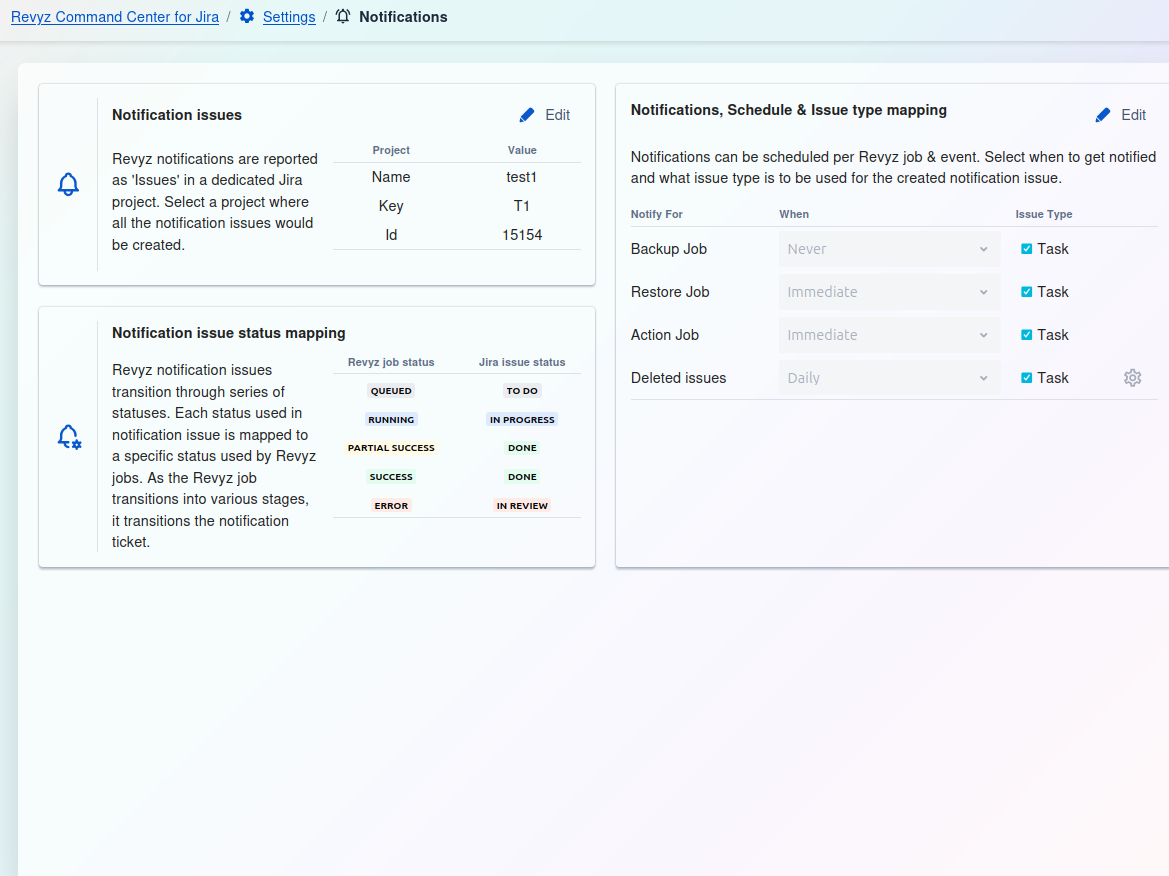
What is this feature?
This is the administrative section for managing the application's internal settings. It controls which users can access the app, how notifications are configured, and other internal parameters.
-
Use Case: Use this to manage user permissions for the Revyz app itself (separate from Jira permissions) and to configure how and when the app sends notifications about its activities.
App Settings Options:
-
Revyz Access Control
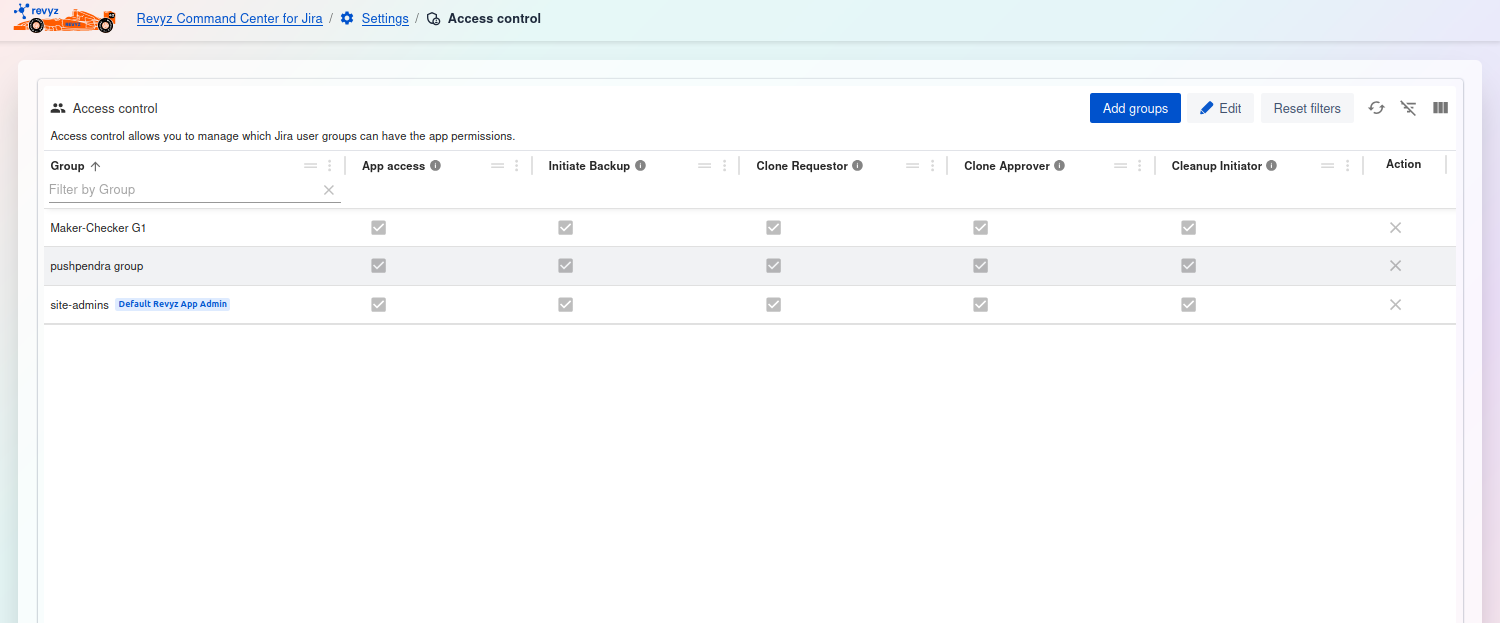
Access control Dashboard
This page displays a list of all Jira user groups that have been given access to the application and their specific permissions.
Management and Filtering:
-
Add groups: Click this button to add a new Jira user group to the access control list.
-
Edit: Click this button to modify the permissions for the existing groups in the list (this will likely make the checkmarks clickable).
-
Reset Filters: Clears any filters you have applied to the table (e.g., on the "Group" field).
-
Table tools (right side): Use these icons to toggle the filter row, customize the visible columns, or enter a full-screen view.
Access Control Table:
The main table lists the groups and their assigned permissions, indicated by checkmarks.
-
Group: The name of the Jira user group (e.g.,
Maker-Checker G1,site-admins). You can filter this column by group name. TheDefault Revyz App Admintag indicates a default, system-level permission. -
App access: (Checkmark) The group has basic access to see and use the Revyz application.
-
Initiate Backup: (Checkmark) Users in this group can manually start on-demand backup jobs.
-
Clone Requestor: (Checkmark) Users in this group can request a clone operation.
-
Clone Approver: (Checkmark) Users in this group can approve or deny clone requests.
-
Cleanup Initiator: (Checkmark) Users in this group can start site optimization or cleanup jobs.
-
Action: An "X" icon or "..." menu to perform actions on the row, such as removing the group from the access list.
-
Revyz Notifications