
What is this feature?
-
This feature allows you to generate comprehensive reports on user activity across your Atlassian products. You must first export a specific user list from Atlassian and then upload it here for analysis.
-
Use Case Use this to maintain a healthy instance by identifying inactive accounts, optimizing license costs, and improving overall instance security. It helps you see who has access to what and who hasn't logged in recently.
This feature of the Revyz Command Center for Jira is unavailable for Revyz Assets Data Manager for Jira. To upgrade your version to Revyz Command Center for Jira, connect with support@revyz.io or install the app here.
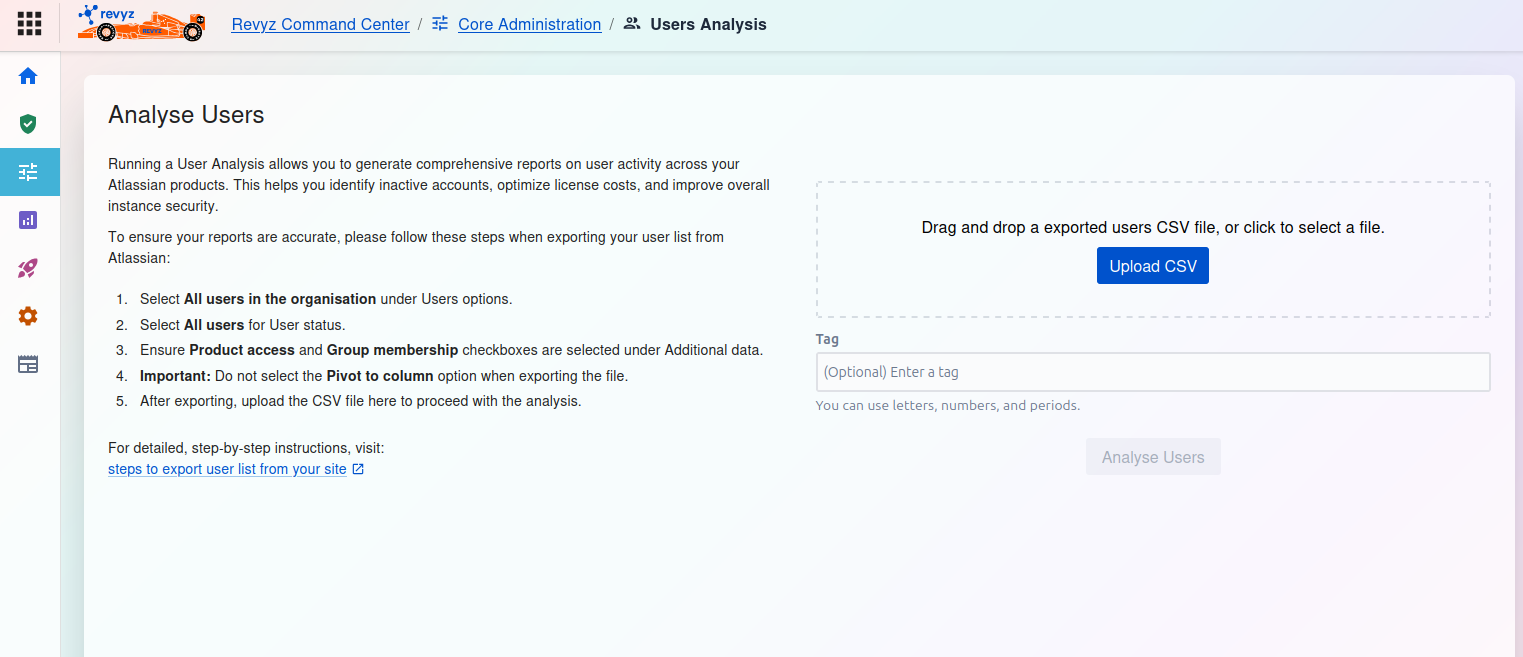
How to Analyse Users
This page allows you to upload a user list exported from your Atlassian organization to generate a detailed analysis report.
Prerequisites: Exporting Your User List
To ensure your reports are accurate, you must follow these specific steps when exporting your user list from Atlassian:
-
Select All users in the organisation under Users options.
-
Select All users for User status.
-
Ensure Product access and Group membership checkboxes are selected under Additional data.
-
Important: Do not select the Pivot to column option when exporting the file.
-
After exporting, upload the CSV file here to proceed with the analysis.
For detailed, step-by-step instructions, visit: steps to export user list from your site
How to Upload and Run Analysis
-
Upload CSV:
-
Drag and drop your exported users CSV file onto the designated area.
-
Alternatively, click the Upload CSV button to select the file from your computer.
-
-
Tag (Optional):
-
You can enter an optional tag in the text field to help you identify this specific analysis report later. You can use letters, numbers, and periods.
-
-
Run Analysis:
-
Once your file is uploaded, the Analyse Users button (currently disabled) will become active. Click it to start the analysis.
-