
What is this feature?
This feature is a historical audit log that specifically tracks all deleted Jira issues (work items). It provides a centralized view of what was deleted, when, and by whom, with a quick restore option for easy recovery.
Use Case: Use this to quickly find and restore individual issues that were accidentally deleted, without needing to search through entire backup snapshots. It is also a critical audit tool for security and compliance.
This feature of the Revyz Command Center for Jira is unavailable for Revyz Assets Data Manager for Jira. To upgrade your version to Revyz Command Center for Jira, connect with support@revyz.io or install the app here.
Work items delete history
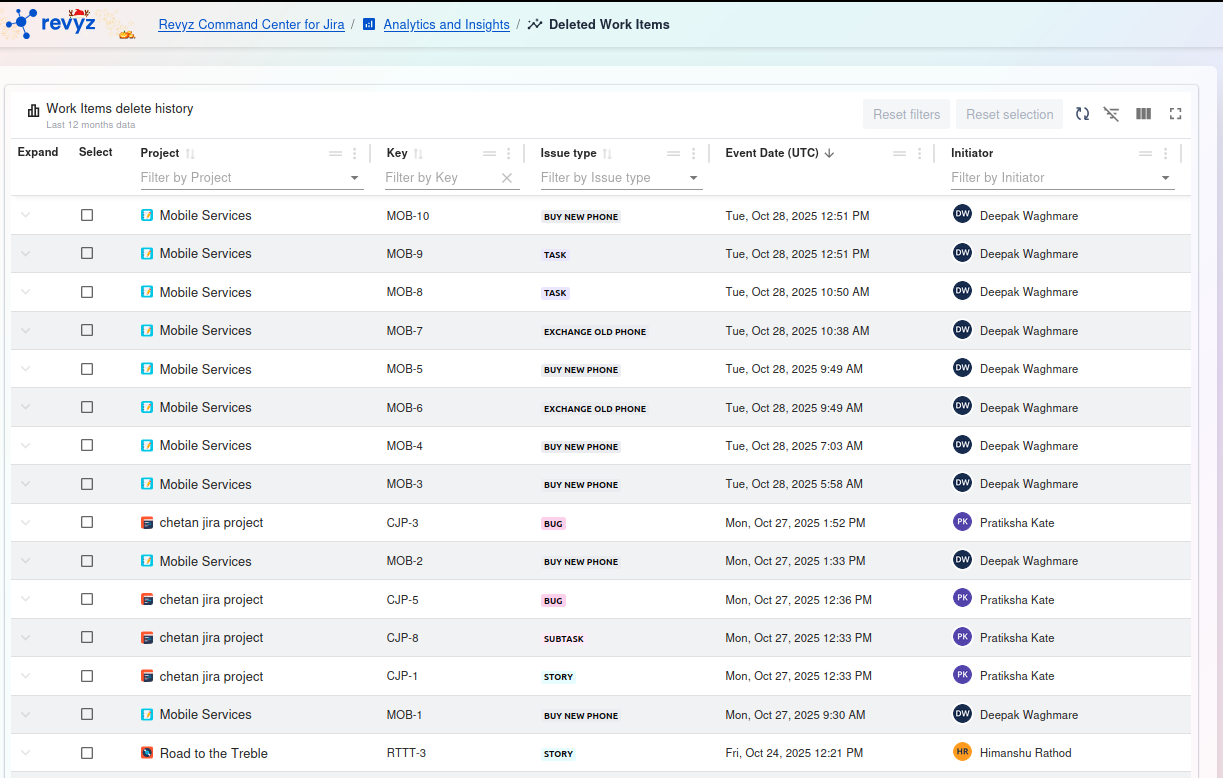
This page displays a historical log of all Jira work items that have been deleted within the last 12 months. From here, you can filter, review, and initiate a restore for specific items.
Management and Filtering
At the top of the table, you have several controls:
-
Filters (under column headers): You can filter the list by
Project,Key, orIssue typeby typing in the search boxes. -
Reset filters: Clears all search/filter criteria.
-
Reset selection: Un-checks any items you have selected in the list.
-
Table tools (right side): Use these icons to toggle filters, customize visible columns, or enter a full-screen view.
History Table
The main table provides a detailed list of all deleted items:
-
Expand: Click the arrow icon to see more details about the deleted item.
-
Select: Check this box to select one or more issues for restoration.
-
Project: The name of the project the deleted issue belonged to.
-
Key: The unique Jira key of the deleted issue (e.g.,
ABCD-91). -
Issue type: The type of the deleted issue (e.g.,
STORY,BUG,TASK). -
Event Date: The exact date and time the deletion occurred.
-
Initiator: The user who deleted the item. (If "Not found," the user may no longer exist in the system).
Actions
At the bottom of the page:
-
Total count: Displays the number of items you have currently selected.
-
Restore: After you select one or more items using the checkboxes, this button will become active. Click it to restore the selected items.