-
Make sure destination site has JSM Assets & valid API token.
-
Assets objects schema clone allows you to create a copy of selected object schema on same site or on different site along with its configurations and objects.
-
You can use this feature to create exact copy of schema A as Schema B on same site or on different site.
-
Note - Assets objects from the source will be restored to the destination exactly as they are. Any deleted objects will not be restored.
How to create a copy of Assets object schema
-
Click on 'Clone & Restore' in left navbar.
-
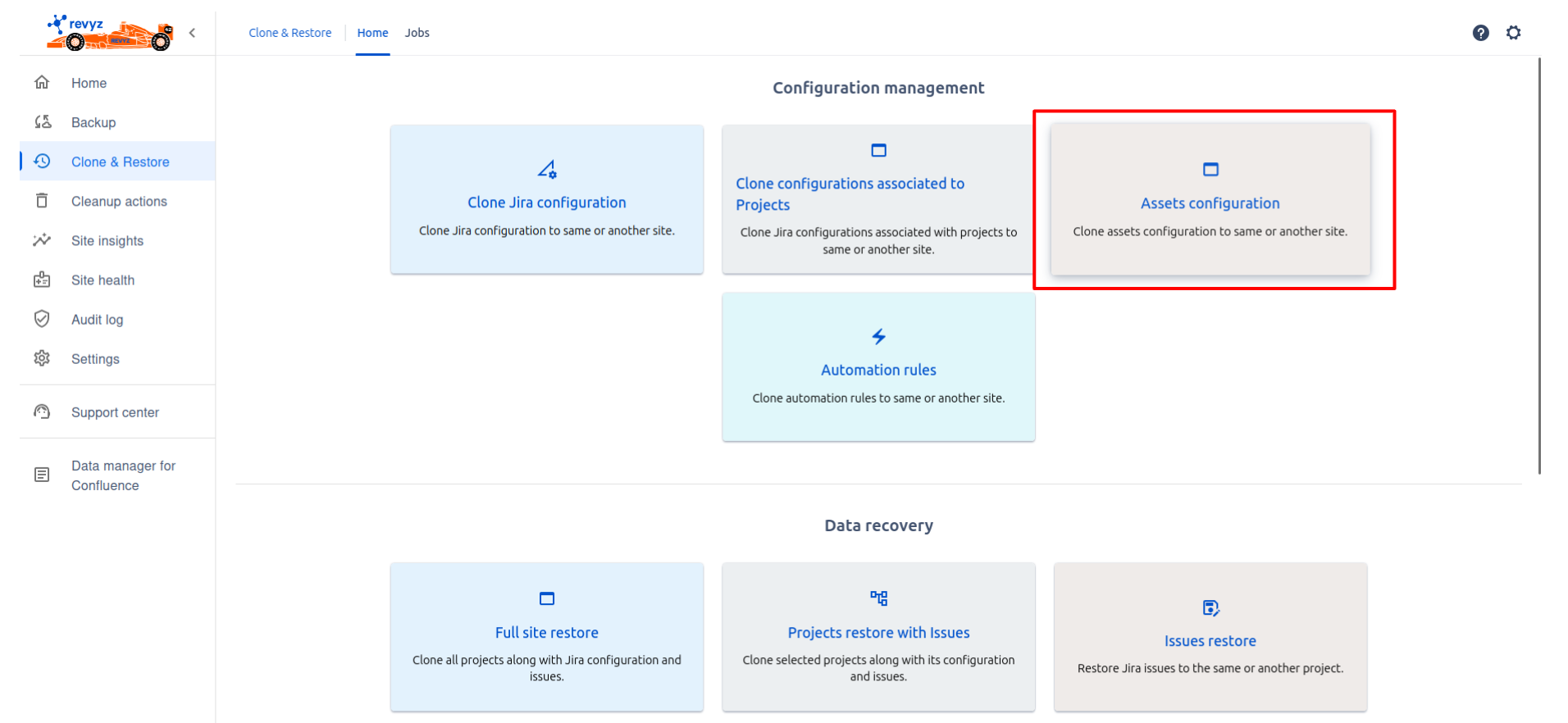
Select 'Create duplicate copy' card.
-
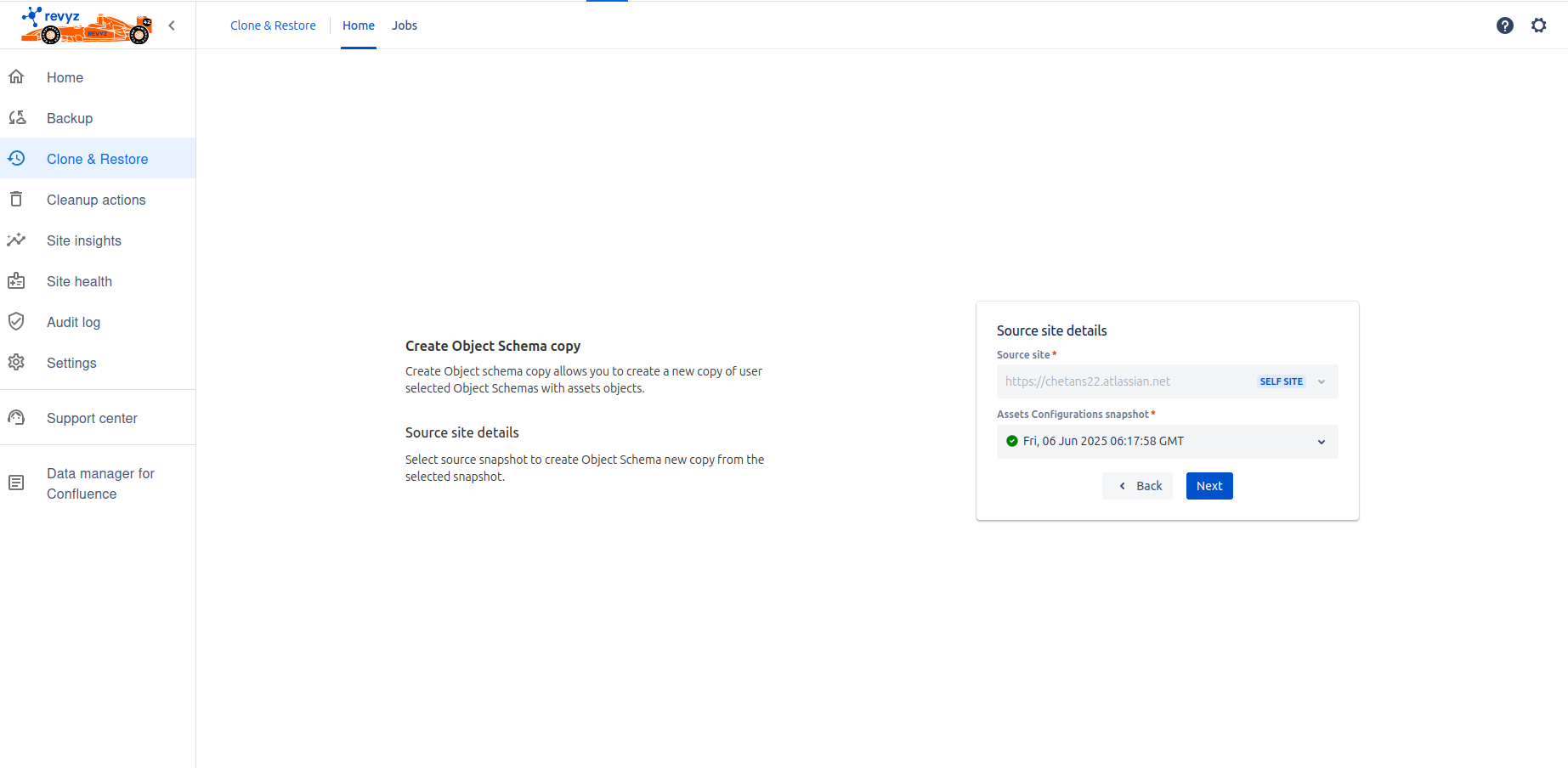
On source site details page, source site is already selected as self site. Select backup snapshot and click on 'Next'.
-
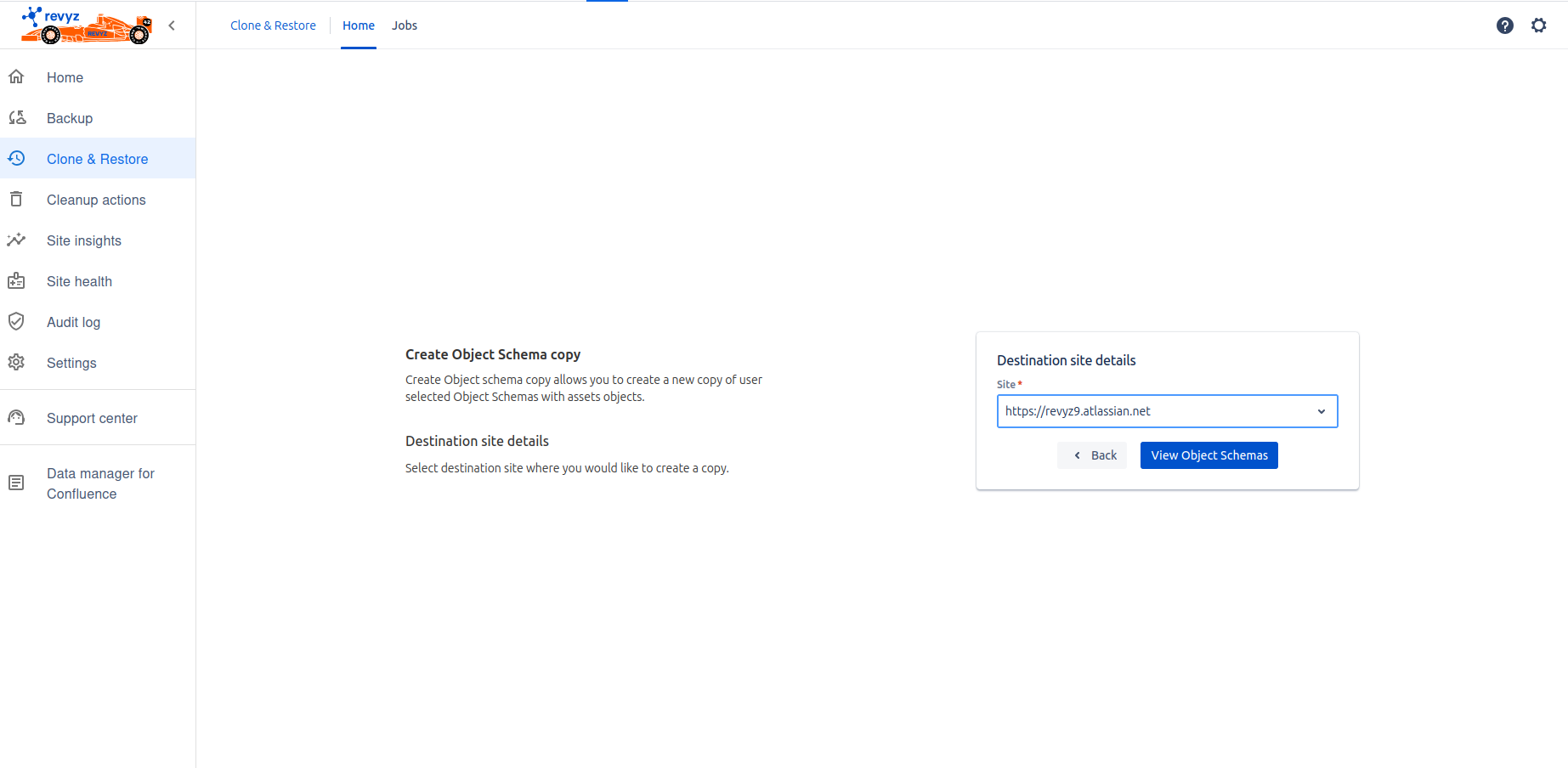
On destination site details page, select site name where you want to clone the schema.
-
Click on 'View Object Schemas'.
-
Select object schema which you want to clone. Give new object schema name and new object schema key.
-
If object schema with same name is already present on destination site, you need to enter new name.
-
-
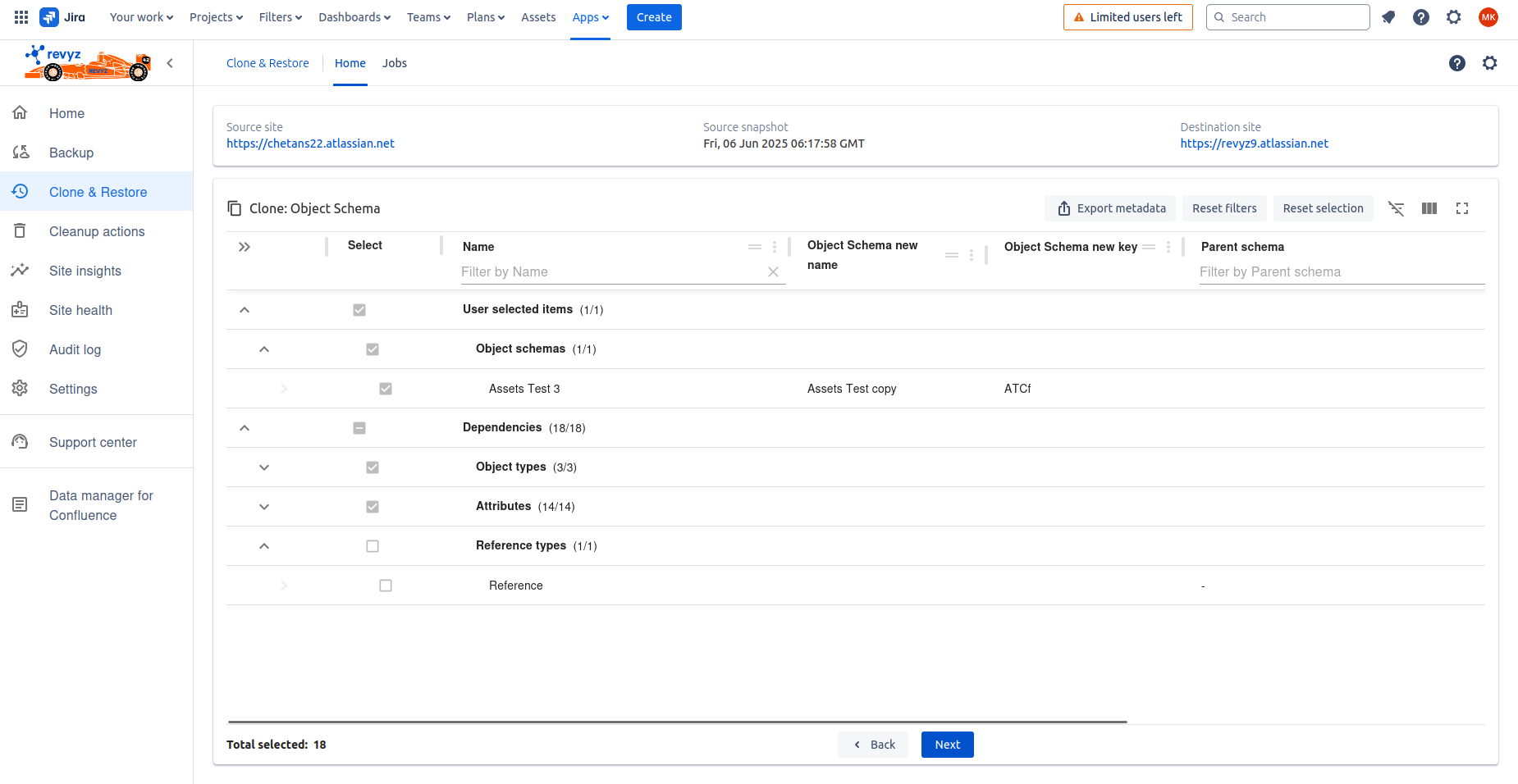
Click on 'Review dependencies'. It will show all the dependencies related to object schema you selected.

-
Check the dependencies.
-
Click on 'Next'.
-
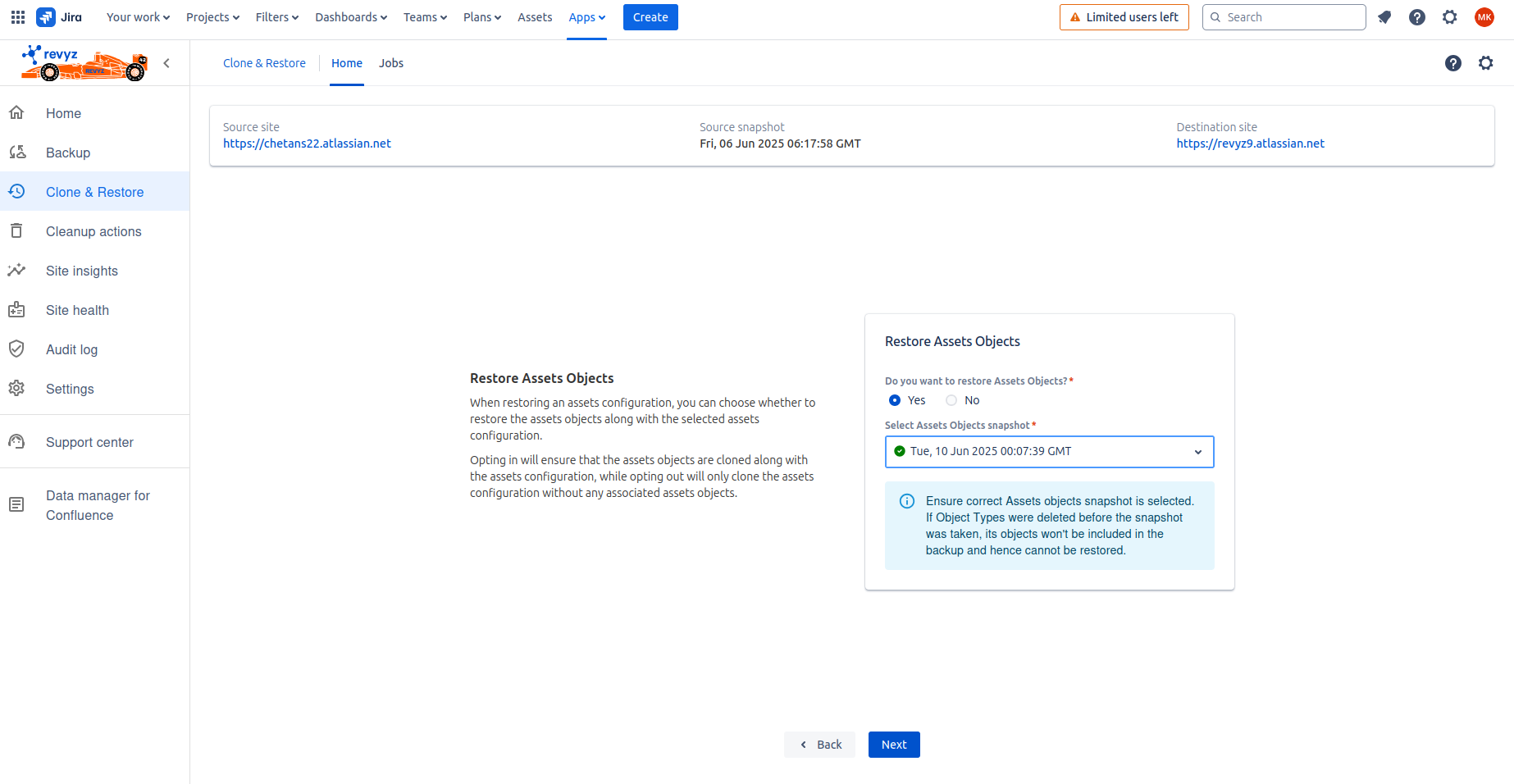
On next page, if you want to restore objects present in that schema then choose ‘Yes' option. If you do not want to restore objects then choose 'No’ option.
-
Click on 'Next'.
-
On next page, you will get all the object types, you can select all the object type or selected object types for which you want to restore objects.
-
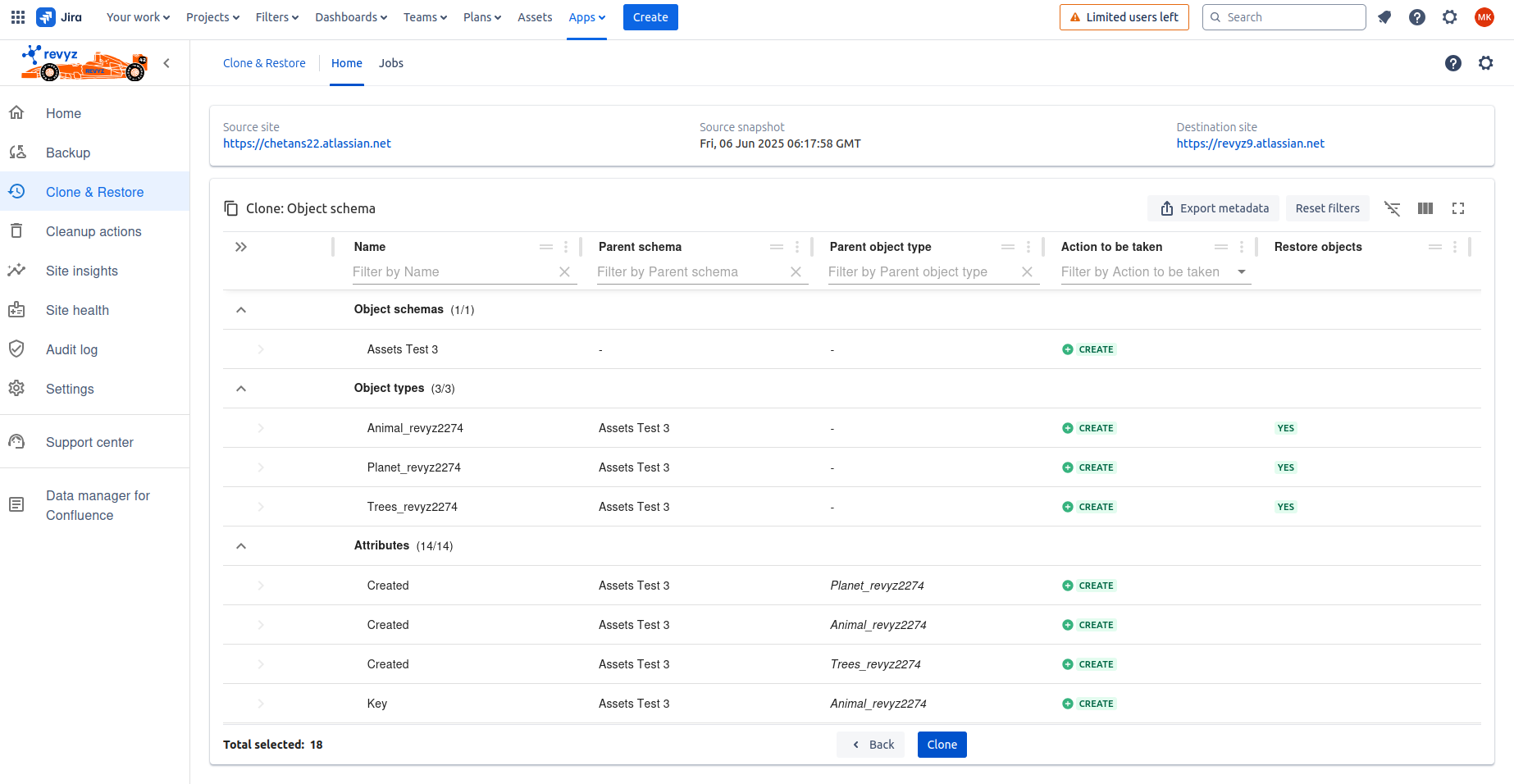
Click on 'View summary' - It will give the summary of what is selected for restore.
-
Verify all the configurations and click on 'Clone'.
-
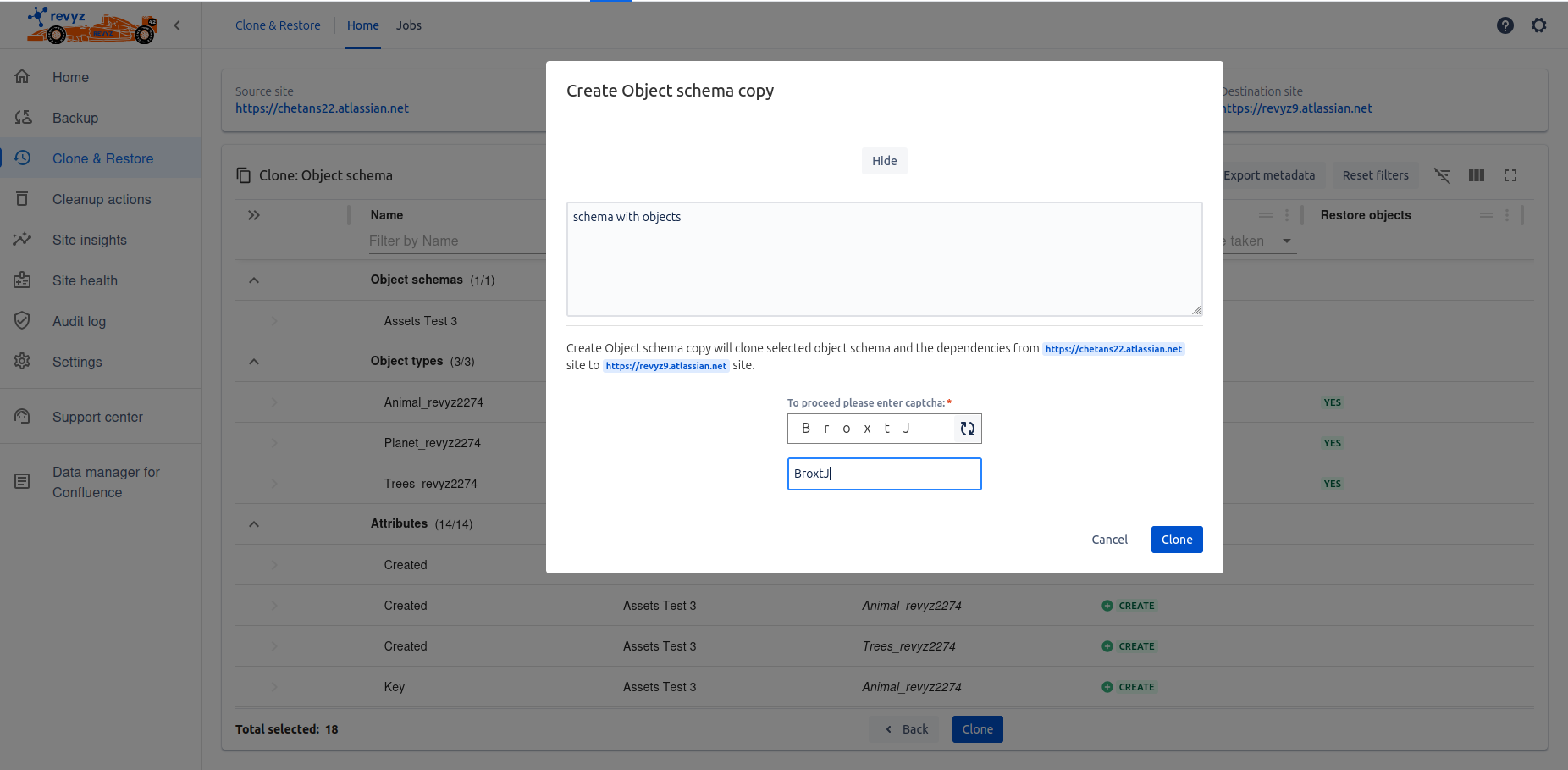
Add job notes if you want - It will help you to identify the purpose of restored job in future.
-
Enter Captcha and click on ‘Clone’.
-
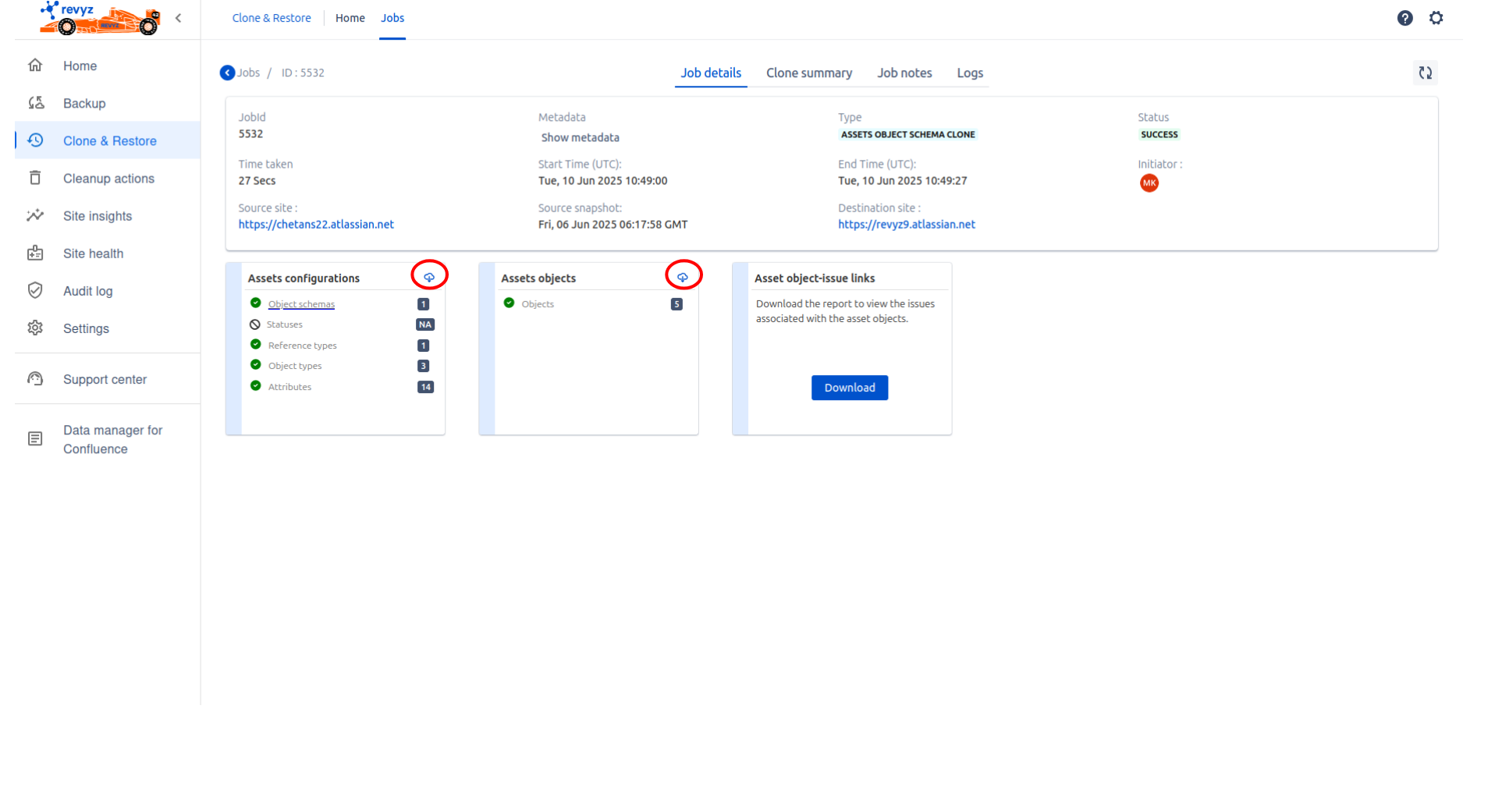
Check restore job in ‘Jobs’ page - Where you can check overall job status and download the restored data in CSV format by clicking on download button present in the card.