
Jira issues restore (Work Items restore)
What is this feature?
This feature allows you to perform a granular restore of individual Jira issues (work items) from a backup snapshot. It lets you select issues from a source project and restore them to the same project or a different one, even on another Jira site.
-
Use Case Use this to recover one or more specific issues that were accidentally deleted or corrupted, without restoring the entire project. It is also a useful tool for migrating a specific set of issues from one project or instance to another.
This feature of the Revyz Command Center for Jira is unavailable for Revyz Assets Data Manager for Jira. To upgrade your version to Revyz Command Center for Jira, connect with support@revyz.io or install the app here.
How to Restore Work Items (Issues)
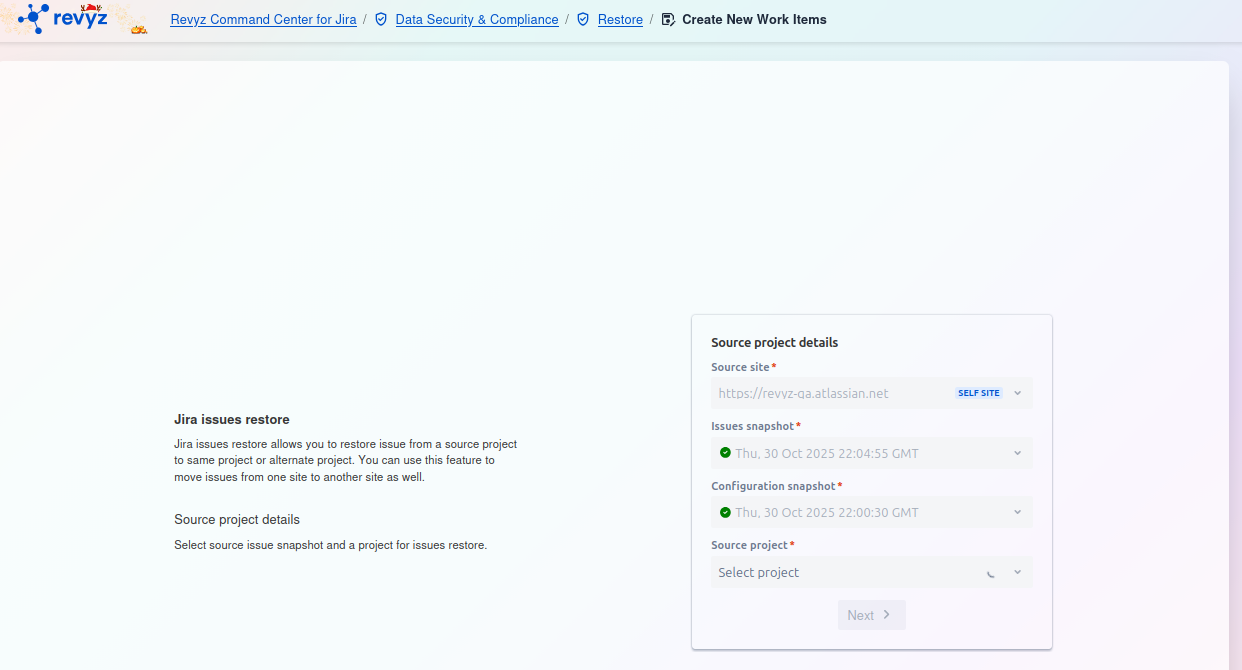
This is the first step in the "Jira issues restore" process. On this page, you must define the source of the issues you wish to restore by selecting the site, the specific snapshots, and the project.
Source project details
On the right side of the screen, you must complete the Source project details card. All fields are required.
-
Source site
*:-
Select the Jira instance from which you want to restore the issues.
-
In the example,
https://revvz-qa.atlassian.netis selected, which is tagged as theSELF SITE(the current instance).
-
-
Issues snapshot
*:-
Select the backup snapshot that contains the issue data (e.g., comments, attachments, summary) you want to restore.
-
The green checkmark indicates a valid snapshot (e.g.,
Tue, 21 Oct 2025 22:03:41 GMT).
-
-
Configuration snapshot
*:-
Select the backup snapshot that contains the Jira configurations (e.g., custom fields, workflows) associated with the issues.
-
The green checkmark indicates a valid snapshot (e.g.,
Tue, 21 Oct 2025 22:00:24 GMT).
-
-
Source project
*:-
Once the snapshots are selected, click this dropdown to choose the specific project within those snapshots that contains the issues you want to restore.
-
After all four fields are correctly filled, the Next button will become active. Click it to proceed.