
What is this feature?
This tool allows you to copy all the specific configuration schemes (like workflows, screen schemes, and permission schemes) that are actively in use by one or more selected projects.
Use Case: Use this to migrate a specific project or a group of projects to another instance. It ensures you only bring over the necessary configurations, preventing clutter on the new instance.
This feature of the Revyz Command Center for Jira is unavailable for Revyz Assets Data Manager for Jira. To upgrade your version to Revyz Command Center for Jira, connect with support@revyz.io or install the app here.
How to Clone Project-Associated Configurations
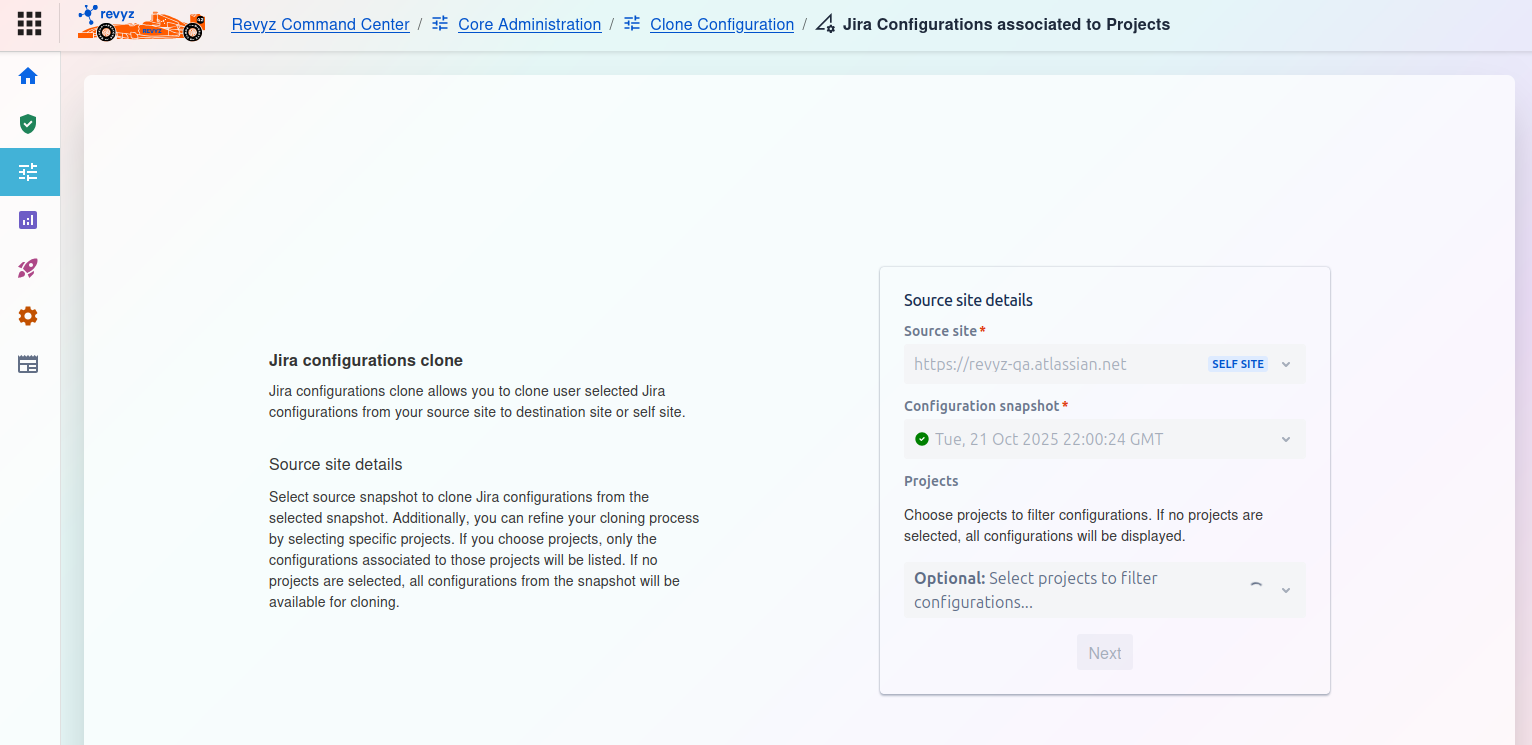
This feature allows you to clone Jira configurations, with a specific focus on filtering those configurations by project. You will select a source snapshot and then have the option to narrow down the configurations to only those associated with specific projects.
Jira configurations clone: This tool allows you to clone user-selected Jira configurations from your source site to a new destination site or back to the current site (self site).
-
Source site details: You can select a source snapshot and then refine your cloning process by selecting specific projects.
-
If you choose projects: Only the configurations associated with those selected projects will be listed in the next step.
-
If no projects are selected: All configurations from the entire snapshot will be available for cloning.
-
Source site details
On the right side of the screen, you must complete the Source site details card:
-
Source site
*:-
This is a required field. Select the Jira instance you want to clone from.
-
The example shows
https://revvz-qa.atlassian.net(tagged asSELF SITE).
-
-
Configuration snapshot
*:-
This is a required field. Select the specific backup snapshot that contains the configurations you wish to clone.
-
-
Projects (Optional):
-
This is the key filter for this feature. Click the dropdown to select one or more projects from the source snapshot.
-
By selecting projects here, you are filtering the list of configurations you will see in the next step to only those used by the chosen projects.
-
After making your selections, click the Next button to proceed.