
What is this feature?
This feature is a historical audit log that specifically tracks all deleted Jira issues (work items), Assets, Confluence, or Tempo. It provides a centralized view of what was deleted, when, and by whom, with a quick restore option for easy recovery.
Use Case: Use this to quickly find and restore individual issues that were accidentally deleted, without needing to search through entire backup snapshots. It is also a critical audit tool for security and compliance.
Config Dependency Analysis Dashboard
This page allows you to analyze the dependencies for all major parts of your configuration, which are organized into tabs.
To begin, you first select the configuration area you want to investigate (e.g., Jira, Assets, etc.). Then, you must select a specific backup snapshot to use as the data source for the analysis.
You can switch between different configuration areas:
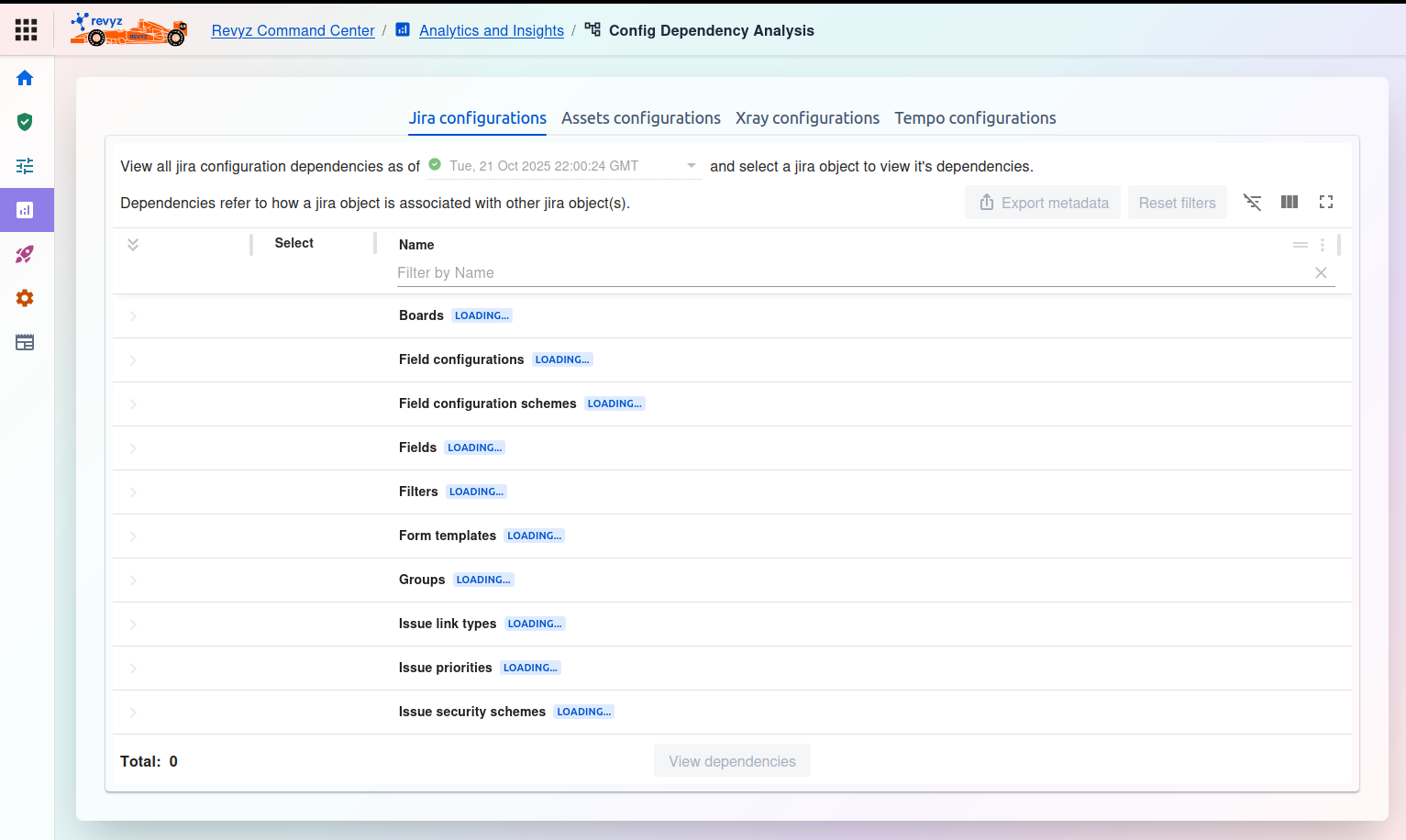
Jira configurations: Allows you to analyze dependencies for core Jira items like Boards, Field configurations, Fields, Groups, Workflows, etc. The page text explains, "Dependencies refer to how a jira object is associated with other jira object(s)."

Assets configurations: Allows you to analyze dependencies for JSM Assets items, such as Attributes, Object schemas, Object types, and Statuses.

Xray configurations: (As seen in the third screenshot) Allows you to analyze dependencies for Xray Test Management items, including Fields, Issue link types, Projects, and Statuses.

Tempo Configurations: Allows you to analyze dependencies for Tempo items, such as Accounts, Customers, Teams, and Workloads.
2. How to Run an Analysis
-
Select a Snapshot: In the dropdown menu (e.g., "View all [type] configuration dependencies as of..."), select the backup snapshot you want to analyze. The tables will then load all configuration items from that snapshot.
-
Filter and Find: Use the filter row under the column headers (e.g., "Filter by Name," "Filter by Parent schema") to find the specific item(s) you want to investigate.
-
Select Items: Check the box in the Select column for one or more items.
-
View Dependencies: Once items are selected, click the View dependencies button (at the bottom) to generate a visual map or report of all the other configurations that rely on your selected item(s).
3. Common Controls
-
Export metadata: Click this to download a report of the configuration items list.
-
Reset filters: Clears any filters you have typed into the search boxes in the table.
-
Table tools (right side): Use these icons to toggle filters or customize the visible columns.
-
Total: Shows the total count of items loaded for the selected configuration type.