
What is this feature?
This feature is a specific health report that scans your core Jira configurations from a selected backup snapshot. It analyzes your setup to find unused, duplicate, orphaned, or inactive items like custom fields, workflows, and groups.
-
Use Case: Use this to optimize and declutter your Jira instance. By identifying and removing these unused or problematic configurations, you can improve performance, simplify administration, and make the system easier to manage.
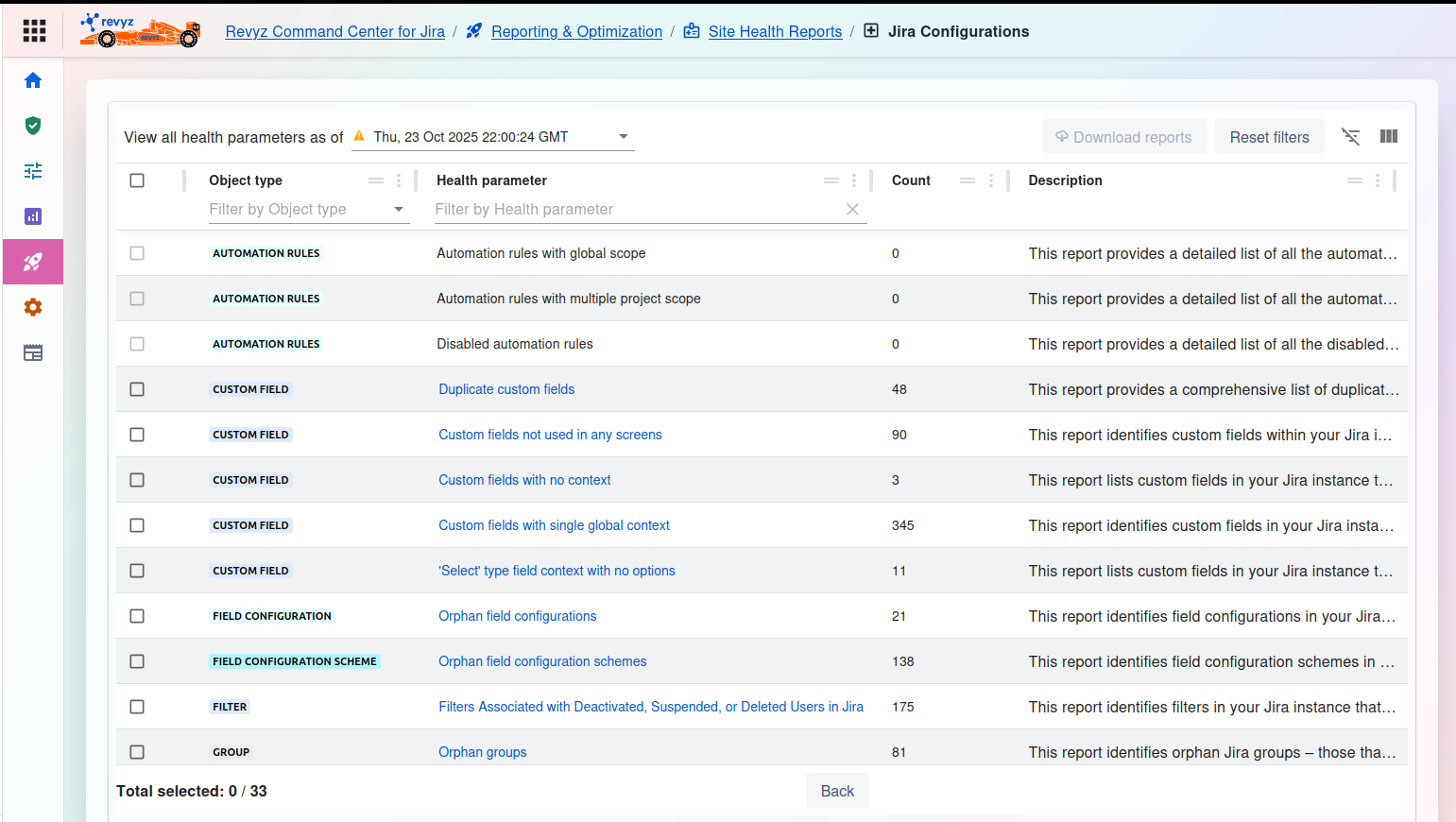
Jira Configurations Health Report
This page allows you to run a series of health checks against your core Jira configurations from a specific point in time.
1. Select Snapshot
-
View all health parameters as of
*: This is a required first step. Click the dropdown menu to select the specific backup snapshot (e.g.,Thu, 23 Oct 2025 22:00:24 GMT) you want to analyze. The table will then populate with the health check results from that snapshot.
2. Manage Reports
-
Download reports: (Currently disabled) This button will allow you to export the detailed reports for any checks you have selected in the table.
-
Reset filters: Clears any filters you have applied to the table below.
-
Table tools (right side): Use these icons to toggle the filter row or customize the visible columns.
3. Health Report Table
The main table lists the available health checks and their results from the selected snapshot.
-
Checkbox: Select one or more rows to download a detailed report for those specific parameters.
-
Object type: The category of the Jira configuration being analyzed (e.g.,
AUTOMATION RULES,CUSTOM FIELD,FILTER,GROUP). -
Health parameter: The specific check being performed.
-
Example:
Duplicate custom fields- Finds custom fields that are duplicates. -
Example:
Custom fields not used in any screens- Identifies "orphaned" custom fields that are not deployed anywhere. -
Example:
Orphan groups- Finds groups that are not used in any permission schemes, filters, etc.
-
-
Count: The result of the scan. This number shows how many items matched the health parameter (e.g.,
48duplicate custom fields,90unused custom fields). -
Description: Explains what the detailed report for that row will provide.
4. Actions
-
Total selected: At the bottom, this shows how many health checks you have selected (e.g.,
0 / 33). -
Back: Click this button to return to the previous "Site Health" dashboard.