
What is this feature? This is a data recovery tool for your Jira Service Management (JSM) Assets database. It allows you to restore individual, specific objects or even entire object schemas from a previously created backup.
-
Use Case Use this to recover specific assets (like a server, laptop, or software license object) or a whole object schema that was accidentally deleted or corrupted, without performing a full site restore.
This feature of the Revyz Command Center for Jira is unavailable for Revyz Configuration Manager for Jira.
To upgrade your version to Revyz Command Center for Jira, connect with support@revyz.io or install the app here.
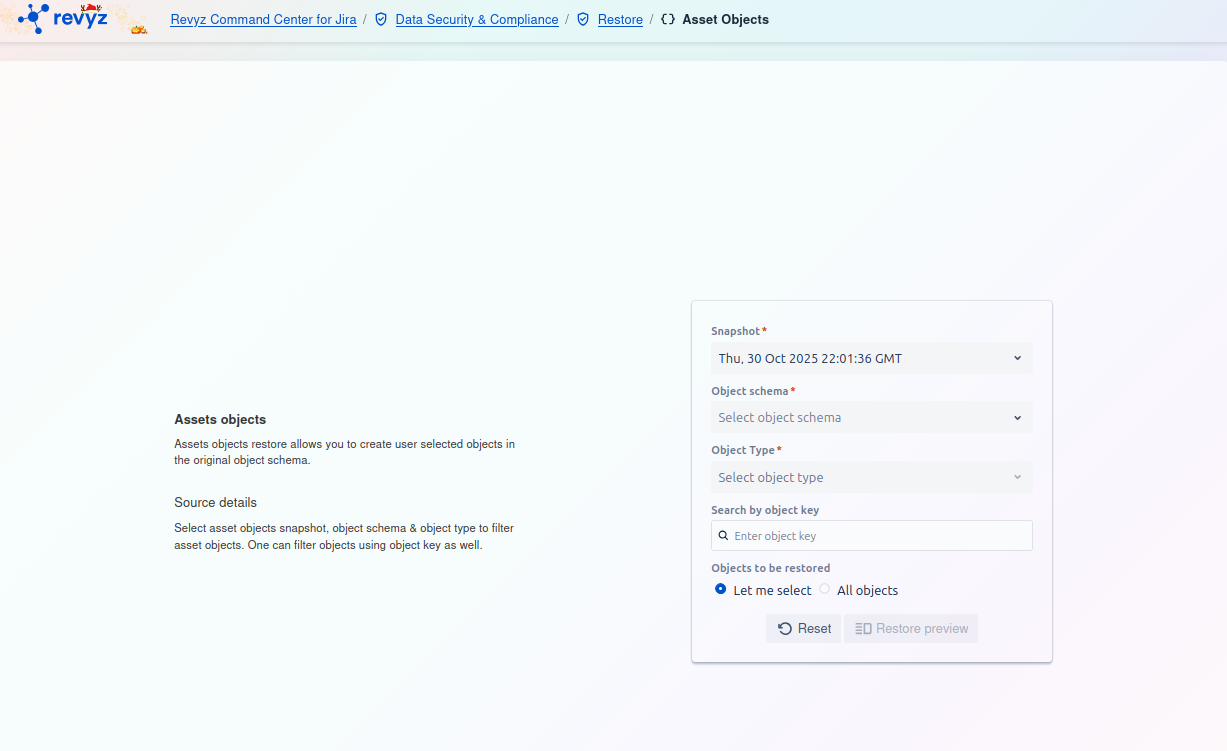
How to Restore Assets Objects: Step 1 - Find Objects to Restore
This page allows you to find and select the specific Assets objects you wish to restore. You must use the filters to build a search query and locate the objects within a backup snapshot.
Filter Card
On the right side of the screen, you must fill out the filter card to locate the objects.
-
Snapshot
*:-
This is a required field. Select the backup snapshot that contains the asset objects you want to restore (e.g.,
Fri, 03 Oct 2025 10:11:37 GMT).
-
-
Object schema
*:-
This is a required field. Select the object schema (e.g., "IT Assets," "Employees") that contains the objects you want to restore.
-
-
Object Type
*:-
This is a required field. Select the specific object type (e.g., "Laptops," "Servers") to further narrow your search.
-
-
Search by object key:
-
This is an optional filter. If you know the exact key of the object you want to restore (e.g.,
IT-123), enter it here for a direct search.
-
-
Objects to be restored:
-
This radio button selection determines how many objects you will restore from your filtered results.
-
Let me select: (Default) This option will take you to a preview screen where you can hand-pick individual objects from the search results to restore.
-
All objects: This option will restore all objects that match your filter criteria (Snapshot, Schema, Type).
-
-
Actions
-
Reset: Click this button to clear all the filter fields and start your search over.
-
Restore preview: After you have set your filters, click this button (currently disabled) to run the search. This will show you a list of matching objects to select from (if "Let me select" is chosen) or a confirmation summary (if "All objects" is chosen).