
About this Page
This page provides step-by-step instructions for configuring, running, and troubleshooting backups for Jira Service Management (JSM) Operations in Revyz. Learn how to enable backup for JSM operations, execute scheduled or on-demand backups, and export raw configuration data.
What is the Use Case?
Protect your Jira Service Management (JSM) Operations setup by backing up critical workflow configurations, including alert policies, routing rules, and escalations, to manage accidental configuration drift or data loss.
This feature is applicable to:
-
Command center for jira standard feature; includes full JSM Operations coverage (configurations + data).
-
CONFIG MANAGER FOR JIRA standard feature; includes JSM Operations configuration backup only.
Prerequisites to enable JSM Operations backup
-
App Version: Ensure Revyz is upgraded to the latest version. Older versions will display an "Update required" notification banner in Backup Settings.
-
Atlassian API Token: User-level API token linked to your Atlassian account. Learn how to add here.
-
Atlassian Admin API Key: Organization-level key generated from Atlassian Organization Settings. Learn how to add here.
-
Backup settings enabled for JSM Operations
Note: If either token is missing or expired, Revyz will display direct configuration links on the Backup Settings page.
How to backup JSM Operations?
Supported JSM Operations Configuration Items Once prerequisites mentioned above are fulfilled to enable backup of JSM operations, the automated schedule or manual trigger backs up 12 core configuration items:
-
Alert Policies
-
Integrations
-
Schedules
-
Escalations
-
Maintenance
-
Syncs
-
Global Roles
-
Notification Policies
-
Team Roles
-
Heartbeats
-
Routing Rules
-
Teams
How to Run an On-Demand Backup for JSM Operations?
Step 1: Enable Backup Settings
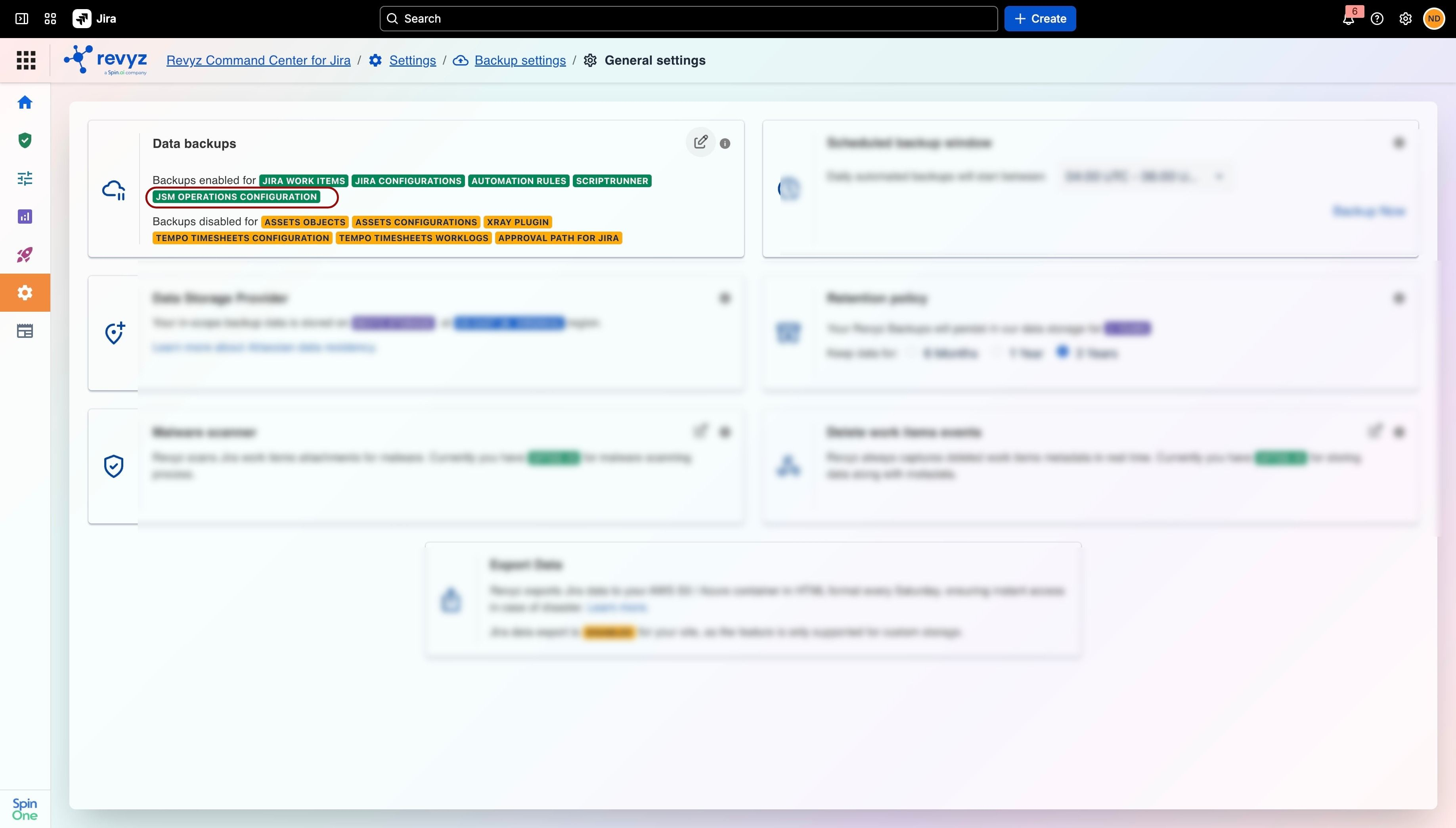
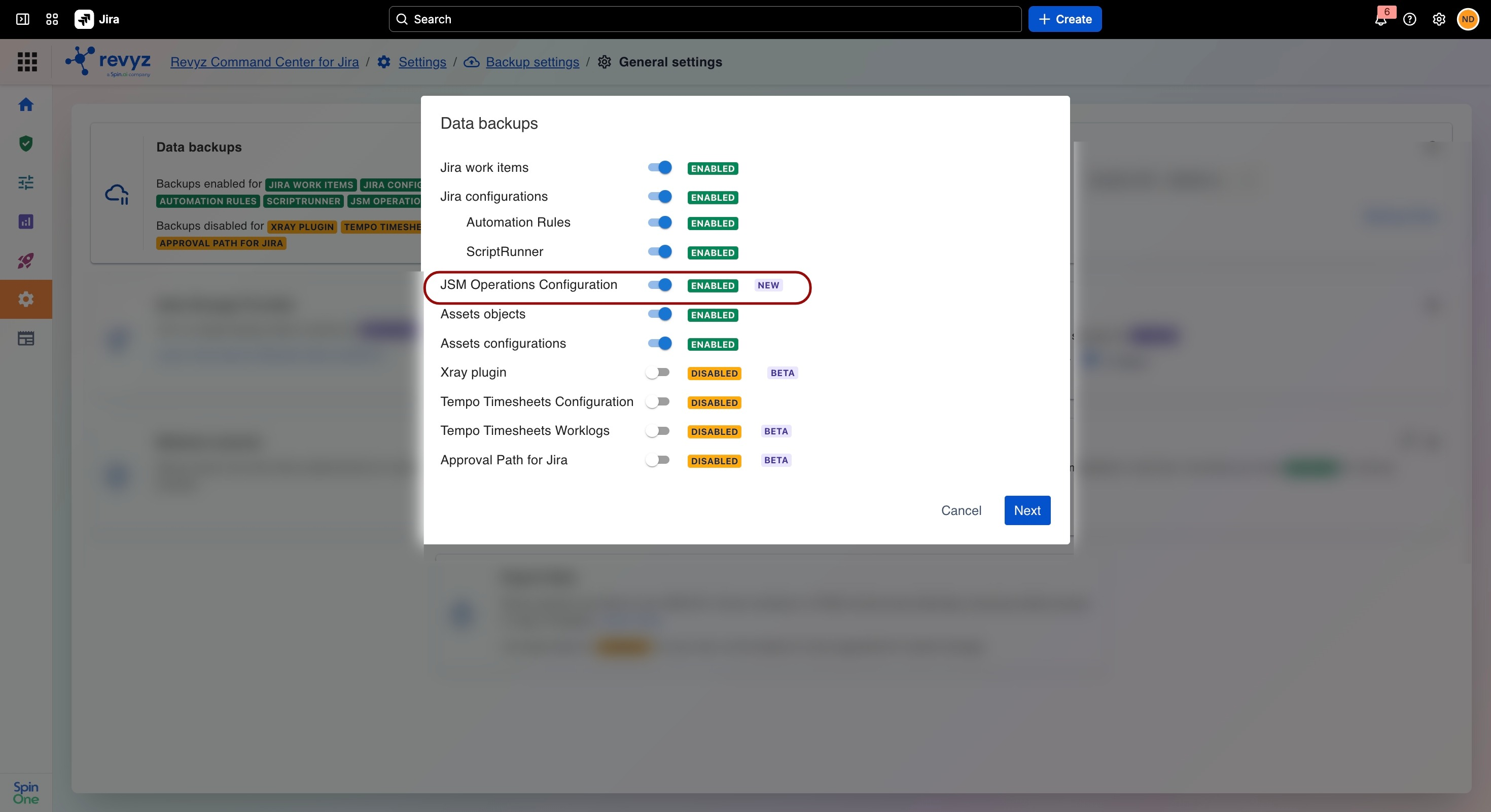
Ensure that backups are enabled for JSM Operations Configurations. For enabling, you need to ensure that both Atlassian API Token and Atlassian Admin API Key are enabled. If either or both of them are missing, you will be redirected to the settings to enable them.
Note that invalid or expired tokens may case the backup job to fail.
Step 2: Start backup
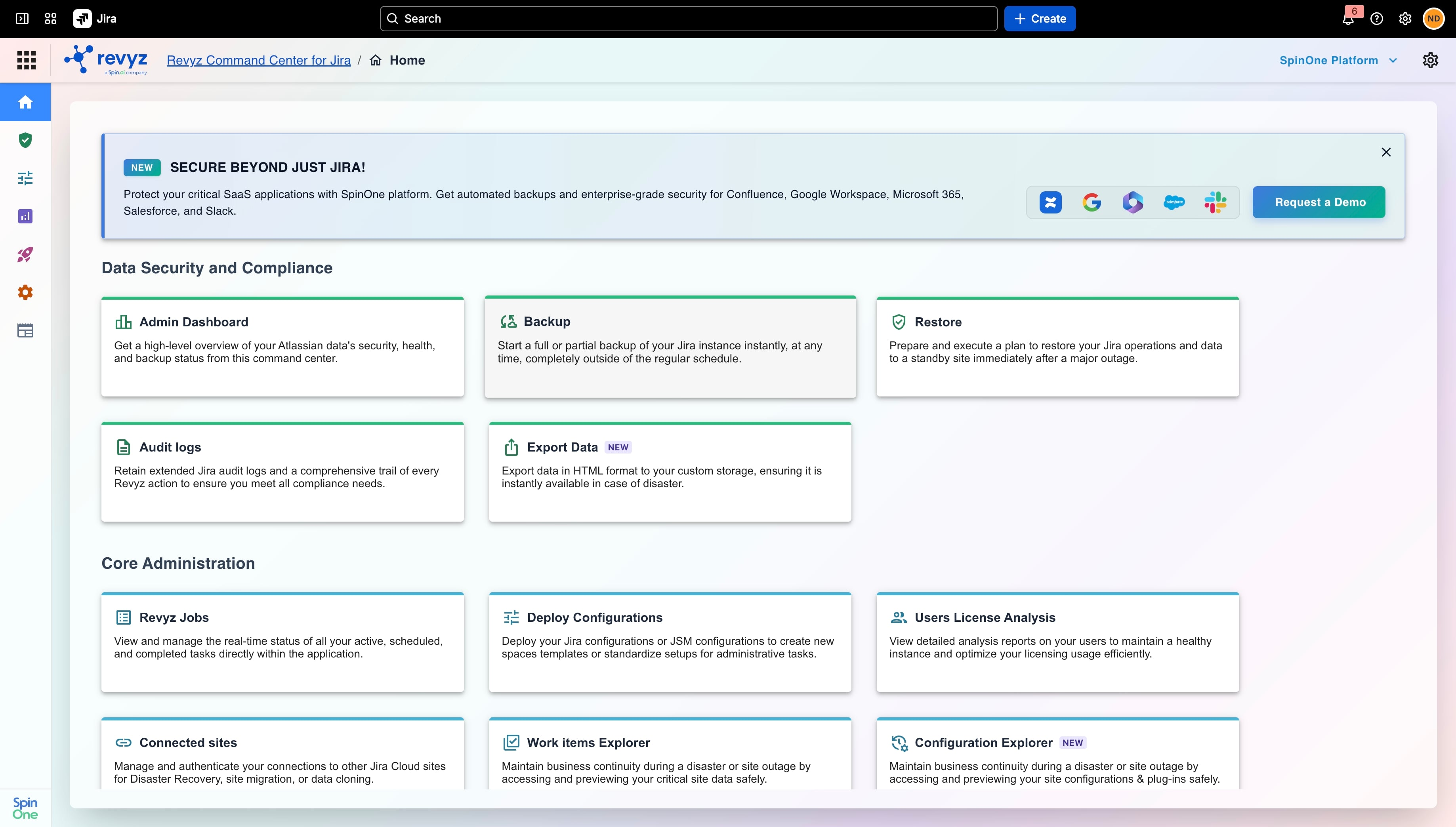
-
-
Open the Revyz Command Center for Jira dashboard.
-
Locate the Data Security and Compliance section and click the Backup card.
-
Step 3: Configure Backup Scope and Snapshot Tag
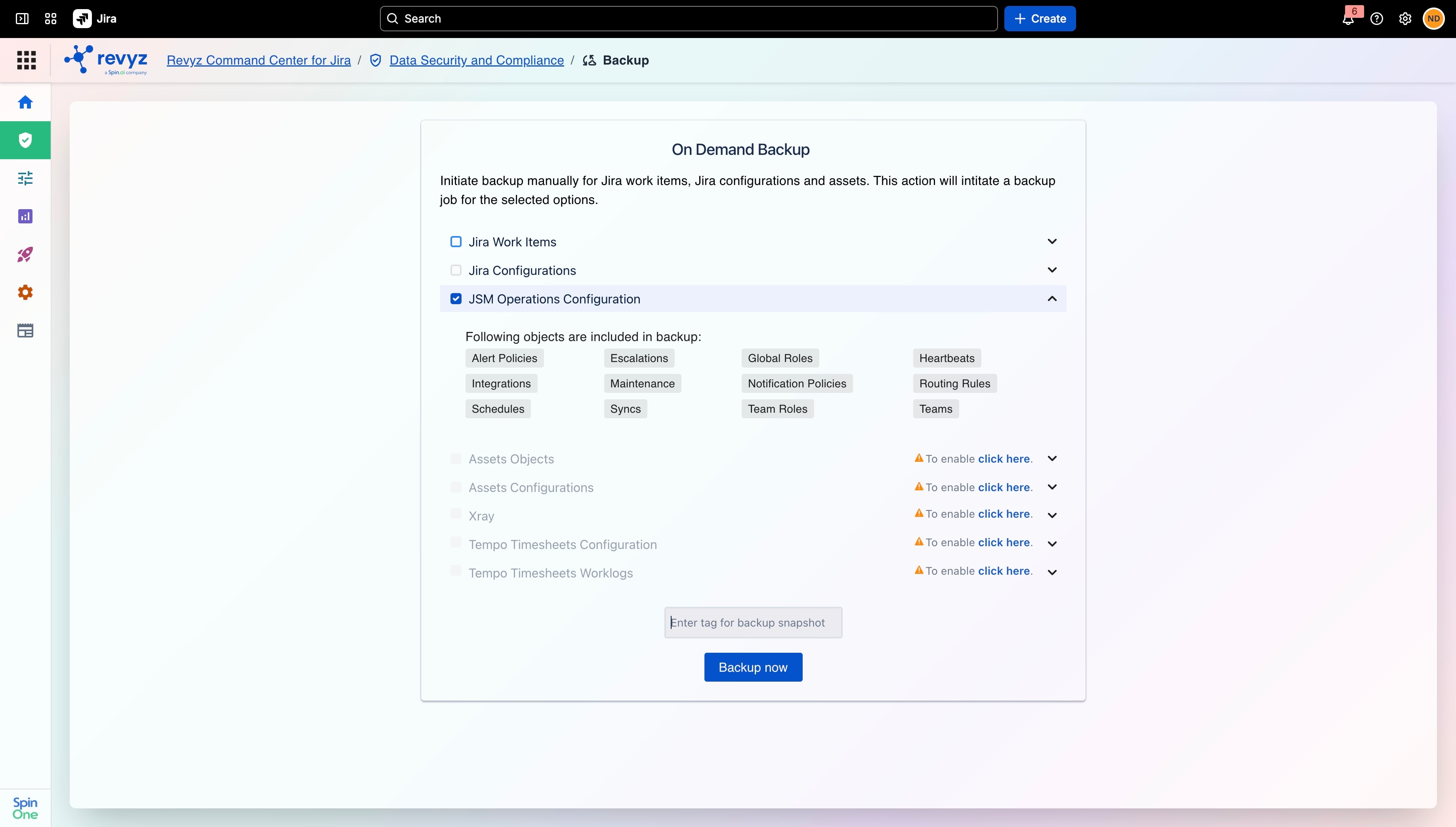
-
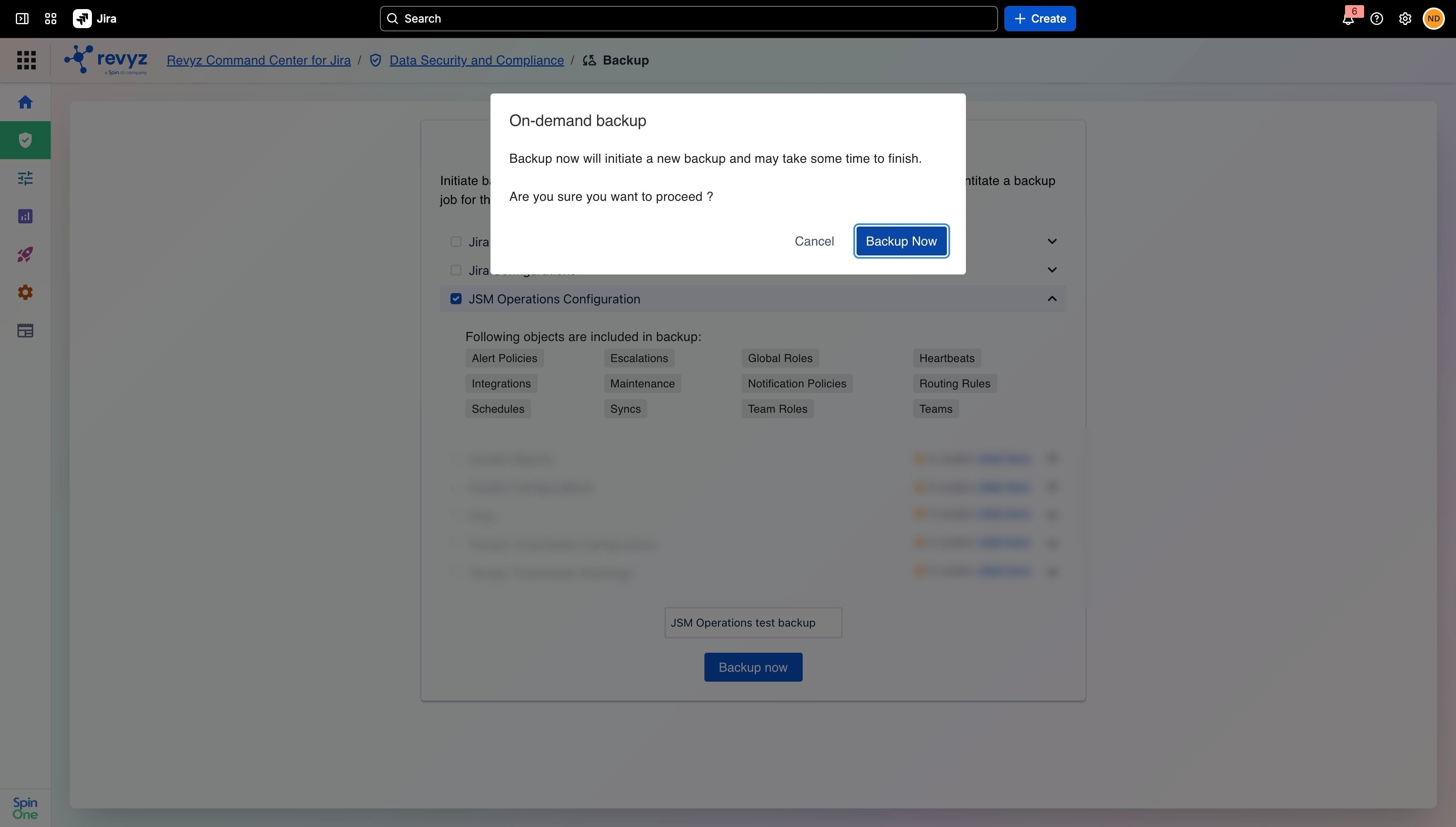
On the On Demand Backup screen, check or uncheck the relevant data options based on your backup needs (e.g., JSM Operations Configuration, Assets Objects, Jira Work Items, or Jira Configurations).
-
Expanding JSM Operations Configuration displays the included objects: Alert Policies, Escalations, Global Roles, Heartbeats, Integrations, Maintenance, Notification Policies, Routing Rules, Schedules, Syncs, Team Roles, and Teams.
-
Enter a descriptive label in the Enter tag for backup snapshot text field to easily identify this backup later (e.g.,
JSM Operations test backup).
Step 4: Execute the Backup Job
-
Click the Backup now button at the bottom of the page.
-
When the confirmation dialog appears, click Backup Now to start the process.
Step 5: Monitor and Review Job Status
-
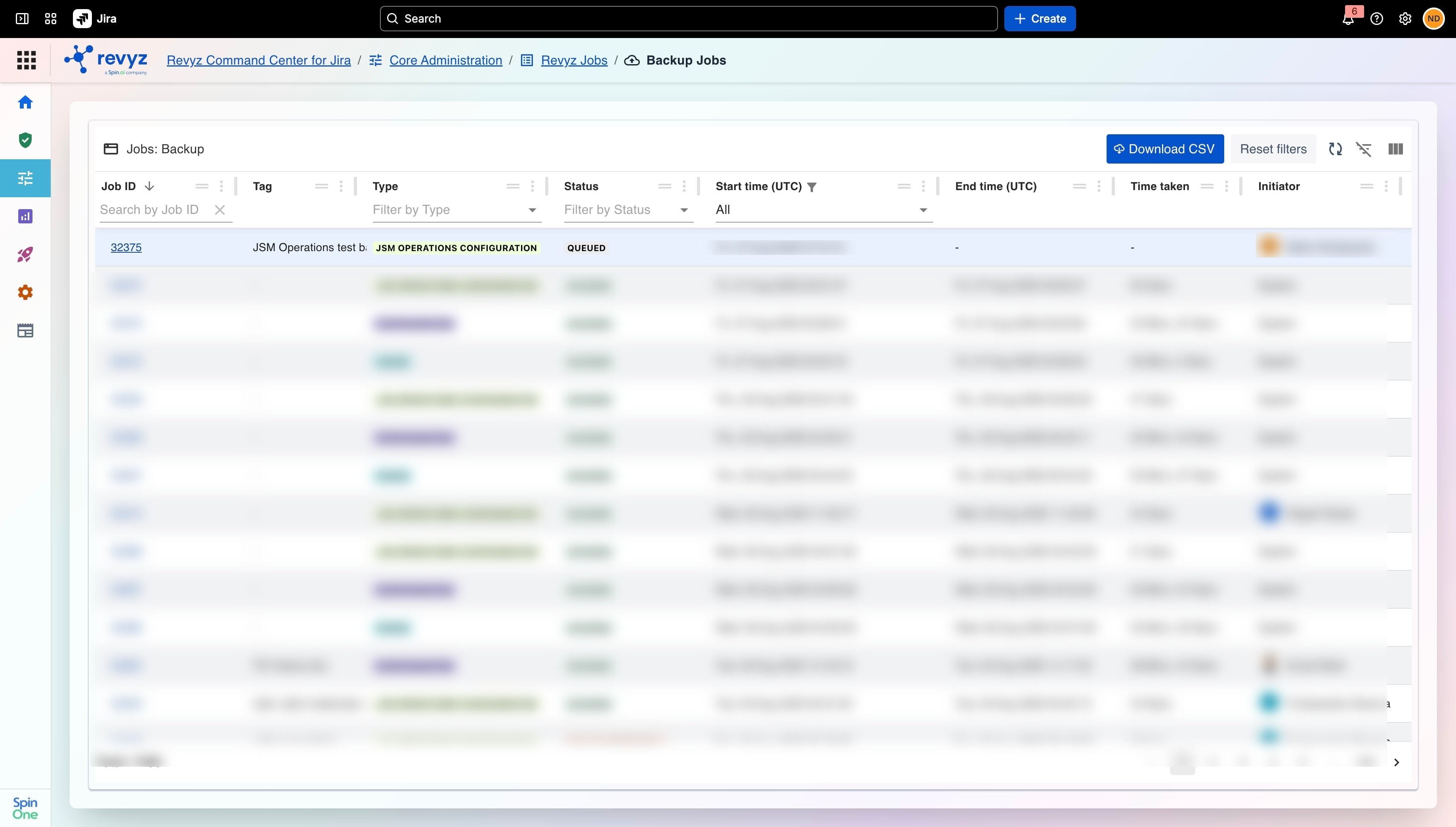
Access the job tracker by navigating to Core Administration > Revyz Jobs > Backup Jobs.
-
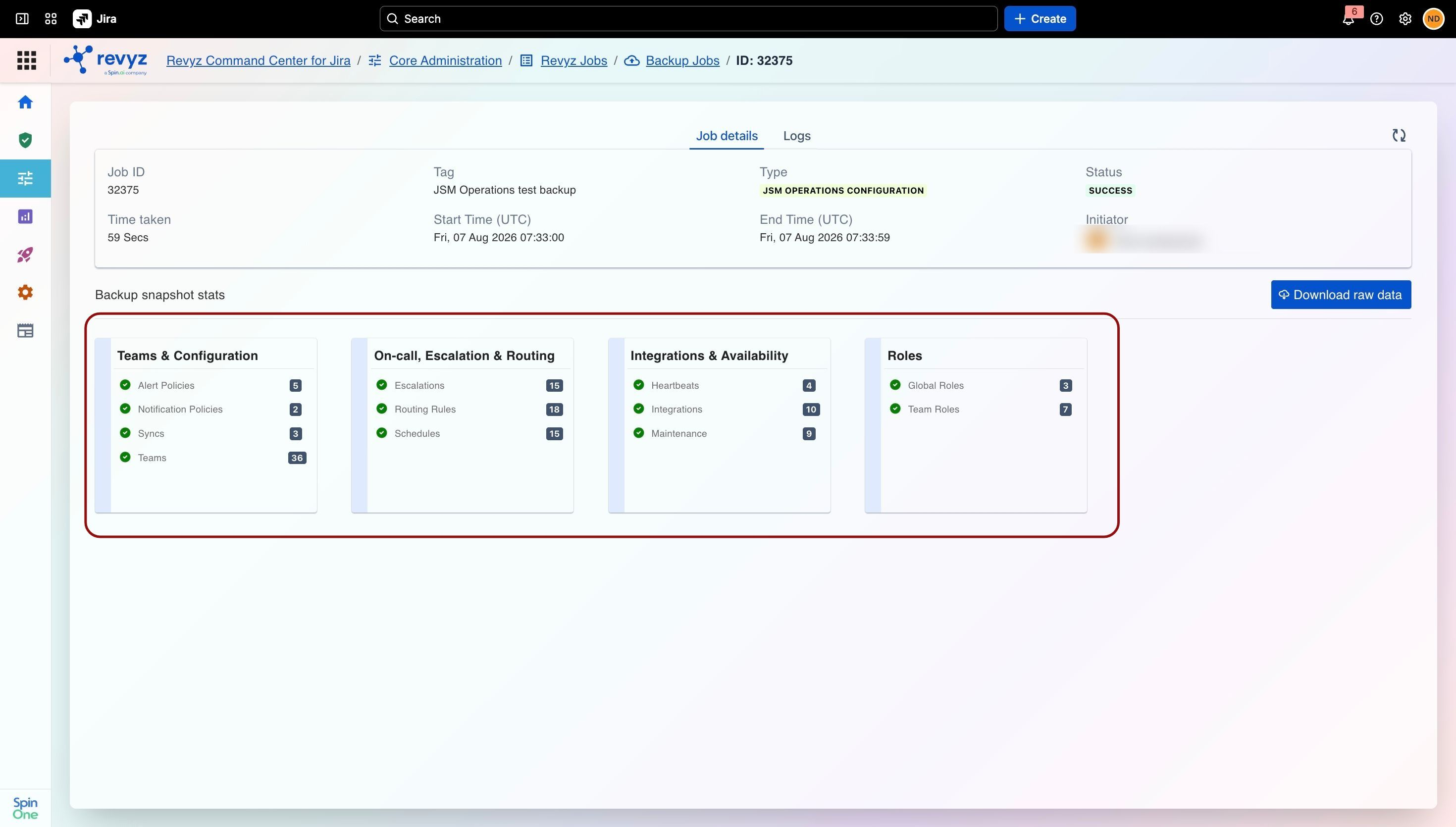
Locate your backup run in the job list and click on its Job ID.
-
Verify the job metadata, including Status (QUEUED, RUNNING, or SUCCESS), Tag, Type, Initiator, Start/End Time, and Time taken.
Step 6: Download Raw Backup Data
-
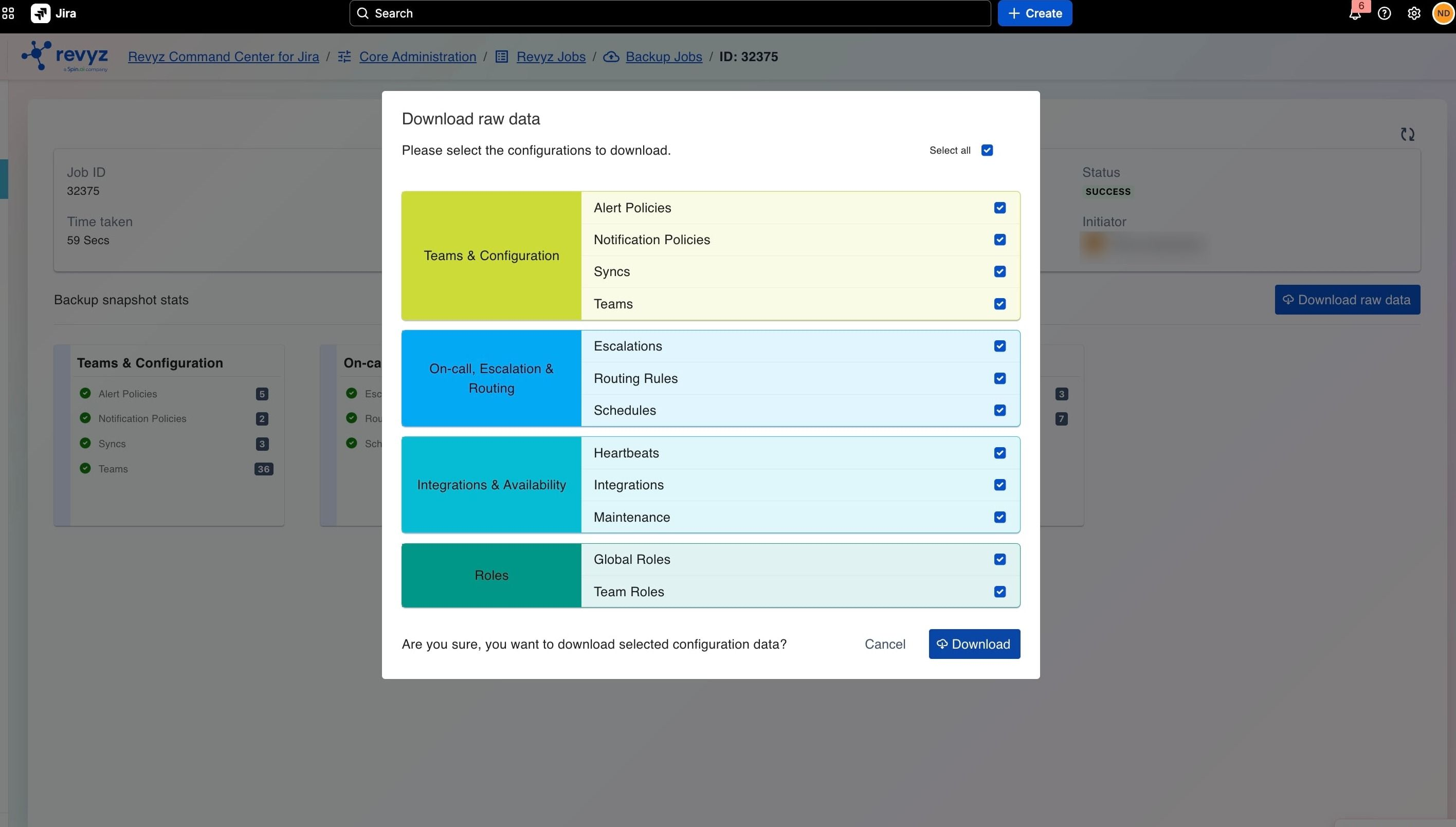
Click the Download raw data button on the job details screen.
-
Select specific configuration items or check Select all.
-
Click Download to export the selected data files.
Troubleshooting
-
Invalid Credential Status: Jobs rely on API tokens and keys as security credentials to authenticate communication with external systems (like Atlassian or administrative endpoints).
-
If a job fails due to an invalid credential error:
-
Identify the expired key: Check the job logs to see whether the Atlassian API Token or Admin API Key expired.
-
Update credentials: Go to Backup Settings and save valid tokens.
-
Retry: Re-trigger the job.
-
Frequently Asked Questions