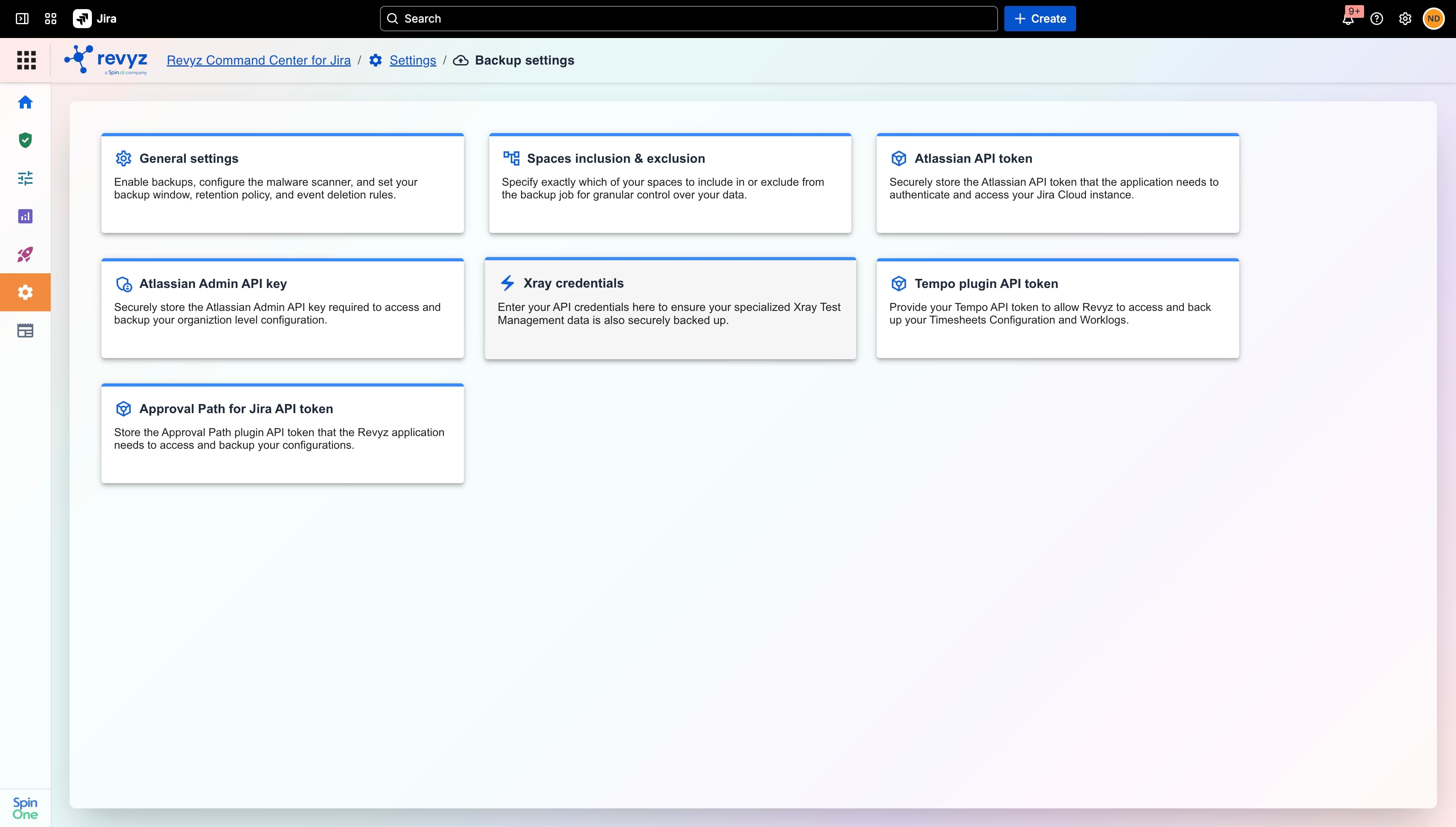
About this Page
This document covers troubleshooting procedures for Xray backup failures and the steps that customers need to follow to avoid these failures.
1. Troubleshooting Xray Backup Failures
Systemic backup failures are primarily driven by two root causes: Data Residency Regional Conflicts and Credential Issues.
Root Cause A: Unpinned Data Residency
Data residency conflicts can affect both new and existing configurations. While new customer sites are a frequent example—often because they are initially left "unpinned" to a specific geographic region—existing sites face the exact same risk if their core applications (Jira, Revyz, Xray) are pinned across two or three different regions.
Backups will fail when the system attempts to pull data across these region boundaries. To ensure backup success, all underlying applications must reside within the exact same region
Data Residency Mismatches
The most common cause for Xray backup failures, particularly for new sites, is a mismatch in storage regions between the Atlassian site and the installed apps.
-
Site Pinning Issues: When a new site is created, its data residency region is often not set. If a site is not pinned to a specific location, apps fall back to their own default regions.
-
Default Region Discrepancies: The backup app (Revyz) defaults to the US region if a site is not pinned. In contrast, the Xray app uses the EU region as its default.
-
Connection Errors: Because the backup app is running in the US region and attempts to pull data from Xray, which is stored in the EU region, Xray throws an error stating the data is in a different region. This results in a backup failure.
-
Requirement for Success: For a backup to be successful, the Jira site, the Xray app, and the Revyz (backup) app must all be pinned to the same region.
Resolution Steps:
Step 1: Customer Navigation
Have the customer navigate to their admin settings to confirm their designated data residency location.
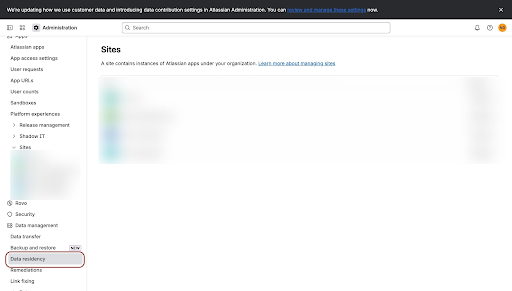
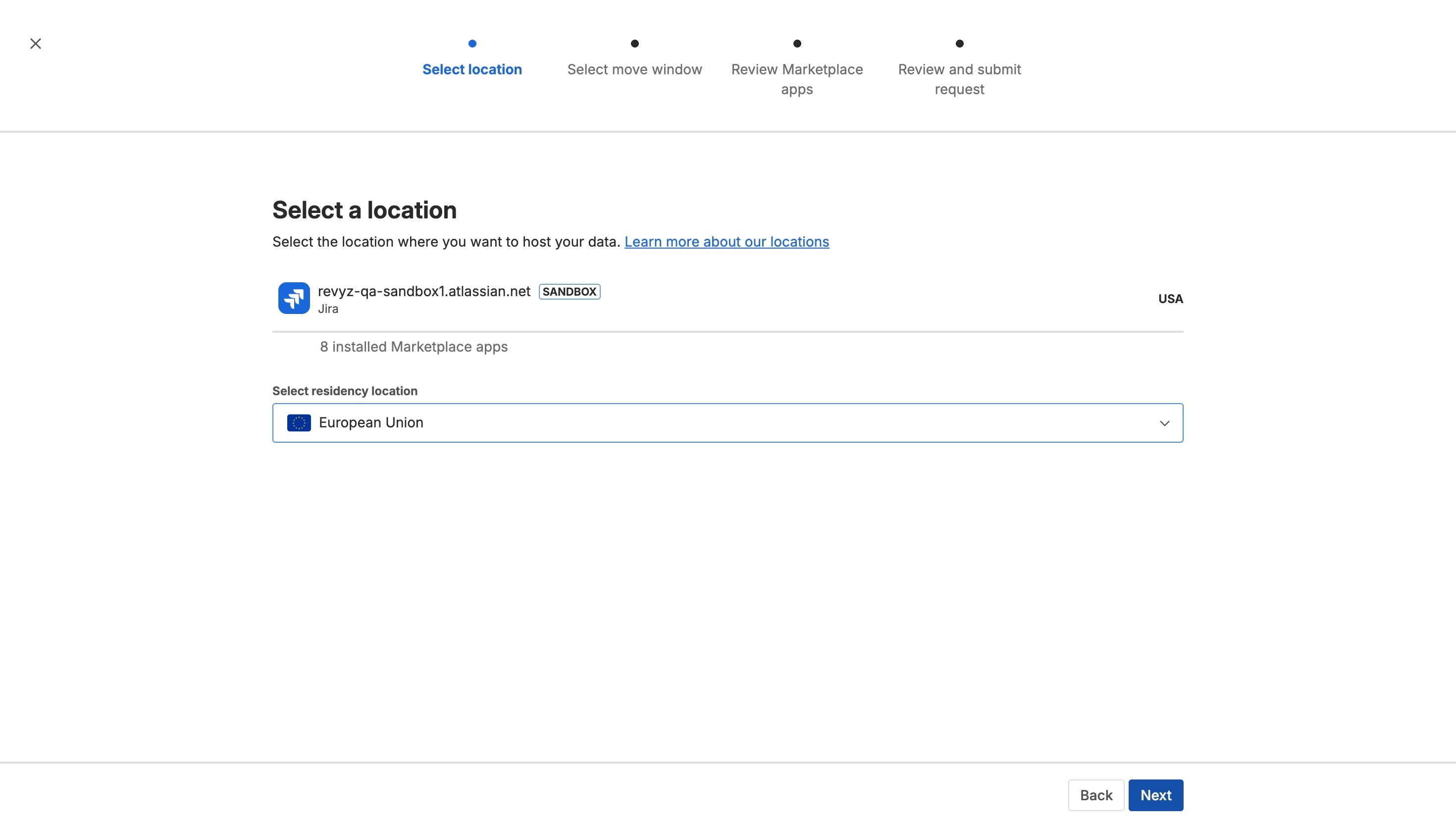
Step 2: Navigate to Data Residency
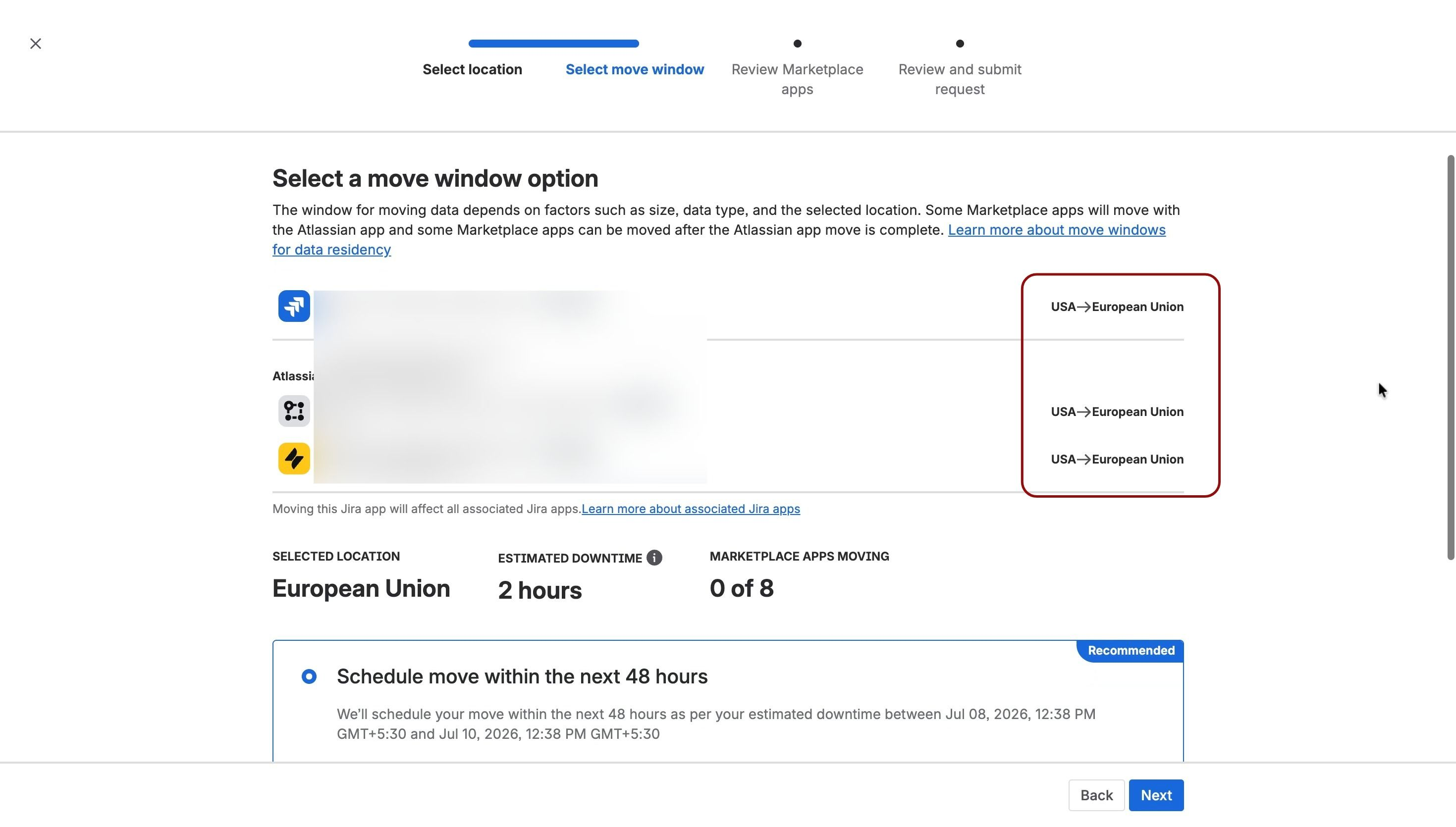
Select the Jira app, confirm or change the location, and initiate a migration for the Jira site. This site migration automatically moves dependent marketplace apps, including assets and service management.
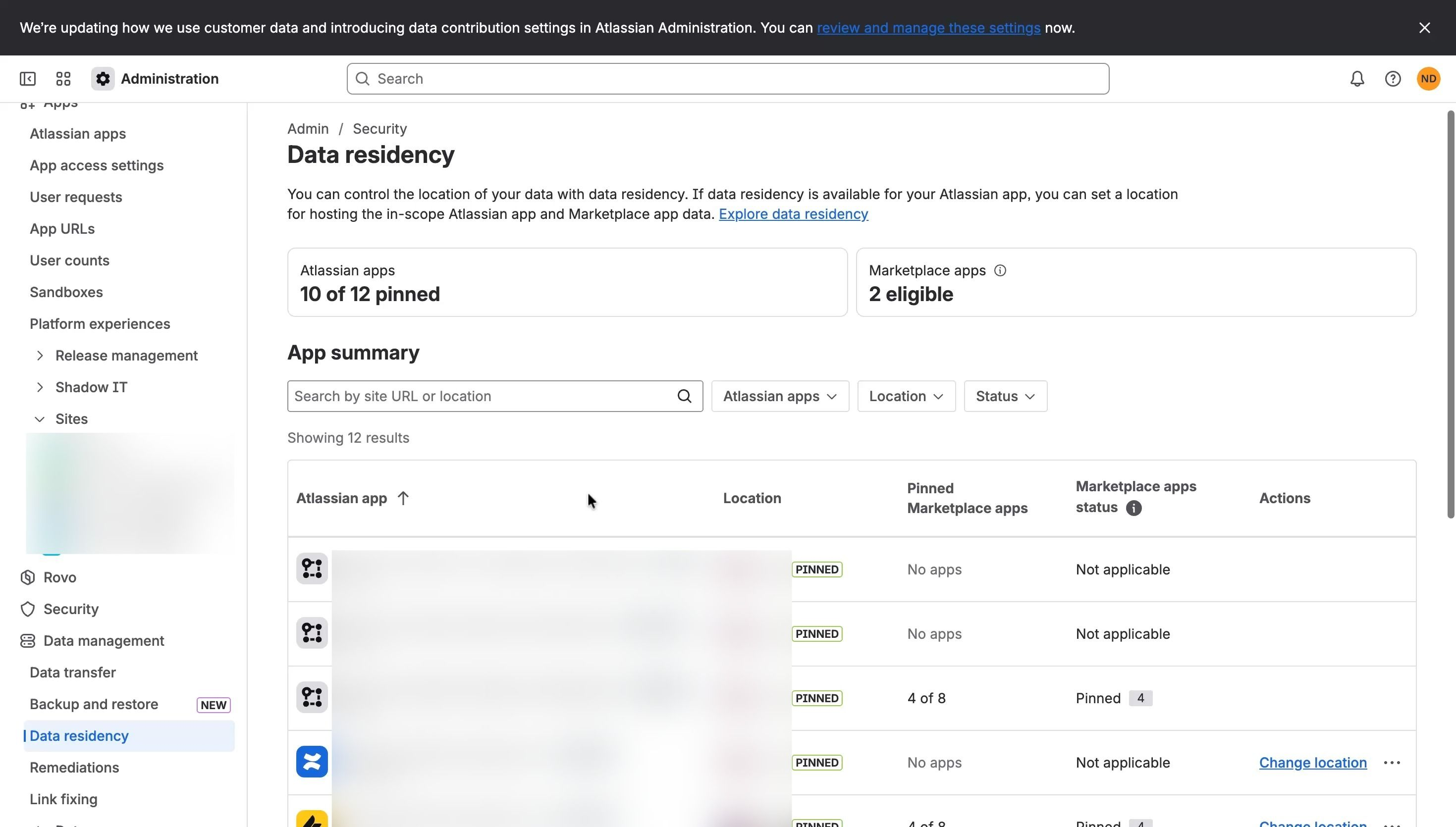
Step 3: Select the app
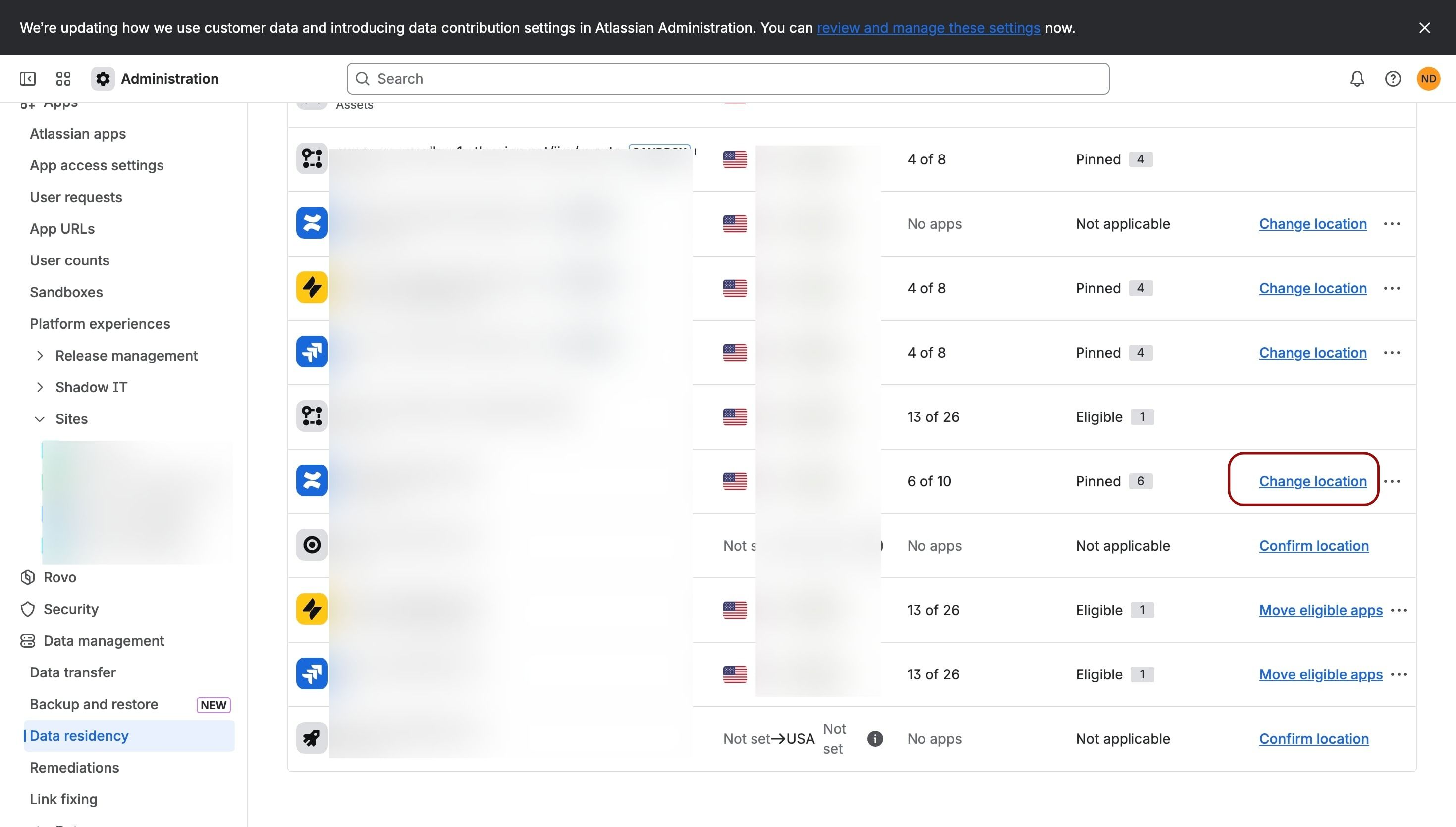
Click on “Change Location”
Step 4: Initiate the migration process
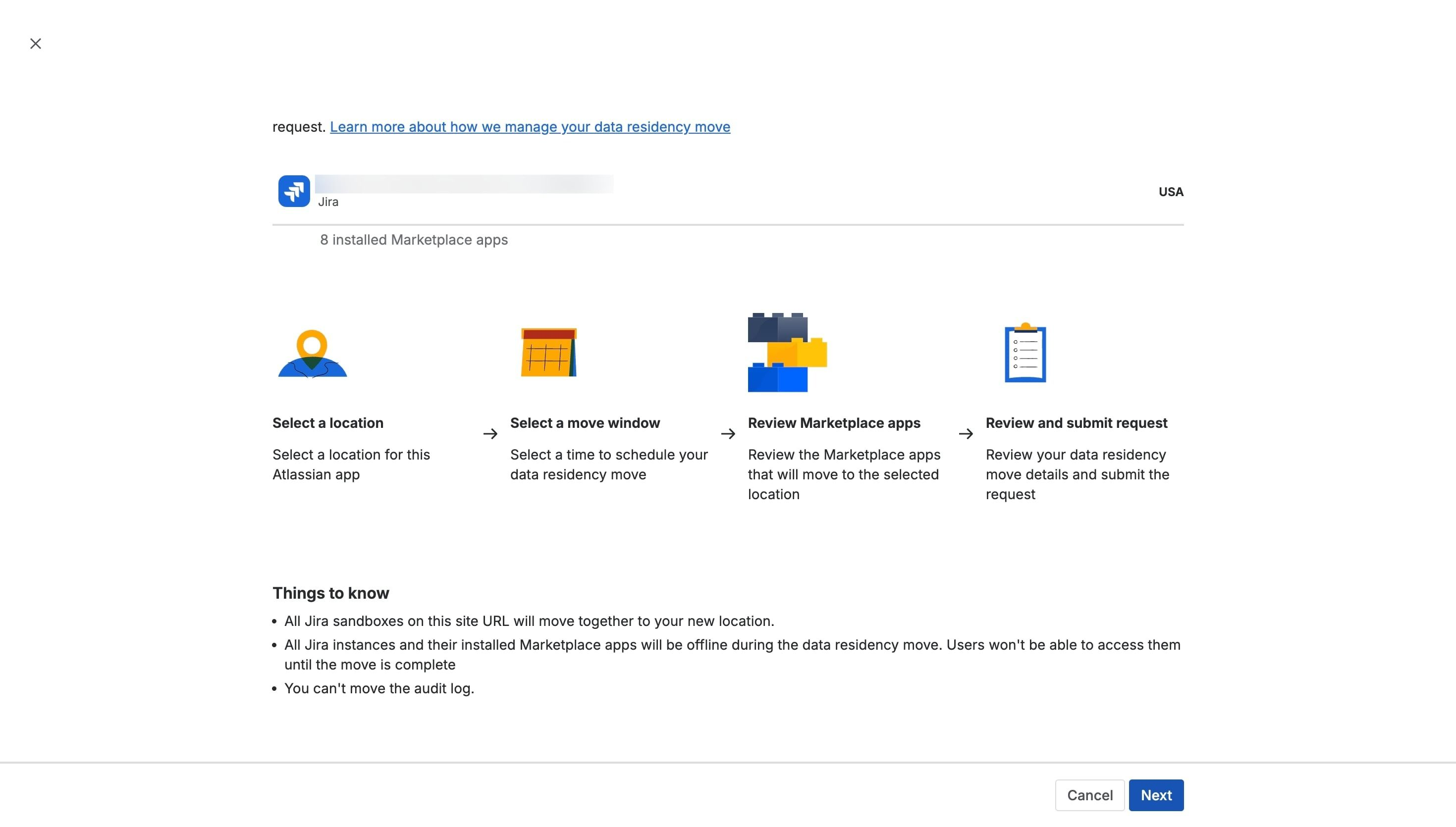
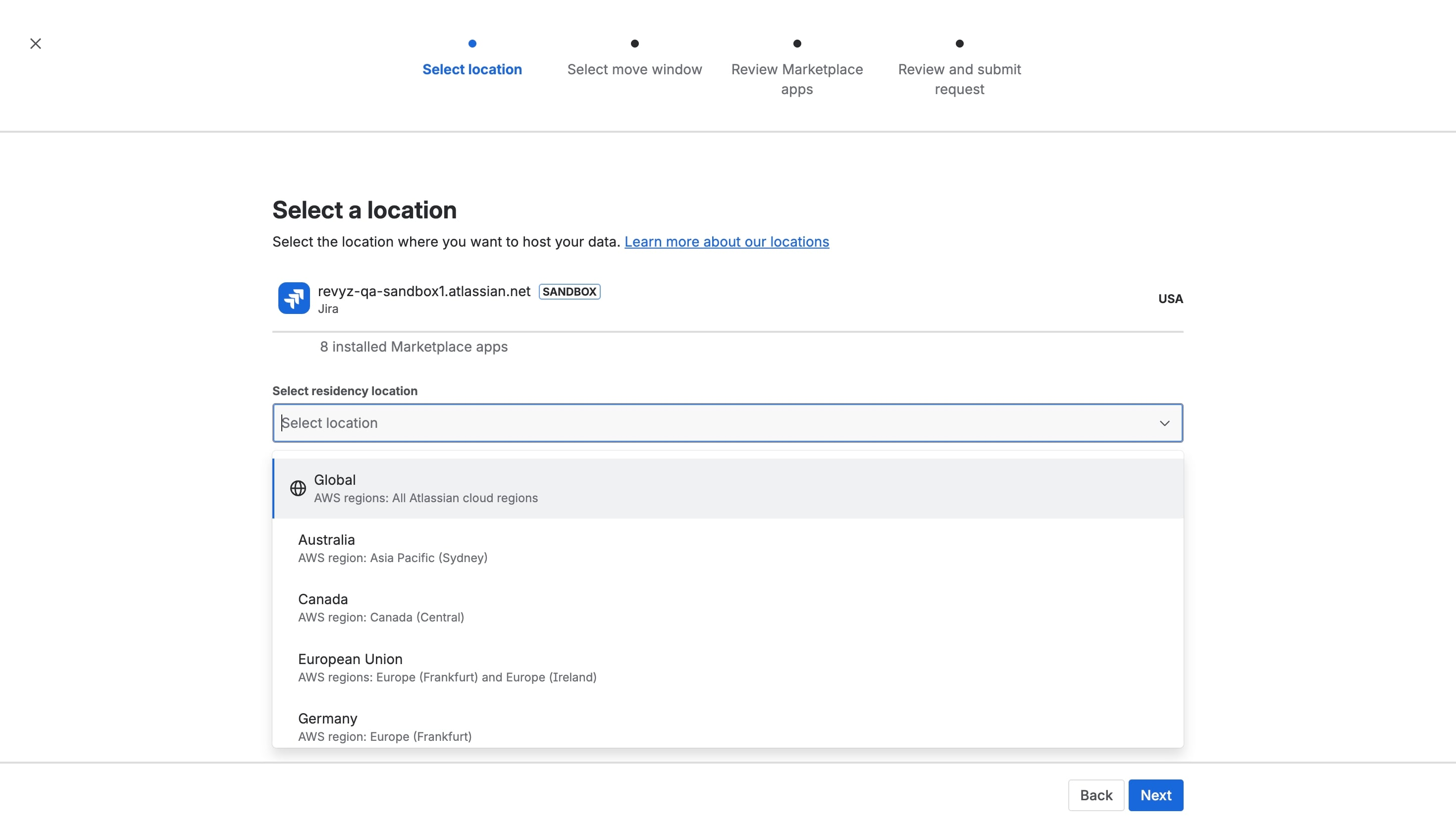
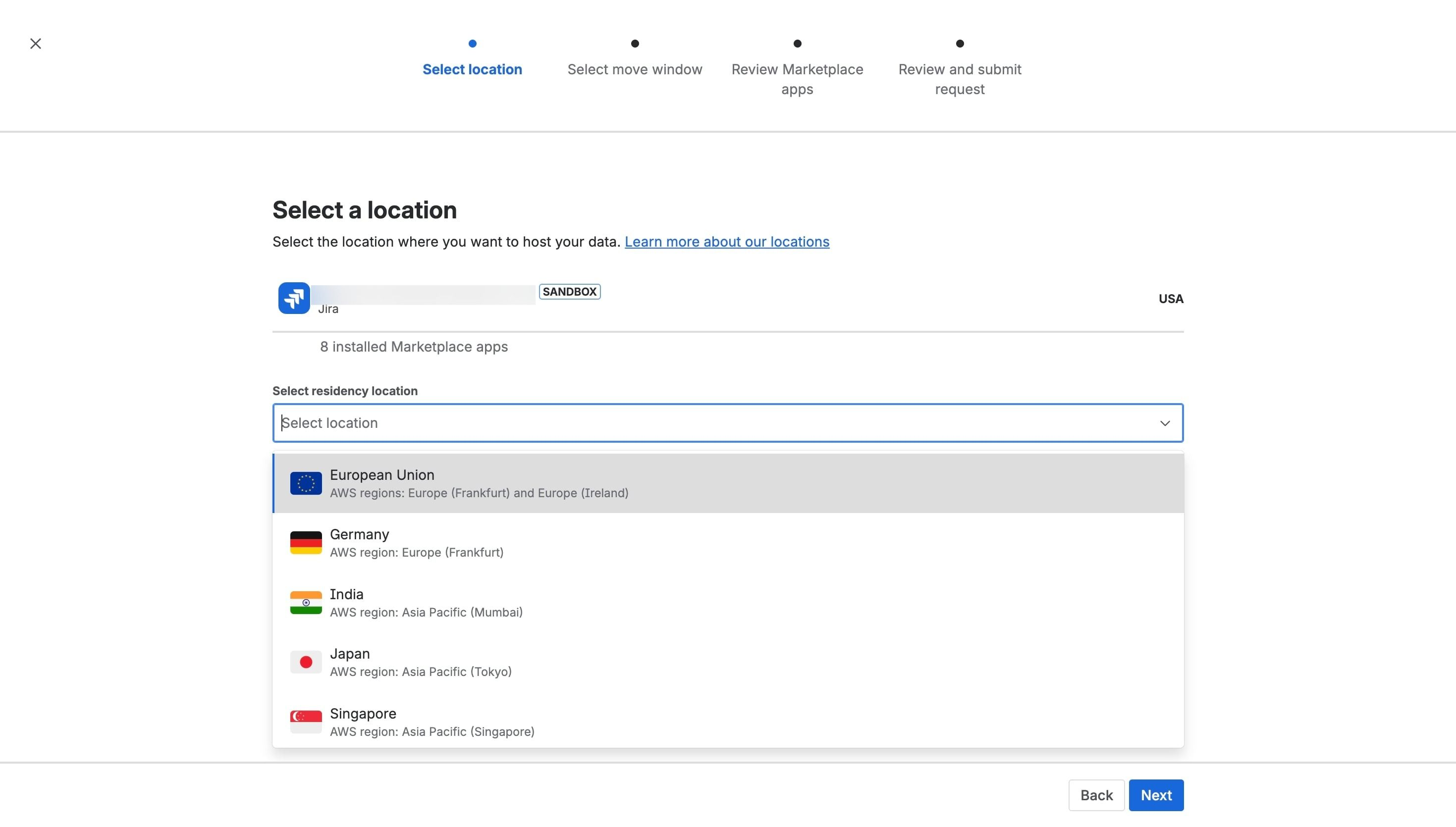
Root Cause B: Invalid or Deleted Credentials
Some backup failures are caused by invalid or deleted credentials.
If your Xray backup fails with an "Invalid Credentials" or "401 Unauthorized" error, the secure connection between your backup tool (like Revyz) and your instance has been broken as there could be an accidental deletion of credentials.
How to Fix It (3-Step Checklist)
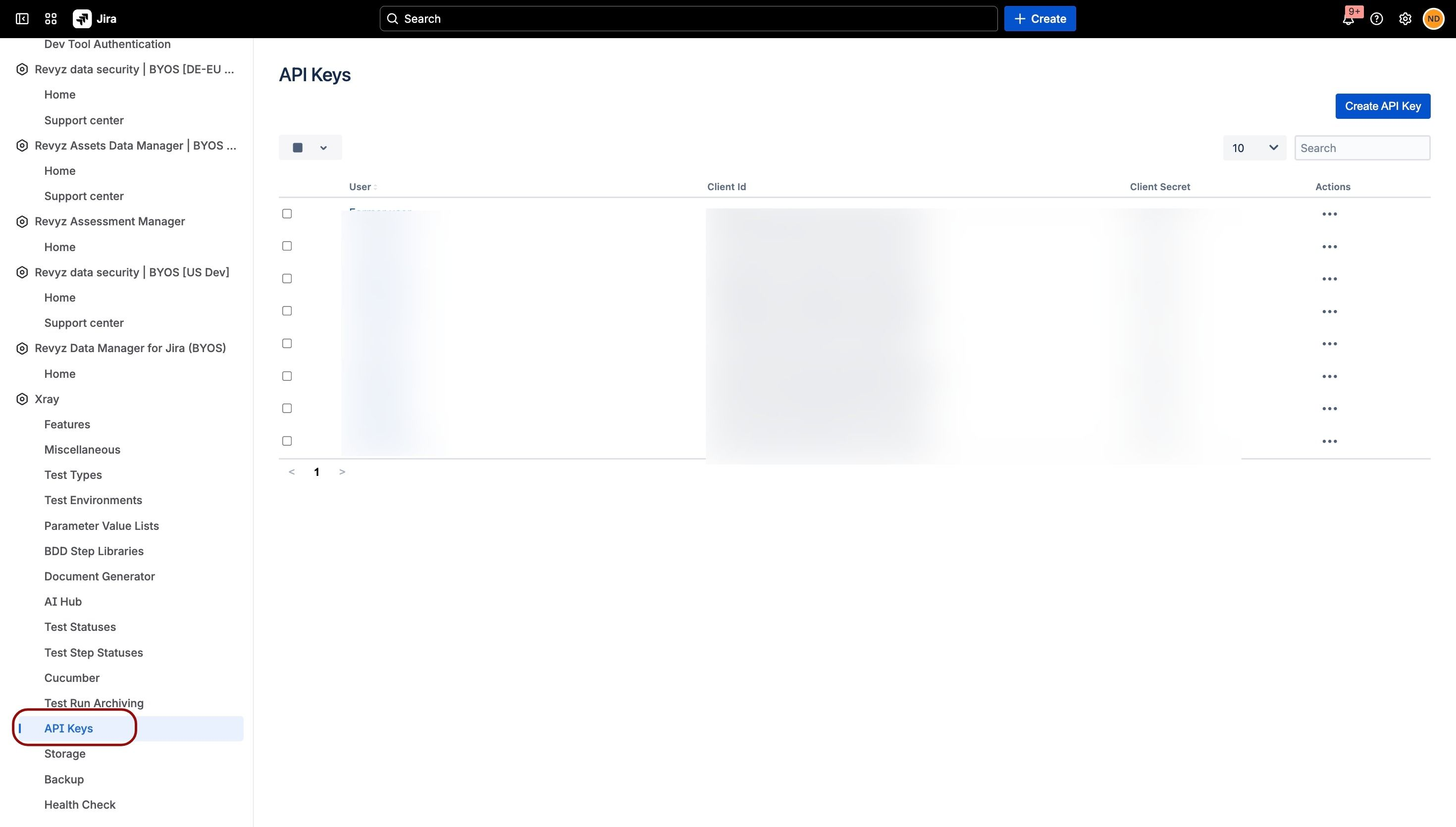
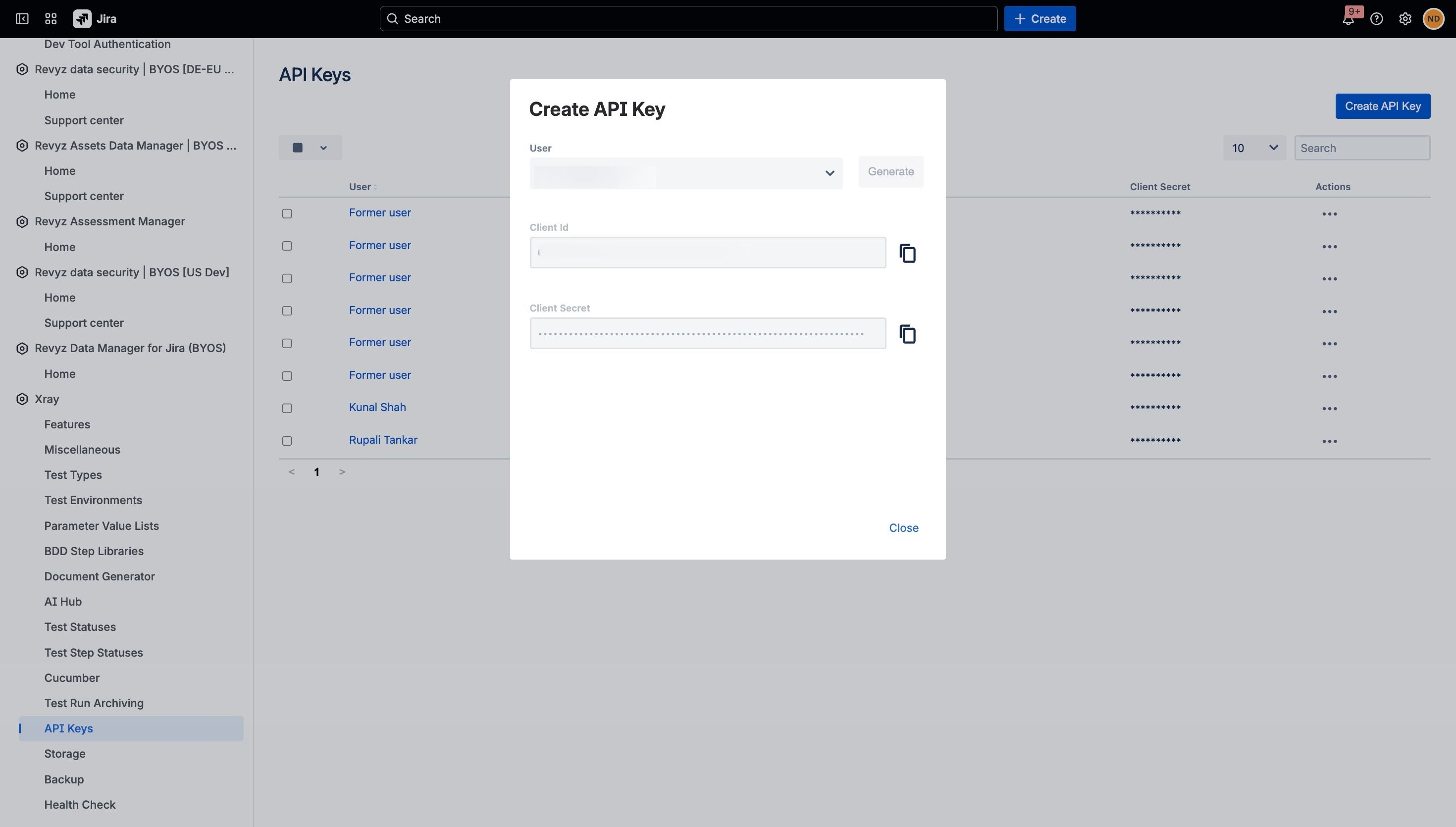
Step 1. Generate New Credentials for Xray App
Go to Atlassian Account Settings > Security > API Keys.
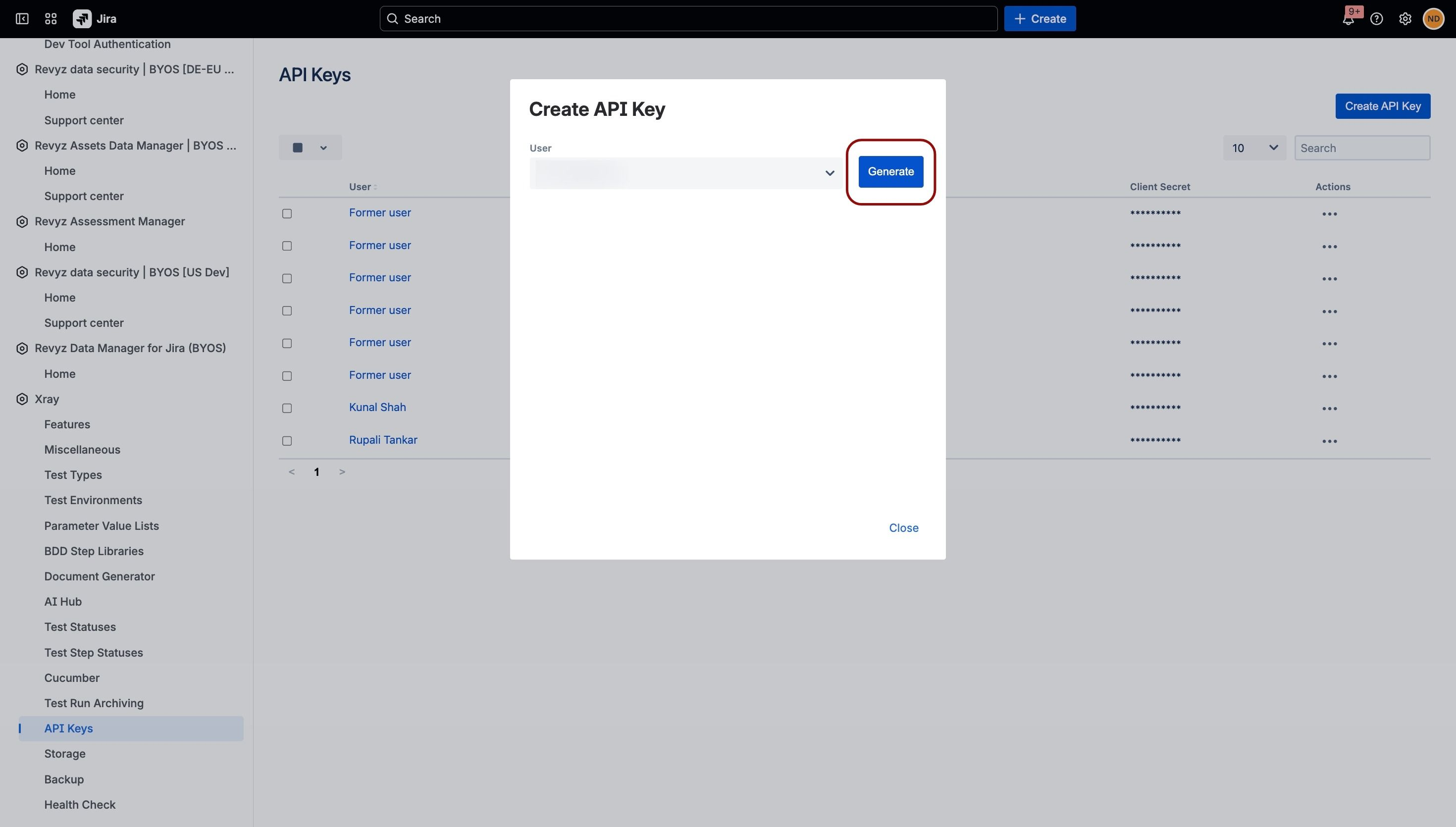
Step 2: Select a user and Click on “Generate”
Step 3: Copy the API keys
Copy the API keys and client secret, and store them securely in accordance with your organization’s compliance policies.
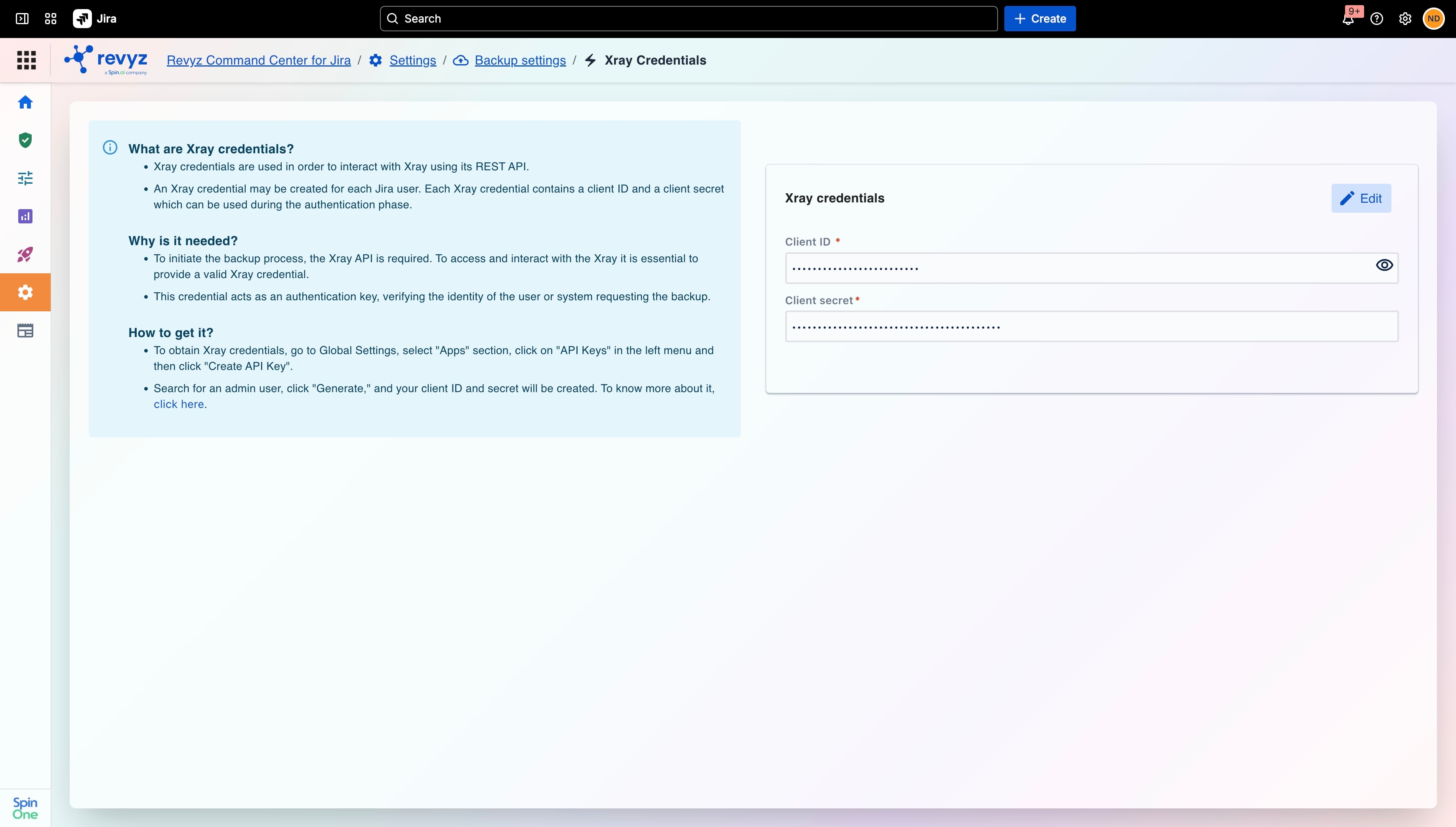
Step 4: Submit Xray Credentials in the Revyz App
-
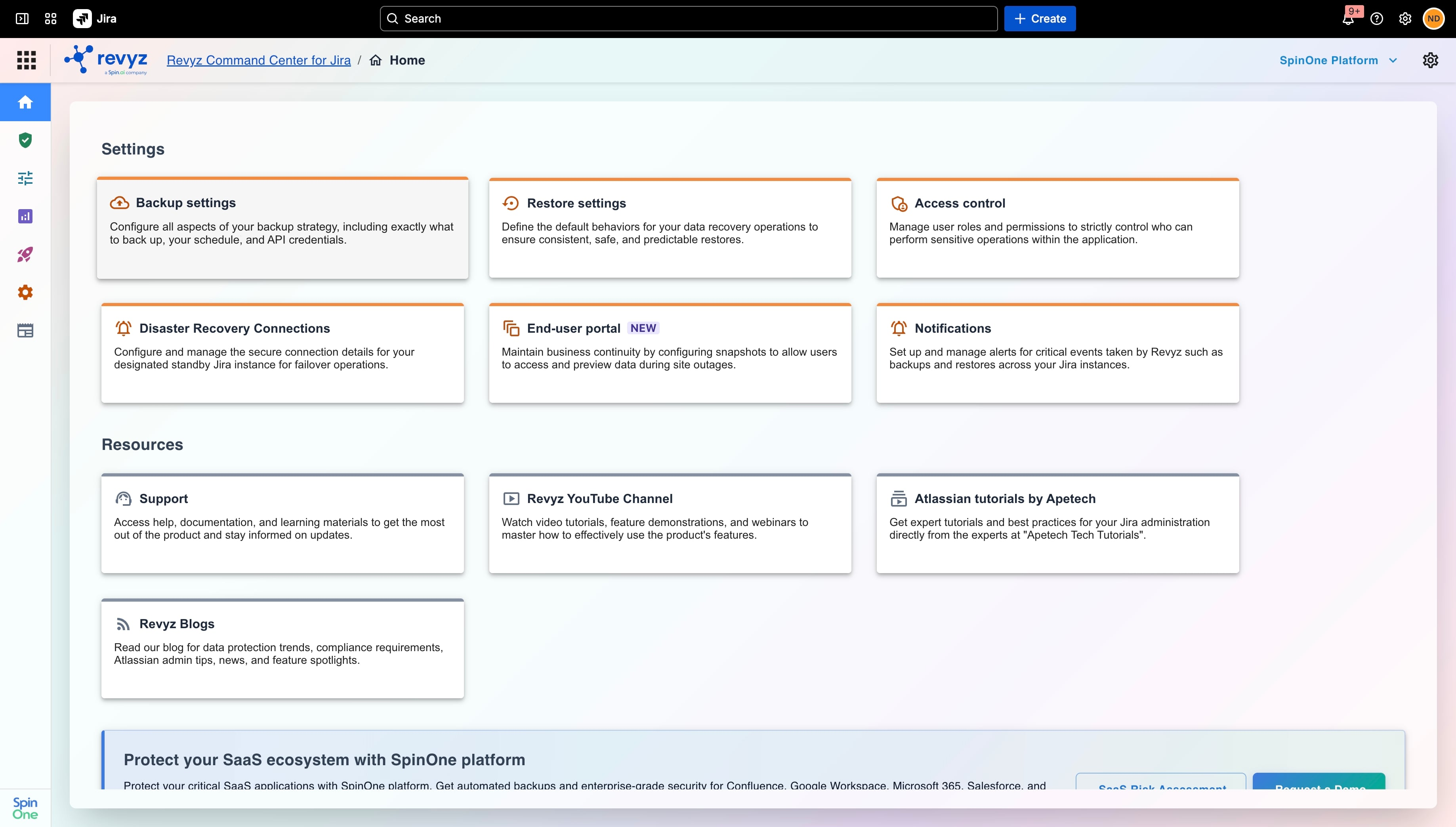
Open the Revyz App
-
Paste the brand-new token, ID, or secret into the authentication settings and save.
Step 5: Submit Xray Credentials in the Revyz App