
About this Page
The Export Jobs page provides a centralized dashboard to monitor, track, and audit all manual data export activities initiated within the Revyz Command Center.
What is the Use Case?
The Export Jobs page is your primary audit trail for data portability. Every time a user initiates a manual export for offline access, a unique Job ID is generated and logged here.
From this dashboard, administrators can:
-
Monitor Real-Time Progress: View the live status of ongoing exports (Pending, In Progress, Success, or Failed).
-
Audit Activity: Identify which administrator initiated an export and at what time.
-
Access Metadata: Quickly see the duration of the job and the specific tags associated with each export for easier categorization.
-
Locate Stored Data: Drill down into specific jobs to find the exact storage path where the human-readable files are located.
How to Use Export Jobs
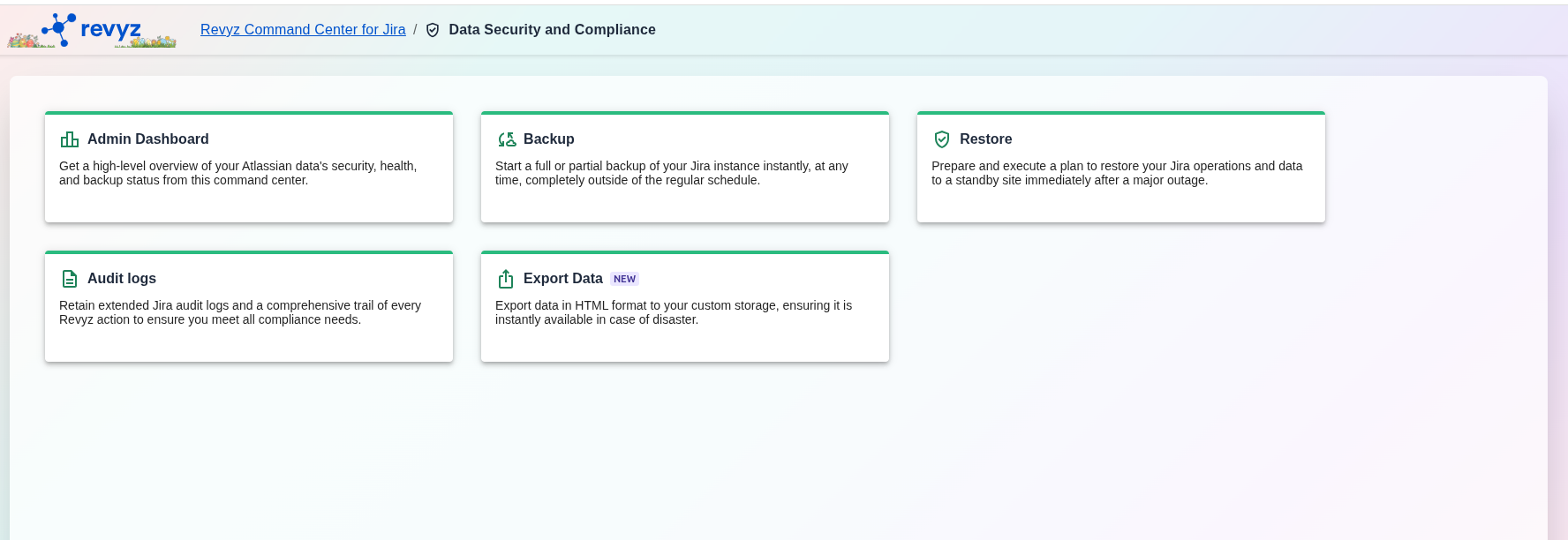
Use the Search by Job ID field or the Filter by Status dropdown to narrow down your list. If you used a Tag when initiating the export, you can locate it in the second column to distinguish between different types of exports (e.g., "Quarterly_Archive" vs. "Ad-hoc_Test").
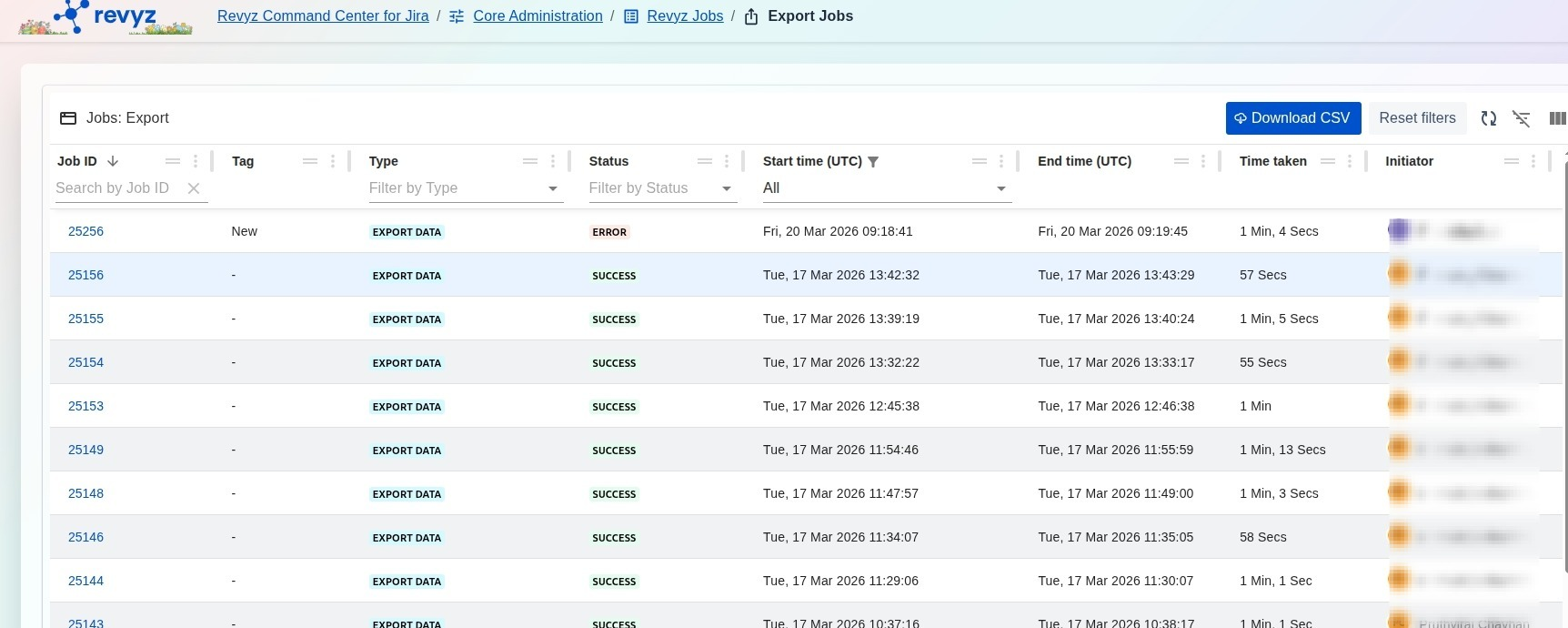
Check the Status column.
-
SUCCESS: The data has been successfully written to your storage.
-
FAILED: The job encountered an error (usually related to storage permissions). Click the Job ID and navigate to the Logs tab to troubleshoot the specific error message.
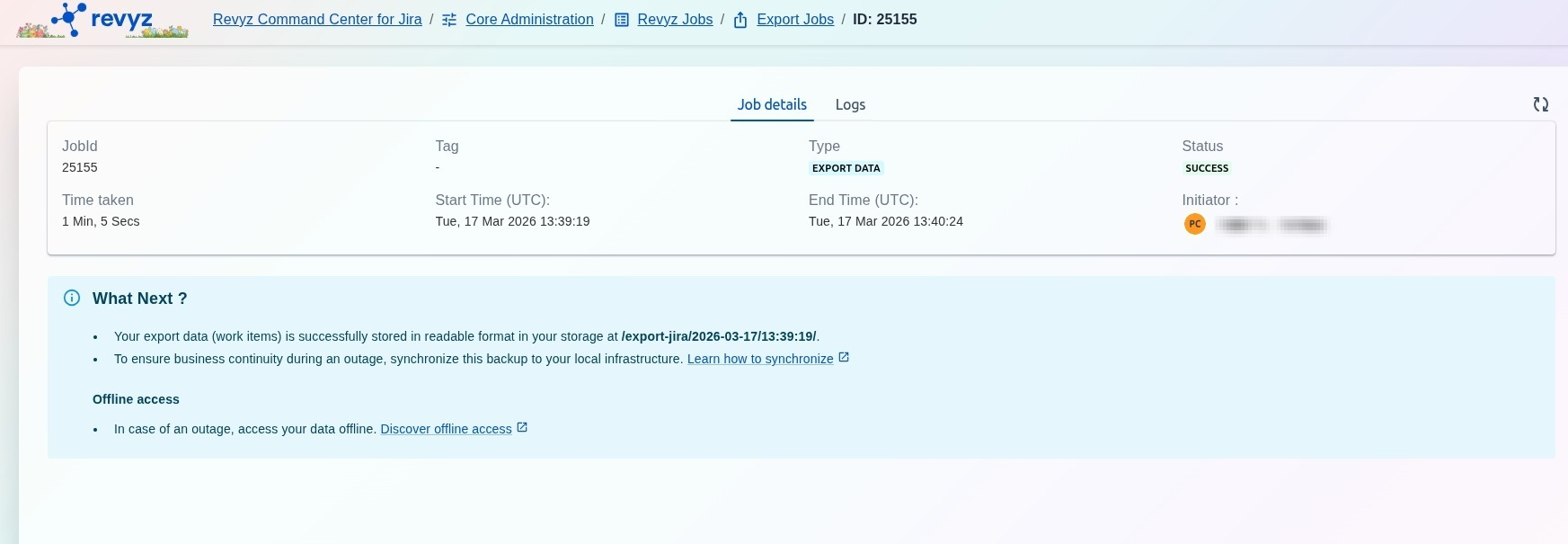
To find where your data lives:
-
Click on the specific Job ID link.
-
Under the Job Details tab, look at the "What Next?" section.
-
The system will display the directory path (e.g.,
/export-jira/YYYY-MM-DD/HH:MM:SS/) where the files are stored in your S3/Azure bucket.