
About this Page
This page explains how to locate a backed-up Jira work item and verify its Tempo Timesheets worklogs, collaborators, and time tracking using the Revyz Work Item Explorer.
What is the Use Case?
The purpose of this feature is to allow administrators to search for specific work items and confirm that their Tempo-related data is accurately backed up and visible in Revyz.
How to View Tempo Worklogs in Work Items Explorer
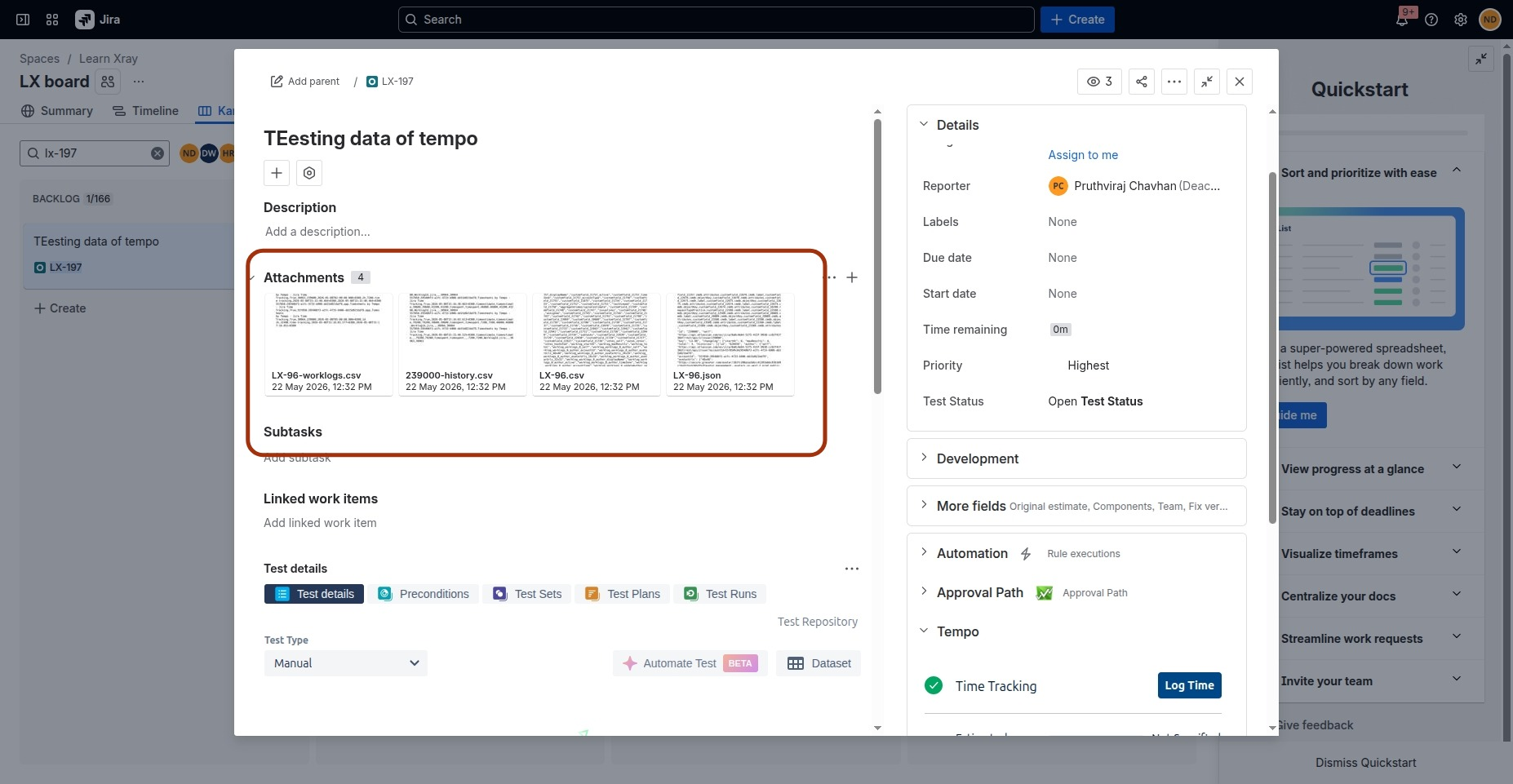
Step 1: Identify your reference data in Jira
-
Open the target work item directly within Jira (ensure the Tempo Timesheets app is enabled).
-
Review the Tempo section to note the logged time, remaining estimate, collaborators, and entered worklogs. Keep this tab open to use as a baseline for validation.
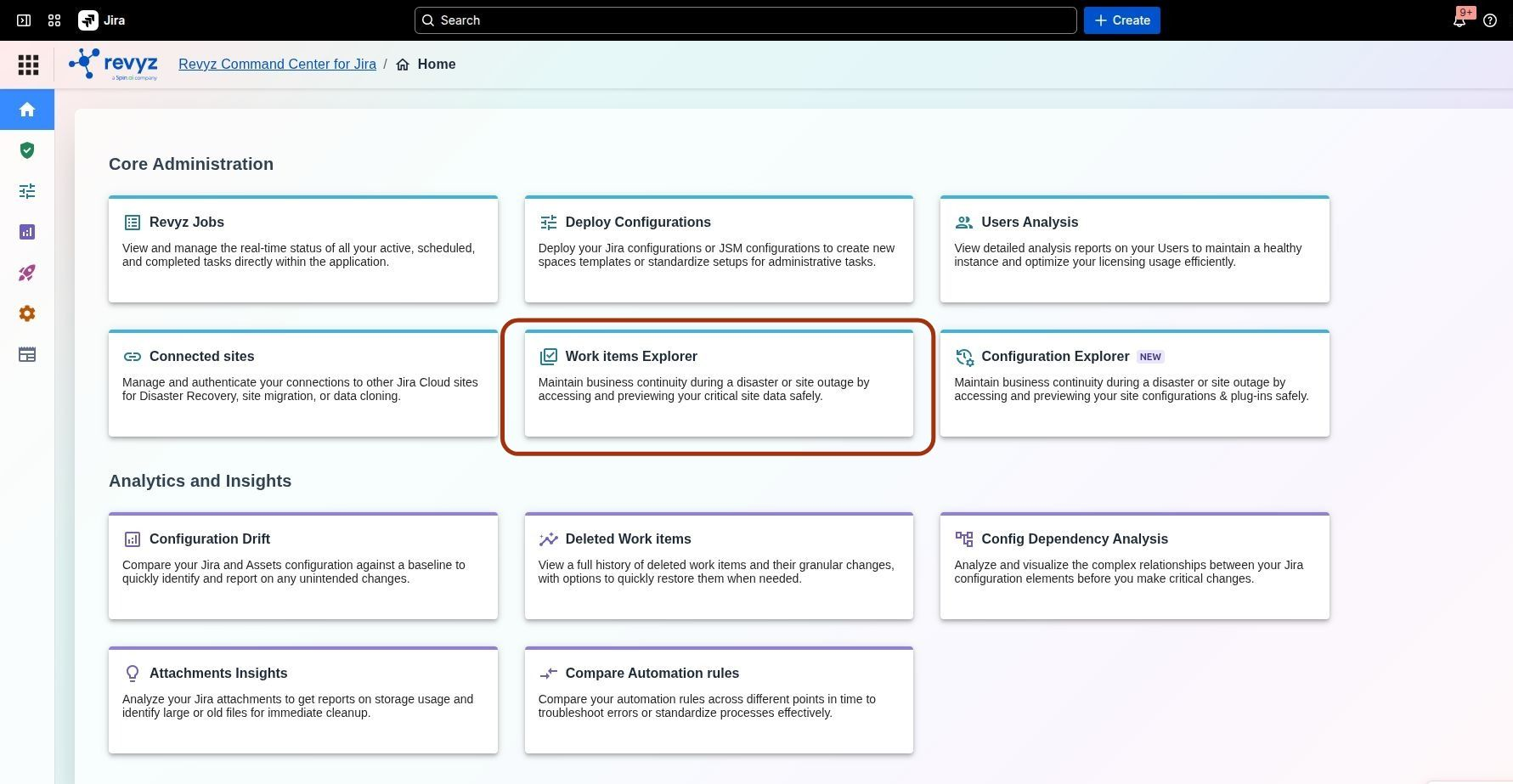
Step 2: Access the Revyz Admin Portal
-
Log in to your Revyz Admin Portal.
-
From the main navigation, open the Work Item Explorer.
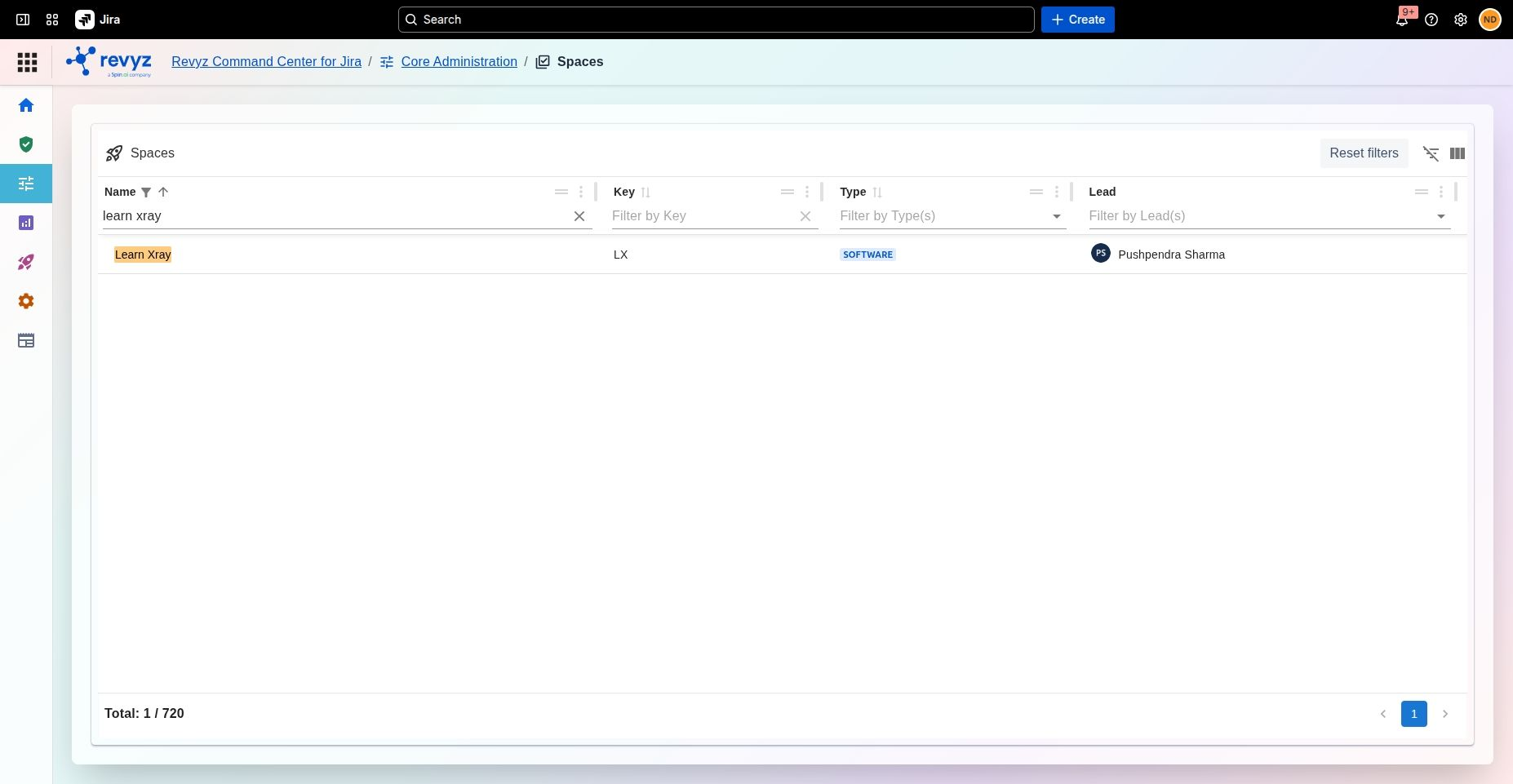
Step 3: Locate the target space and work item
-
Identify and confirm the name of the backed-up space you need to inspect (e.g., learn x-ray).
-
Search for the space, and then search for your target work item.
-
Tip: To locate the exact work item quickly, apply the Key filter and enter the specific Jira issue key.
Step 4: Step 3: Locate the target space and work item
-
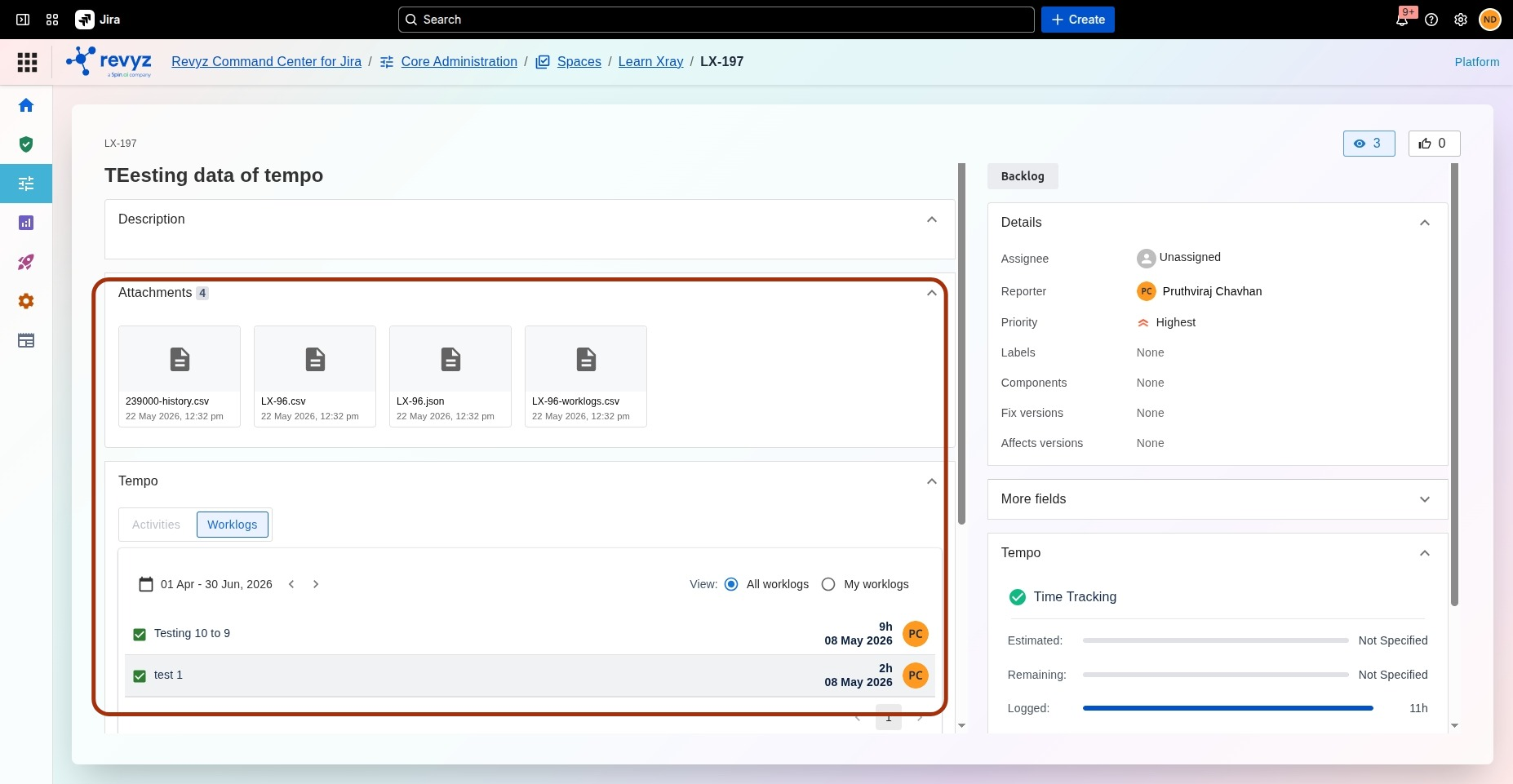
Open the relevant work item.
-
Navigate to the Tempo section to confirm the visibility of:
-
All worklogs
-
Collaborators
-
Time tracking details
-
-
Use the worklog user filter to toggle between View my worklogs only or View all worklogs to easily accelerate your verification.
-
You can see that all worklogs, collaborators, and time-tracking information are displayed similarly.